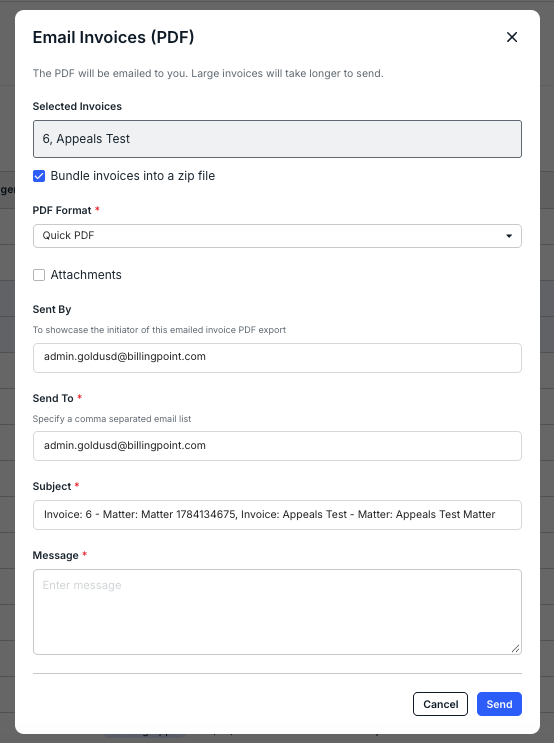
There are three methods to download, email, or print invoice data within Counsel Exchange. We'll go over all three methods here.
NOTE: All three methods require you to be in the standard client view within Counsel Exchange.
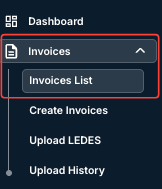
- Go into the "Invoices List" section within the left-hand menu.
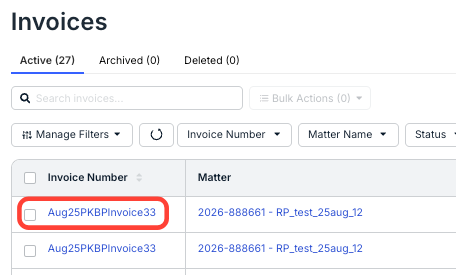
- Click on the invoice you need to download the data for.
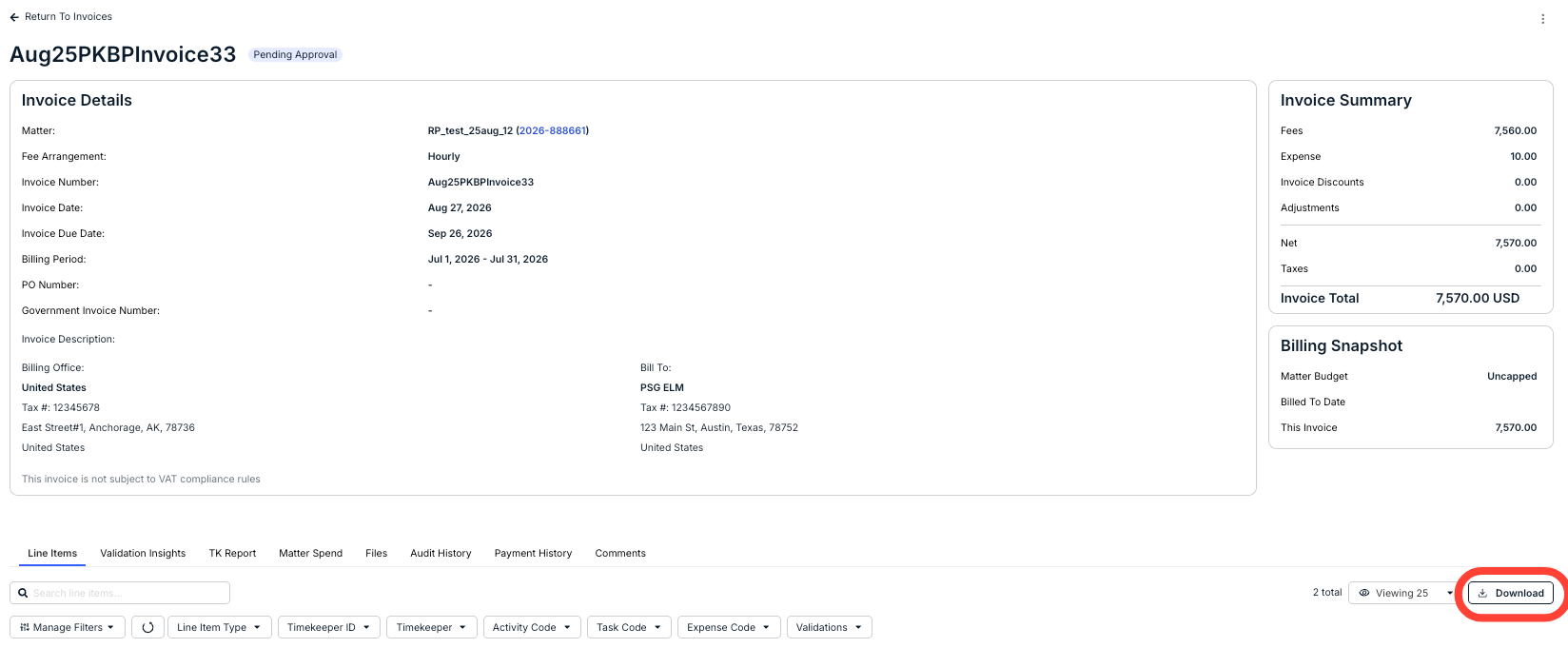
- Click on the "Download" button to download invoice line-item data as an Excel file.
- Click on the three-dot menu in the upper right to "Email PDF" or "Print" the PDF.
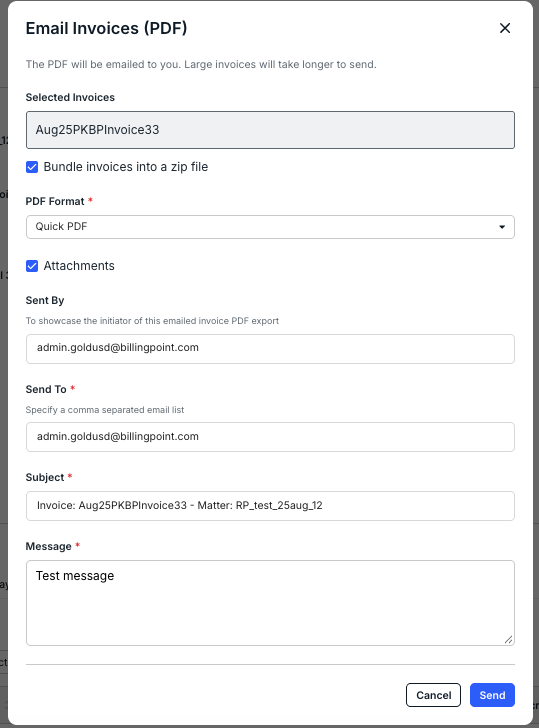
If you choose Email PDF, the Email Invoices (PDF) screen will appear. You can:
- Choose to Bundle invoices into a zip file
- Choose the PDF Format from the drop-down menu (required)
- Choose to add the PDF as Attachments
- Choose the Sent By and Send To fields; separate multiple recipients with commas
- Add a Subject (required)
- Enter your Message (required)
Click Send to send the invoices or Cancel to back out.
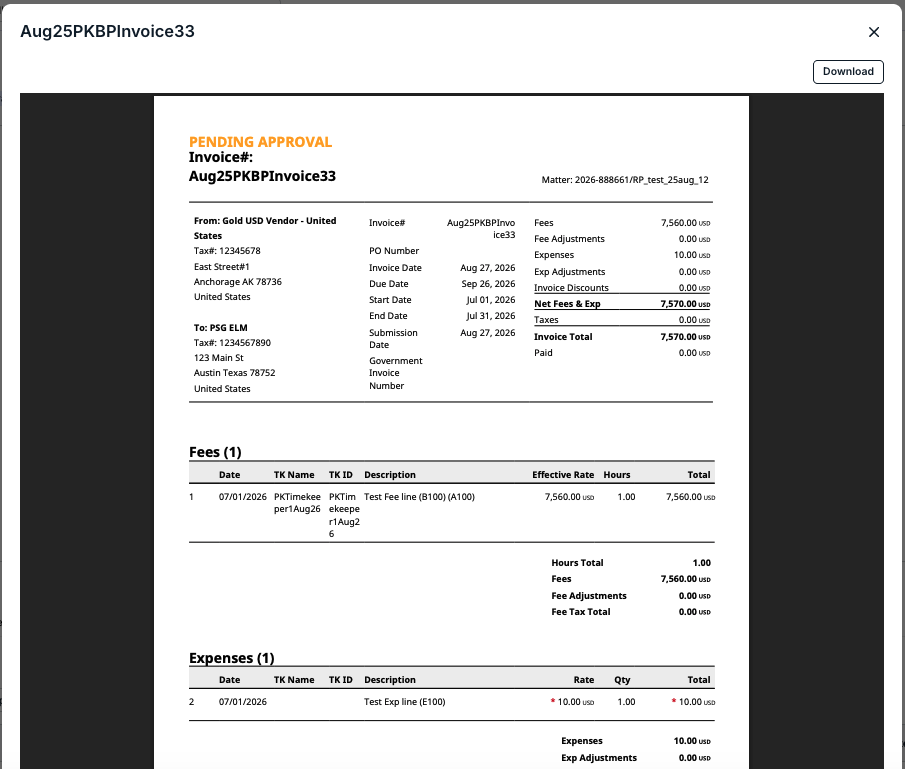
Clicking Print will allow you to download a PDF of the invoice. You'll see a preview of the invoice. Click Download to download the invoice or X to close the preview.
- On the main Invoices page, you can use the "Bulk Actions" option to bulk email the invoices.
Select the invoices you want to email using the checkboxes on the left-hand side or use the top-left checkbox to select all invoices. Use the Bulk Invoices drop-down menu to Email PDF invoices in bulk.
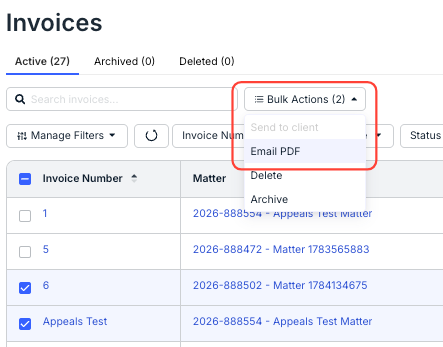
You'll see the Email Invoices (PDF) screen pop up. Fill out the information as detailed above and click Send to send the invoices or Cancel to back out.