This guide provides a step-by-step overview of how to work with the accrual feature in Counsel Exchange.
- When the accrual request opens, the specified Vendor Billing Contact will receive a notification email and will see the accrual request in the Counsel Exchange account.
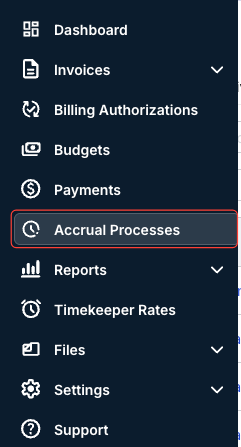
- To submit the requested accruals, go to the "Accrual Processes" section on the left-hand side menu in Counsel Exchange.
- The Accruals screen will appear.
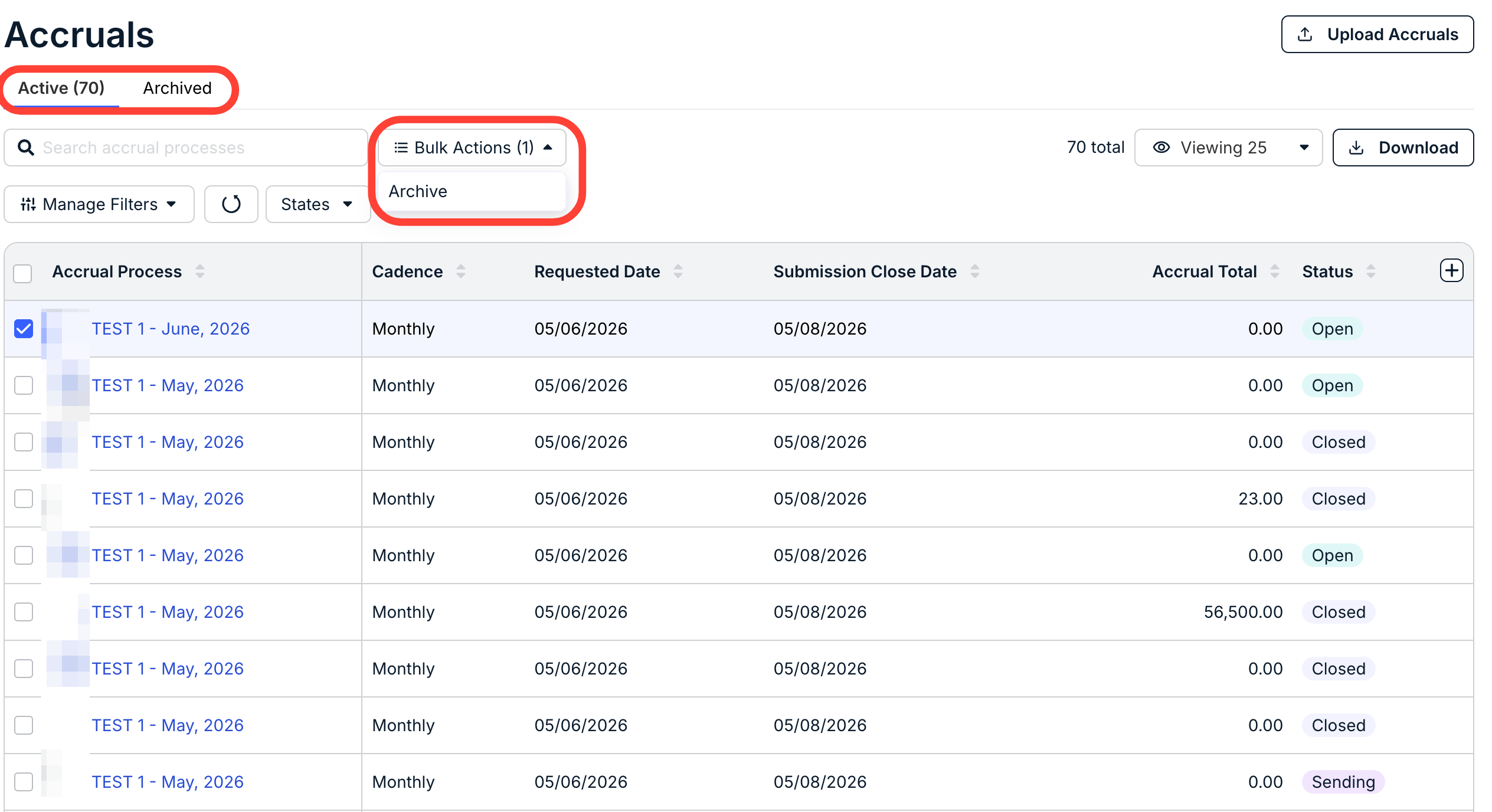
Here, you'll see a full list of accruals. The directory will show key details, including the Accrual Process name, Cadence, Requested Date, Submission Close Date, Accrual Total, and Status (Open, Closed, and Sending). Click the up/down arrow to sort by the different columns. Use the Viewing drop-down menu, the Manage Filters menu, and the Status drop-down menu to customize what you want to see on the screen. Click the Plus button to manage the columns you want to see on the screen. Use the search bar to search for individual accruals.
Use the top tab to switch between Active and Archived accruals.
Click the check boxes next to each accrual (or the top-right check box to select all accruals) and use the Archive button under Bulk Actions to archive the accruals.
- You are able to bulk submit accrual values within a single Accrual Process.
For bulk submissions, first download the accrual template from the accruals grid.
- Download the accruals spreadsheet template.
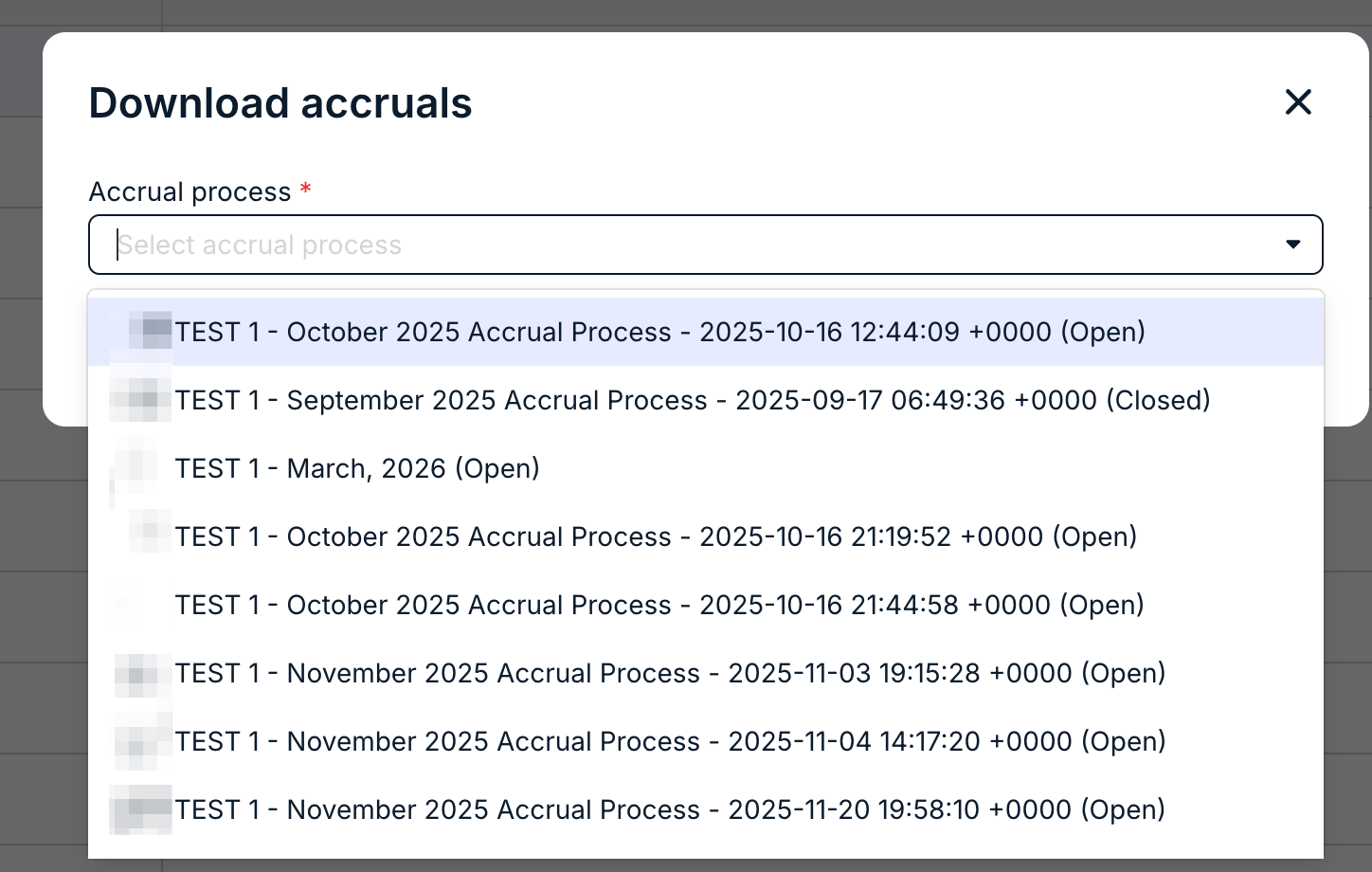
Click Download to export a specific accrual process. Choose the accrual from the drop-down menu; the accrual will appear as an Excel file download. You can use the download for the Bulk Upload action detailed below
- Upload the accruals spreadsheet.
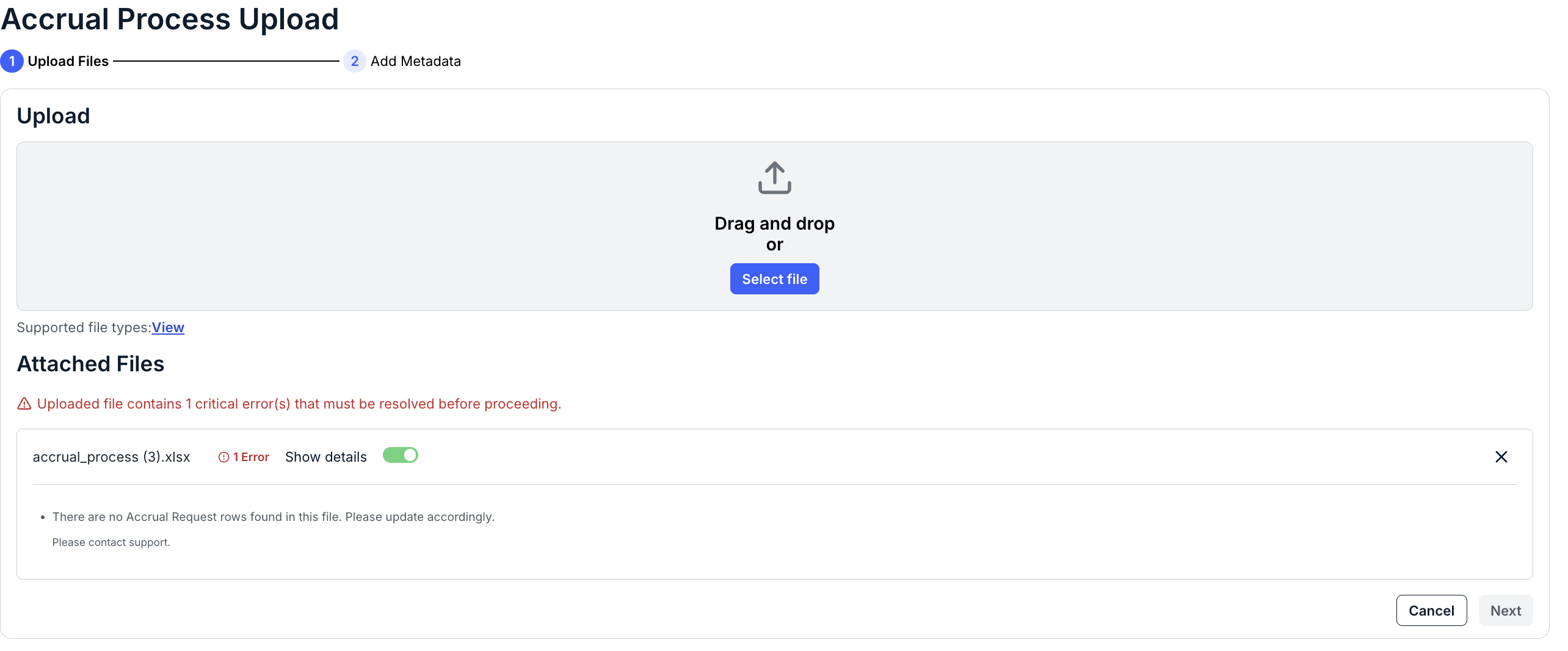
Click Upload Accruals to upload in bulk.

Any errors will show up in a heading under the Upload section. Click on Show details to view the file errors. If you do have errors, fix the Excel file and resubmit.
- Download the accruals spreadsheet template.
- To enter accruals manually, click into the Accrual process you'd like to work on.
These accruals will also be marked as "Open" in the status.
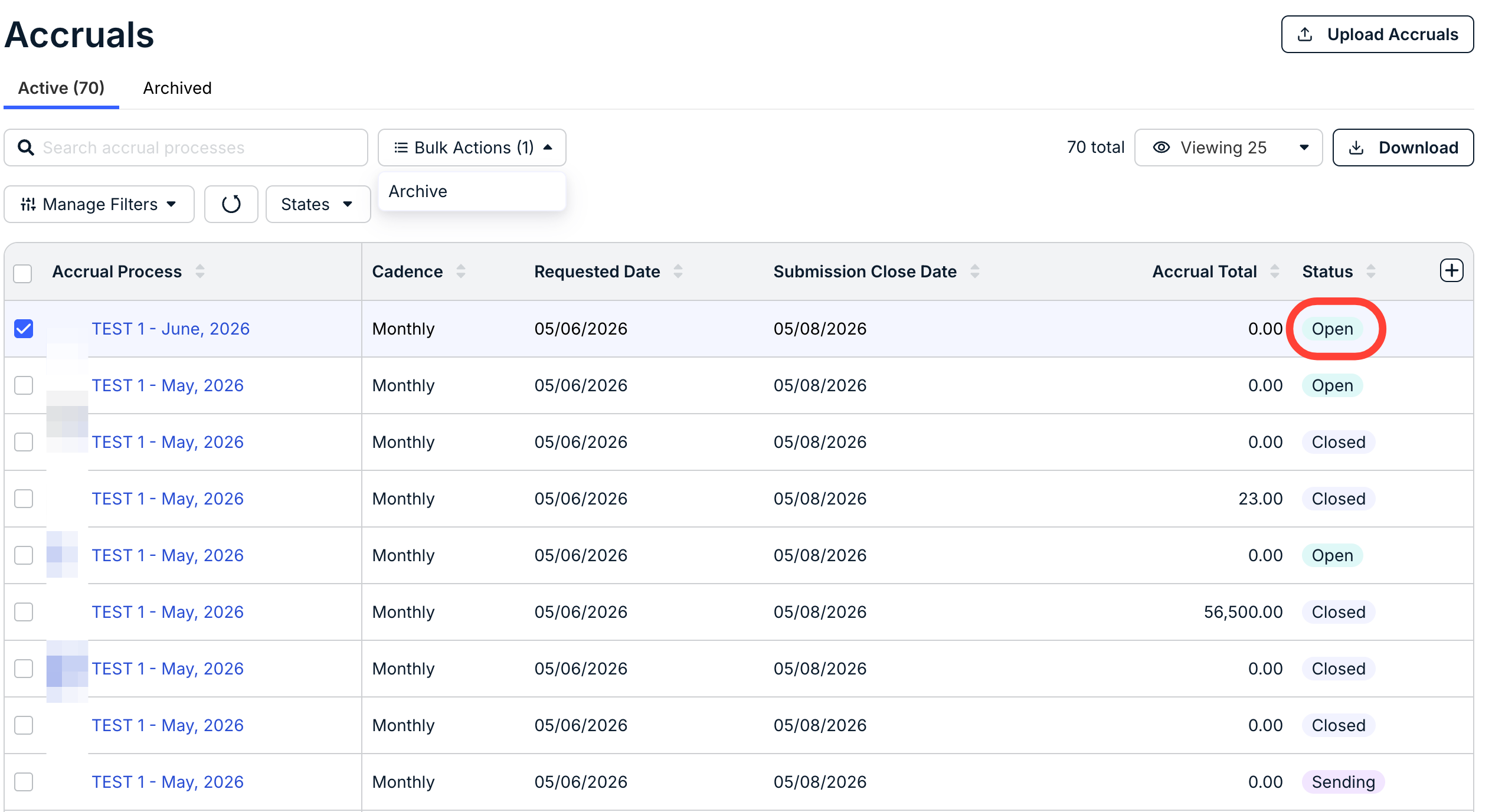
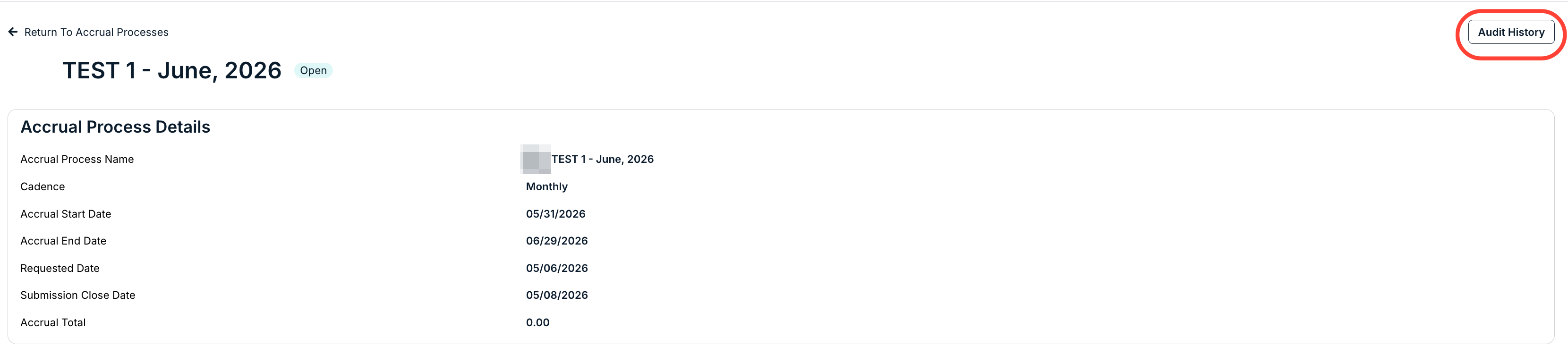
- The Accrual Process Details page will open.
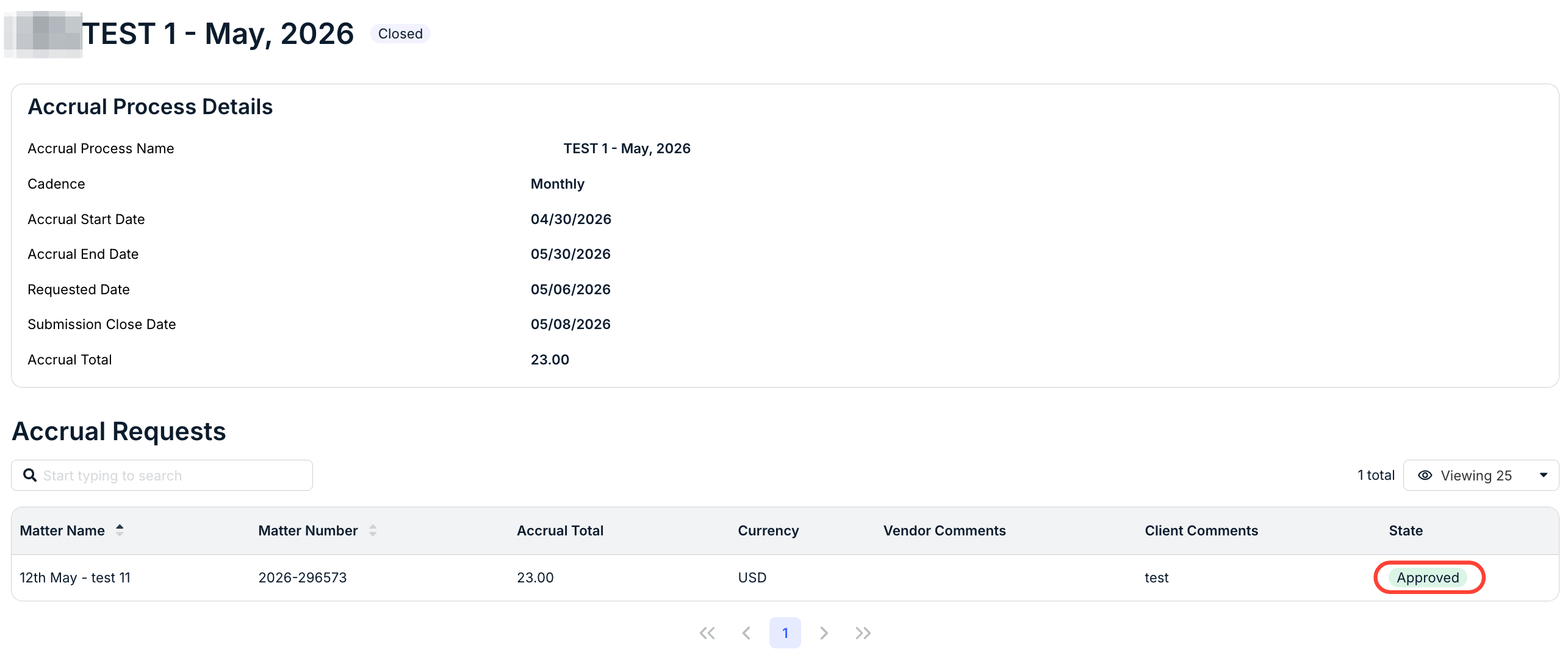
Here, you'll see a summary section of the Accrual Process Details above the actual Accrual Requests. You can also click Audit History to view the full history of accrual changes.
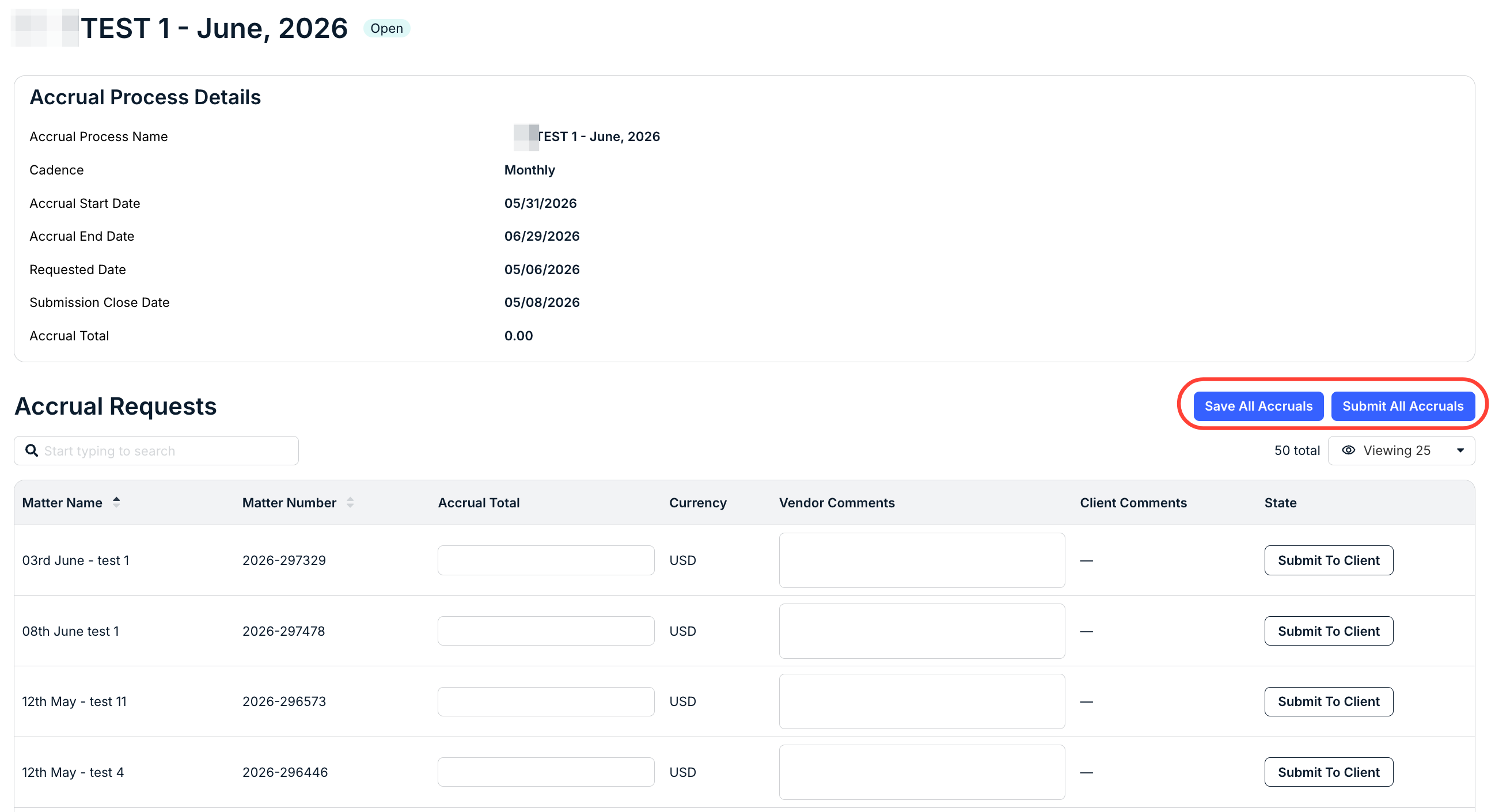
- Complete the accruals form.
Under Accrual Requests, you'll see the list of accrual requests coming in from the client. The directory will show key details, including the Matter Name, Matter Number, Accrual Total, Currency, Vendor Comments, Client Comments, and State. Click the up/down arrow to sort by the different columns. Use the Viewing drop-down menu to customize what you want to see on the screen. Use the search bar to search for individual accruals.
Fill in the Accrual Total and any Vendor Comments.
From there, you can submit individual accruals with the Submit to Client button on each line, submit all accruals with the Submit All Accruals button, or click on Save All Accruals to save your work and submit at a later date.
- The Accrual Process Details page will open.
- The accrual change will go to Client Review.
Once submitted to the client, you'll see the accrual state change to Client review.

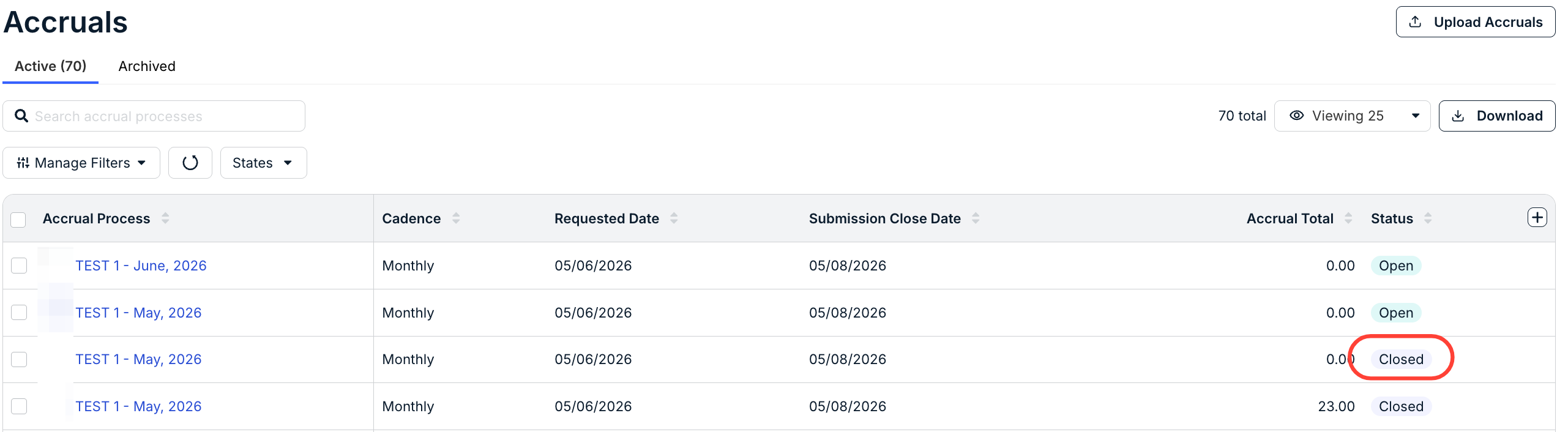
After the accrual process is complete, the record will appear in the Closed state
If the client approves the accrual value, individual accruals will appear as Approved when viewing the Accrual Process Details.
Important Things to Remember
- Accruals left blank in the bulk upload template will not be processed.
- Invoices are associated with an accrual (as available) upon submission; the client can implement billing rules related to accruals to apply errors or warnings to invoices.
- If you fail to submit an accrual value within the submission window, the client user is given an opportunity to provide a value on your behalf during the Client Review Window.