You can add comments to an invoice to easily share information with the client. Here's how to add a comment to an invoice within Counsel Exchange:
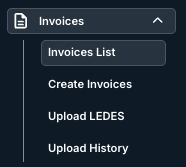
- In the standard client view, go to "Invoices" on the left-hand-side menu and click on "Invoices List."
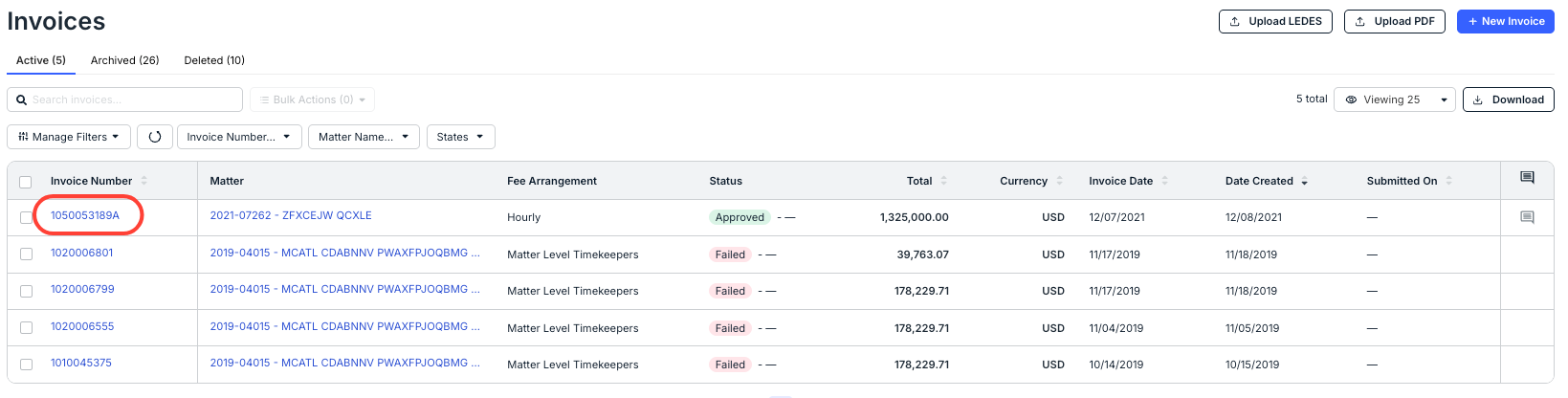
- The list of invoices will appear. Click on the invoice you want to open.
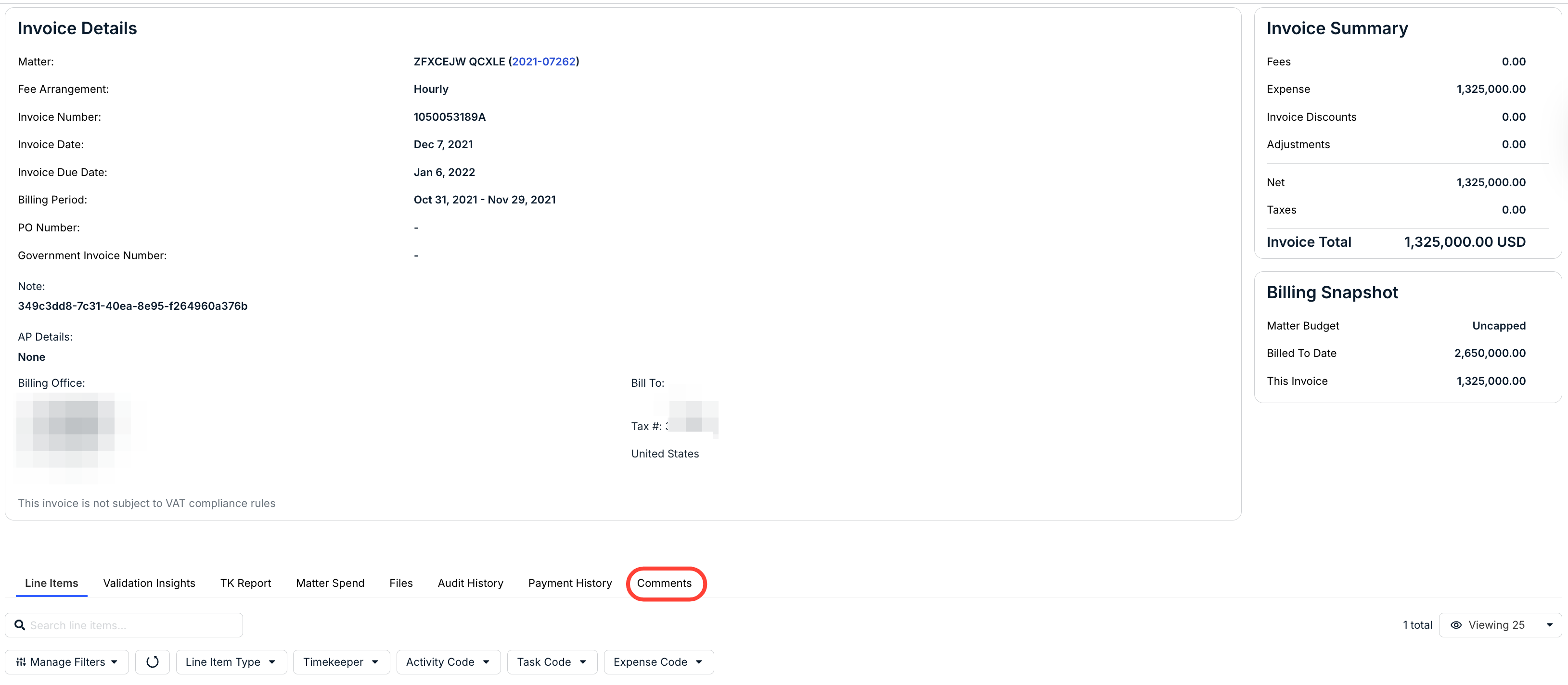
- On the Invoice Details page, click on the "Comments" tab at the bottom of the screen.
- The comments tab will open.
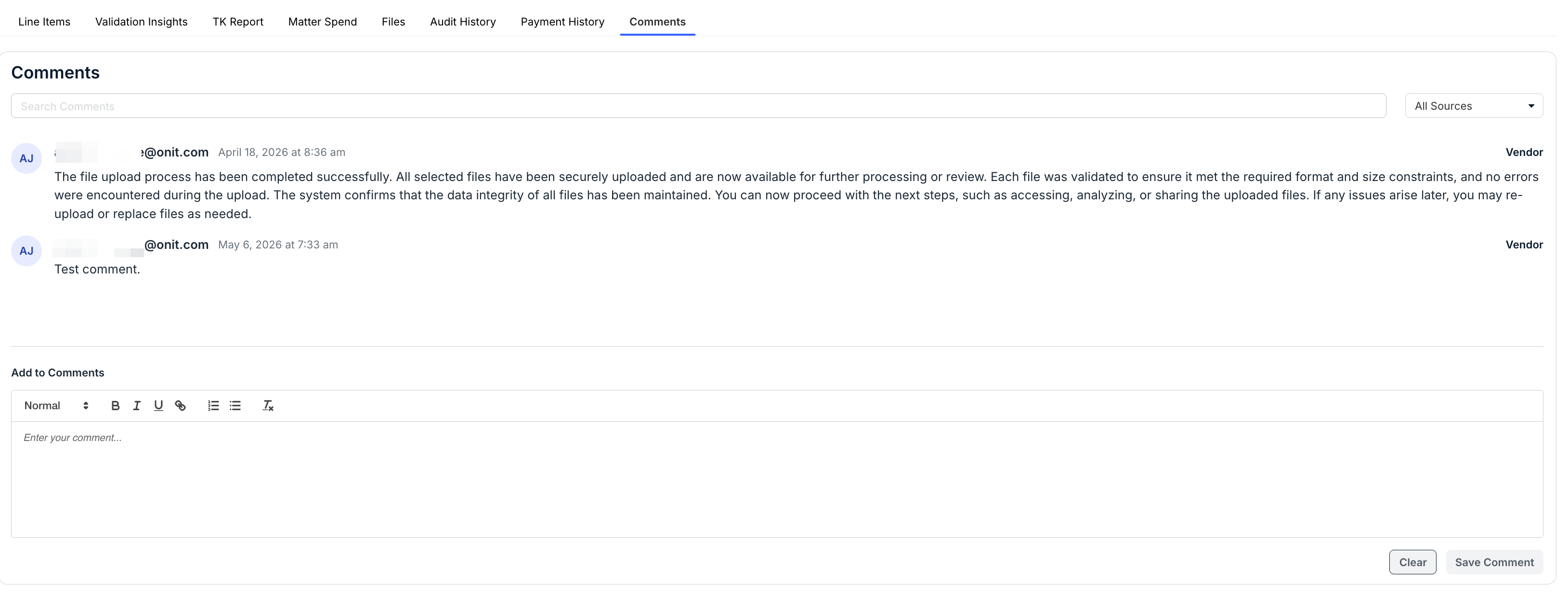
You'll see any existing comments at the top of the tab section; you can use the Search Comments bar and the Sources drop-down menu to search through comments.
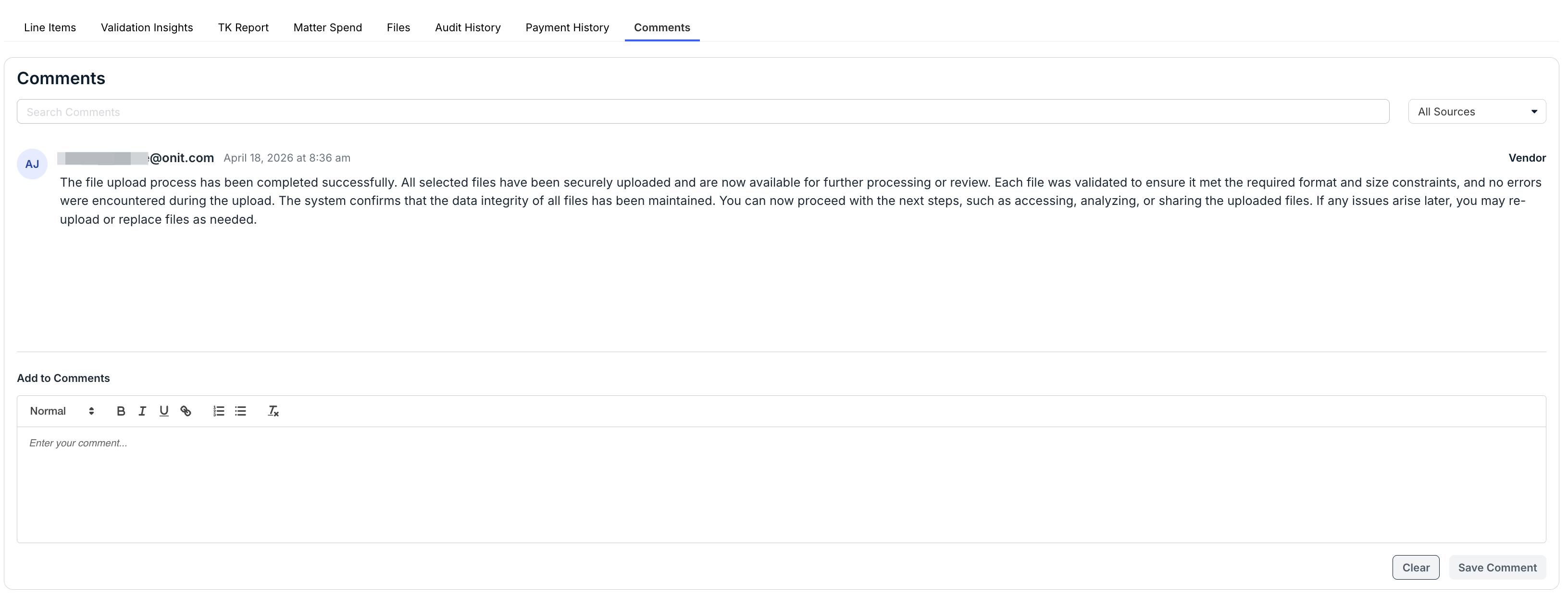
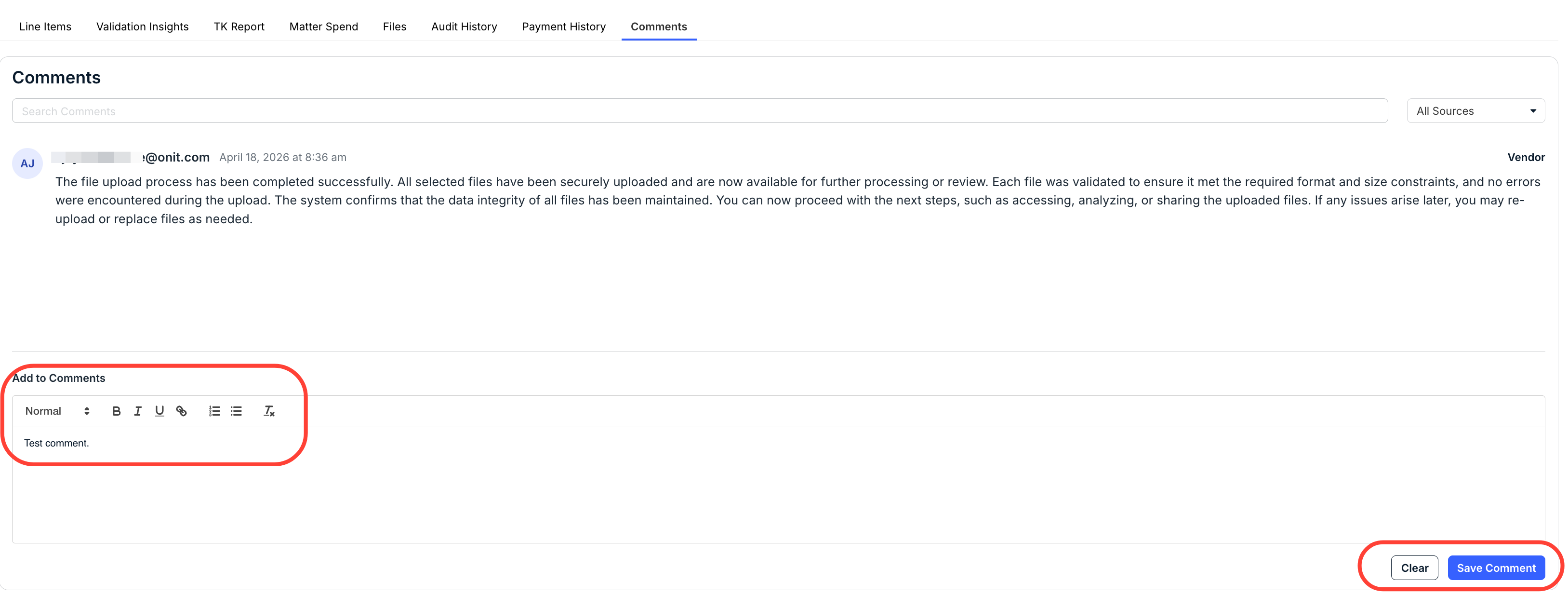
- Add your comments in the "Add to Comments" section.
You can use the formatting bar to customize your message. Click Save Comment to save the comment or Clear to remove the text.
Use the comments to converse with your customer/client/concerned department about invoices and other important issues.
You'll see the comment appear under the tab.
- Add your comments in the "Add to Comments" section.