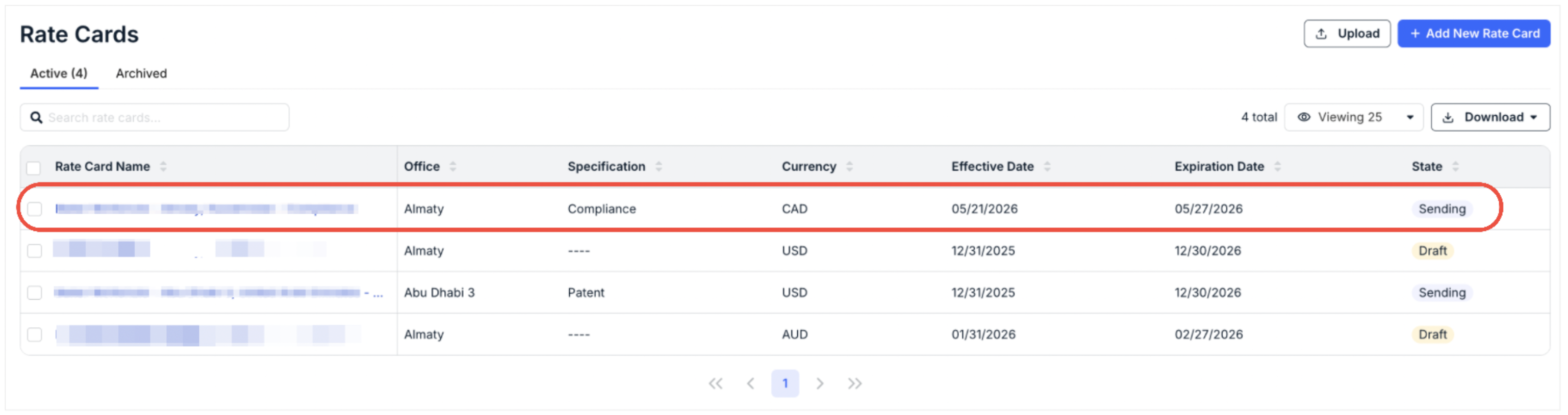
Counsel Exchange's Timekeeper Rate Card feature helps streamline timekeeper approval processes, reducing the client's time spent reviewing and approving individual timekeepers, creating more consistent approved rates across timekeeper classifications, and allowing greater control over rate structures.
Within Counsel Exchange, you can set a rate card based on the client's specifications, automatically aligning with the classifications the client has set up and made available.
Here, we'll go step-by-step through how to use the Timekeeper Rate Card feature.
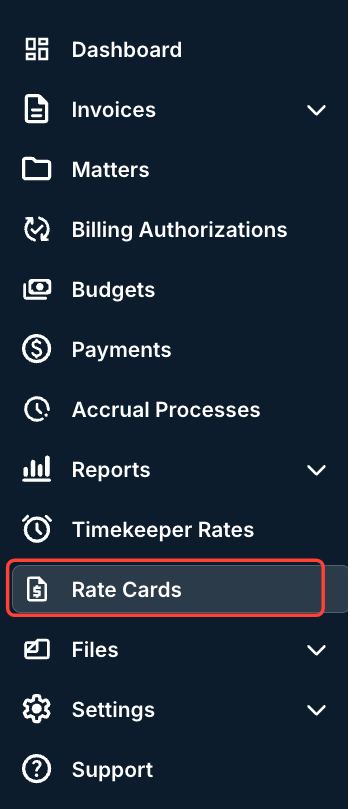
- In Counsel Exchange, go to the left-hand side menu and open up "Rate Cards."
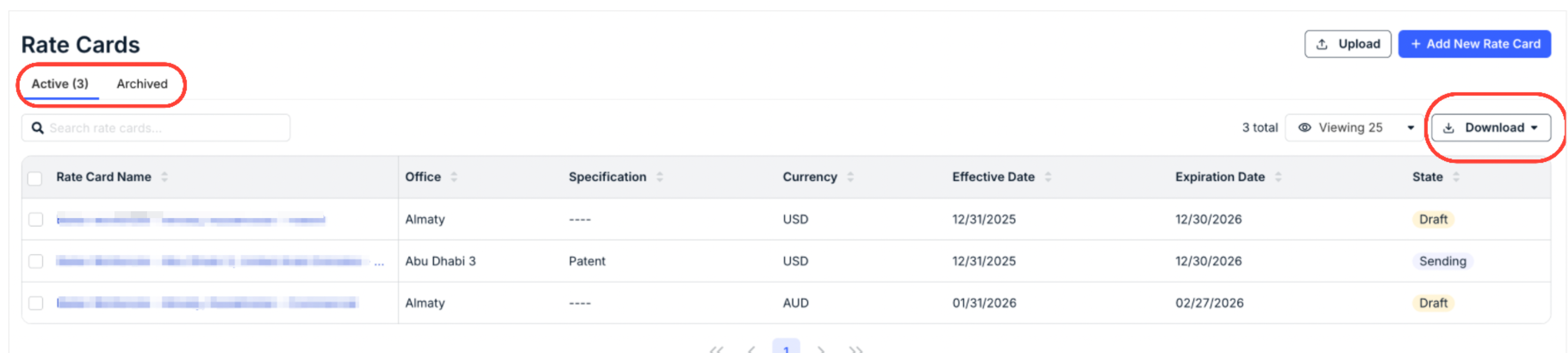
- The Rate Cards screen will appear.
You'll see the existing rate cards with key details, including Rate Card Name, Office, Specification, Currency, Effective Date, Expiration Date, and State. Click the up/down arrow at the top of each column to sort by that column. Use the search bar to search for a specific rate card. Use the Viewing drop-down menu to customize the number of rate cards you see on the screen. You can also switch between the Active and Archived tabs.
Click on Download to download either blank or existing templates; you can use them for Bulk Uploading Timekeeper rate cards.
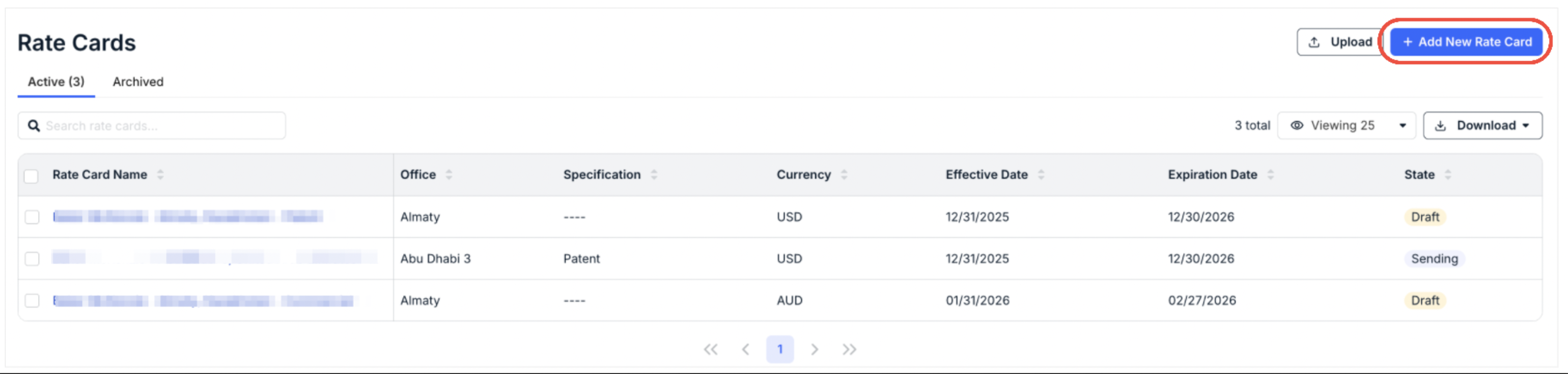
- Click on Add New Rate Card to add a new rate card.
You can also use the Upload screen to upload Timekeeper Rate Cards in bulk. Learn more about that process here.
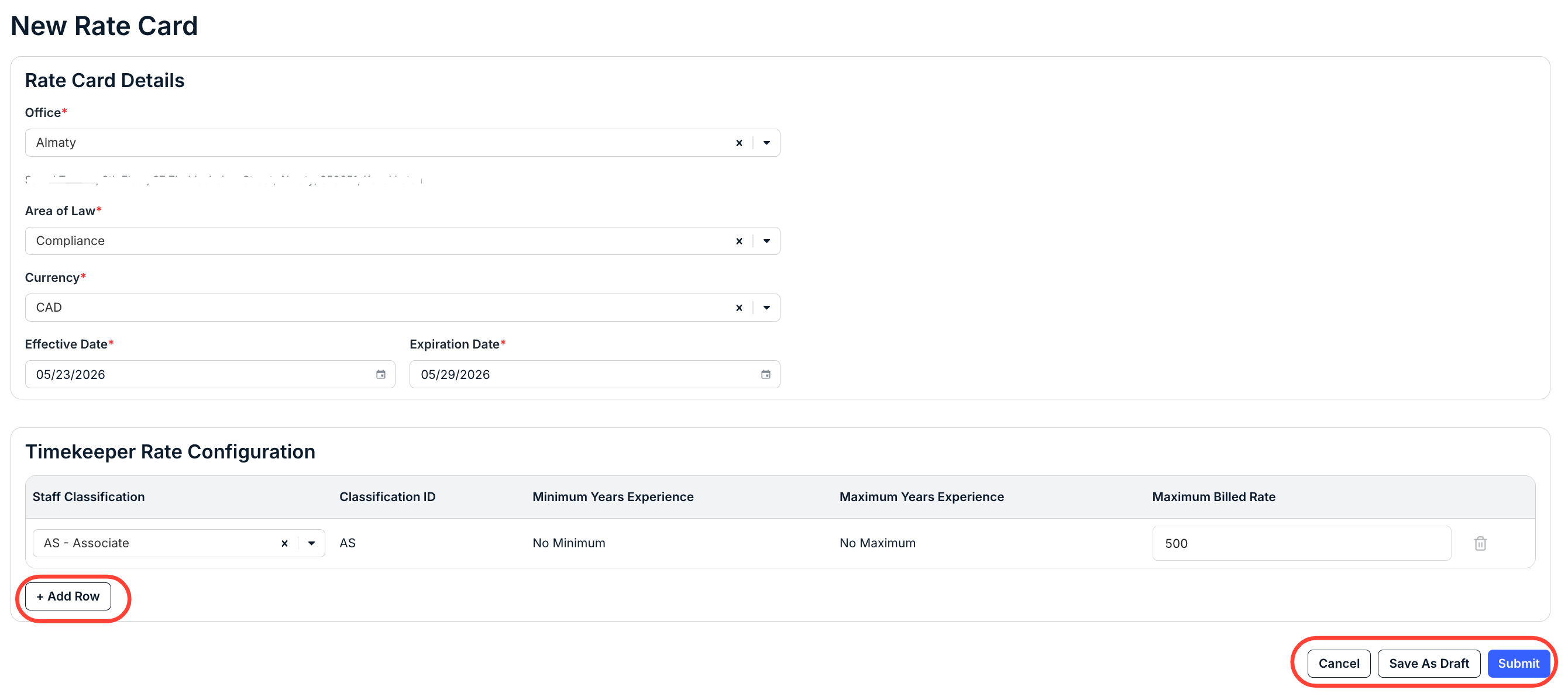
- The New Rate Card screen will appear.
You'll have to fill out the:
- Office
- Area of Law
- Currency
- Effective and Expiration Date
Under Timekeeper Rate Configuration, you'll have to select the Staff Classification and Maximum Billed Rate for each row you add. Click Add Row to add another row.
Fields with an asterisk (*) are required.
Click Submit to submit your rate card, Save as Draft to save it as a draft, or Cancel to back out.
Once you hit Submit, you'll see the new rate card appear in the Rate Card directory.