Here's how to create matter-specific timekeeper rates within Counsel Exchange:
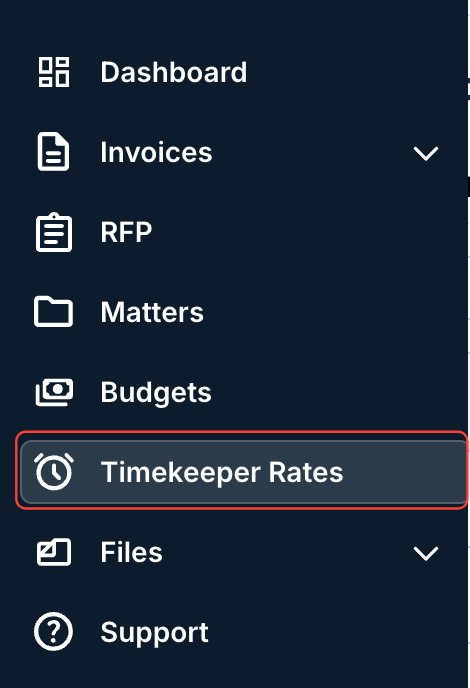
- After selecting your client in the standard Counsel Exchange view, go to "Timekeeper Rates" on the left-hand side menu.
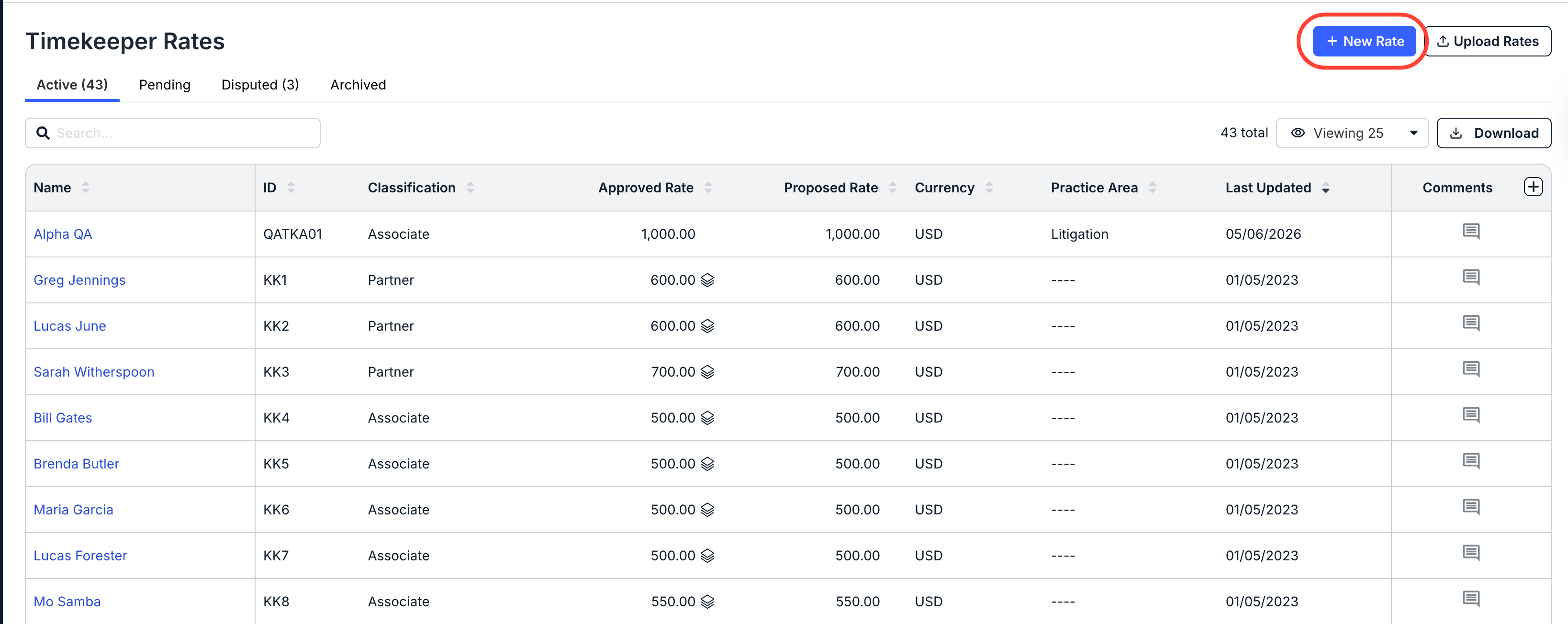
- The Timekeeper Rates directory screen will appear. Click on "New Rate" in the upper-right hand corner.
- The "New Rate" screen will appear.
Choose either an Existing timekeeper or a New timekeeper. After you select an existing timekeeper, their details will appear; you can edit them if necessary. Learn more about that process here.
If you choose a New timekeeper, you'll need to fill out the new timekeeper's information. Learn more about the new timekeeper process here. Note that this timekeeper profile will be available across all clients once created.
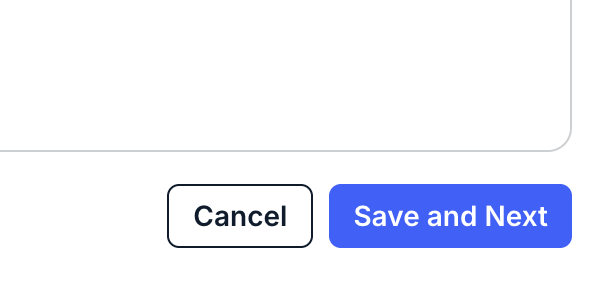
After selecting your timekeeper, click Save and Next to move to the next screen or Cancel to back out.

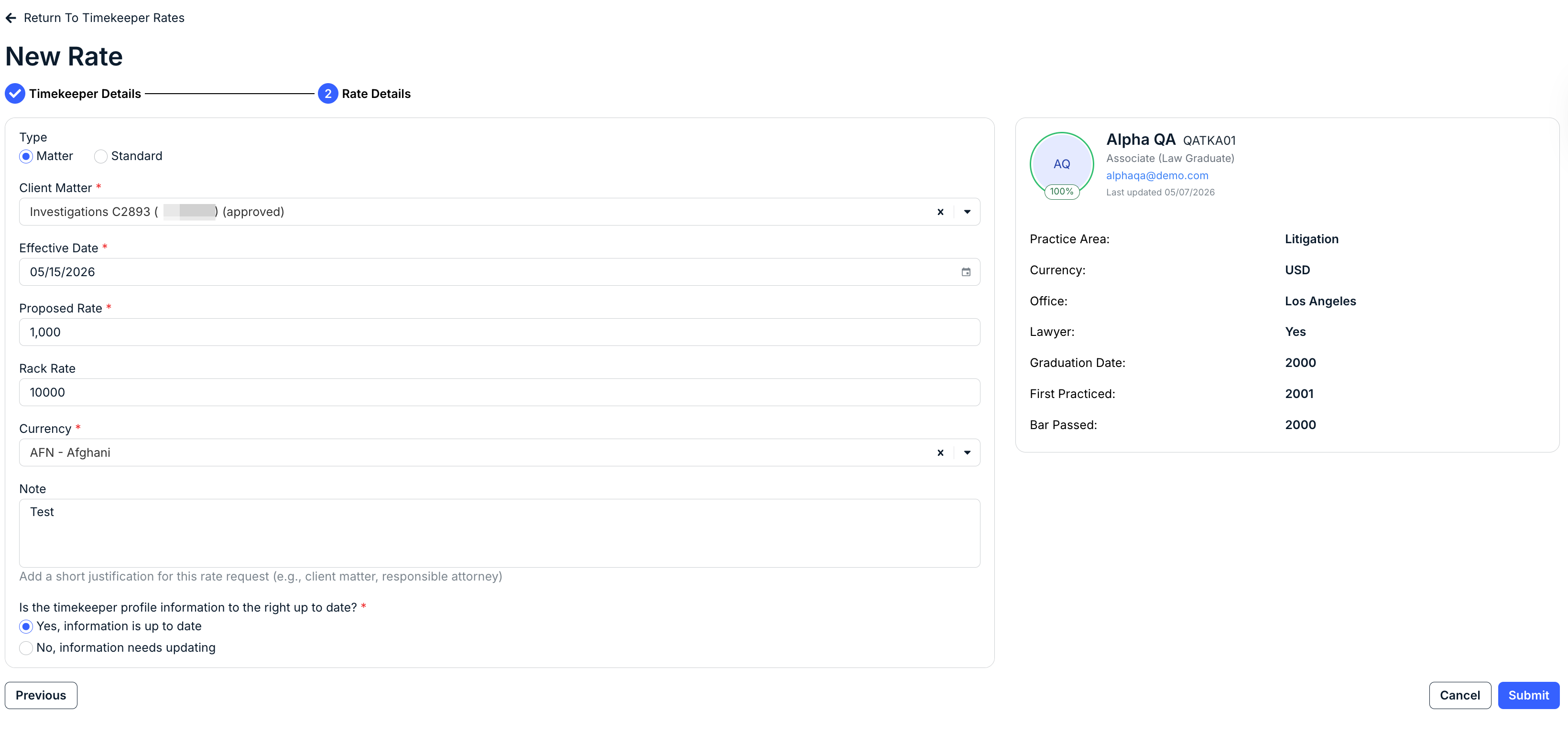
- On the "Rate Details" screen, select "Matter" under the "Type" option.
You'll have to fill out the Client Matter from the drop-down menu.
Additionally, you'll have to select the:
- Effective Date
- Proposed Rate
- Rack Rate
- Currency (drop-down menu)
- a Note (a short justification for this rate request; 250 character max)
You'll also have to certify that the timekeeper information on the screen is up to date. If not, go back and revise.
The timekeeper information will appear in a box on the right-hand side of the screen.
Click Submit to finalize or Cancel to back out.
The new matter-specific timekeeper rate will appear in the directory.
