Here's how to upload multi-matter invoices in Counsel Exchange:
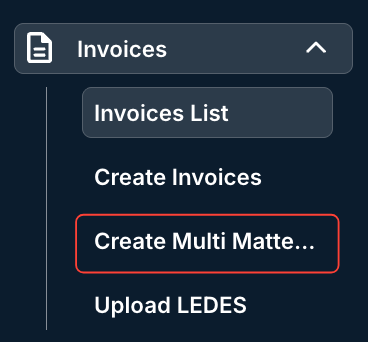
- Go to the left-hand side menu and click "Create Multi Matter Invoice" under the "Invoices" menu.
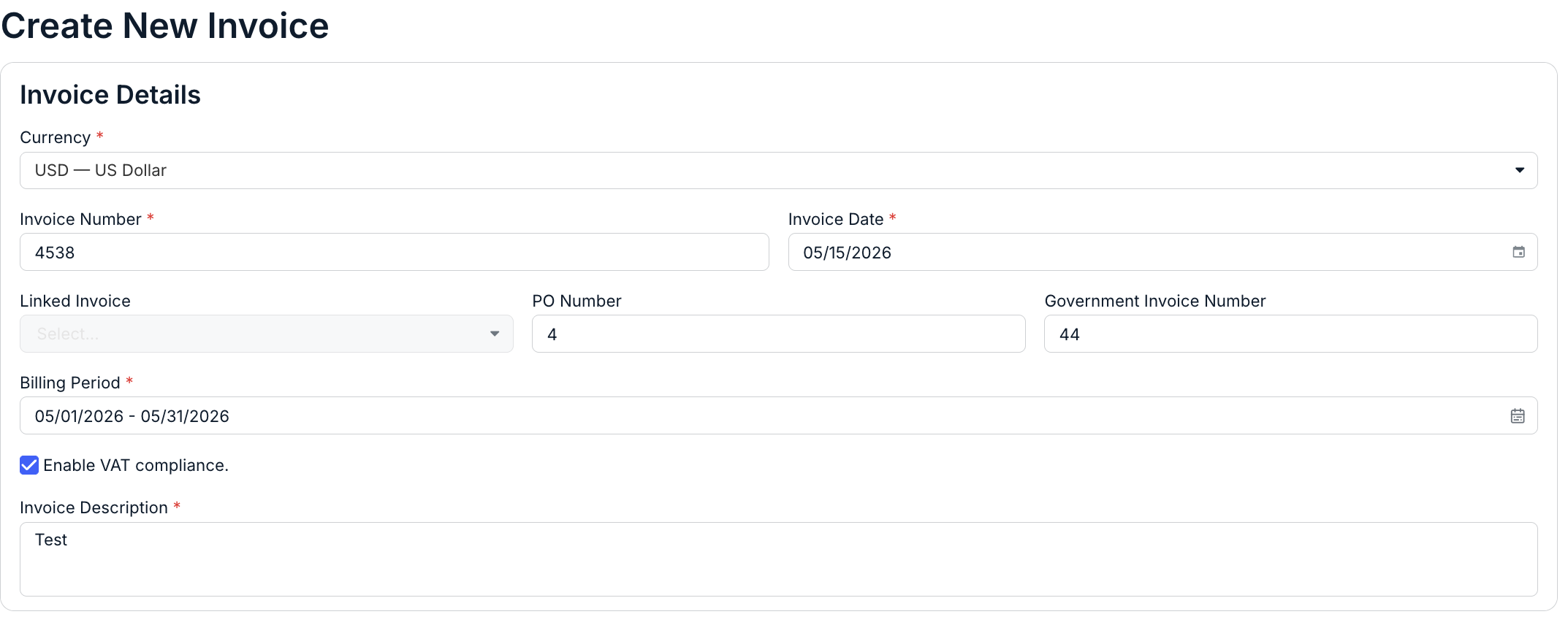
- Fill out your invoice details.
You can fill out the:
- Currency
- Invoice Number
- Invoice Date
- Linked Invoice (if necessary)
- PO Number
- Government Invoice Number
- Billing Period (note that you can only select a date range that is max one year at a time)
- Whether or not you want to Enable VAT Compliance (check box)
- The Invoice Description. Here you can briefly describe the scope of work or services covered by this invoice.
- Add the matters and line items.
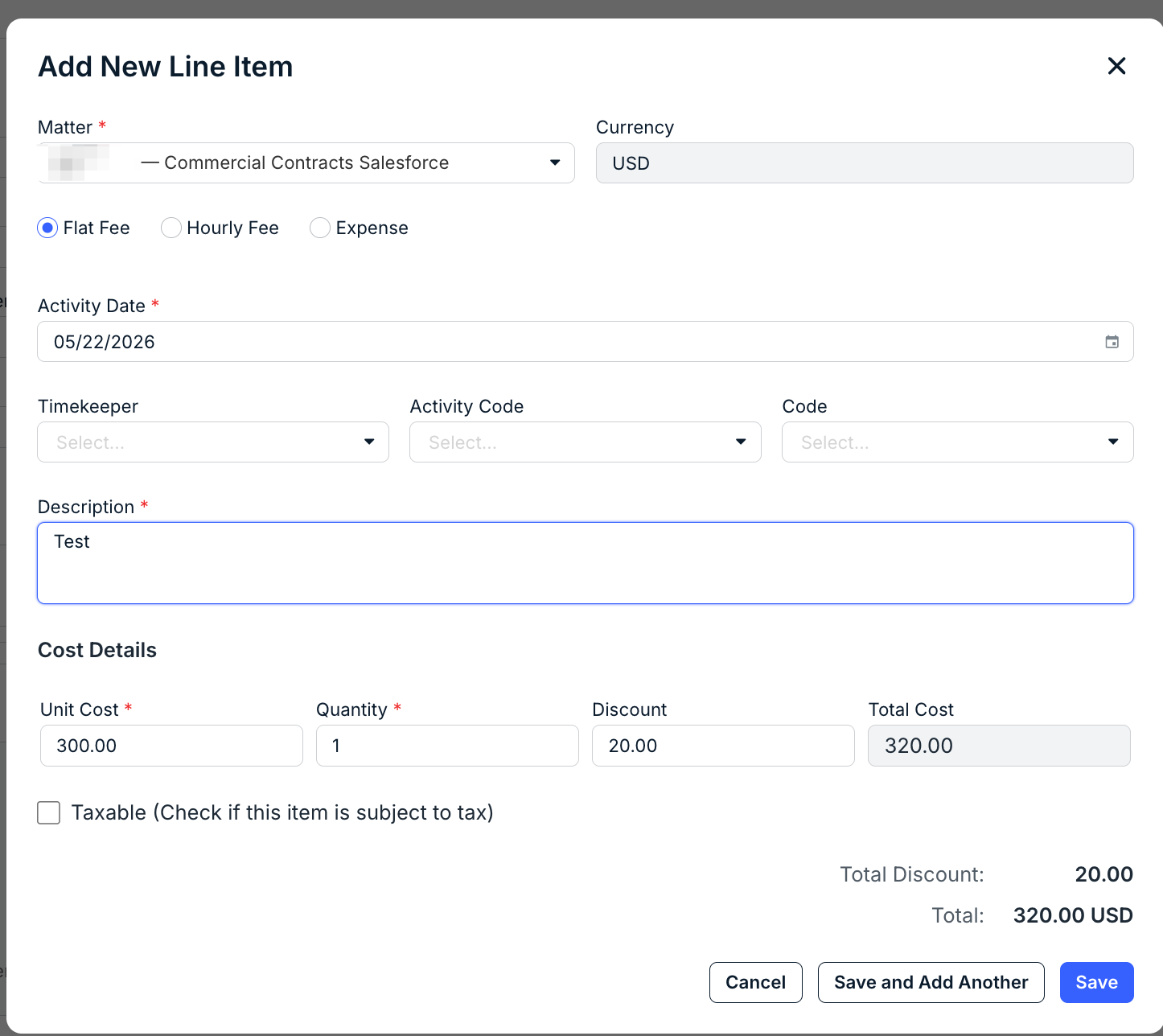
Start by adding a matter, and then add fees and expenses for that matter.
For flat and hourly fees, you'll select the:
- Matter
- Activity Date
- Timekeeper, Activity Code, and Task Code (if applicable)
- Description
- Cost Details, including Rate, Quantity, and Discount ^%. Note that the Total Cost will continually update.
Fields marked with an asterisk (*) are mandatory.
Click on the Taxable box if the item is subject to tax. If so, you'll have to add in the Tax Code and Tax Rate. Click the Plus button to add another tax row or the Trash button to remove the tax line. The Total Tax box will continually update.
You'll see the Totals calculate at the bottom of the screen. Click on Save to save the Line Item, Save and Add Another to add another line item, or Cancel to back out.
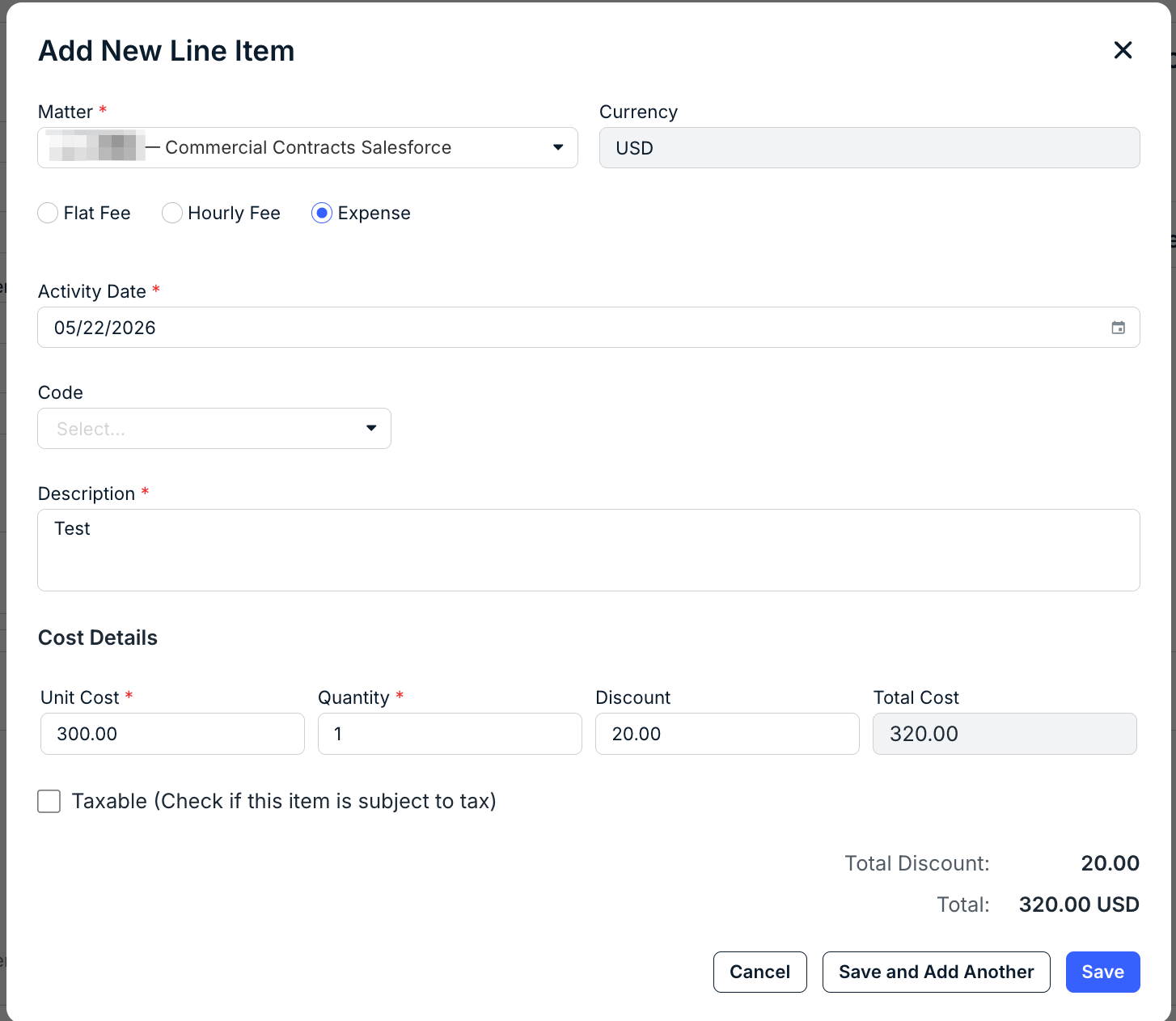
For an Expense, there is:
- Activity Date
- Expense Code (drop-down menu)
- Description
- Cost Details, including Unit Cost, Quantity, and Discount ^%. Note that the Total Cost will continually update.
Fields marked with an asterisk (*) are mandatory.
Click on the Taxable box if the item is subject to tax. If so, you'll have to add the Tax Code and Tax Rate. Click the Plus button to add another tax row or the Trash button to remove the tax line. The Total Tax box will continually update.
You'll see the Totals calculate at the bottom of the screen. Click on Save to save the Line Item, Save and Add Another to add another line item, or Cancel to back out.
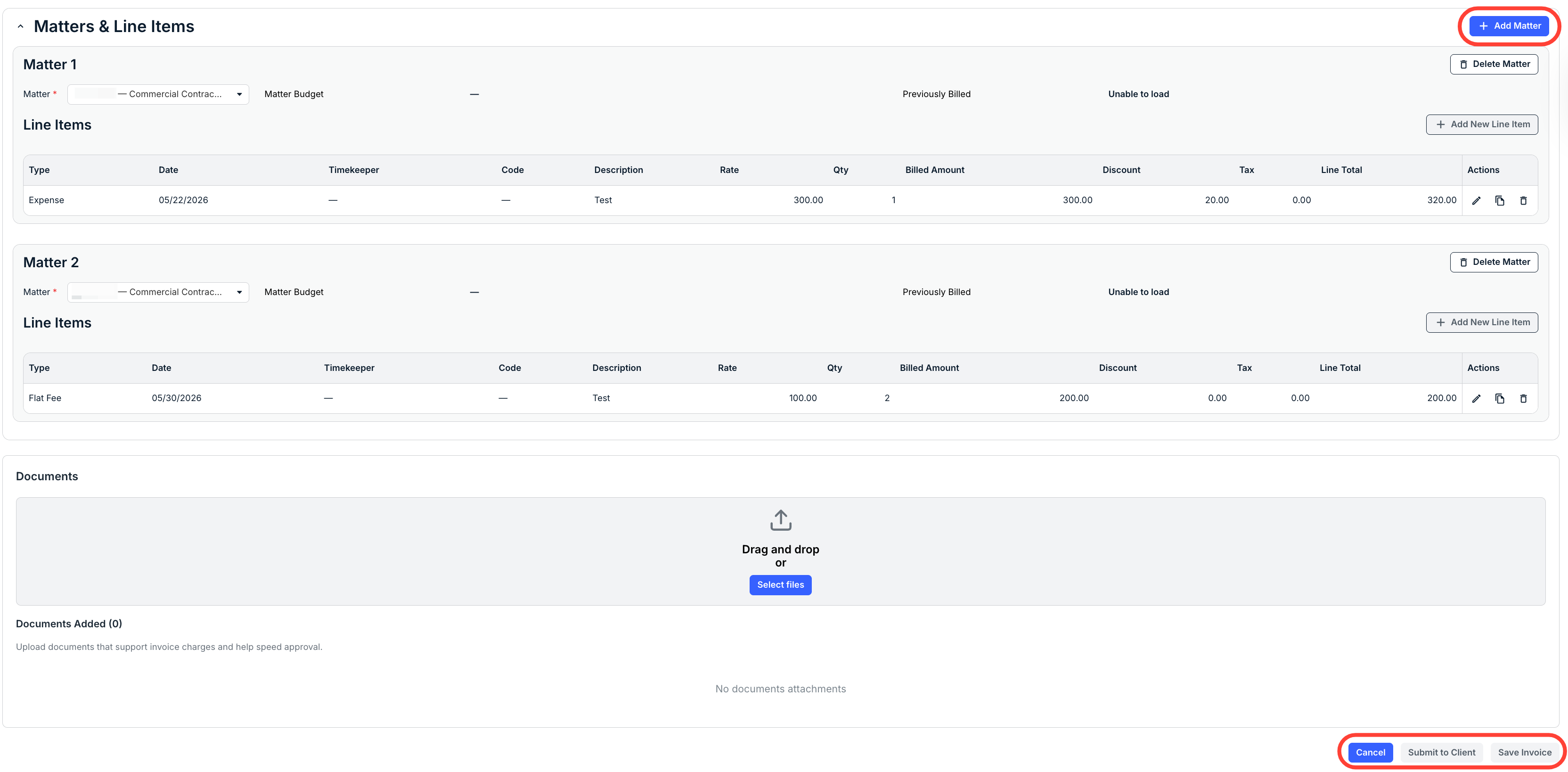
The line item will appear under the matter. You can use the Actions tools to edit, copy, or delete the line items. Click Delete Matter to delete the matter entirely.

- Click "Add Matter" to add further matters to the invoice and line items for the additional matters.
Click Submit to Client when you're finished making changes. You can also click Save Invoice to save and work on the invoice later or Cancel to back out.
The invoice will show up in the main invoices directory.