Counsel Exchange for Unity users have access to three reports within Counsel Exchange:
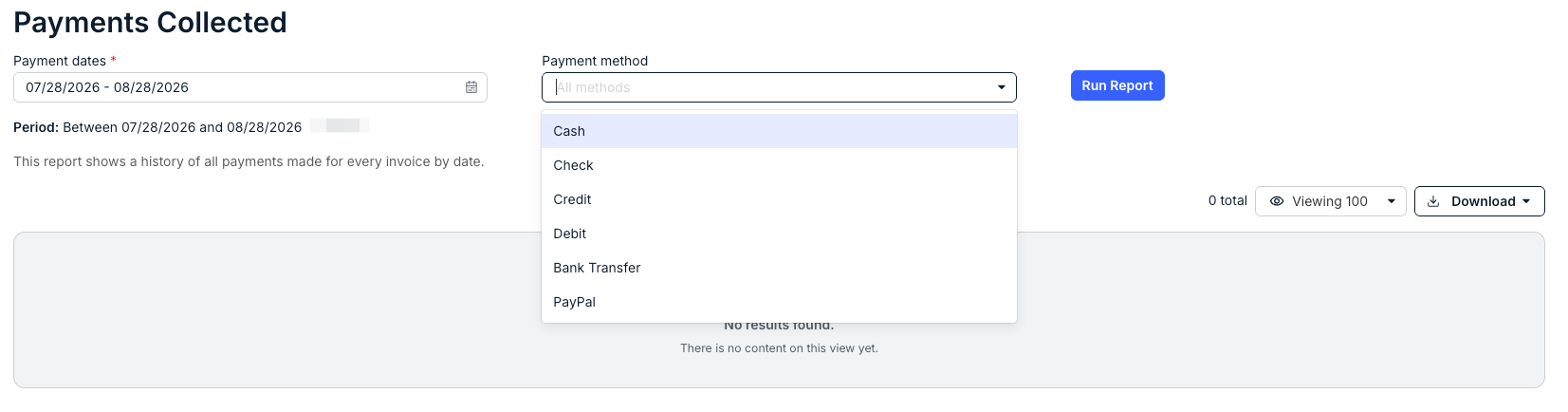
- Payments Collected (a history of all payments made for every invoice, by date)
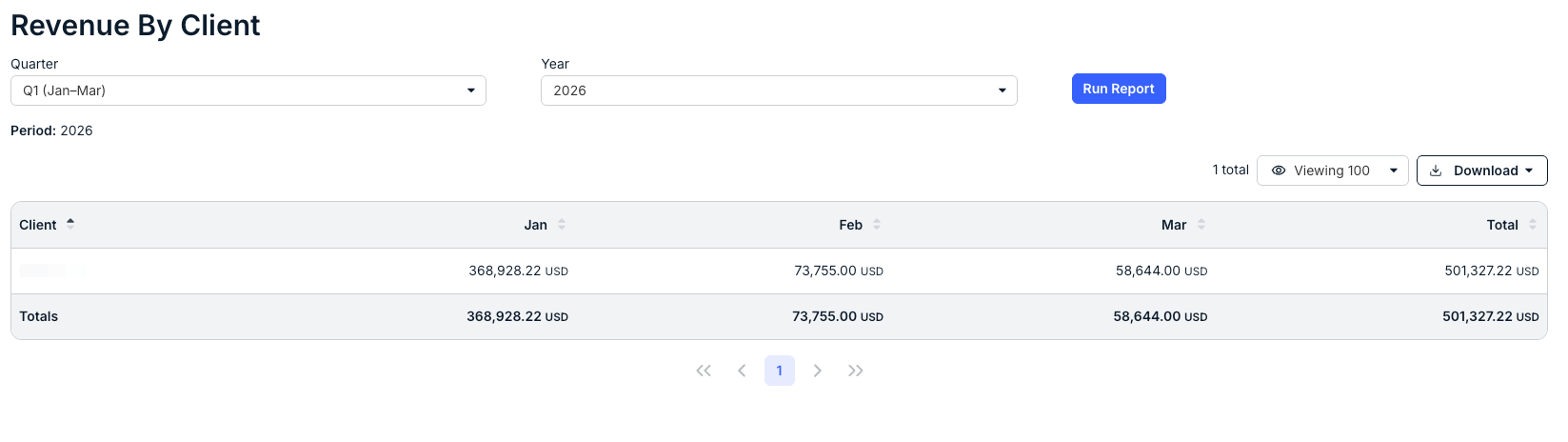
- Revenue By Client (a breakdown of all revenue by client)
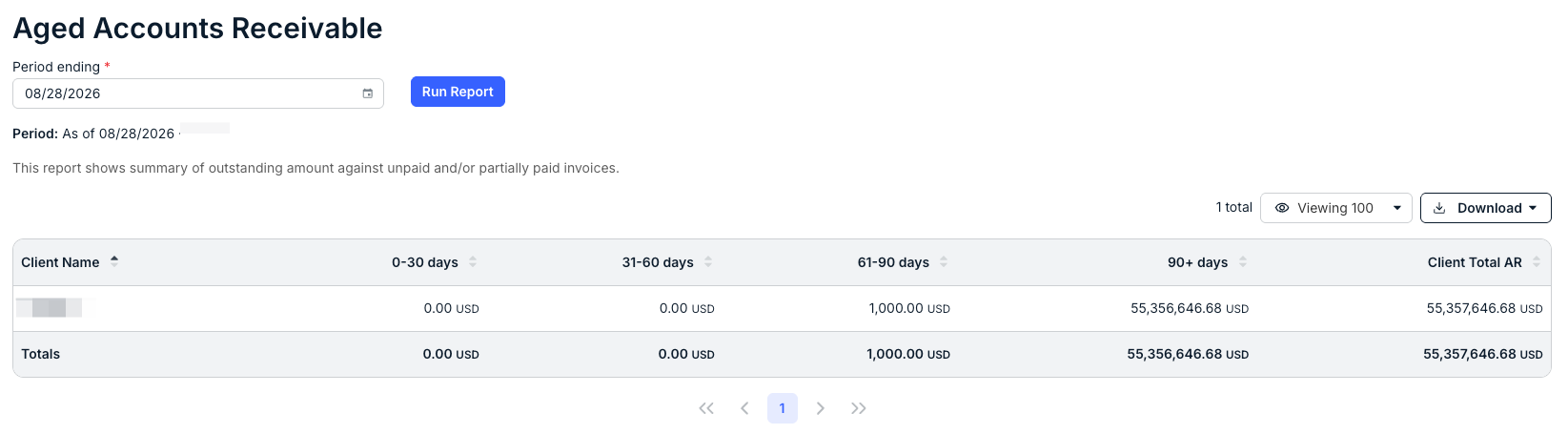
- Aged Accounts Receivable (a summary of outstanding amounts against unpaid/partially paid invoices)
Here's how to access the reports within Counsel Exchange:
- In the standard client view, go to the "Reports" section of the left-hand side menu.
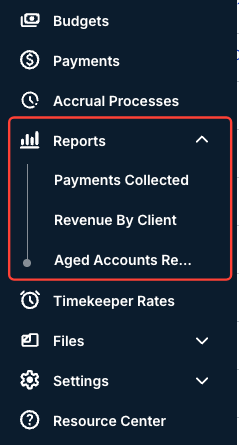
- Click on the report you'd like to access:
Payments Collected
The Payments Collected screen shows a history of all payments made for every invoice to date. Use the Payment dates drop-down menu to select the date range and the Payment method drop-down menu to choose the payment methods you want to see in the report. Click Run Report to run the report. Use the Viewing drop-down menu to choose how many records you want to see on the screen.
Click Download to download the payment information.
Revenue By Client
The Revenue By Client screen shows a history of all revenue collected by client. Use the Quarter and Year drop-down menus to select the date range for the report. Click Run Report to run the report. Use the Viewing drop-down menu to choose how many records you want to see on the screen.
Click Download to download the revenue information.
The report information will show on the screen; you'll see the Client name, Month revenue breakdown, and Total, along with Totals on the bottom of the screen.
Aged Accounts Receivable
The Aged Accounts Receivable screen shows a summary of outstanding amounts against unpaid and/or partially paid invoices. Use the Period ending drop-down menu to select the date range you want to see in the report. Click Run Report to run the report. Use the Viewing drop-down menu to choose how many records you want to see on the screen.
Click Download to download the receivables information.
The report information will show on the screen; you'll see the Client name, Day range aging breakdown, and Client Total AR, along with Totals on the bottom of the screen.