Counsel Exchange's General File Sharing capability enables clients and vendors to exchange key operational documents within the system. With this new functionality, both clients and vendors can upload, review, and maintain visibility into shared documents tied to their business relationship.
Here's how the General File Sharing feature works on the vendor (Counsel Exchange) side:
- On the left-hand-side menu, scroll down to the Files selection.
You can choose from either "Shared by Us" or "Shared with Us."
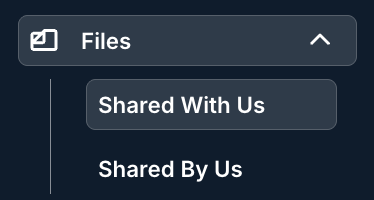
- Select the "Shared with Us" option to see all files the client has shared with you.
There, you can see key document information, including Type, File Name, Description, Category, Label, Date Uploaded, Uploaded By, Size, and Actions.
Click the up/down arrow next to each column to sort by that column. Use the search bar to search for a specific file, and the Viewing drop-down menu to customize exactly how much you want to see on the screen.

- Click on either the file link or the download button underneath Actions to download the file.
You can also select individual files (or check the top check box to select all files) to download in bulk.

- Click on either the file link or the download button underneath Actions to download the file.
- Select the Shared by Us option to see all files you've shared with the client or to share new files.
There, you can see key document information, including Type, File Name, Description, Category, Label, Date Uploaded, Uploaded By, Size, and Actions.
Click the up/down area next to each column to sort by that column. Use the search bar to search for a specific file, and the Viewing drop-down menu to customize exactly how much you want to see on the screen.

- Click on either the file link or the download button underneath Actions to download the file.
You can also select individual files (or check the top check box to select all files) to download in bulk.

- Click on the Upload Files option to upload files to the client.

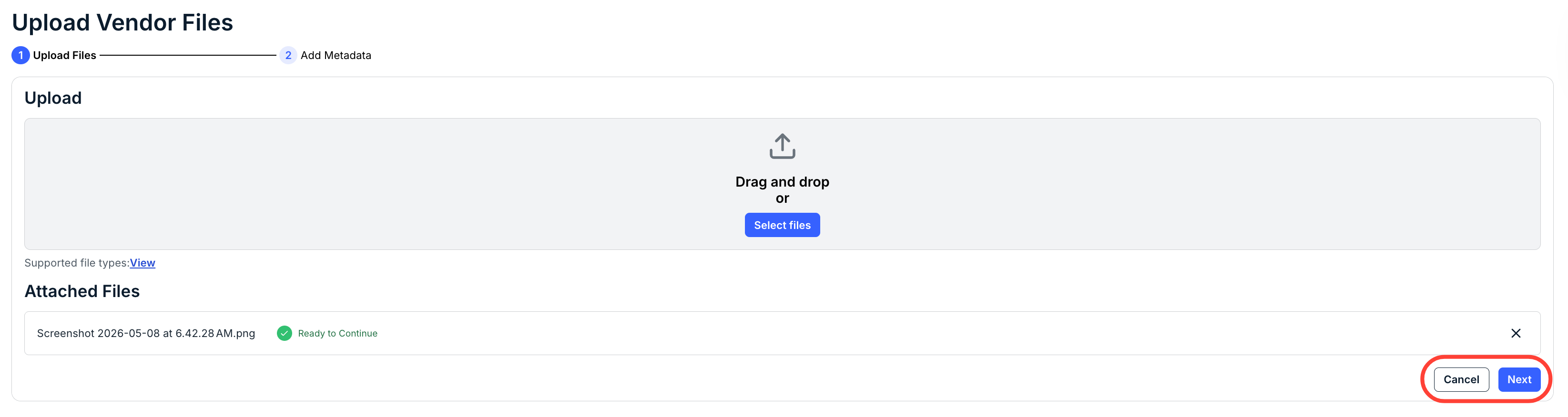
When you click Upload Files, the Upload Vendor files screen will appear. Drag-and-drop your files, or click Select Files to choose the file to upload. Attached files will appear at the bottom of the screen.
Click Next to continue or Cancel to back out.
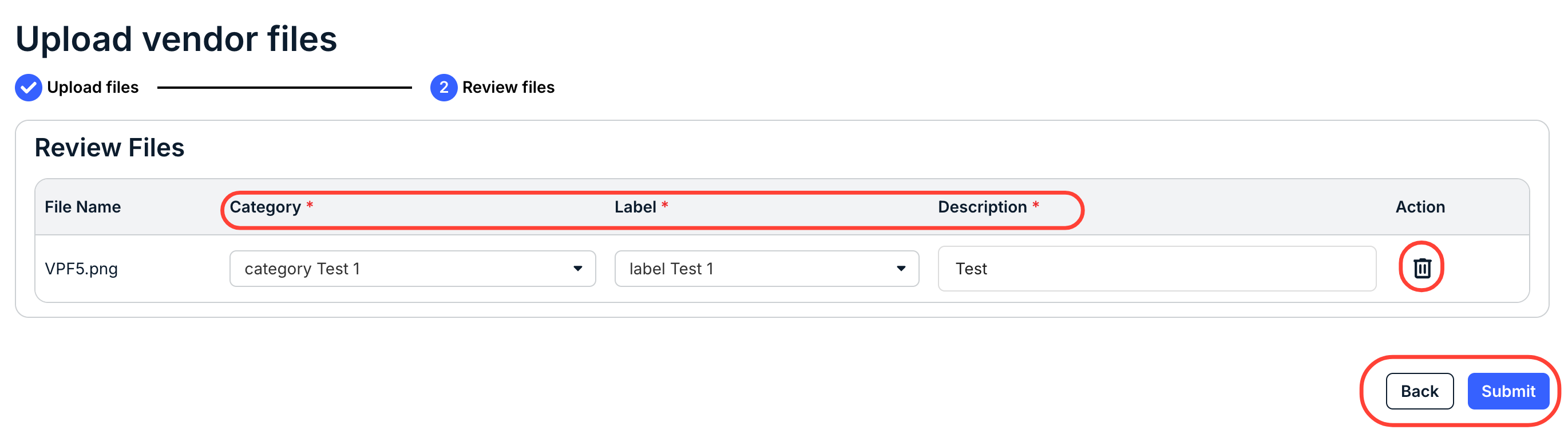
After you click Next, the Review files screen will appear. Choose a Category and Label from the drop-down menus and add a Description for the file. You can also click the trash can to Delete the upload.
Click Submit to submit the file or Back to back out.
The uploaded file will appear in the Documents Shared by Us directory.
- Click on either the file link or the download button underneath Actions to download the file.
Frequently Asked Questions
What is the limit on bulk upload?
There is no limit on the number of files loaded at once, but the default file size limit is 25 MB.
Is it required to fill out a category and label for each file?
Category and label are NOT required.
Can we add to or edit the Category and Label dropdown menus?
The options in those fields are completely controlled by the client.
Are there any notifications sent if the vendor uploads a file?
There are no notifications for this feature, as it's meant for more general reference-type documents.
What types of documents can be uploaded?
General File Sharing supports PDF, DOC, DOCX, XLS, XLSX, TIFF, GIF, JPG, JPEG, PNG, BMP, RTF, TXT, and XML files.