Here's how to work with matters in Counsel Exchange:
Assigned Matters
- To view assigned matters, click on Matter in the left-hand side menu.
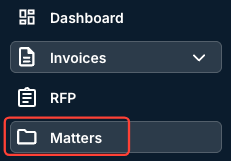
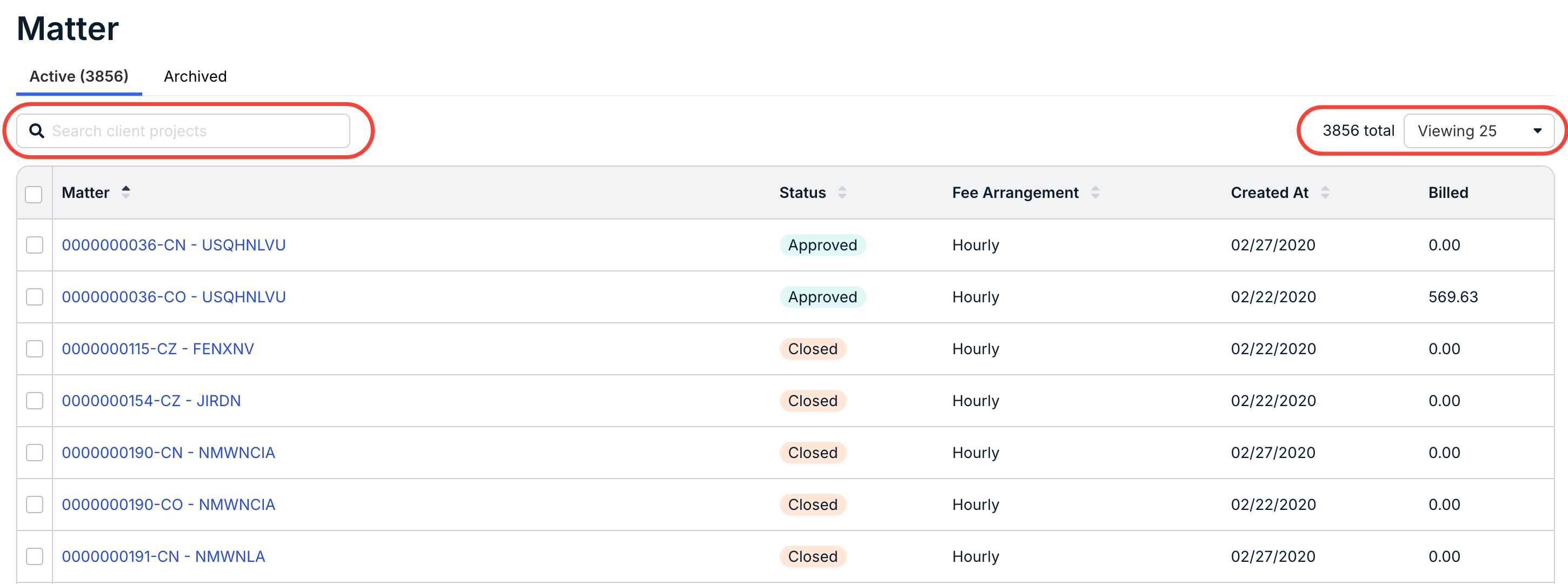
- You'll see the full list of assigned matters, along with key details.
Displayed details include Matter name, Status, Fee Arrangement, Created At date, and Billed amount.
Click the up/down arrow next to each column to sort by that column. You can also use the search bar to search through matters or the Viewing drop-down menu to customize the number of records you want to see on the screen.
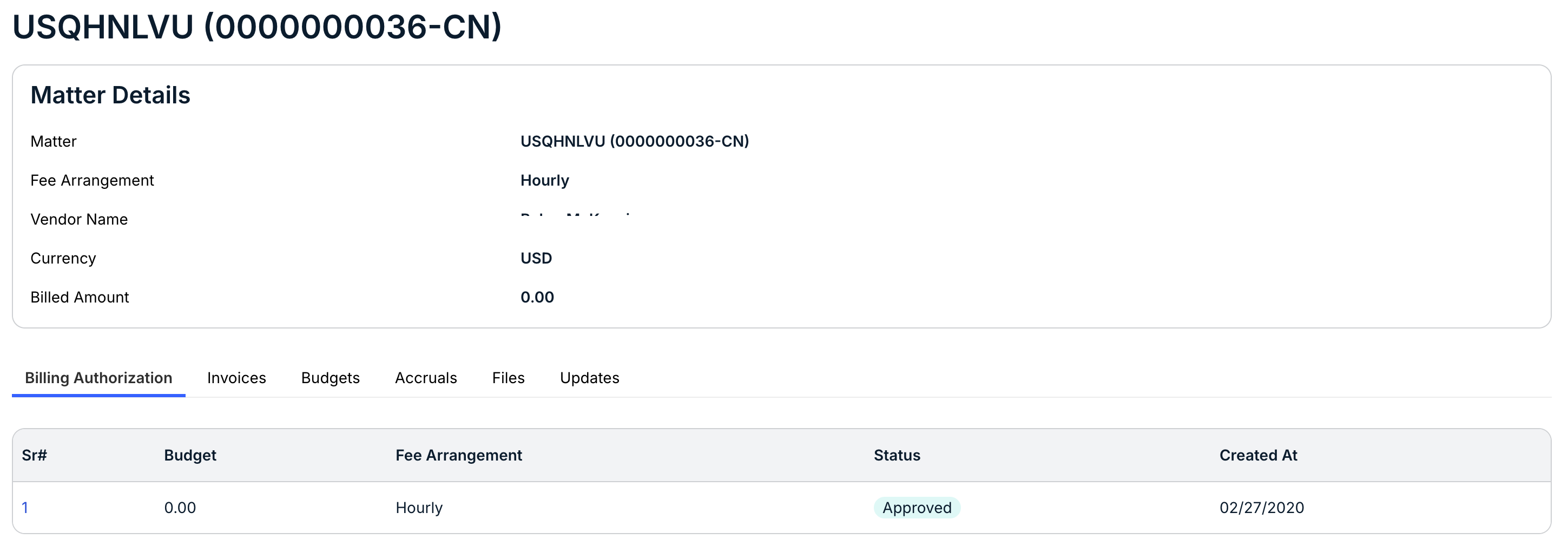
- Click into an individual matter to see the full matter details.
You'll see key details at the top of the page (Matter, Fee Arrangement, Vendor Name, Currency, and Billed Amount). Use the tabs on the page to see information on Billing Authorization, Invoices, Budgets, Accruals, Files, and Updates.
- Click into an individual matter to see the full matter details.
Archived Matters
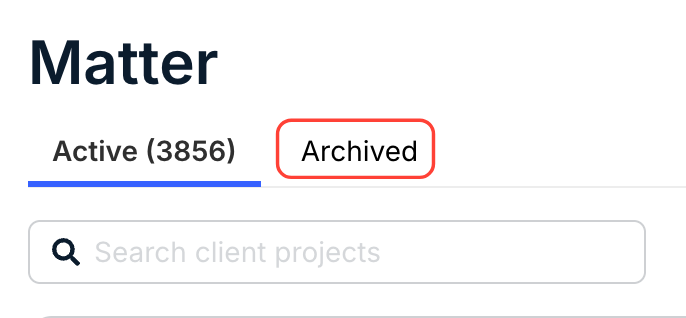
- Click on the Archived tab to view archived matters.
Closed matters can be found under the archived tab.
To archive a matter or matters, click on the check boxes next to the selected matters (or click the top check box to select all matters) and select Archive under the Bulk Actions drop-down menu.
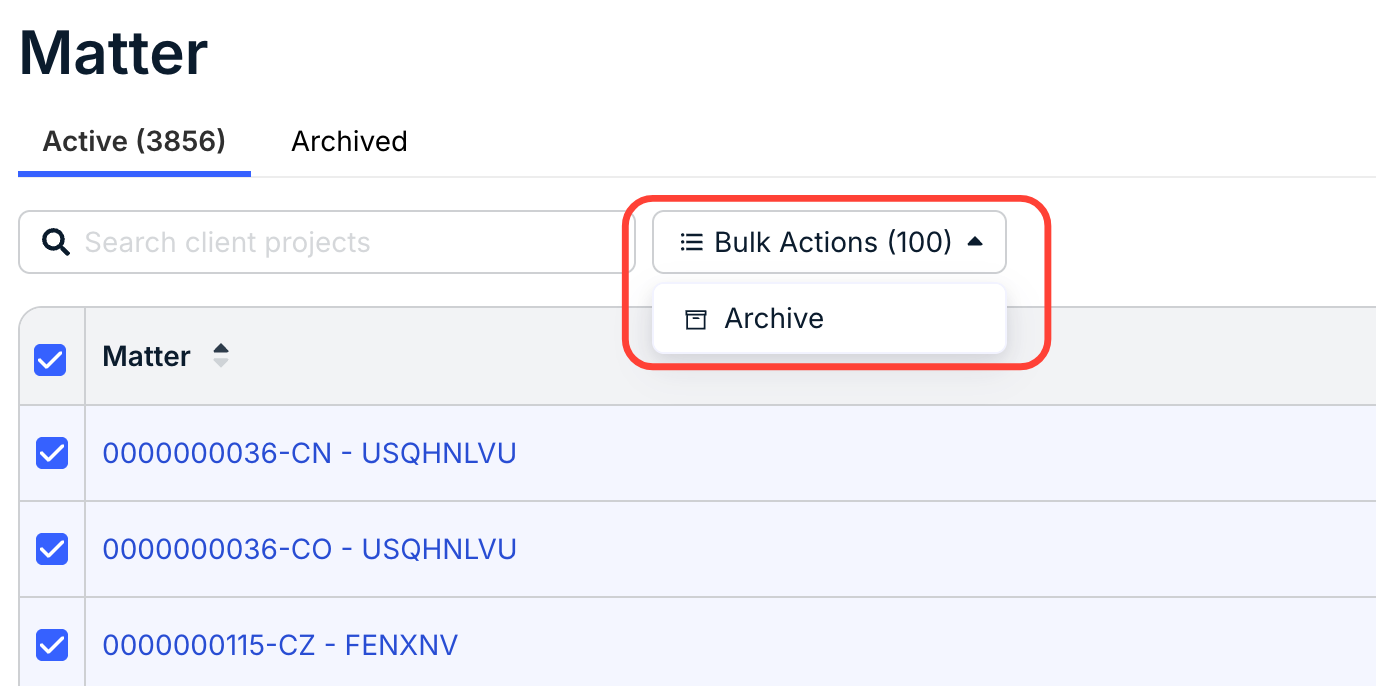
Archived matters will appear under the Archived tab.
FAQS
What is a Client Matter ID?
A Client Matter ID is a unique identifier generated by Unity for each matter. It is used to connect invoices to the relevant matters for billing purposes. You can find the Client Matter ID by going to Matters from the left side navigation bar and checking under the Client Matter ID column.
Why am I not seeing an expected matter in Counsel Exchange?
This may mean it has not yet been created/opened by the client in Unity or that your firm has not yet been assigned. If you do not see an expected matter under the Matters section of Counsel Exchange, contact your client directly for assistance.
Can I download the list of assigned matters?
Yes. Go to Matters from the navigation bar on the left and click Download above the table to export general information about assigned matters, such as Client Matter IDs.
Why don't I see the Files and/or Updates tab for assigned matters?
There are two possible reasons:
#1: You have not yet been assigned the Matter File Sharing and/or Matter Updates roles by an admin from your firm or by the client directly. For assistance, contact your Counsel Exchange admin.
OR
#2: The specific client you are viewing in Counsel Exchange has disabled one or both of these features from Unity.
Do Onit customers have a matter tab?
They do not; instead, they have a Billing Authorization Requests option.