The PDF-to-Invoice Conversion feature in Counsel Exchange converts simple PDF invoices into a digital format. Here, we will provide a step-by-step user guide for this helpful tool.
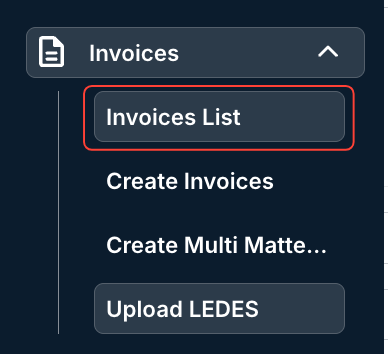
- Under the Invoices menu, click on the "Invoices List" option.
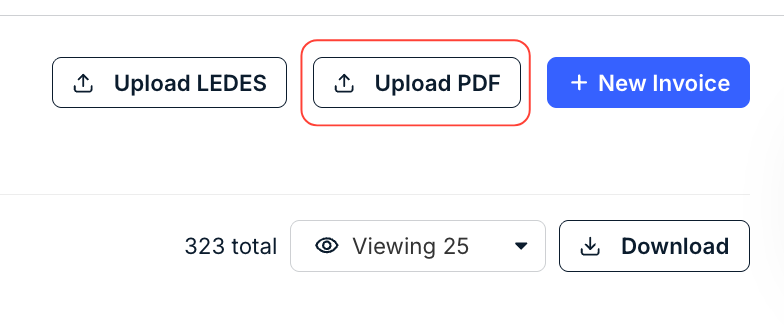
- Click on the "Upload PDF" option on the right-hand side of the screen.
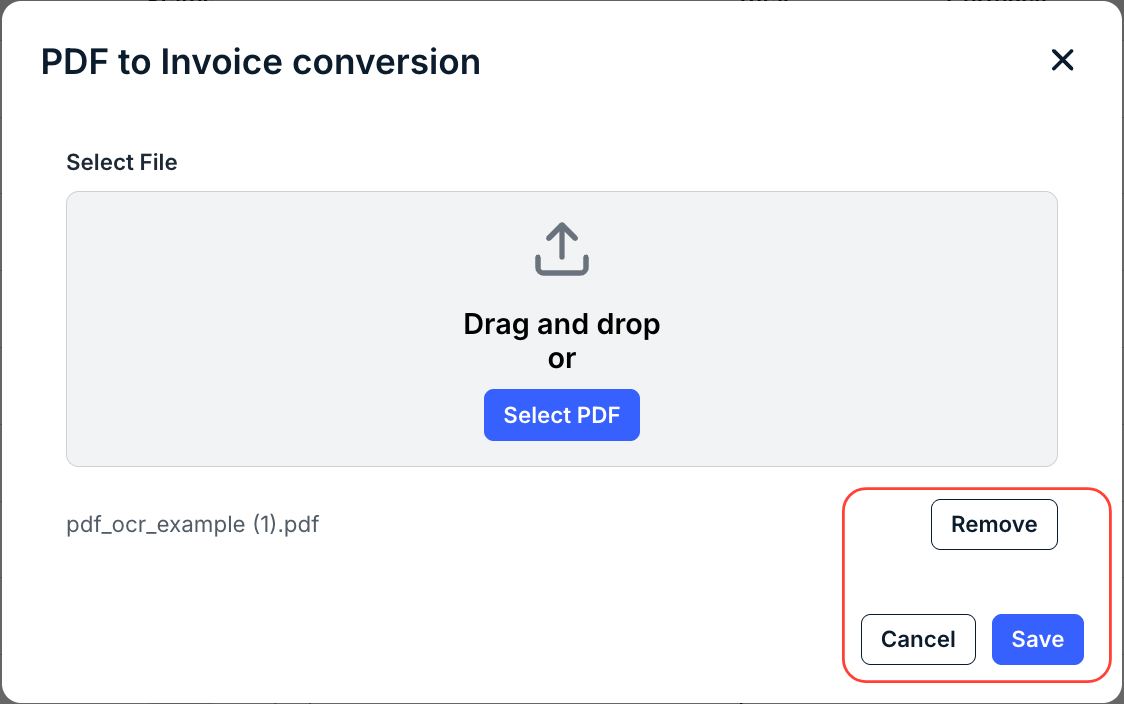
- Drag-and-drop or select the PDF you'd like to convert. Click Save to start the conversion process.
The file will take a few moments to upload and convert. You can also click Remove to remove the selected file or Cancel to back out.
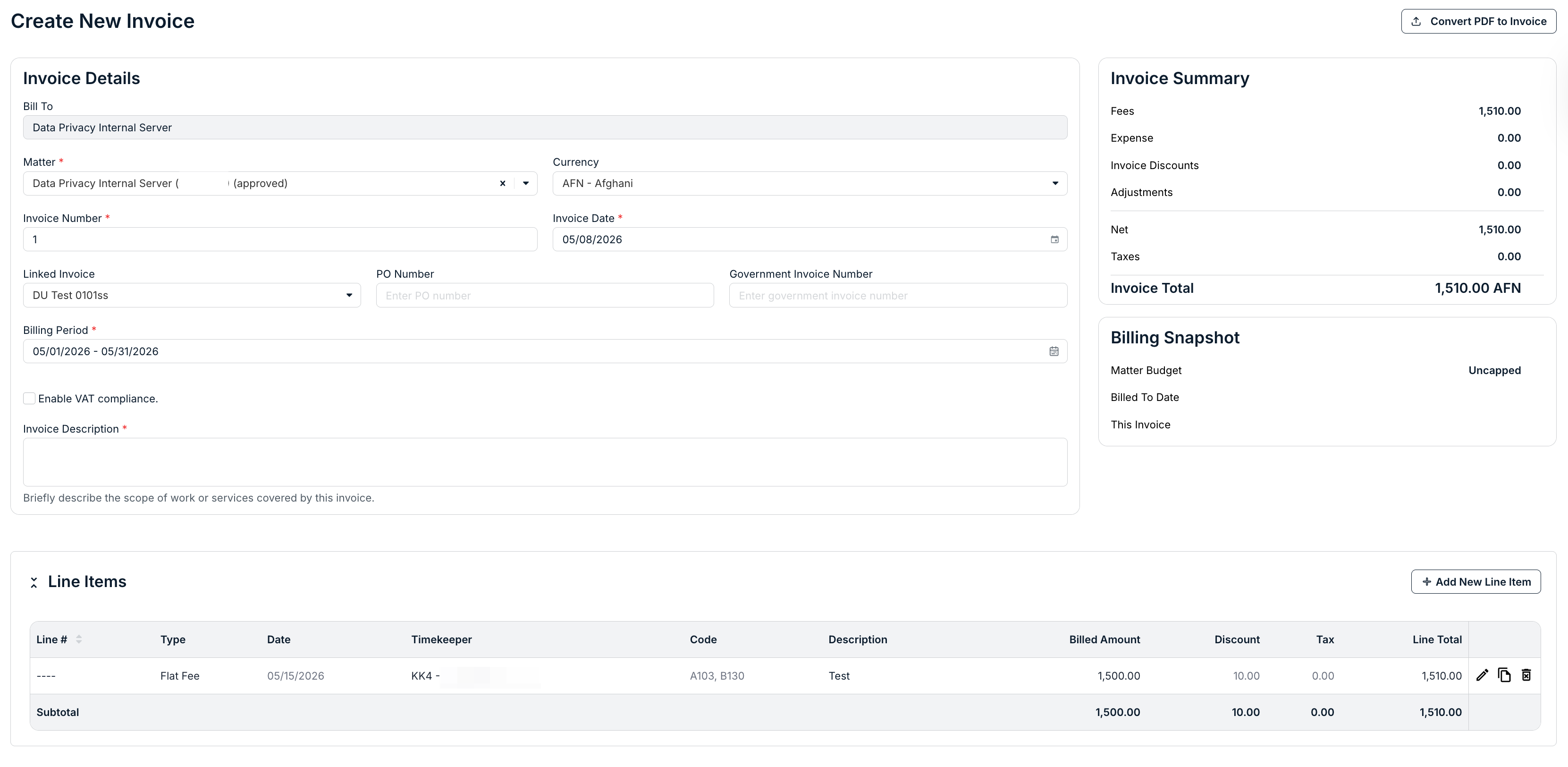
- Review the uploaded document in the Create New Invoice screen. Fill in any missing data fields, review and correct extracted data, and remove any incorrect line items.
After you're done with your work, click Submit to Client to send the invoice to the client, Save Invoice to save the invoice for later, or Cancel to back out.

The system will run validation checks on the invoice.