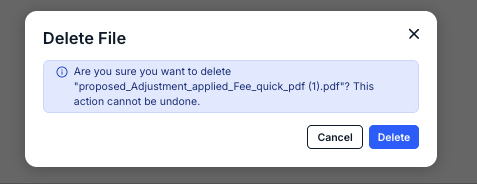
Here's how to remove, edit, or delete files uploaded to an invoice in Counsel Exchange:
- After uploading files to an invoice (view more information on that process here), open up the invoice you want to work with.
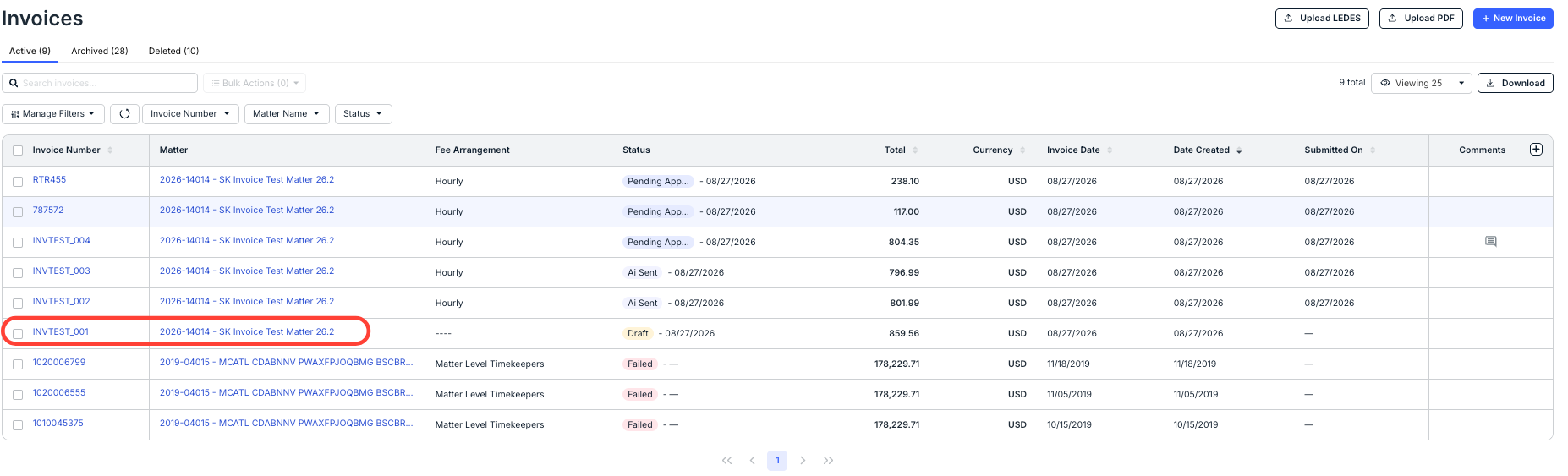
- Switch to the "Files" tab on the Invoice Details screen.

- Click the three-dot Action menu to replace, edit, or delete a file.

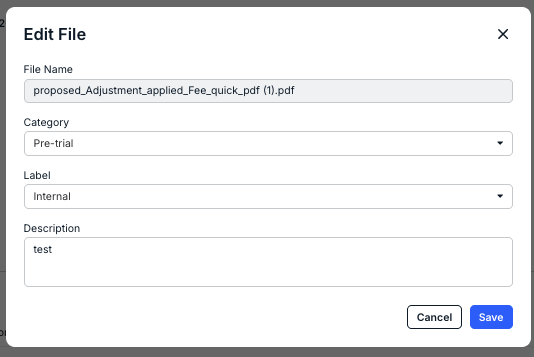
- If you want to "Edit" a file, you'll see this menu come up. You can edit the Category, Label, or Description. Click Save to save your changes or Cancel to back out.
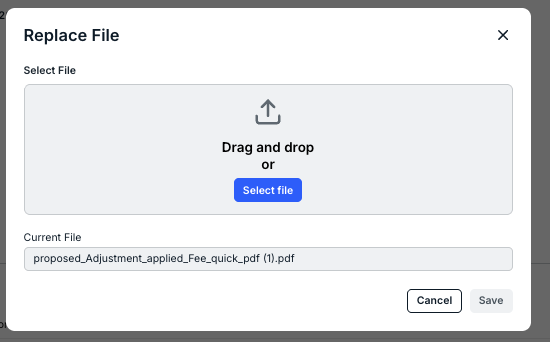
- Use the "Replace" option to replace the file with a new version.
Click to select the file or drag-and-drop the new file into the system. Click Save to save the new file or Cancel to back out.
- Click "Delete" to delete the file entirely.
Click Delete to delete the file or Cancel to back out.
- If you want to "Edit" a file, you'll see this menu come up. You can edit the Category, Label, or Description. Click Save to save your changes or Cancel to back out.