The General File Sharing Updates role can be assigned by your client or an Admin from your firm. Admins can follow the instructions in this article to grant or revoke these permissions.
Here's how to set General File Sharing Updates permissions in Counsel Exchange:
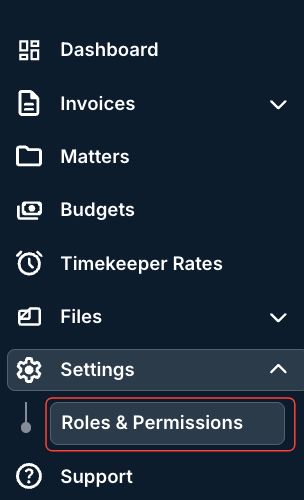
- In the standard client view, open the left-hand menu, click Settings, and then click Roles & Permissions.
- The Roles & Permissions screen will appear.
Go to the user you'd like to edit, open the three-dot Actions menu next to their name and click Edit.

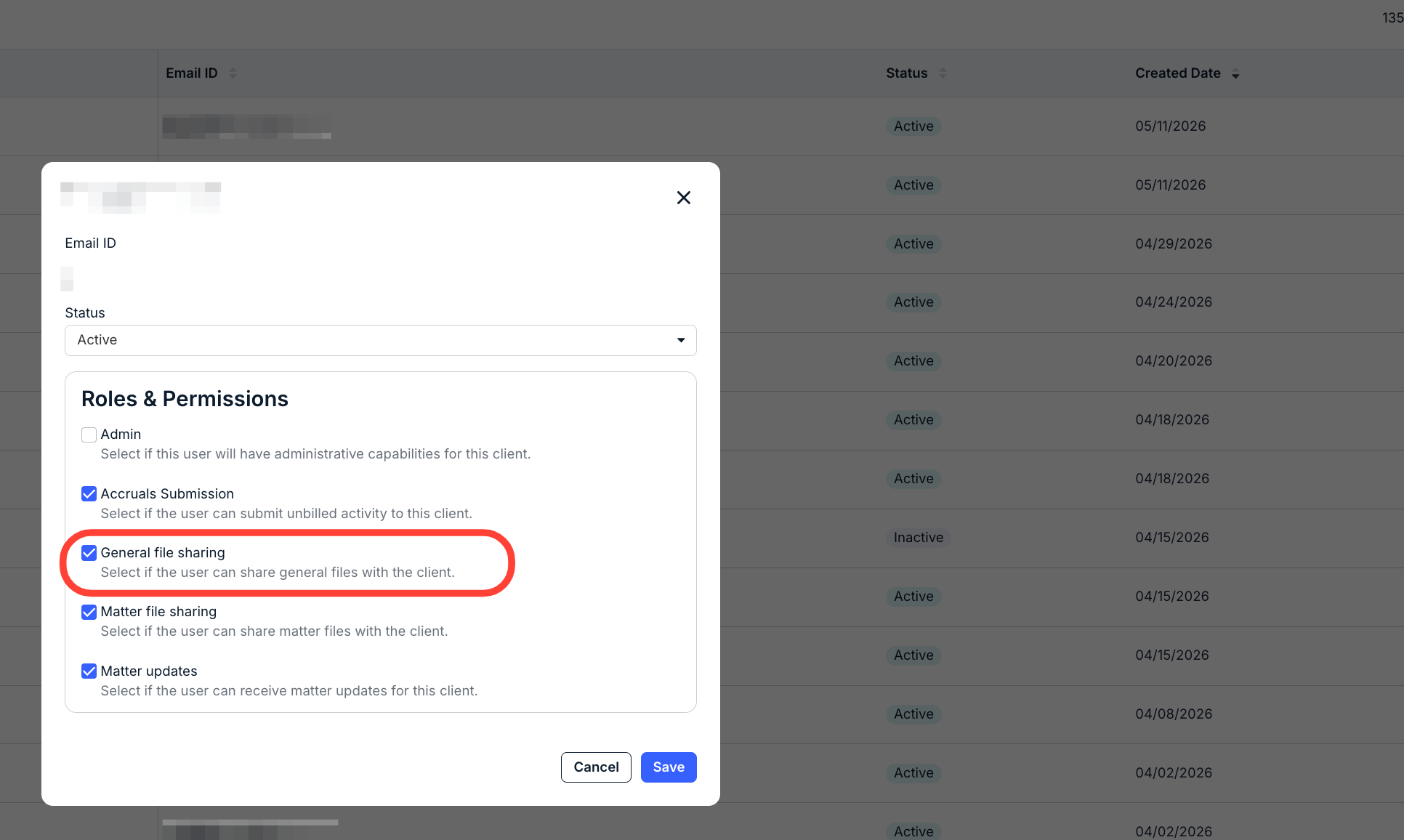
- The user's edit window will appear.
Check or uncheck the General file sharing checkbox, then click Save, or click Cancel to exit without saving.
NOTE: Assigning the General file sharing role only applies to the client you are currently viewing. If the user requires these permissions for a different client in Counsel Exchange, select your client from the top menu and repeat steps 1–3.
Once this role is assigned, the user will be able to see the Files tab within matters for this client and will be able to add files that are visible to the client.