Overview
In several countries, invoices must be cleared with the national tax authority before they are valid. During this clearance, the tax authority platform assigns the invoice a government reference number that proves the invoice is compliant.
EBilling.Space now supports storing this number directly on the invoice via the new field "Gov. Invoice ID" (German: "Staatl. Rechnungsnr."). Once saved, the number is visible in the invoice details, included in invoice data exports, and available as a placeholder in customized e-mails and invoice notifications.
| Property | Description |
| Field name | Gov. Invoice ID (GER: Staatl. Rechnungsnr.) |
| Format | Alphanumeric, up to 50 characters |
| Example (Poland) | First 2 digits: vendor ID, followed by a reference number of up to 30 digits |
| Availability | Law Firm side and Client side |
| Uniqueness | The number is not validated for uniqueness |
| E-mail placeholder | ###gov_e_invoice_no### |
Adding the Government Invoice Number
You can enter or update the Government Invoice Number in eB.S at three different touch points.
When recording an invoice
- Go to Financials > Record Invoice.
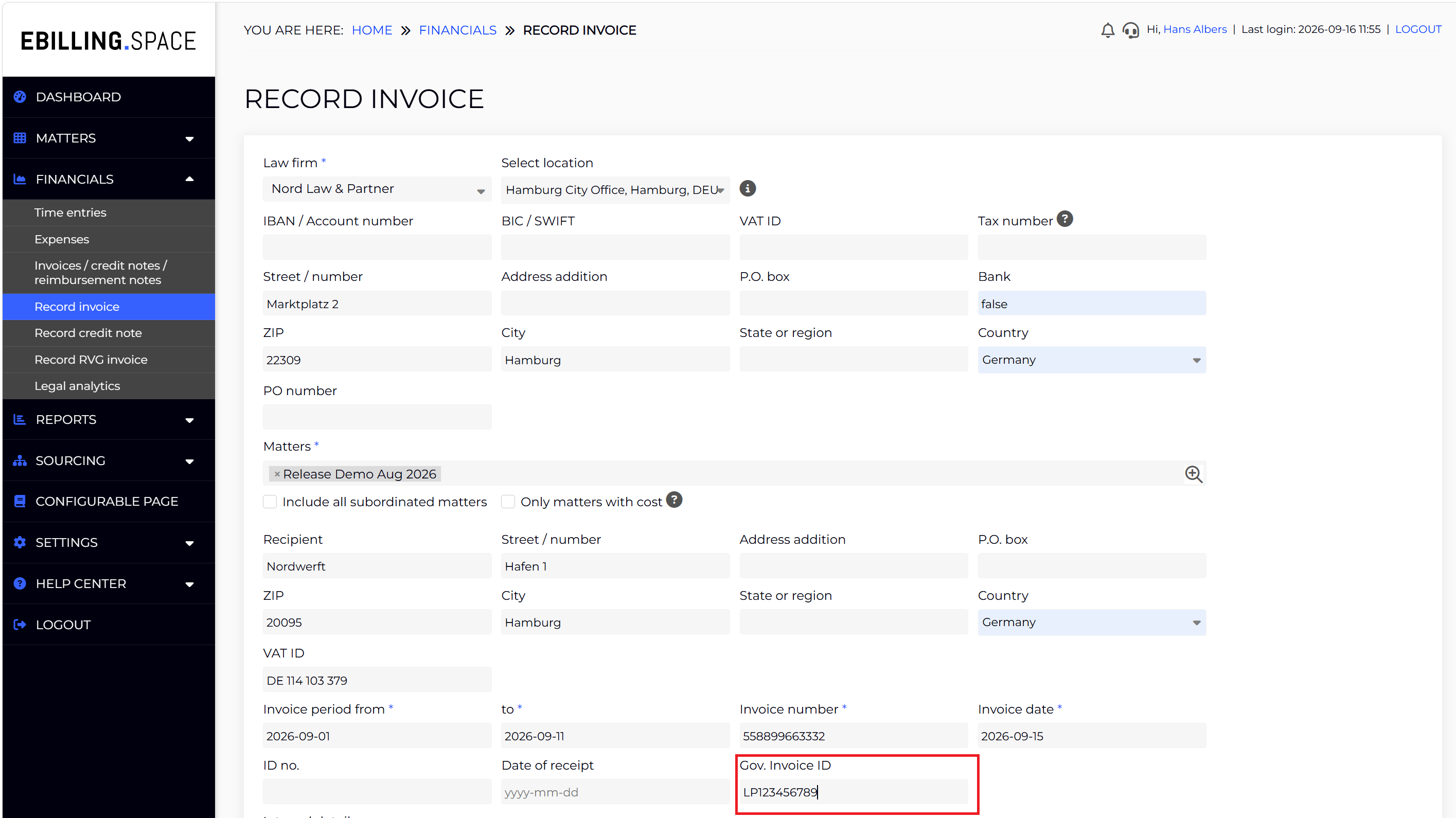
- Fill in the invoice details. A new field "Gov. Invoice ID" is available on the form as follows:
- You can enter the Government Invoice ID assigned by the tax authority.
- Save the invoice. The number is stored together with the invoice.
From the invoice list page
If the number was not available when the invoice was recorded (for example, because tax clearance completed later), you can add or change it afterwards from the invoice list.
For this, do the following:
- Go to Financials > Invoices/Credit Notes
- Select an invoice and open the '…' menu and there the Edit dialog.
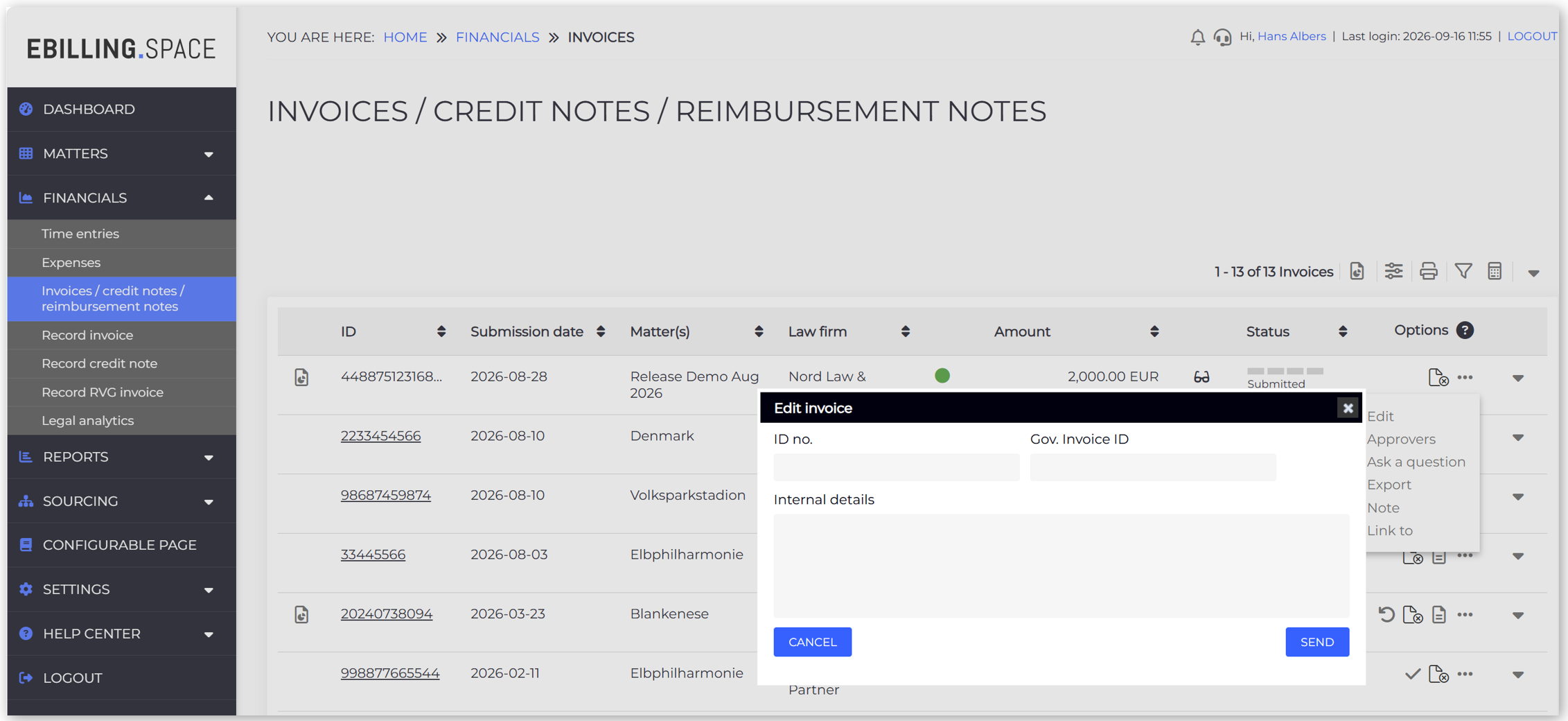
- The Edit dialog contains the field "Gov. Invoice ID" as follows:
- Enter or update the number and save your changes.
From the LEDES upload protocol (Data Import)
You can add the Government ID No. after successfully uploading the invoice as follows:
- Go to Financials > Data Import (if applicable).
- Open the 'Upload Protocol' tab
- In the Options column of the relevant invoice, choose the edit action to add the Government Invoice Number as follows:
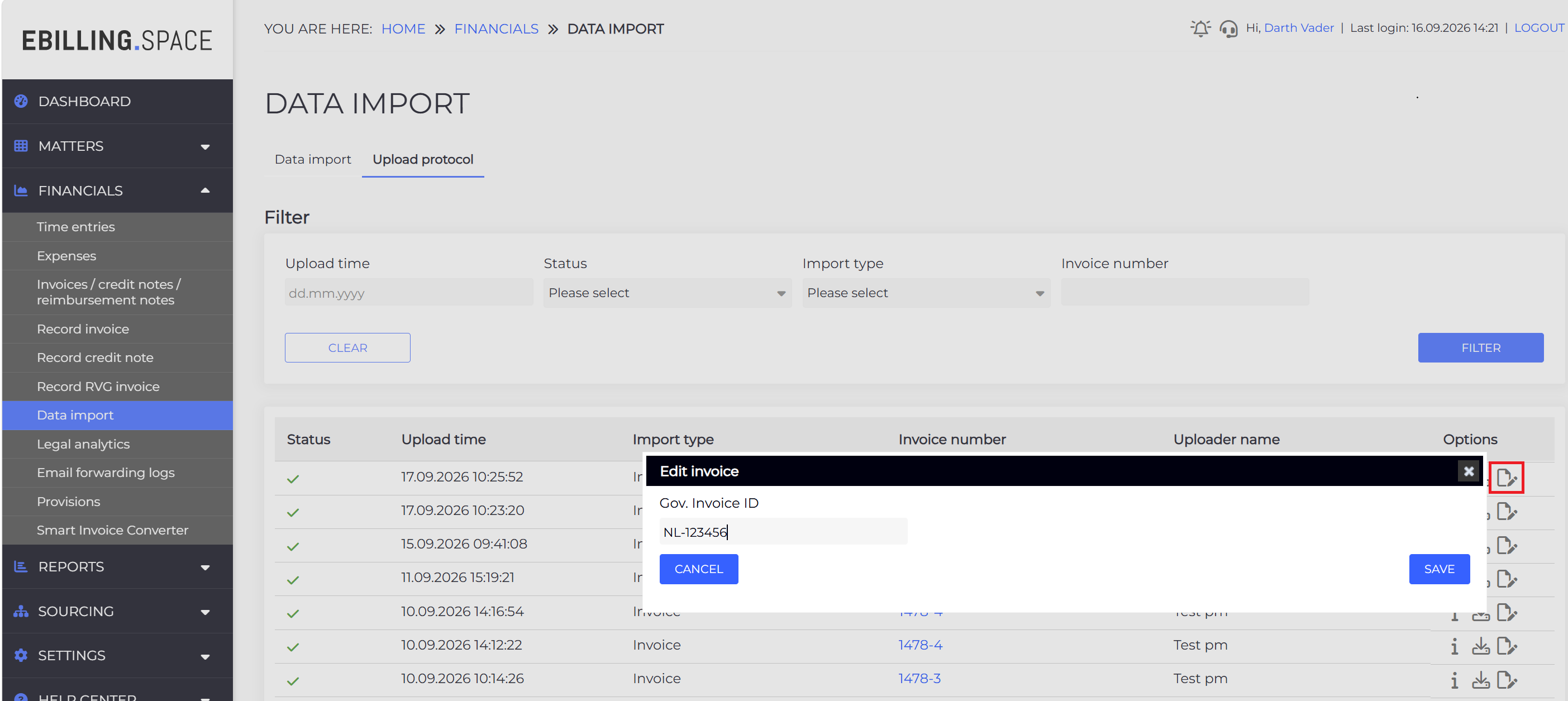
- Enter the number manually and save.
Viewing the number
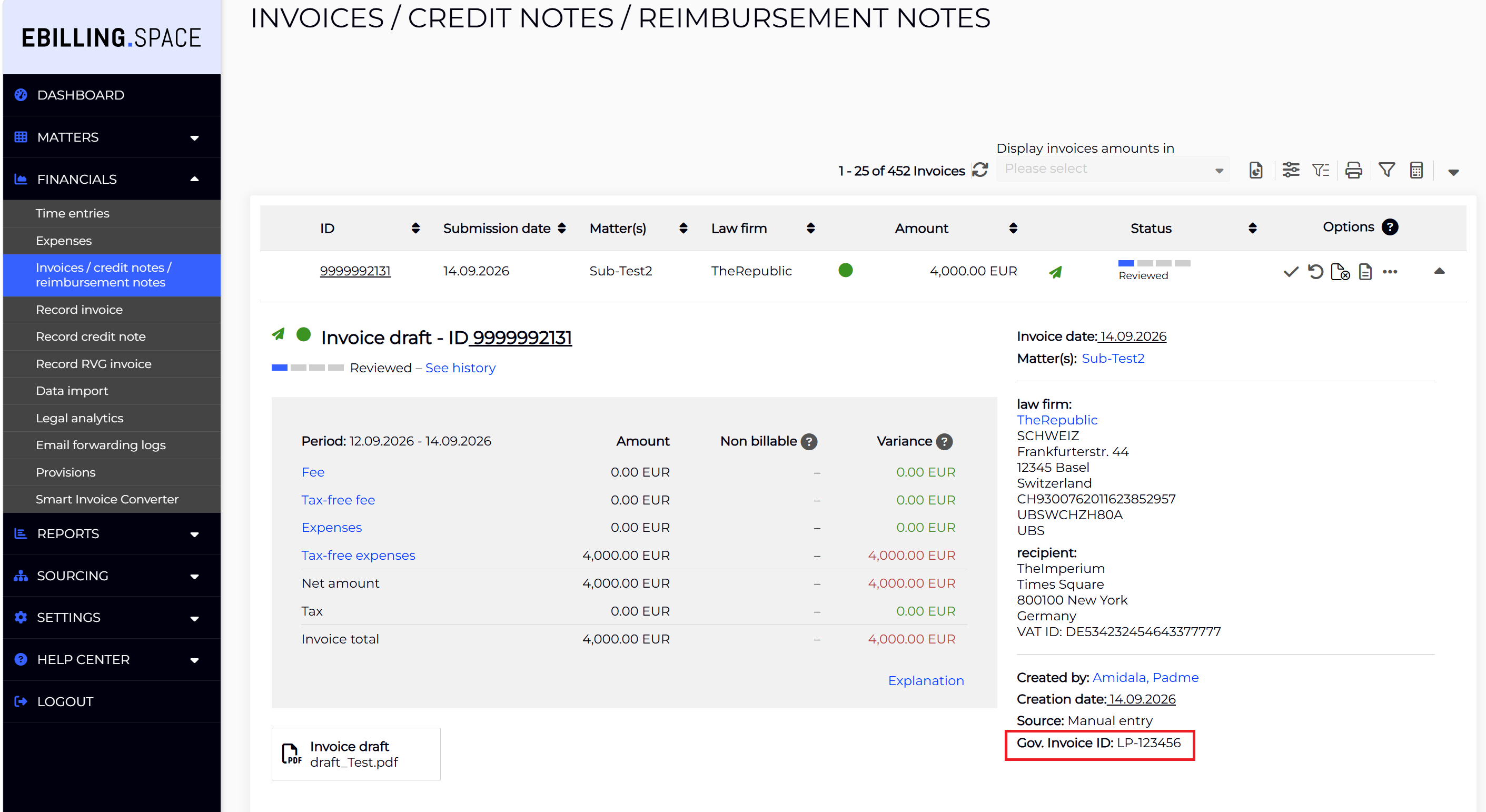
Once saved, the Government Invoice Number is displayed in the details section on the right-hand side of the expanded invoice. Expand an invoice in the invoice list to review the stored value at any time.
Reporting and data export
The invoice data export has been extended on both the Legal (Law Firm) side and the Client side. The Government Invoice ID is included as an additional column to the invoice report (Client) and invoice export (Law Firm).
Using the Government ID in custom e-mails
The Government Invoice Number can be inserted automatically into E-Mail Notifications.
Adding the placeholder to a template
This Applies to all email templates that send notifications regarding invoice status updates.
- Navigate to Settings > Customize E-Mails, where e-mail placeholders (e.g., invoice number, customer name, due date) are managed.
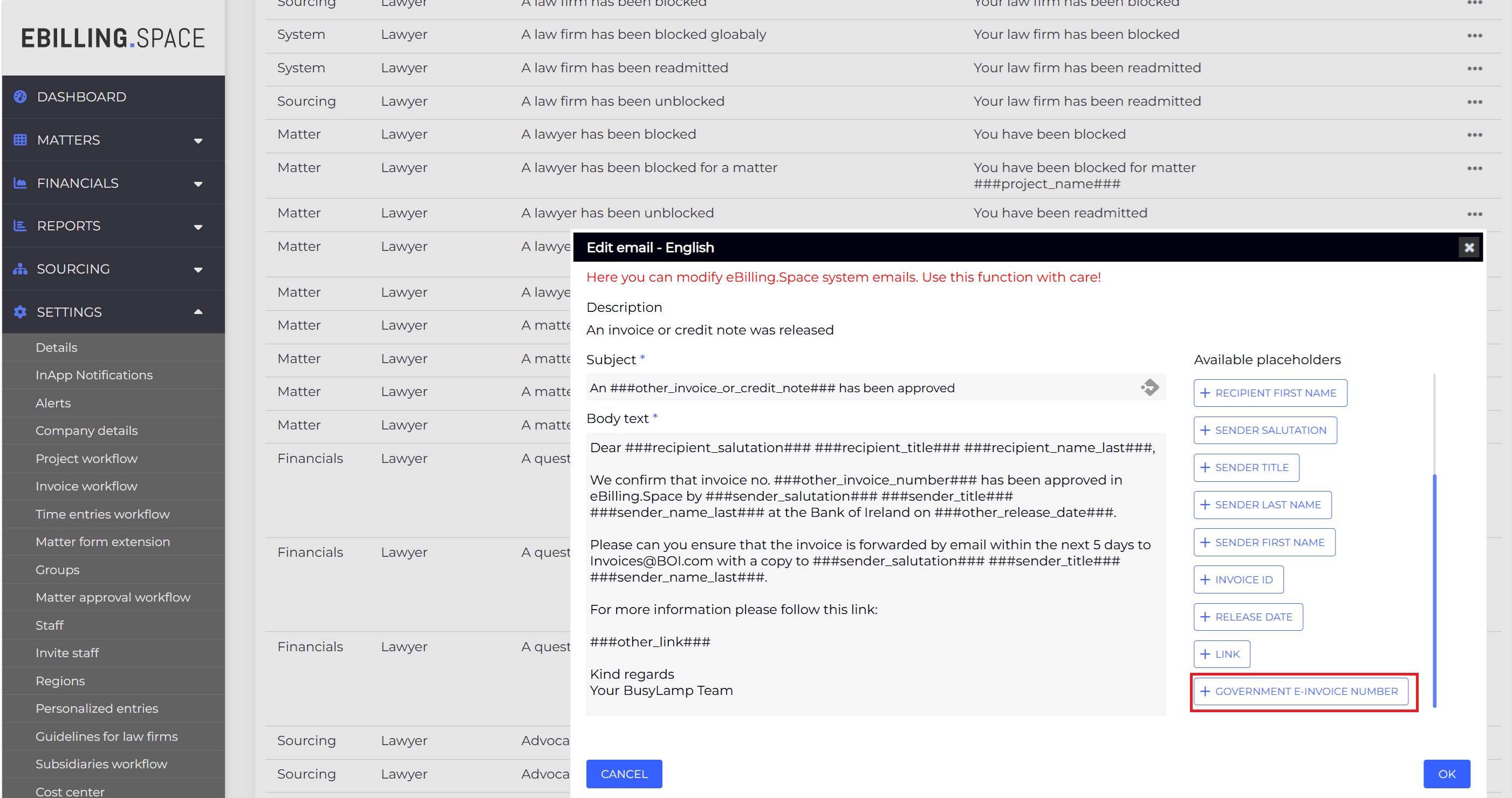
- In the placeholder picker, select the new placeholder "Government E-Invoice Number" and insert it where the number should appear.
- The placeholder can be used in both the subject line and the body text of the e-mail.
- Save the template.
The placeholder behaves exactly like the existing placeholders: it uses the same insertion function and formatting rules and appears in the standard placeholder list.
How the placeholder is resolved
- When an e-mail is sent, ###gov_e_invoice_no### is replaced with the Government Invoice Number stored to the specific invoice the e-mail refers to.
- If no Government Invoice Number has been entered to the invoice, the placeholder is rendered empty.
Notes and current limitations
- The Government Invoice Number is not checked for uniqueness. Please verify the value you enter, as duplicates are not rejected by the system.
- Extended LEDES files including this number are not yet supported.
- The field accepts any alphanumeric value up to 50 characters; the exact format depends on your country’s tax authority (see the Polish example in section 1).