Use the Matters menu to view and record matters.
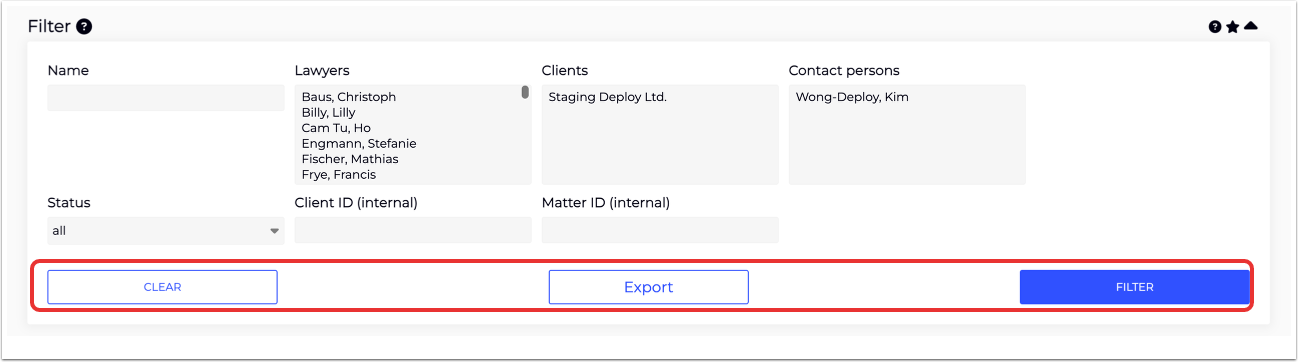
Under Matters, you'll see the Filter panel in the upper-left corner. This will allow you to filter the displayed matters by:
- Name
- Lawyers (click / command-shift-click to select and deselect)
- Clients
- Contact persons
- Status (drop-down menu)
- Client ID (internal)
- Matter ID (internal)
Click Clear to clear the filter selections, Export to export the information, or Filter to filter the information. Use the Star option at the top to save the filter or the Up arrow to minimize the filter panel.
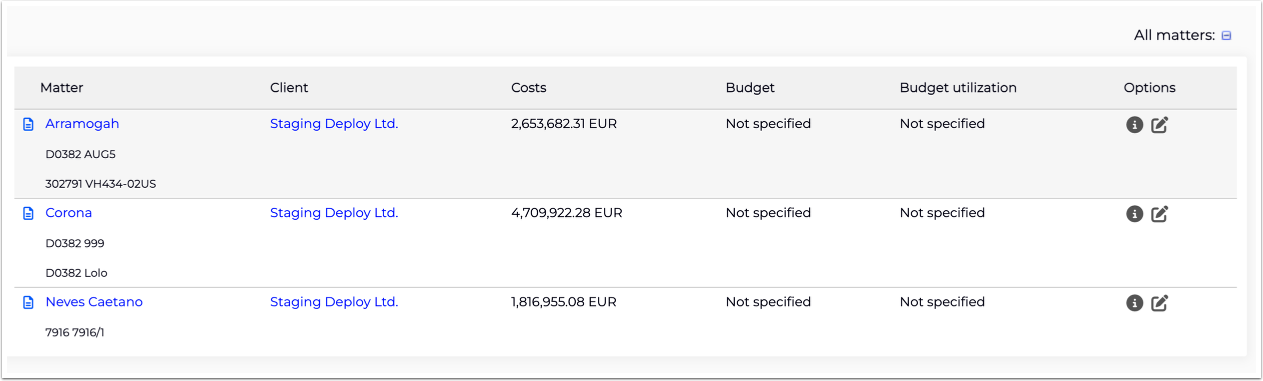
The main Matters display panel will show:
- The Matter name and ID information (click on the link to go to the matter detail page)
- The Client (click on the link to go to the client detail page)
- Costs
- Budget
- Budget utilization
- Options (matter details and matter settings)
Matter Details
When you click into a matter, you'll go to the Matter Details page. This is divided up into five tabs:
- Details
- Time entries
- Expenses
- Invoices
- Documents
- Legal analytics
- Calendar
- Forecast
- Settings

We'll go over these sections here.
Details
The Details section provides basic information about the matter.
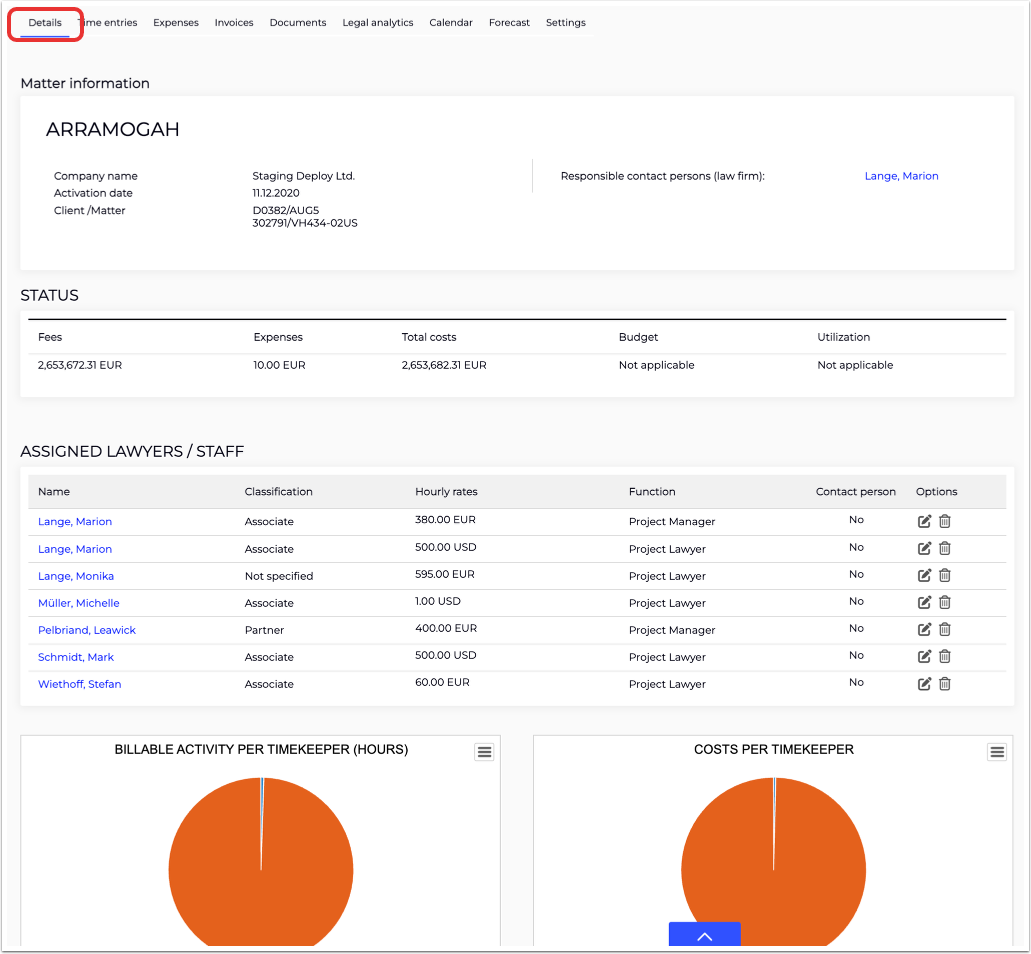
The Matter information panel will detail:
- Company name
- Activation date
- Client/Matter
- Responsible contact persons (law firm); click on the linked person to go to their Staff profile page
The Status panel will detail:
- Fees
- Expenses
- Total costs
- Budget
- Utilization
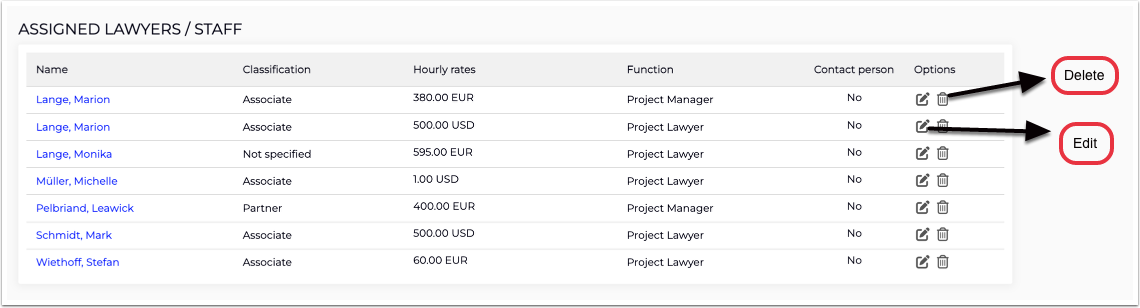
The assigned lawyers/staff will detail:
- Name
- Classification
- Hourly rates
- Function
- Contact person
- Options (edit, delete assigned lawyer/staff)
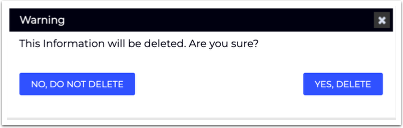
Clicking on Delete will bring up this menu. Click No, do not delete or Yes, delete.
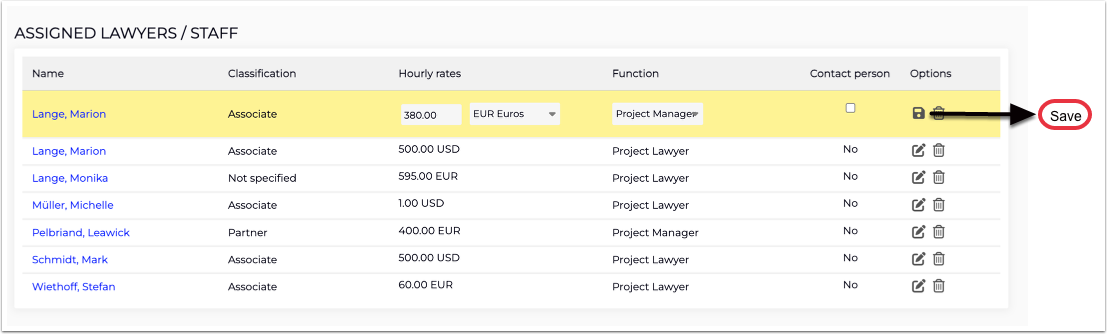
Clicking on Edit will allow you to edit the Hourly rates and currency (drop-down menu), function, and mark off if the person is a contact person or not (check box). Click the Save icon to save.
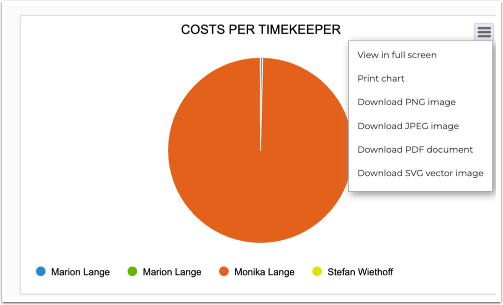
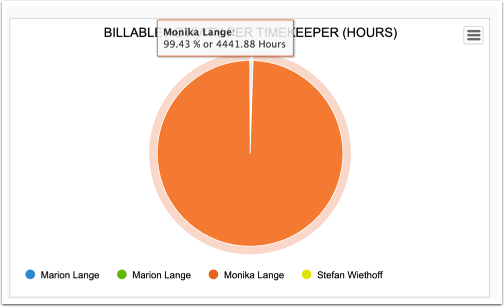
The bottom two charts will detail the Billable Activity Per Timekeeper (Hours) and Costs Per Timekeeper. Click the right-side menu to View in full screen, Print chart, and Download (PNG, JPEG, PDF, SVG).
Time Entries
Use the Time Entries section to view and edit the time entries as well as time entry analytics for the matter.
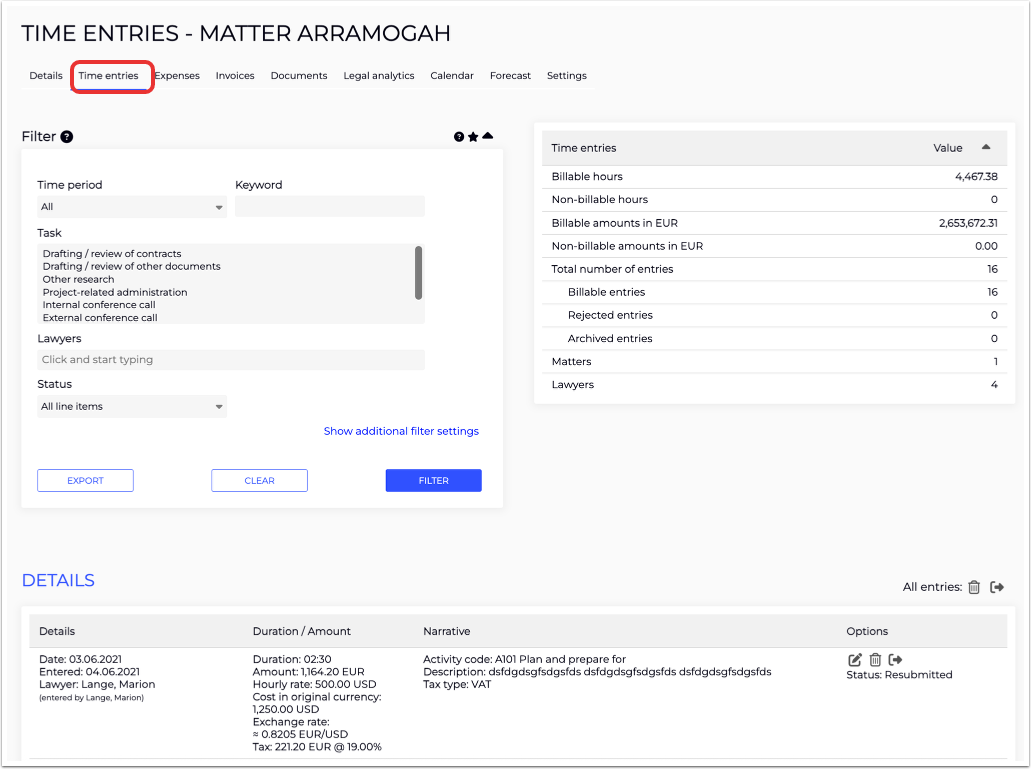
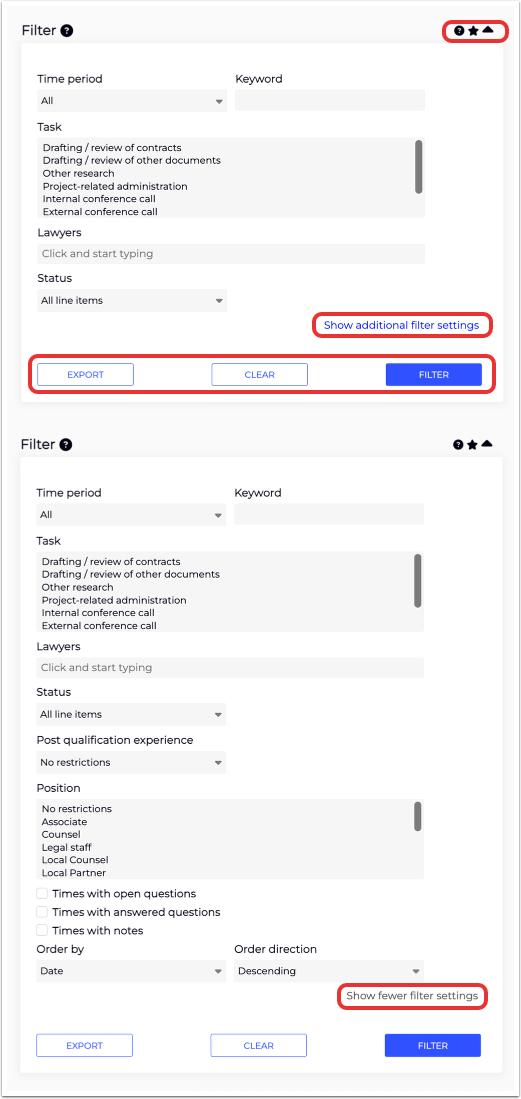
In the upper-left corner, the Filter panel will allow you to filter the displayed time entries by:
- Time Period (drop-down menu)
- Keyword
- Task (shift-click to select / command-shift-click to deselect)
- Lawyers
- Status (drop-down menu)
Click Export to export the selected data, Clear to remove the search filter options, or Filter to filter the results. Use the Star option at the top to save the filter or the Up arrow to minimize the filter panel.
You can also click on Additional Filter Settings to add:
- Post qualification experience (drop-down menu)
- Position
- Checkboxes to include or leave out Times with open questions, Times with answered questions, and/or Times with notes
- Order by and Order direction (drop-down menus)
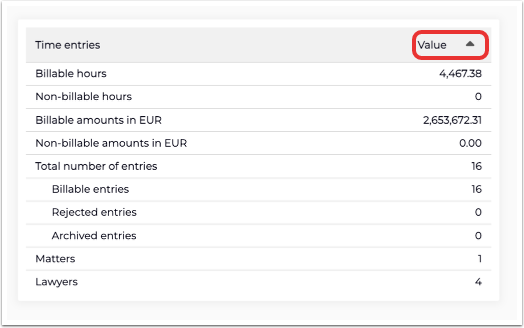
The Time Entries analytics panel provides key insights and analytics into the entries. Click the Up arrow to minimize the filter panel.
The main Details panel will show key details of the time entries, including:
- Details (Date, Entered, Matter, Client, Matter, Lawyer)
- Duration/Amount (Duration, Amount, Monthly Rate, Cost in original currency, Exchange rate, Tax)
- Narrative (Activity code, Description, Tax type)
- Options (Edit, Trash, Transfer Time Entry)
Note that at the top of the screen, you have the option to Trash or Transfer all time entries.

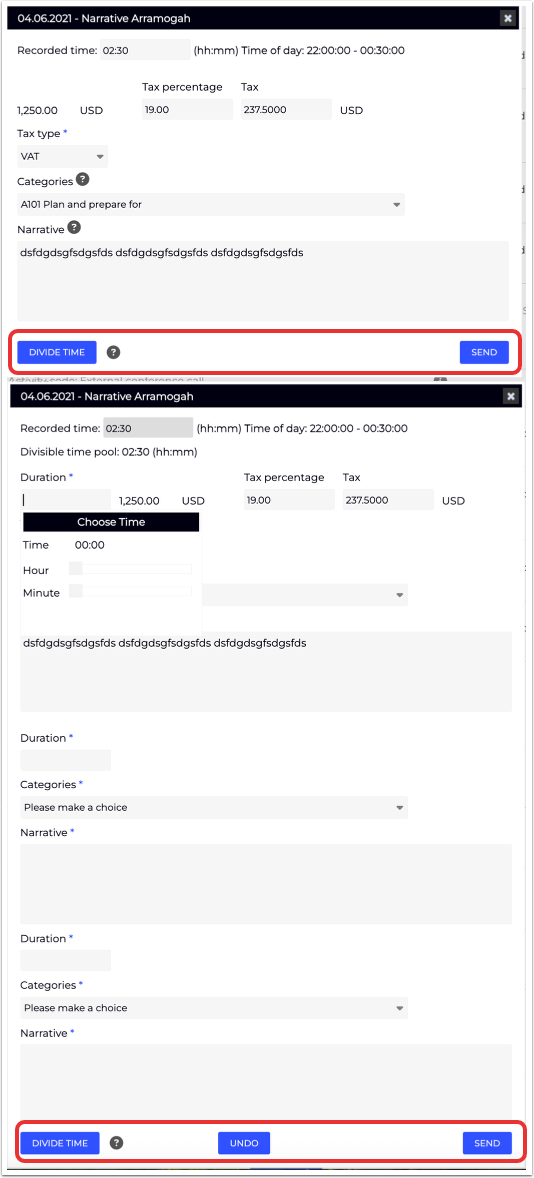
If you Edit the time entry, this screen will appear. You can edit the Recorded time, Tax percentage, Tax, VAT type, Categories, and Narrative. You can also click on Divide Time to include other activities you've completed in the course of recorded activity time; use Undo to undo the time divide option. Click Send to submit the change.
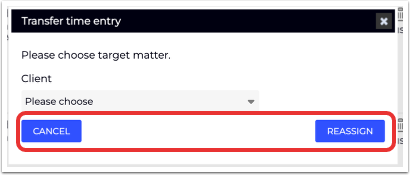
If you choose to Transfer time entry, this screen will appear. You'll have to choose the Target Matter from the Client drop-down menu. Click Cancel to back out or Reassign to transfer.
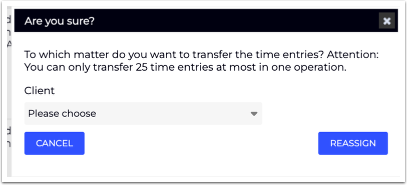
Note that if you want to Transfer all time entries, you'll get this alert. You can only transfer 25 time entries (at most) in one operation.
Expenses
Click on Expenses to view and edit the list of matter expenses along with expense analytics.
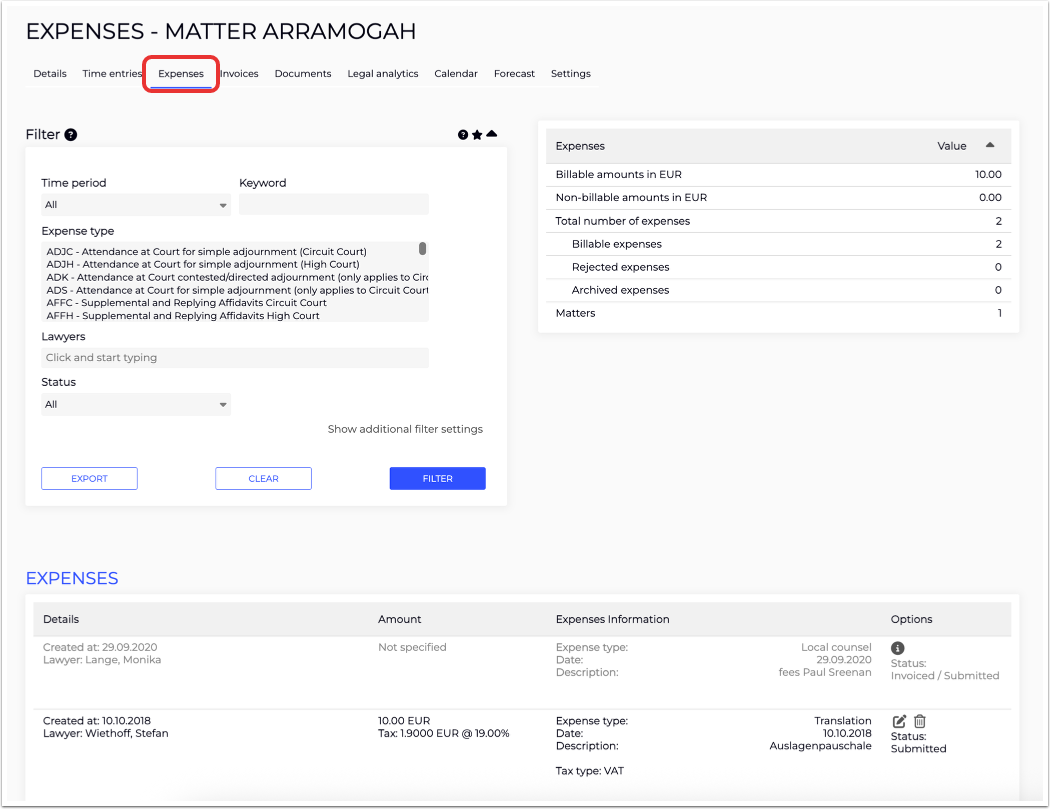
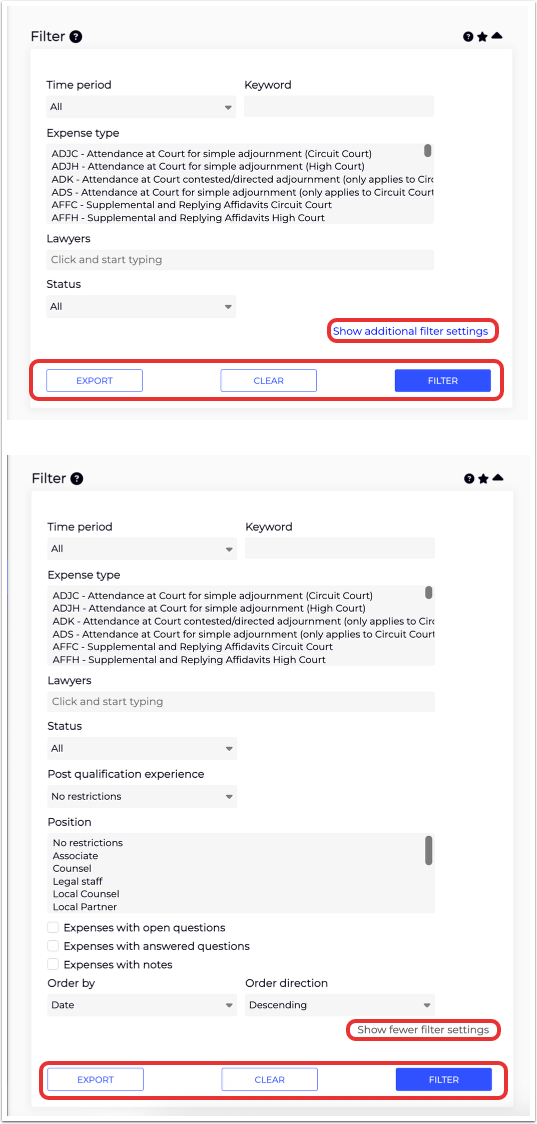
In the upper-left corner, the Filter panel will allow you to filter the displayed time entries by:
- Time Period (drop-down menu)
- Keyword
- Expense type (shift-click to select / command-shift-click to deselect)
- Task Codes (shift-click to select / command-shift-click to deselect)
- Matters (use the check boxes for the options for Include all subordinated matters and/or Only matters with cost)
- Lawyers
- Status (drop-down menu)
Click Export to export the selected data, Clear to remove the search filter options, or Filter to filter the results. Use the Star option at the top to save the filter or the Up arrow to minimize the filter panel.
You can also click on Additional Filter Settings to add:
- Post qualification experience (drop-down menu)
- Position (shift-click to select / command-shift-click to deselect)
- Checkboxes to include or leave out Expenses with open questions, Expenses with answered questions, and/or Expenses with notes
- Order by and Order direction (drop-down menus)
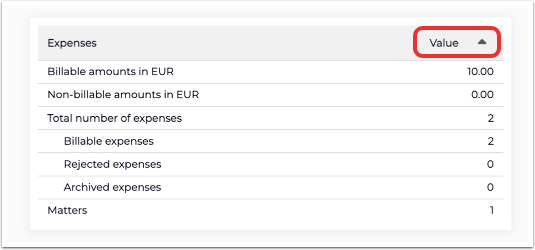
The Expenses analytics panel provides key insights and analytics into the entries. Use the Up arrow to minimize the filter panel.
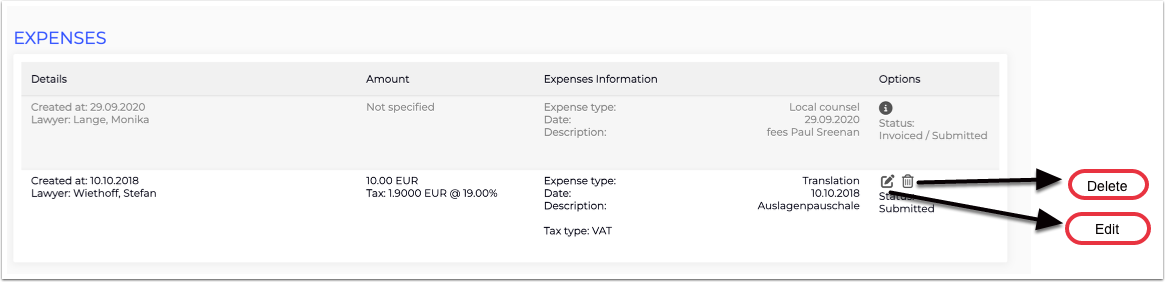
The main Details panel will show key details of the expenses, including:
- Details (Created at, Lawyer)
- Amount
- Expenses Information (Expense type, Date, Description, others)
- Options (Edit Expense, Delete Expense) along with a Status description
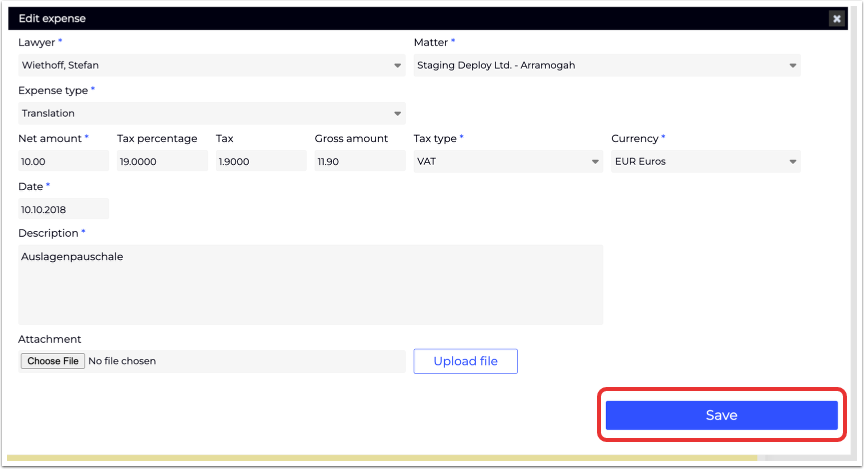
If you Edit the expense, this screen will appear. You can edit the Lawyer, Matter, Expense Type, Net amount, Tax percentage, Tax, Gross amount, Tax type, Currency, Date, Description, and upload an Attachment. Click Save to save the change.
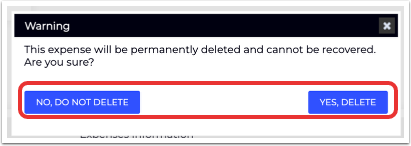
If you Delete the expense, this screen will appear. Click on No, do not delete, or Yes, delete.
Invoices
Use the Invoices menu to view and record invoices for the matter.
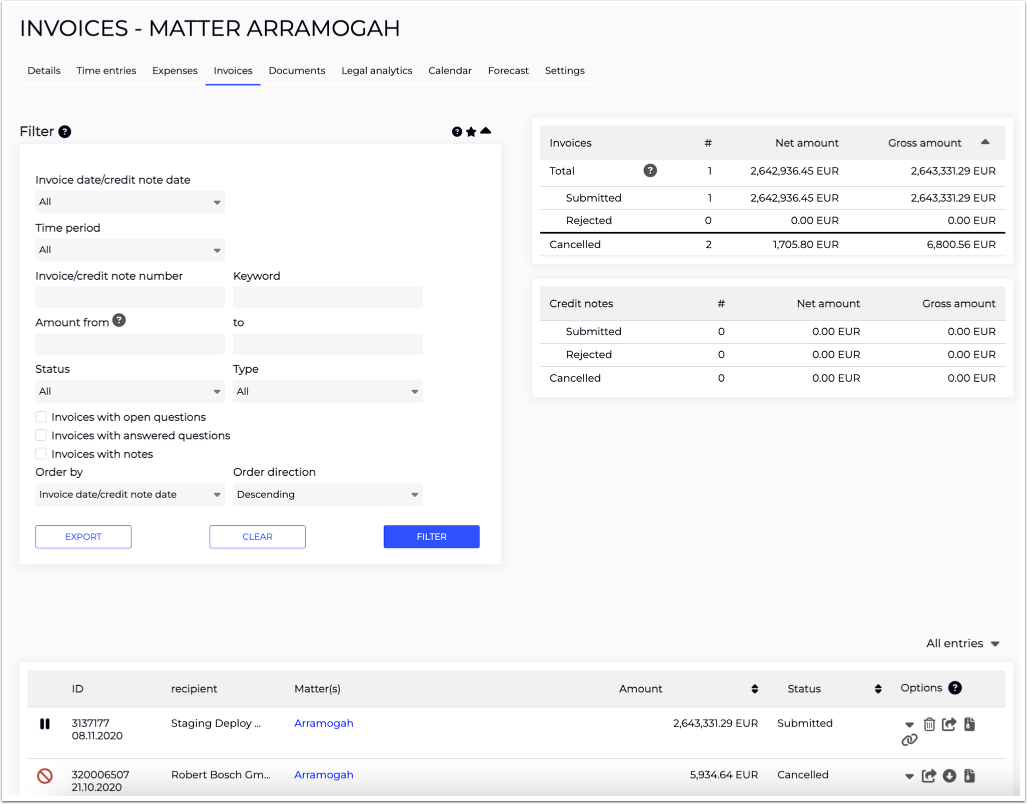
- Invoice date/credit note date (drop-down menu)
- Time period (drop-down menu)
- Invoice/credit note number
- Keyword
- Amount from and to
- Clients
- Matters (with the check-box option to Include all subordinated matters)
- Status and Type (drop-down menus), with the check-box options to include Invoices with open questions, Invoices with answered questions, and/or Invoices with notes.
- Order by and Order direction (drop-down menus)
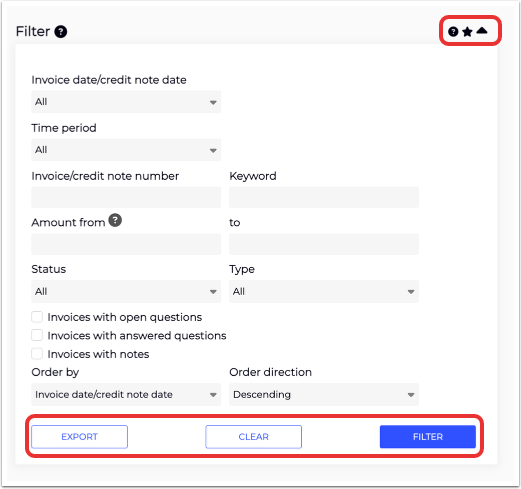
Click Export to export the selected data, Clear to remove the search filter options, or Filter to filter the results. Use the Star option at the top to save the filter or the Up arrow to minimize the filter panel.
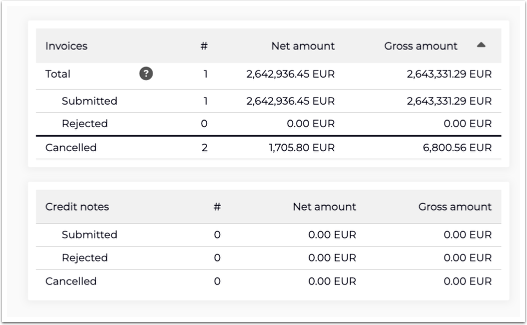
The Invoices analytics panel provides key insights and analytics into the invoices. Click the Up arrow to minimize the filter panel.
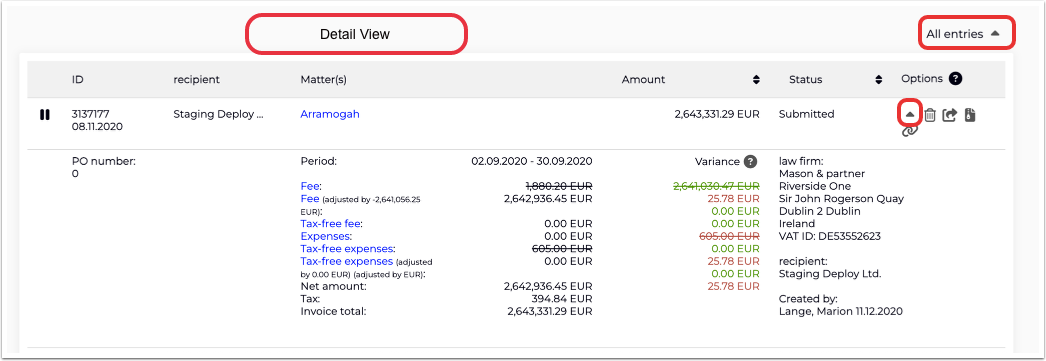
The main Invoices panel will show key details of the invoices, including:
- ID
- Recipient
- Matter(s); click on the link matter to go to that page
- Amount
- Status
- Options (Link to Invoices, Delete Invoice, Export Invoice, Download Invoice); you can also click the Down arrow to display more details.
Note that at the top of the screen, you have the option to expand/collapse the details in all on-screen entries. To the extreme left of the panel, you'll see an icon indicating the invoice status (waiting for review, cancelled). Use the up/down arrows at the top of the panel to sort by those fields.

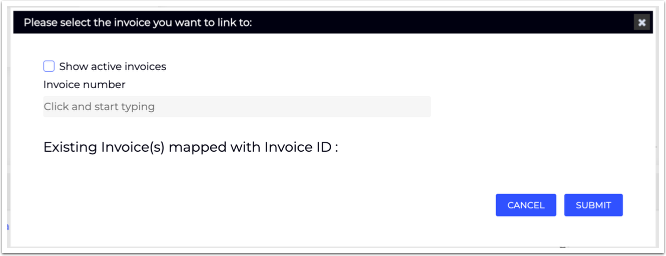
If you click the Link Invoice option, this screen will appear. You can choose to Show active invoices with the check box and type in the invoice number in the text box. Click Submit to link or Cancel to back out.
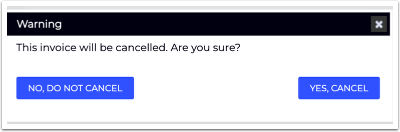
If you click the Delete option, this screen will appear. You can choose from No, do not cancel or Yes, cancel.
Clicking on Export and Download will export the invoices as .txt and .zip files.
Documents
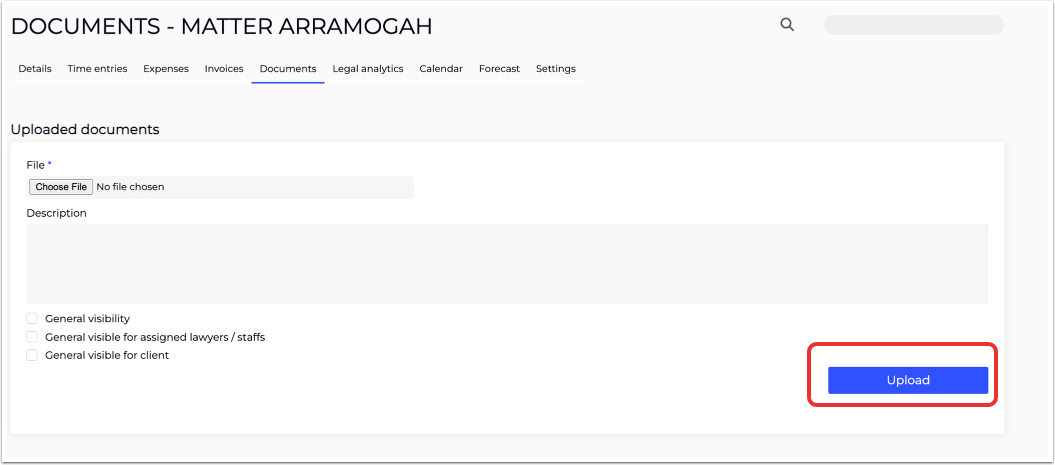
Click on the Documents tab to upload and view documents for the matter. Click on Choose File to choose the file for upload. You can fill in the Description and choose from the General Visibility, General visible for assigned lawyers/staffs, and General visible for client check-box options.
Click Upload to upload a document.
Legal Analytics
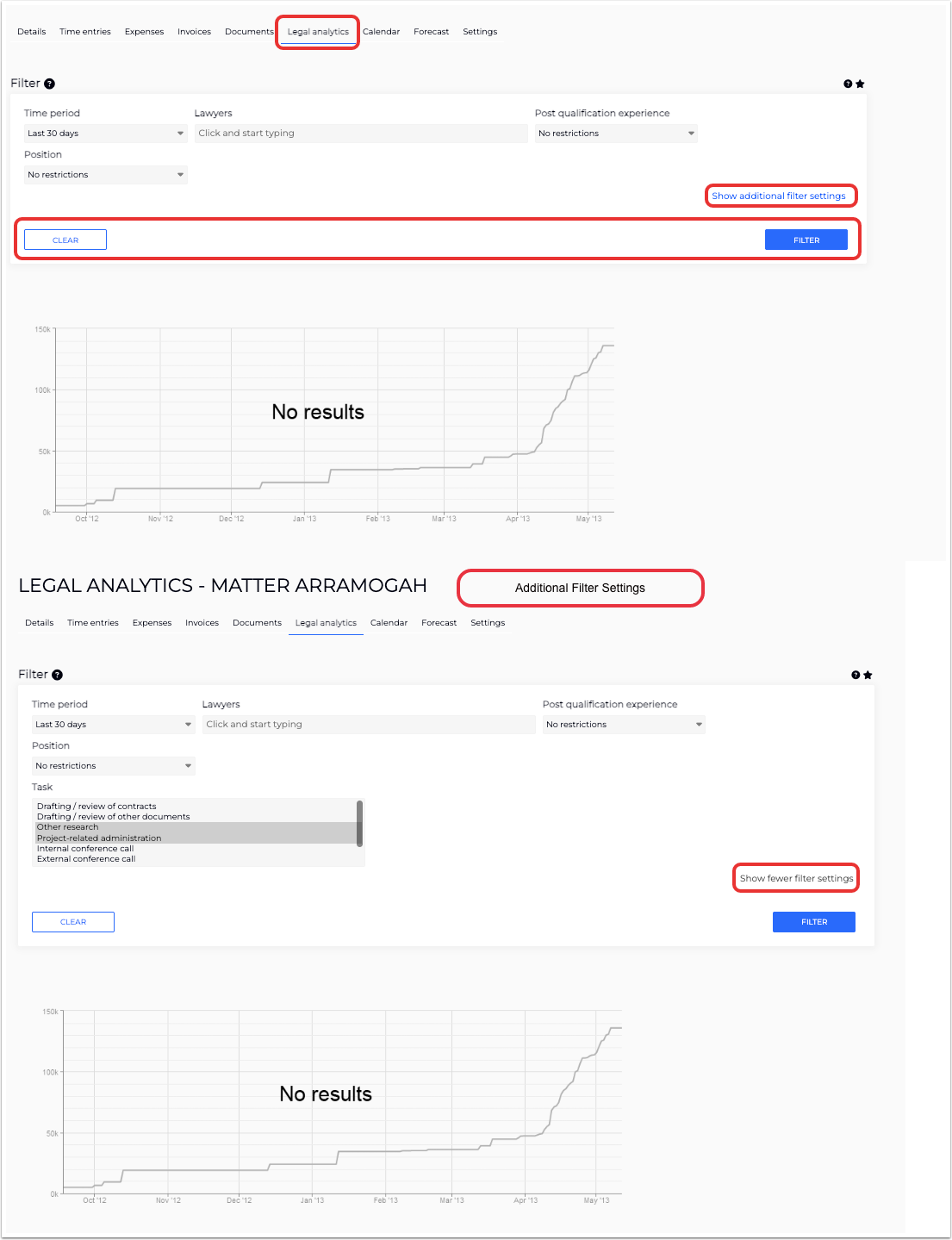
Use the Legal Analytics section to display key analytics related to the matter.
Within the Filter section, you can specify the display to show:
- Time period (drop-down menu)
- Lawyers
- Post qualification experience (drop-down menu)
- Position (drop-down menu)
Click on Show additional filter settings to sort by Task (shift-click or command-shift click to select/deselect). Use the Star button to save the filter.
Click Reset to reset the filter, Clear to remove your selections, or Filter to filter.
The selected analytics will be displayed at the bottom of the page.
Calendar
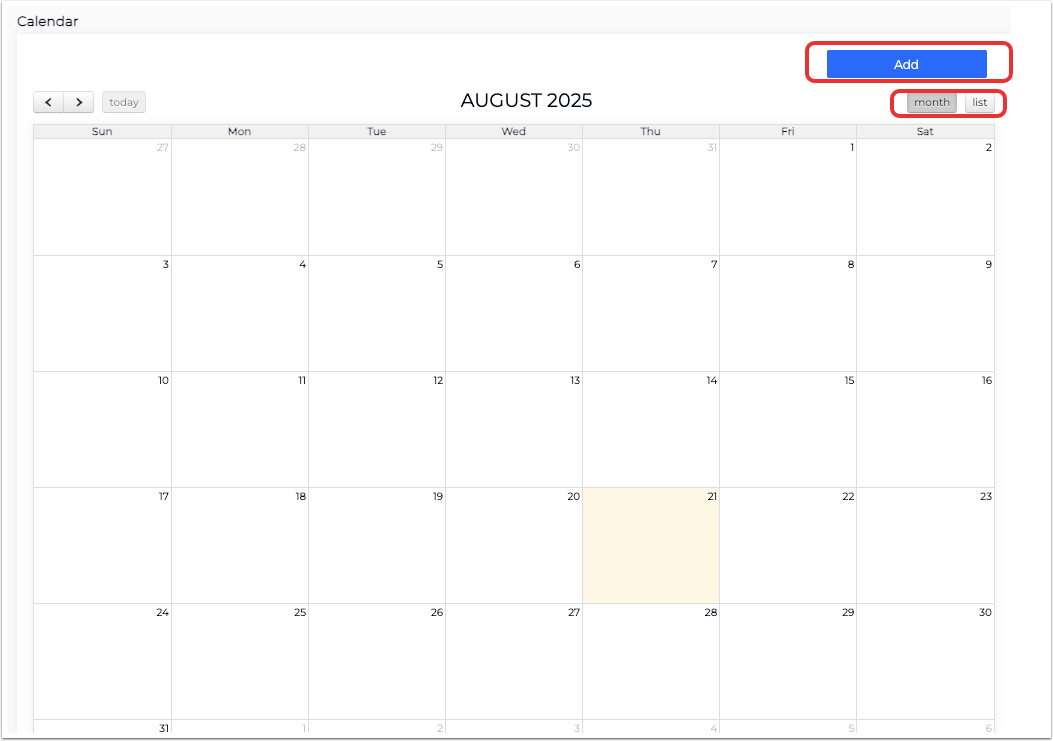
Use the Calendar section to list key upcoming events.
Use the Month or List buttons to toggle between the month and list displays. Click Add to add an event.
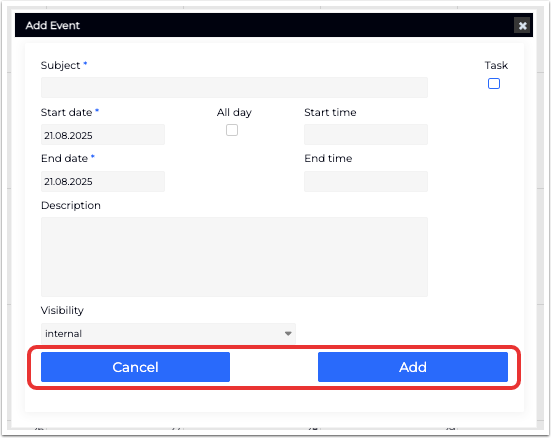
When you click Add, you'll have to:
- Choose whether it is an Event or a Task
- Fill in the Start and End date and time (only the start date and time are required for tasks), or click the All day option to designate the entire day
- Fill in a Description
- Select the Visibility from the drop-down menu
Click Add to add the event and task or Cancel to cancel.
Forecast
Use the Forecast tab to view and edit forecasts for the matter.

Settings
Use the Settings tab to adjust settings for the matter.
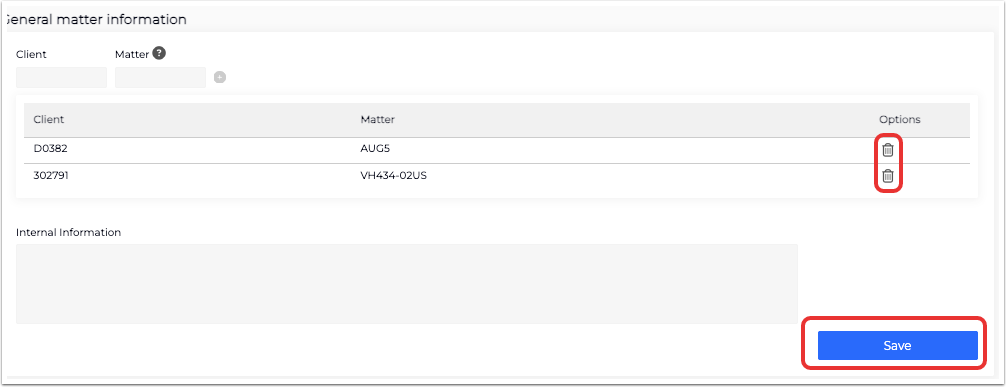
Under General Matter Information, you can:
- Add in the Client and Matter
- View the current Client and Matter listings (click on the trash can to Delete the entry)
- Fill in the Internal Information
Click Save to save the information.
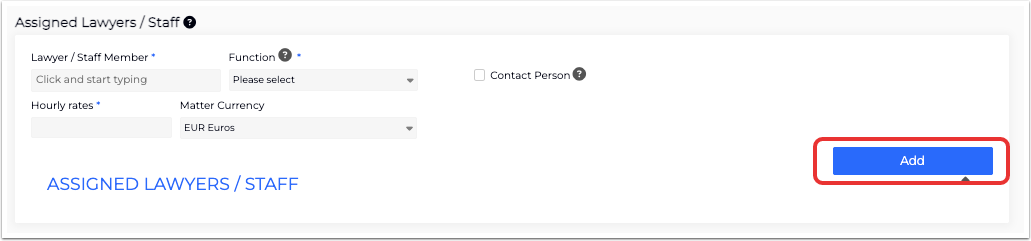
Under Assigned Lawyers/Staff, you can adjust the:
- Lawyer/Staff Member
- Function (drop-down menu)
- Contact Person (use the check box)
- Hourly rates
- Matter currency (drop-down menu)
Click Add to add the staff/lawyer. You can also view the Assigned Lawyers/Staff here. Fields marked with an asterisk are required.
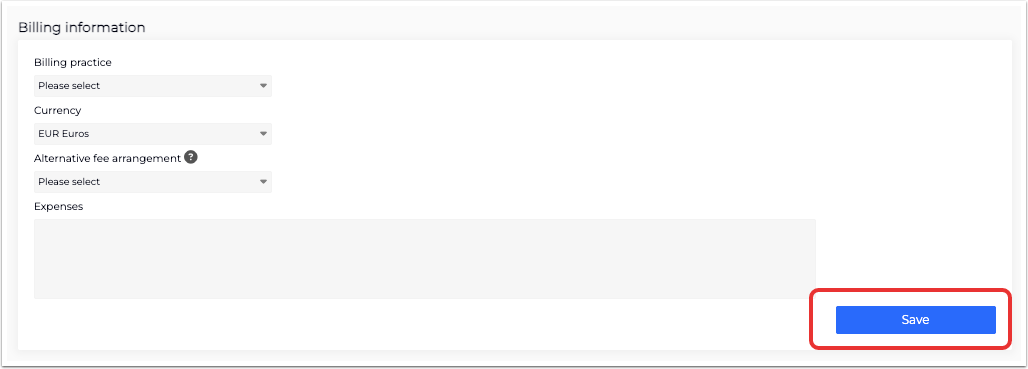
Under Billing Information, you can adjust the:
- Billing practice (drop-down menu)
- Currency (drop-down menu)
- Alternative fee arrangement (drop-down menu)
- Expenses
Click Save to adjust.
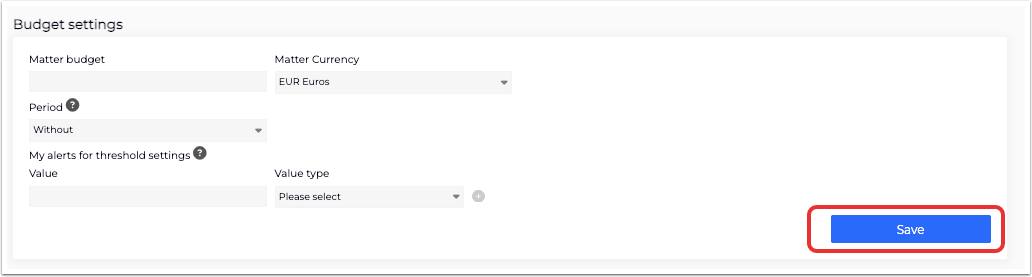
Under Budget Settings, you can adjust the:
- Matter budget
- Matter currency (drop-down menu)
- Period (drop-down menu)
- Value and Value type (drop-down menu) for threshold settings
Click Save to save the changes.
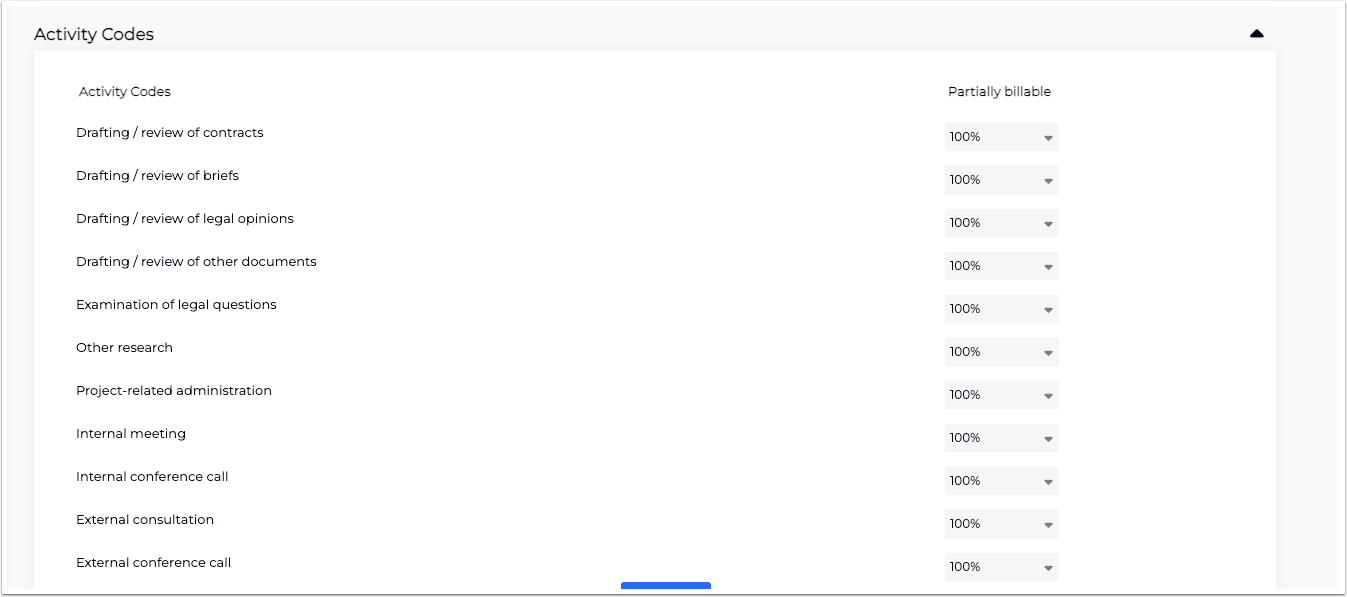
Under Activity Codes, you can adjust the Partially billable percentage for each code. Click Save to edit.
Mapping a Client and Matter ID to a Matter
Before the data import of a LEDES98B(I) file for a certain matter can succeed the respective client matter ID has to be mapped to the matter. For this example, the CLIENT_ID (column 3 in the LEDES98BI file) would be 123 and LAW_FIRM_MATTER_ID would be 321 (column 4 in the LEDES98BI file). In a WIP LEDES98BI file the respective columns would be 1 and 2.
These are the steps that need to be performed to map the client matter id to the respective matter:
1. Choose the respective matter:
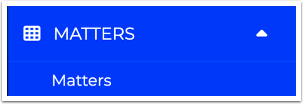
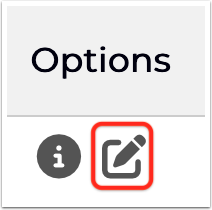
2. Click on the square icon in the last column for the respective matter to edit the matter:
3. Enter the designated Client and Matter ID in the 2 respective fields according to columns 3 and 4 in the invoice LEDES file:
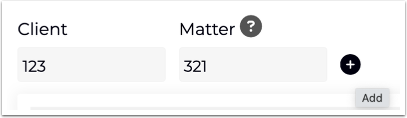
4. Afterwards click on the "+" to add the client matter id which should now be listed below:

5. Press the save button to save the changes to the matter:

In the TUTORIALS section which is reachable by clicking on the: