Here's how to bulk upload and bulk edit timekeepers in Counsel Exchange.
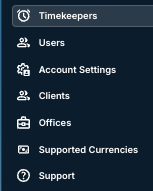
- After logging into the Master Settings view, go to "Timekeepers" on the left-hand side menu.
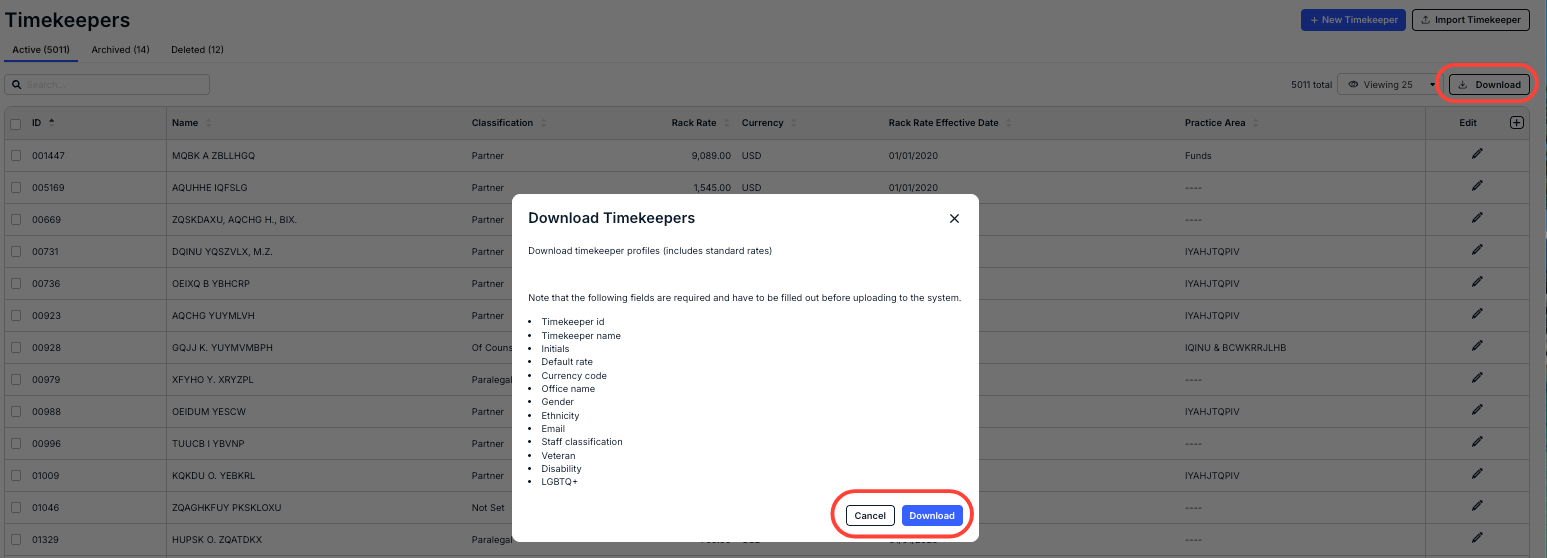
- The Timekeepers screen will open. Click on "Download" to download an Excel file of the current timekeepers.
Click on the Download button to download the list of timekeeper profiles or Cancel to back out.
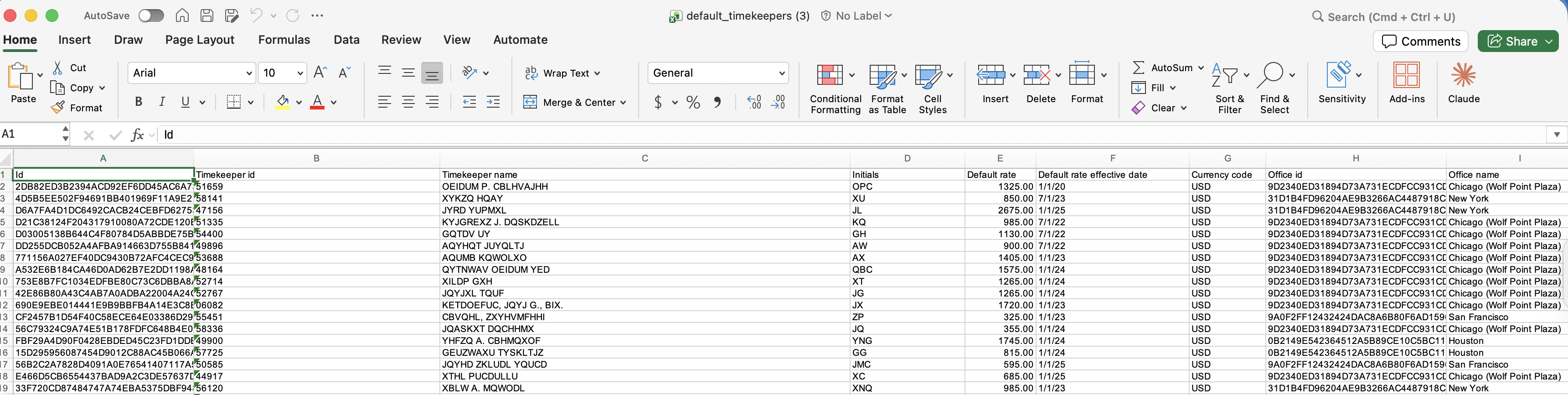
- Make any changes to timekeepers on the Excel file.
Note that the following fields are required and have to be filled out before uploading to the system.
- Timekeeper ID
- Timekeeper name
- Initials
- Default rate
- Currency code
- Office name
- Gender
- Ethnicity
- Staff classification
- Veteran
- Disability
LGBTQ+
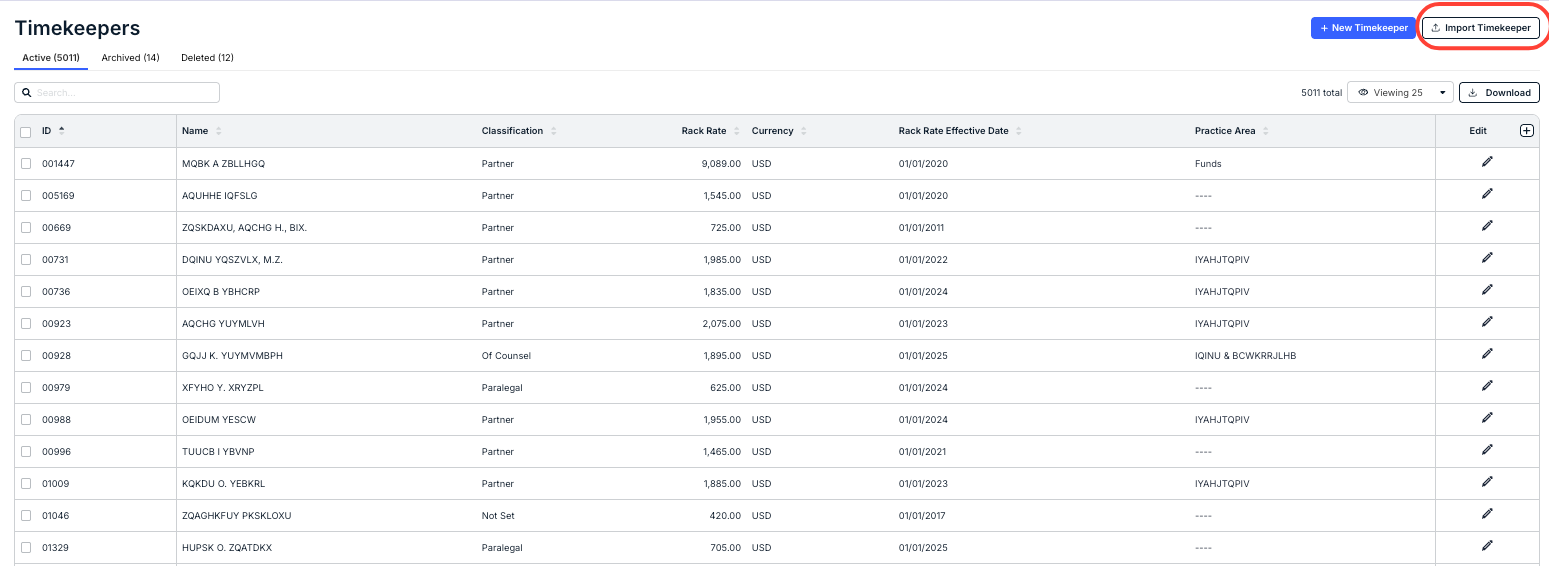
- After making changes, click on "Import Timekeeper" on the main Timekeeper screen.
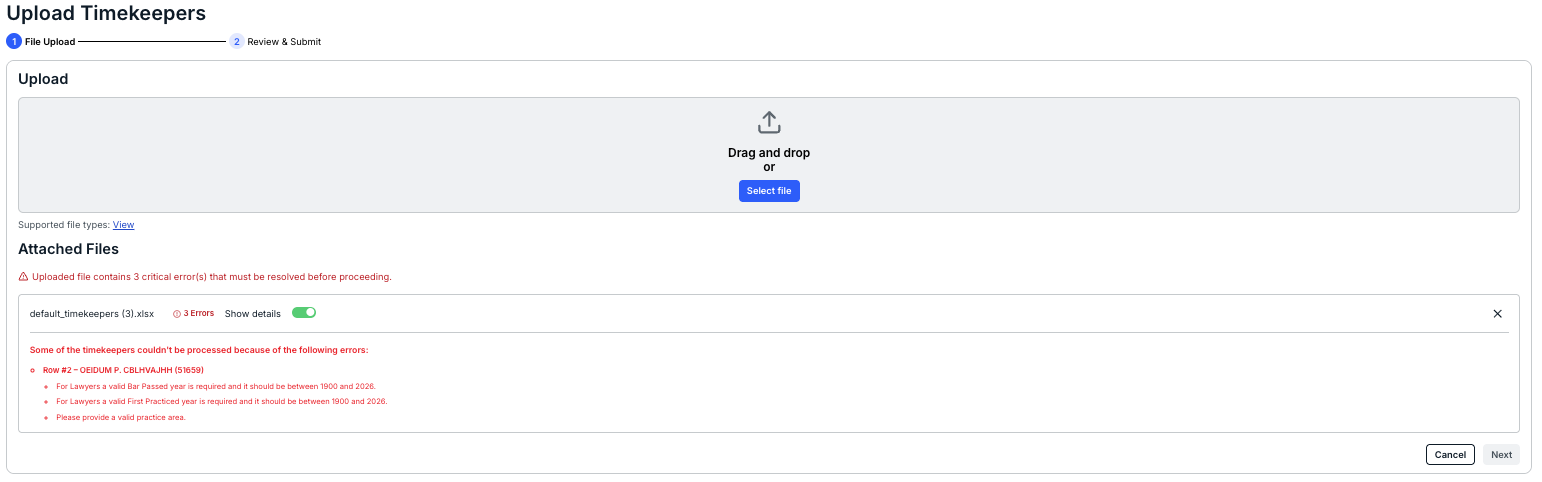
- The Upload Timekeepers screen will appear.
Drag and drop the file, or click Select File to upload the updated file.

Any errors will appear under the Attached Files field. If there are errors, go back, fix them, and re-upload.
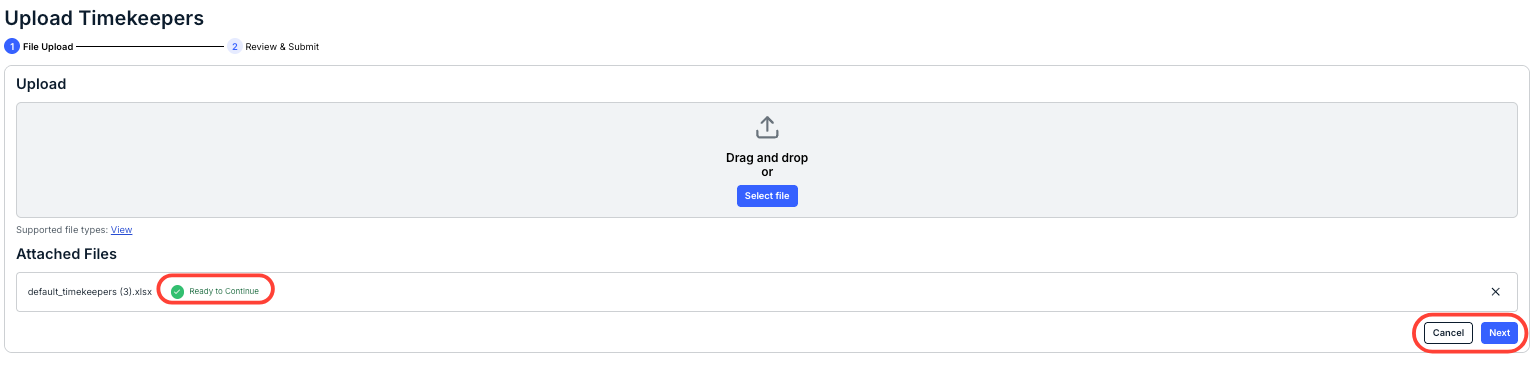
Once the file is ready to go, you'll see a Ready to Continue message in green under the Attached Files section.
Click Next to submit or Cancel to back out.
- Review the updated timekeeper information and submit.
Click Submit to send in the file or Cancel to back out.

The updated timekeepers will appear in the main timekeepers screen.
