This guide outlines common invoice validation errors in BillingPoint and how to resolve them.
Date-Related Validation Errors
This section will cover these common problems listed on a Failed invoice:
- Invoice must cover a single month's charges. The invoice start date must be the first day of the billing month.
- Invoice must cover a single month's charges. The invoice end date must be the last day of the billing month.
- Line dates must be within an invoice period.
This common situation comes up when vendors who have not used e-billing recently try to submit months of backlogged invoices in one submission with an extended date range - for example, two or three months or an entire quarter - when the client requires individual monthly invoices.
Here's what a screen with those failures looks like:
We will deal with the fourth error listed here, this TK has not been submitted...,in the next section.
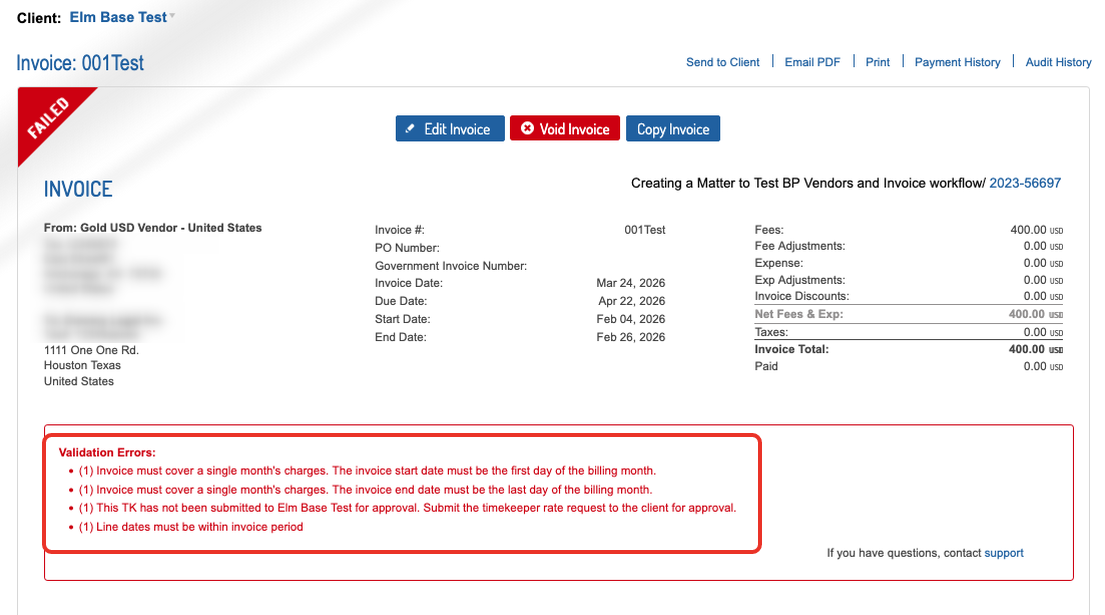
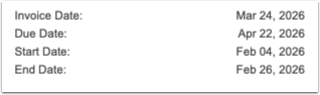
In BillingPoint, the invoice start and end date must cover a calendar month. Note that this particular invoice only goes from February 5 to February 25.
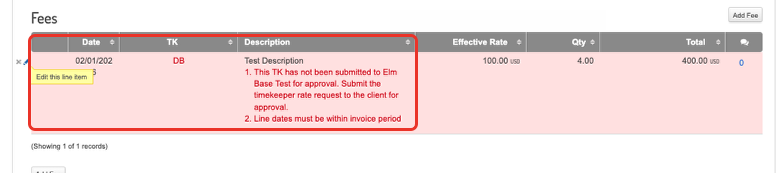
Additionally, the line date must be within that invoice period. As you can see, the line date is April 22, which is outside the February 5- February 25 invoice period. All line-item dates (fees, expenses, taxes) must fall inside the invoice billing period. Note that any line dates outside the specified range may trigger validation errors, even if the period spans the full month.
Solutions
Invoice must cover a single month's charges. The invoice start date must be the first day of the billing month.
Invoice must cover a single month's charges. The invoice end date must be the last day of the billing month.
To fix these errors, click on Edit Invoice on the top of the Invoice screen.
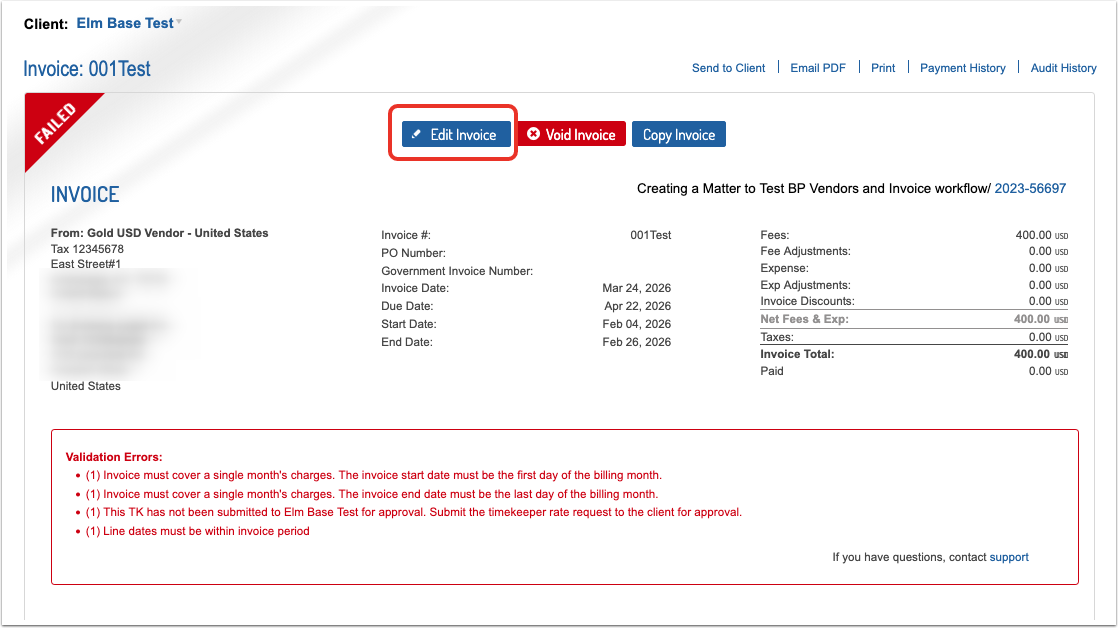
The Edit Invoice screen will appear. Adjust the dates as necessary and click Update.
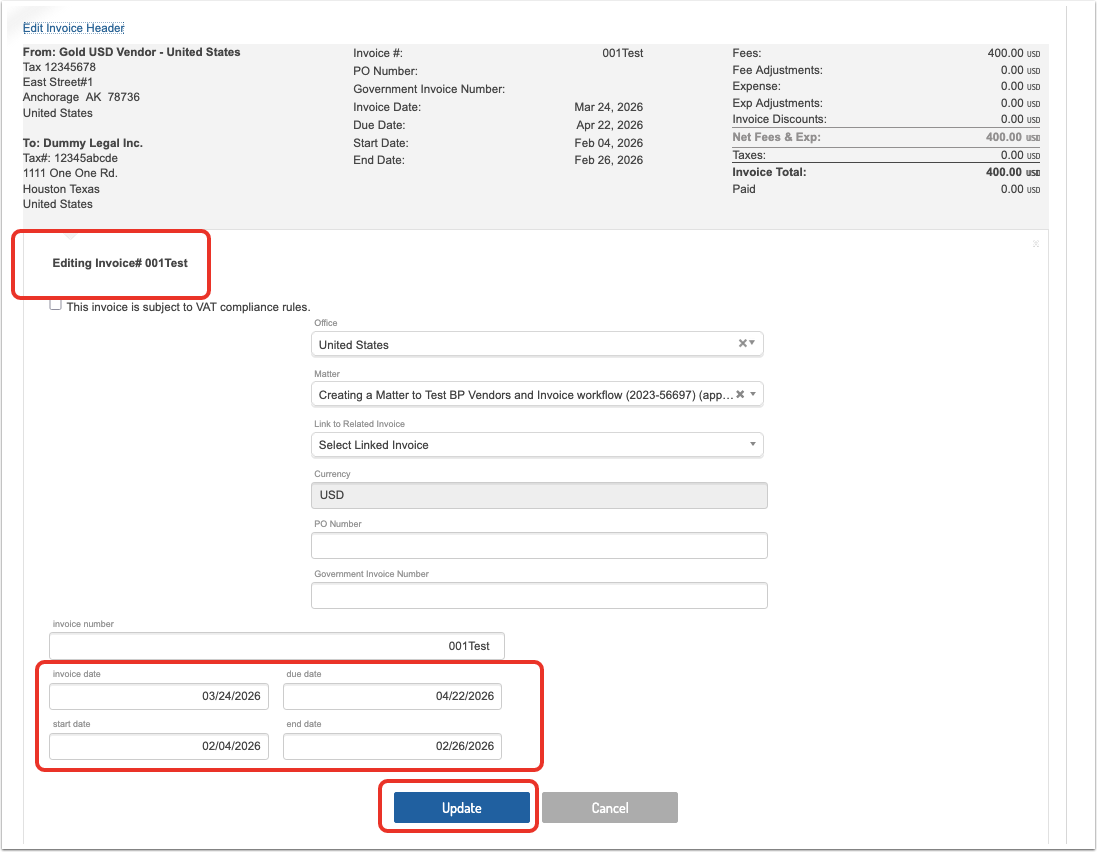
Line dates must be within an invoice period.
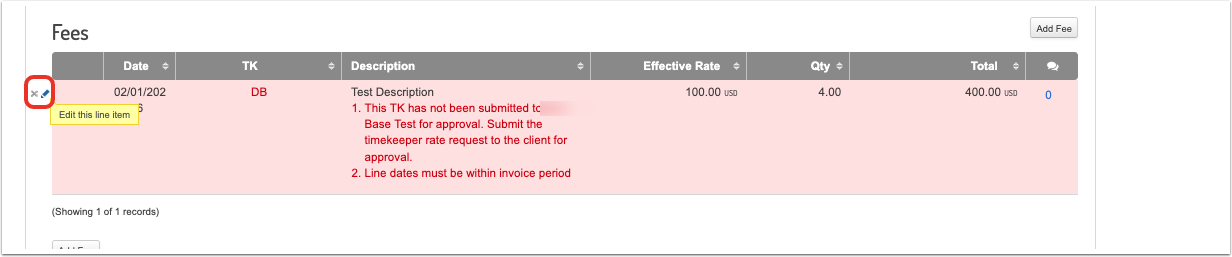
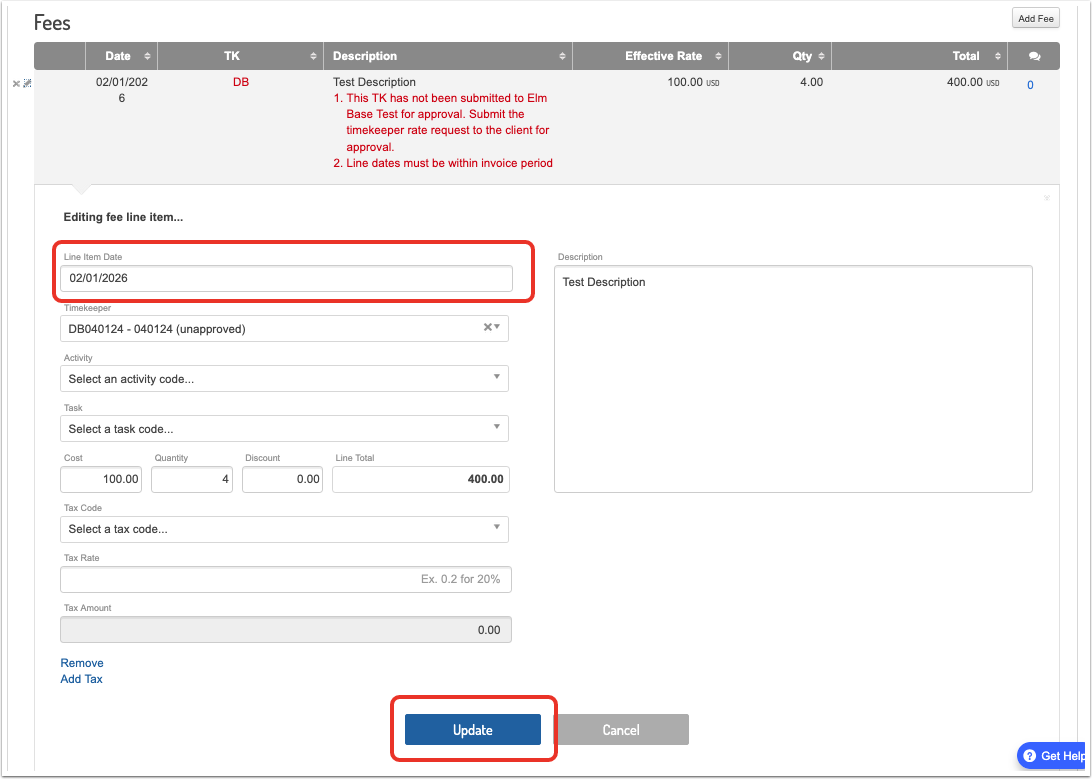
To fix this error, click on Edit this line item on the line-item fees. Adjust the date as necessary.
Timekeeper-Related Validation Errors
This section will cover these common problems listed on a Failed invoice:
- This TK has not been submitted to CLIENT for approval. Submit the timekeeper rate request to the client for approval.
- The invoice cannot be submitted because the timekeeper's rate effective dates fall outside the appropriate bounds of their approved rate.
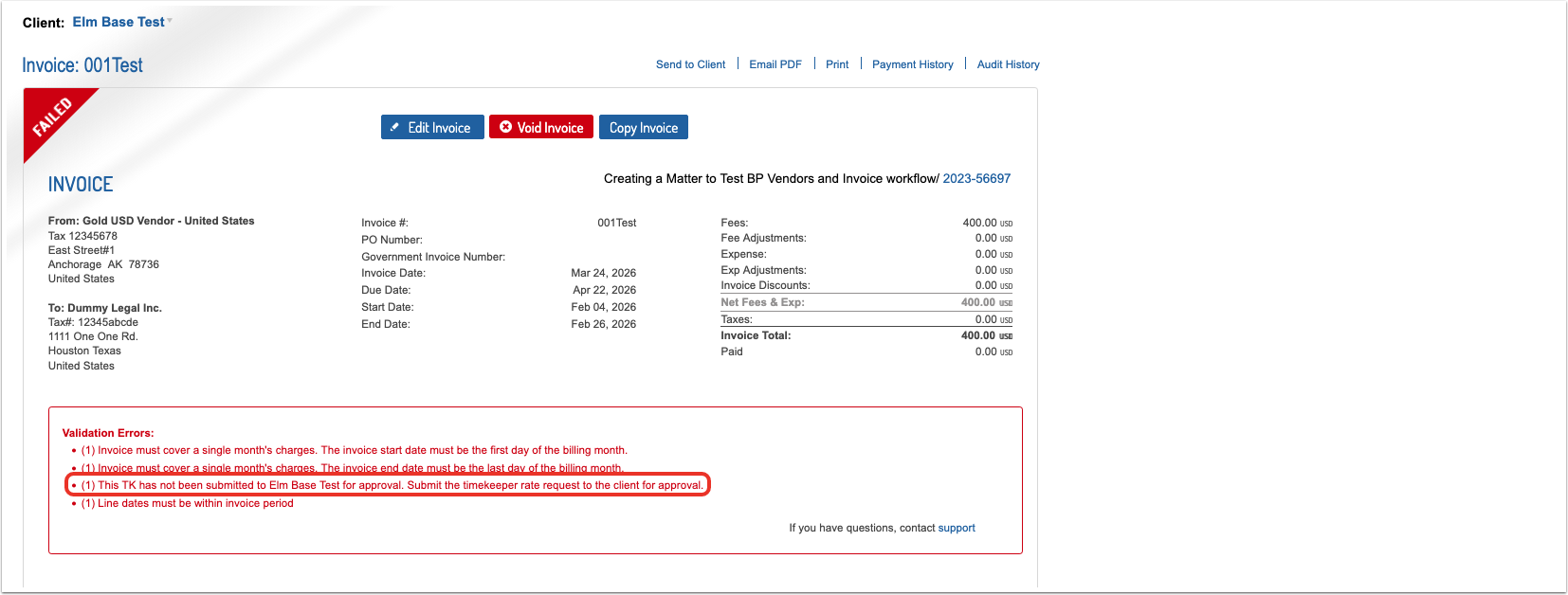
This TK has not been submitted to CLIENT for approval. Submit the timekeeper rate request to the client for approval.
Solution
This error occurs when the timekeeper billed on a line item has no approved rate on file. In this situation, you'll have to either submit a rate request with that new timekeeper (learn more in the Requesting a New Timekeeper Rate article) or adjust the line-item to select a previously-approved timekeeper
The invoice cannot be submitted because the timekeeper's rate effective dates fall outside the appropriate bounds of their approved rate.

Solution
This error occurs when the line-item timekeeper rate sent in exceeds the client-approved rate. In this situation, you'll need to adjust the line item for the timekeeper rate to fall within the client-approved rate, either by editing the line-item or submitting the same timekeeper rate with an earlier effective date prior to the earliest billed date.
Office-Related Validation Errors
This section will cover this common problem listed on a Failed invoice:
- Submitting office address information cannot be blank. Address information can be updated under account settings on the settings tab by administrative users.
Submitting office address information cannot be blank. Address information can be updated under account settings on the settings tab by administrative users.

Solution
This error occurs when the submitted office address is blank or contains incorrect information. Administrators can go into the Account Settings, update the office, and reselect within the invoice.
Other errors:
- Invoice date does not equal the submission date.
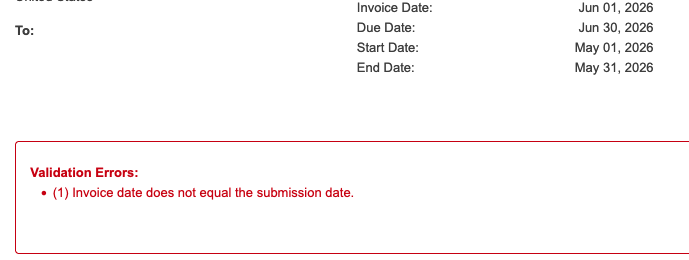
This means you have to enter the day you submit the invoice as the invoice date. If you are submitting today, you set it as today.
"Missing matter number" error on a LEDES invoice: means either the matter is not approved or set up appropriately to receive invoices on the customer's side, or that the LEDES file is in an incorrect format.
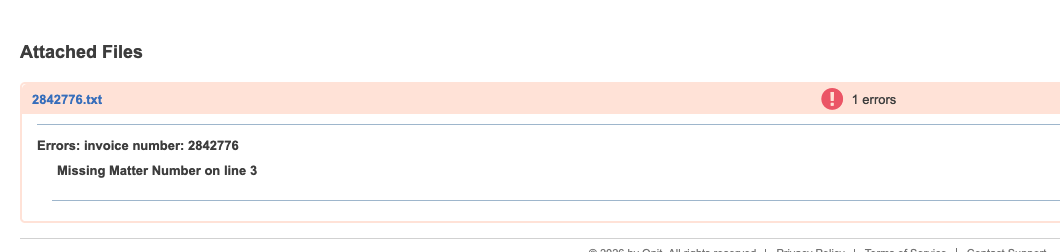
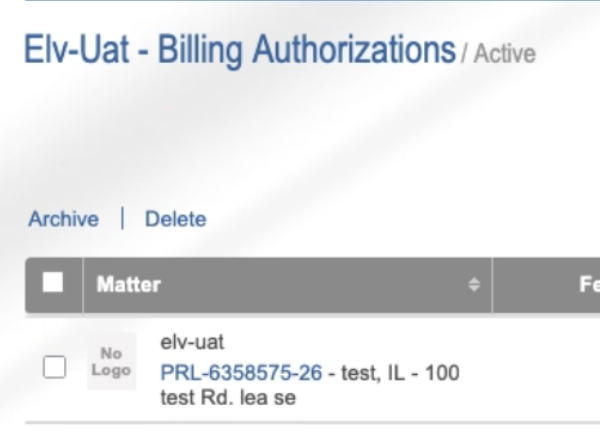
To correct this, open the LEDES file and add the matter number prior to the [] at the end of the line, and re-upload. You can find the matter number in the Billing Authorizations screen.
- If you have an incorrect entity error on a MANUAL invoice, reach out to your customer to ask them to update the legal entity for the matter on their side.
- If your invoice is in a different currency than what you would like, you may contact the customer to ask them to change the invoice currency in Onit.
- If you are getting an error about needing a unique invoice number for an invoice with the same number that has been voided, note that some customers require this validation on their side and it cannot be changed. Usually, all you must do is add a letter to the end of the invoice number.
- If you see a "block billing" error, check your client's billing guidelines for more information.
- Note that you cannot transition the invoice to another phase when the matter is closed; if you need to transition, reach out to the customer to reopen the matter