Tax Validations
Tax Code Mapping
Taxes on a Discount Line Item
FAQ/Things To Note
Tax Validations
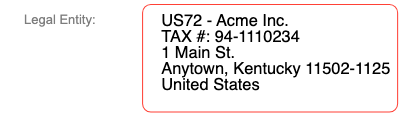
Taxes are validated against the Bill To Legal Entity. Below are the validation check points:
- Tax Jurisdiction matches the jurisdiction of the Bill To Legal Entity
- Tax rate matches the tax rate of the tax code in use
Tax Code Mapping
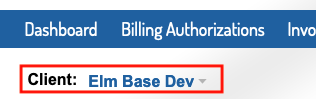
1. Select your client from the Client dropdown menu.
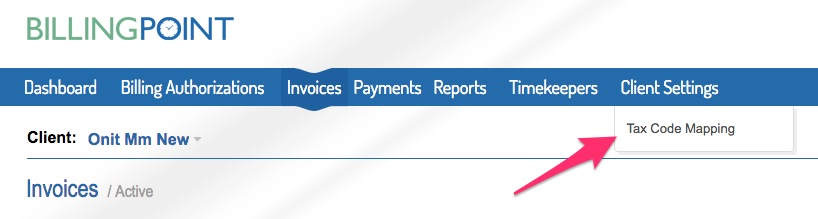
2. Choose Tax Code Mapping from the Client Settings tab.
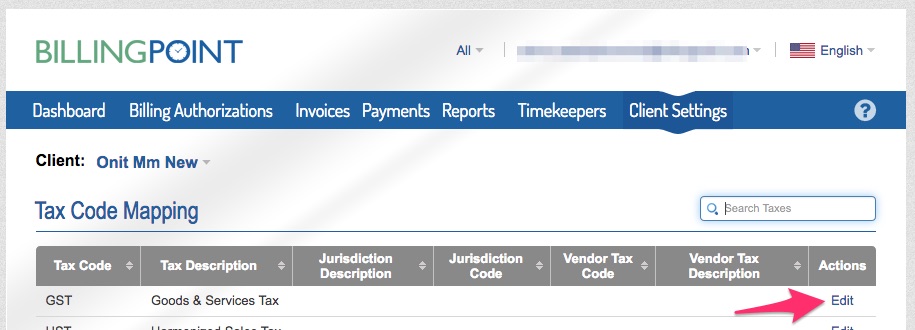
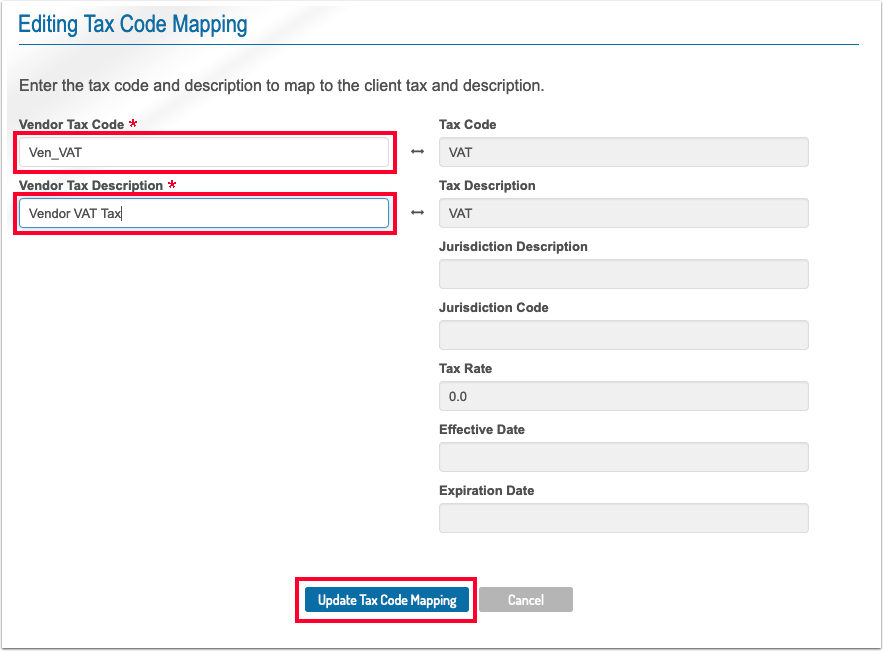
3. Select Edit on the code you want to add the mapping for.
4. Fill in your company's code and description. Click Update Tax Code Mapping.
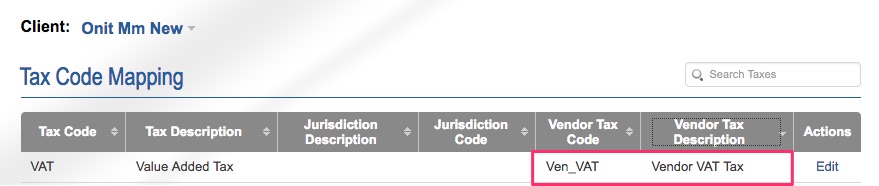
5. The tax code mapping will appear on list and can be used in LEDES file uploads.
Taxes on a Discount Line Item
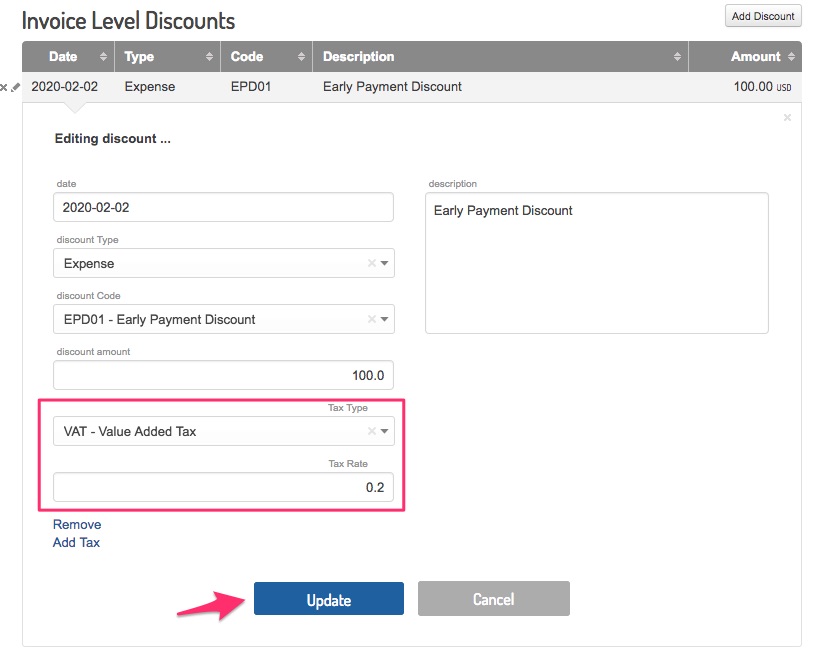
To add a line item tax on a discount line item, first save the invoice as a draft with all appropriate expenses, fees, discounts, and header taxes. Once the draft has been saved, edit the invoice-level discounts by clicking the pencil icon next to the discount.

Apply the appropriate tax type and rate to the discount line item, then click Update to save.
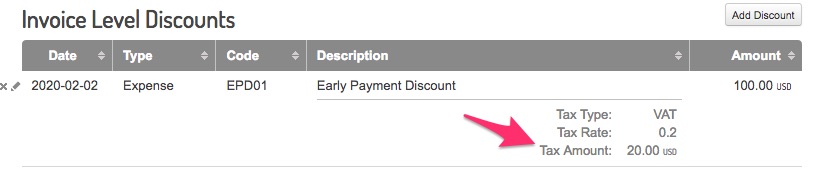
You will see the tax adjustment reflected after the invoice has been updated.
FAQ / Things to Note
- Customer invoices will only show tax codes with a jurisdiction code that matches the country code provided by the Legal Entity. (e.g., Only US tax codes will be shown if the customer is in the United States)
- The original tax code will remain with the invoice even if it is modified after processing. If a rate or description changes, the invoice will show the original tax rate and description.
- Hovering over client tax codes will display vendor tax code mapping in a pop-up.
- When a tax code is selected, the description and rate auto-populate.
- Tax Validation errors will show on the invoice.
- Tax Validation errors will show on LEDES upload.
Note that the legal entity on an invoice and Billing Authorization Request must match EXACTLY. You can check the Legal Entity on the Matter page.
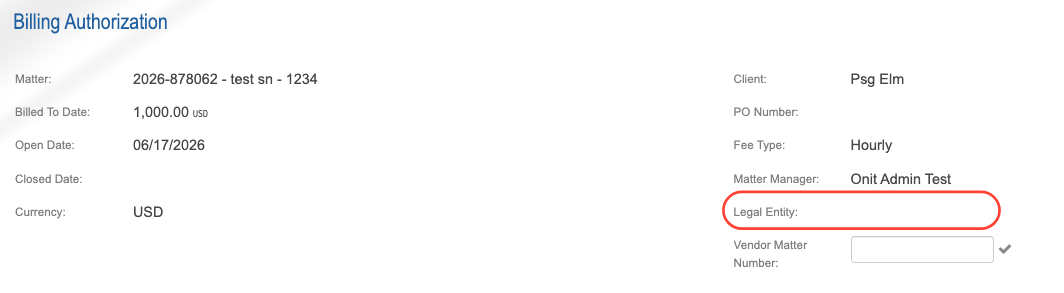
The Legal entity entry will look like that. Again, it must match up exactly with what is on the Billing Authorization Request. You can not substitute "Street" for "St.", for example.