We are pleased to announce our latest eBilling.Space release, which will go live on Monday, August 20, 2026.
This release delivers a broad range of new features, usability improvements, and security enhancements designed to further streamline your daily work. Here are the highlights:
Enhanced user experience (UX) with improvements across the application
Invoice PDF Preview - review invoice documents at a glance, without downloading
SIC-only Law Firm setup, including LEDES Review support - more flexible configuration for your legal workflows
New Reports for invoices and line items providing greater transparency and reporting capabilities
Multi-Factor Authentication (MFA) now supports Time-based One-Time Passwords (TOTP) - an additional layer of security using your preferred authenticator app.
In our previous release notes, we mentioned the proposed extension of the Blocking feature to give client users greater control over cost generation and the assignment of law firms and lawyers. We are pleased to confirm that this functionality is included in this release.
We hope you enjoy the new features and improvements and, as always, we welcome your feedback.
Enhanced User Experience (UX)
Across eBilling.Space, we continued to enhance our application to provide a more streamlined and intuitive user experience.
Matters: Improved Law Firm and Lawyer Assignment
Based on customer feedback, you told us that selecting law firms, locations, and lawyers during Matter creation and on the Matter settings page was cumbersome and time-consuming. We've now redesigned this experience to make it faster, more intuitive, and less error-prone.
1. New selection workflow:
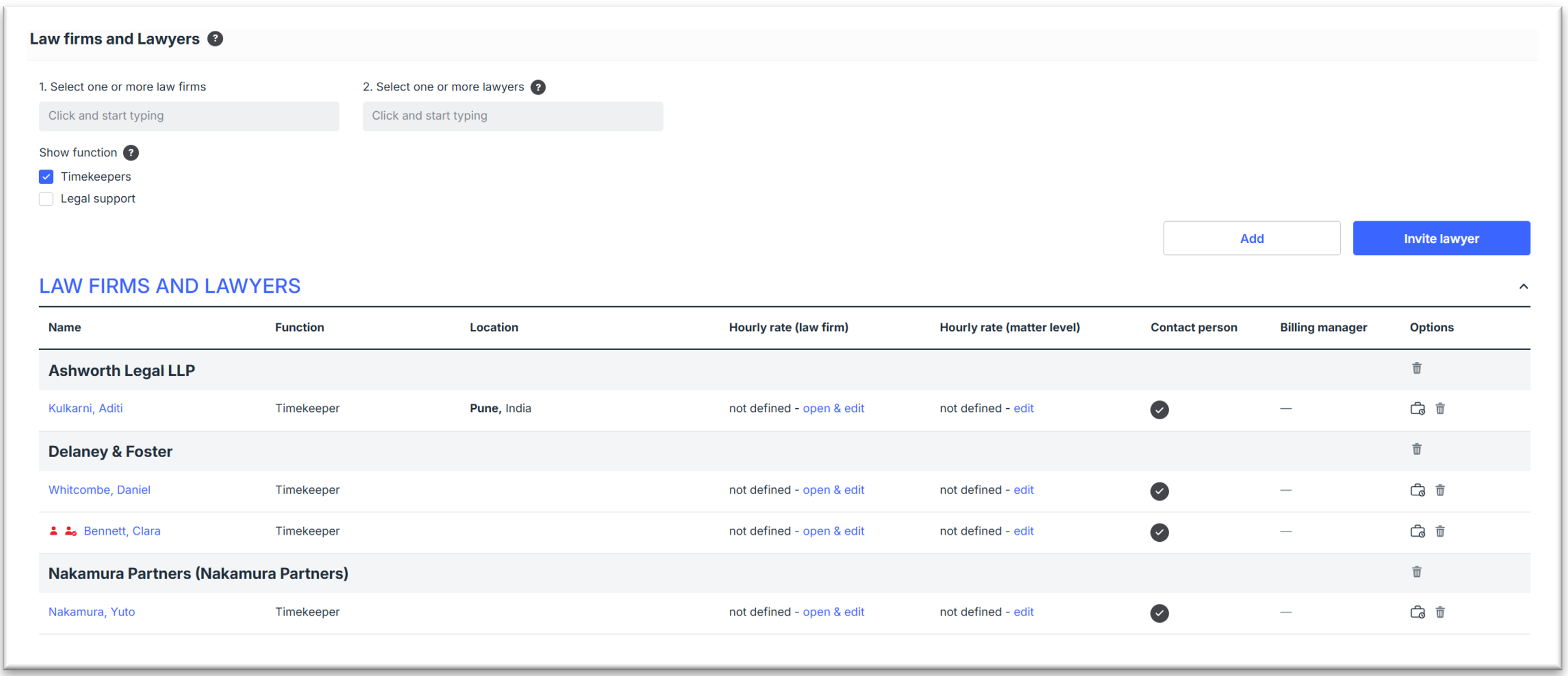
Assignment now follows a clear, logical sequence: Law Firm -> Location (if applicable) -> lawyer
Search and select law firms, locations, and lawyers by clicking into the relevant field and typing a search term, just as before. Multi-selection remains fully supported.
All Lawyers" shortcut: The Lawyers field now includes an "All lawyers" option, letting you assign every lawyer from a selected law firm or location in a single click.
Smart pre-filtering: Once a law firm and location are selected, the Lawyers field automatically narrows down to only those lawyers allocated to that firm and location - no more scrolling through irrelevant names.
Blocked entries hidden: Law firms and lawyers marked as blocked no longer appear in the selection fields, preventing accidental selection (this feature was launched in our May 2026 release)
2. After selecting the desired entries, click Add to assign them to the Matter. The selection fields are then automatically cleared, so you can immediately continue adding further law firms or lawyers without extra steps.
3. Simplified Removal with the Bin Icon
With the new bin icon  you can remove assigned law firms or individual lawyers:
- During Matter creation: Removal is possible at any time.
- In Matter Settings: Removal is only possible if the law firm or lawyer has no activity data (e.g time entries) on the Matter. If activity data exists, the bin icon appears struck through, indicating removal isn't available - in this case, you can block the law firm or lawyer instead.
- What counts as "activity data"? A law firm or lawyer is considered active on a Matter if any of the following apply:
- Time entries have been created or assigned to the lawyer
- Expenses have been created
- Invoices have been created or uploaded
4. The new extended overview:
The Matter settings page now offers an extended view that also supports Matter blocking.
- Available on both Matter creation and Matter settings page:
- Lawyers are now grouped by law firms in alphabetical order for easier navigation.
- The new 'Billing Manager' column displays the billing manager(s) of the law firms.
- Available only on Matter settings page:
- A new Matter blocking icon in the options column – the underlying feature hasn't change, so the user can still block a law firm or lawyer from adding time entries to the Matter.
- Blocked Law Firms and Lawyers are clearly flagged with the red blocking icons on the left-hand side.
- The 'Invite lawyer' button is now positioned above the table right from the 'Add' button for more consistent layout.
Sharing Matter data with Law Firms
The Matter serves as a central workspace for collaboration between you and the law firms assigned to it. When a matter is created, specific master data fields are populated with values that are automatically shared with the assigned law firm(s).
To ensure transparency, we have introduced the shield icon  shown below; it clearly indicates whether the value of a specific field is not shared with the assigned law firms. It is protected:
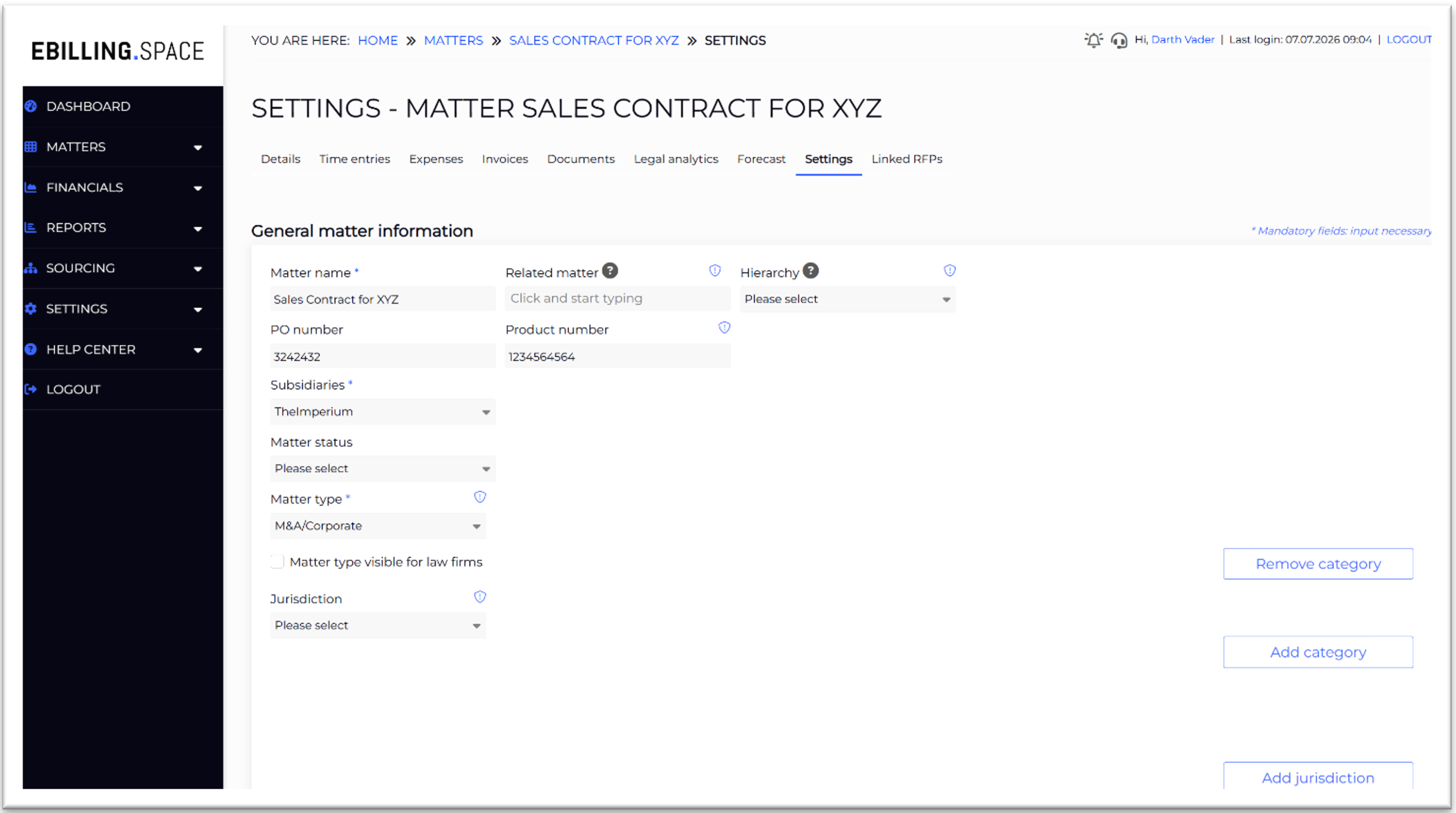
Please note: There are fields where the user can decide whether to make them visible to law firms. This is controlled via an additional checkbox - such as "Matter type visible to law firms," as shown in the screenshot above. If this option is selected, the shield icon disappears.
Law Firm Billing Manager Role Indication
In the law firm and lawyers section on the Matters setting page, we have added an additional column named Billing Manager. The icon  indicates users who have been allocated the billing manager role.
Display Item Count for Each Table
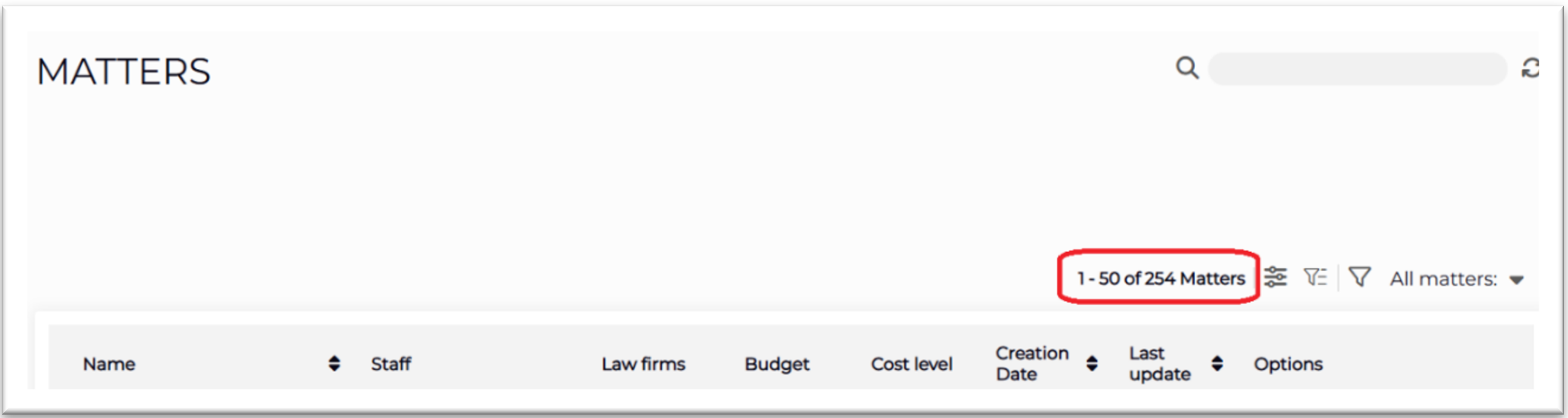
With this release, we've introduced an item counter for tables across the application, giving you a clearer overview of your data at a glance.
The counter is displayed in the upper-right corner of each table and shows two key figures:
Displayed items: The number of items currently shown in the table, reflecting any filters or search criteria you've applied
Total items: The overall number of items available on the table, regardless of filtering
This makes it easy to see whether you're viewing the full dataset or a filtered subset - helping you keep track of your data without needing to scroll through the entire list or second-guess whether a filter is active.
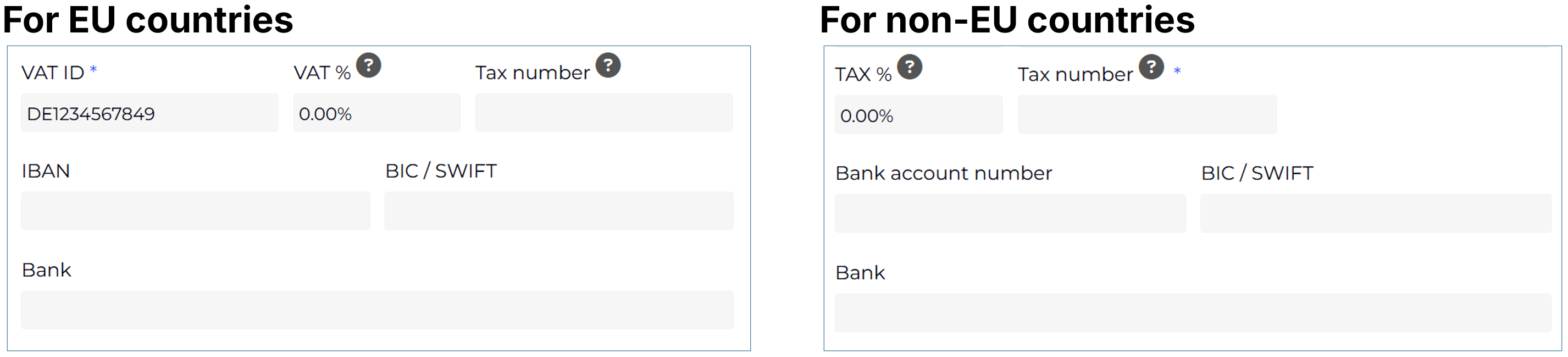
Law Firm Locations: VAT and Tax Number Fields - EU/non-EU Conditions
As with the tax information, the bank detail fields are now displayed dynamically based on the selected country:
For EU countries, the bank details section includes the fields for IBAN, BIC/SWIFT, and bank name. The IBAN field verifies whether the entered value complies with the IBAN format.
For countries outside the EU, the bank details section includes the fields for bank account number, BIC/SWIFT, and bank name. The bank account number field accepts alphanumeric values and does not enforce a specific validation pattern.
MFA with TOTP - New Mobile Phone Number Field
Following several emails to our Support team, we identified a limitation in the account settings: only a single field was available for phone numbers. As a result, users who preferred to list a landline number could not provide a mobile number - effectively making it impossible to use MFA via SMS or TOTP.
To address this, we have introduced a dedicated mobile number field that is separate from the general phone number field. This allows users to provide a valid mobile number for MFA purposes at any time, regardless of the number entered in the primary phone number field.
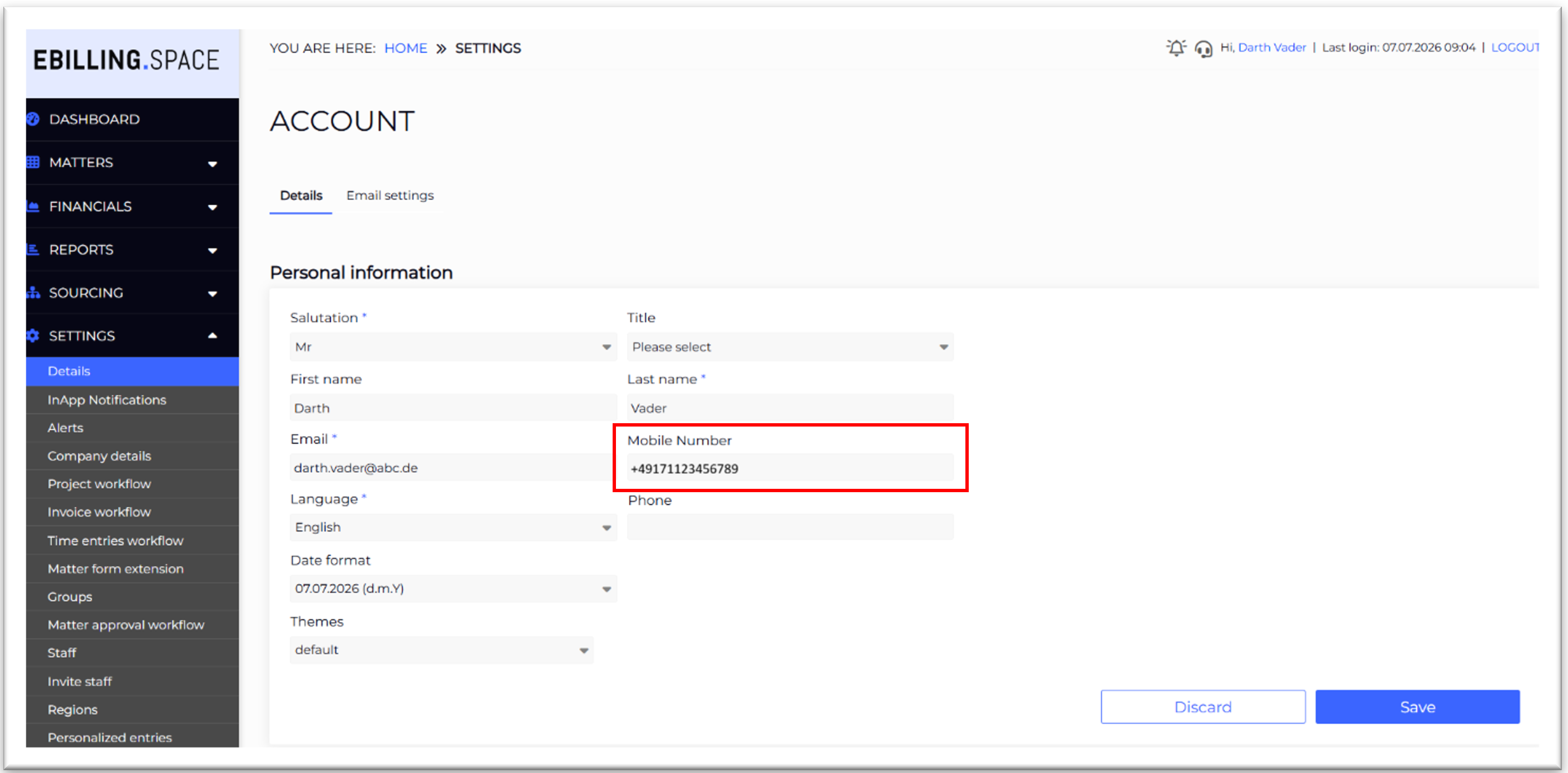
Note: As part of this update, all phone numbers already stored in user accounts were automatically transferred to the new mobile number field; manual re-entry is therefore not required.
Settings for Data and LEDES Import
We have noticed that some law firms frequently upload LEDES files or invoices with missing or incorrect data. Also, calculation rounding differences and incorrect invoice totals can lead to processing issues. To improve data quality and reduce manual corrections, eB.S now allows Client Admins to enforce the use of the Smart Invoice Converter (SIC) for law firms.
In addition, some customers allow Timekeepers to be created or updated automatically during LEDES file uploads. Previously, these Timekeepers were always created with the Project Manager role. Client Admins can now configure the default role assigned to automatically created or updated Timekeepers, providing greater flexibility and control.
A new Settings page, Company-wide Configuration, has been added to manage these features.
New Page: "Company Wide configurations"
Log in to eB.S as an Admin and navigate to Settings > Company Details > Company-wide Configuration. This page contains the new company-wide settings as well as the settings previously located in the 'Details' tab:
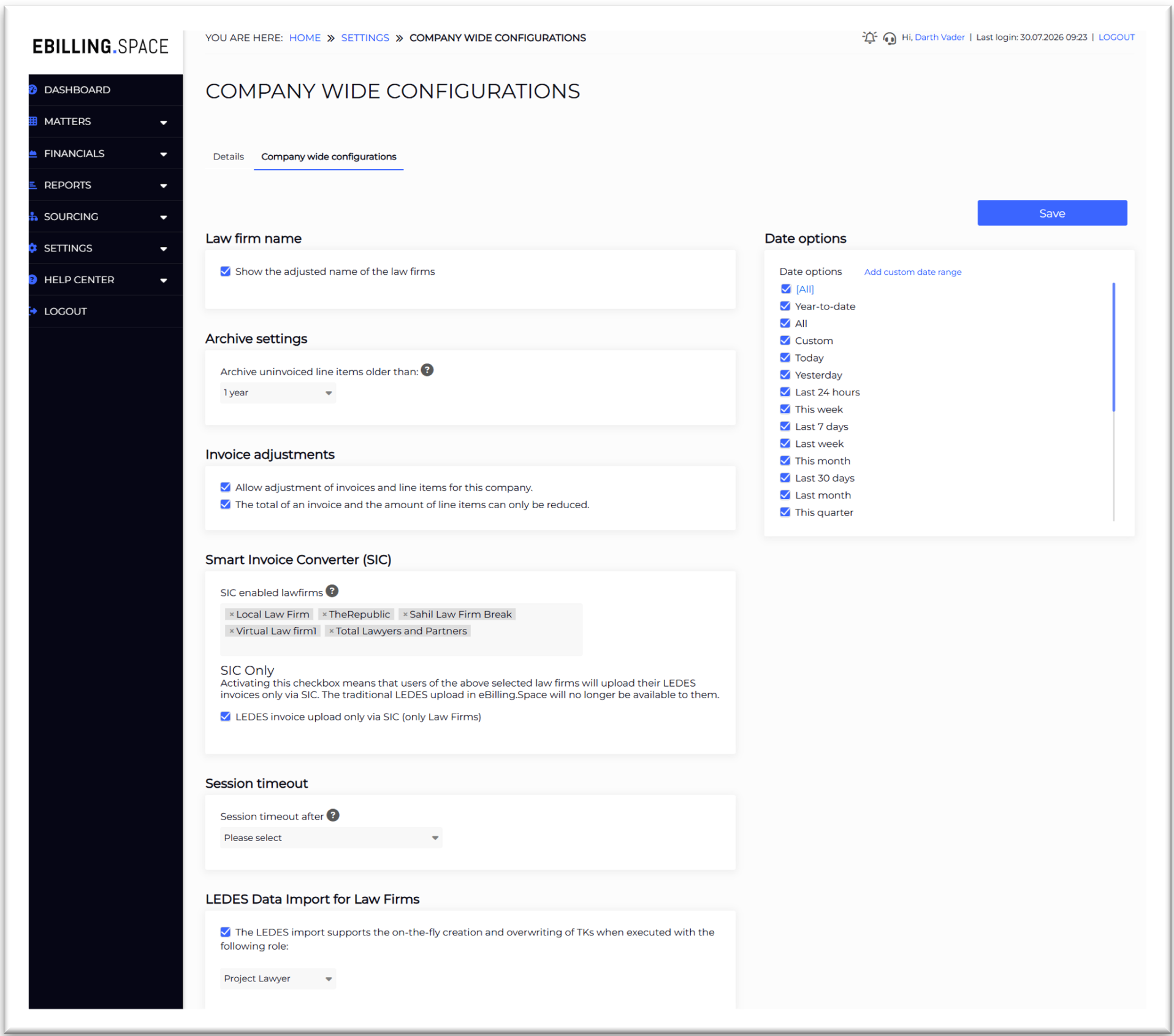
Section "Smart Invoice Converter"
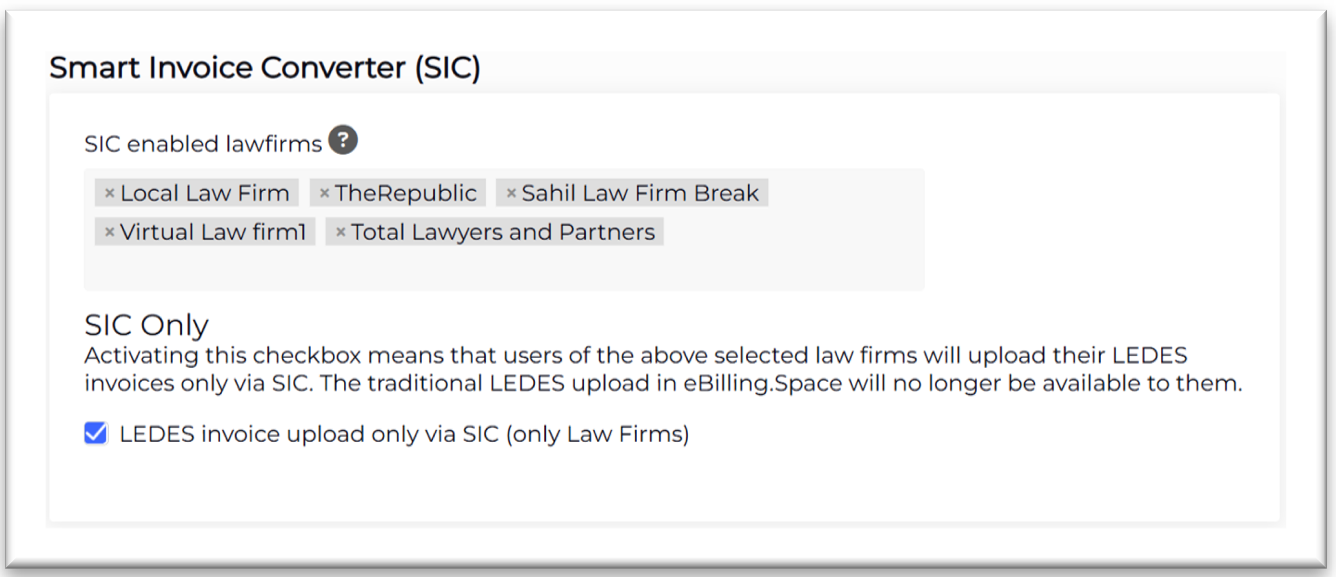
This section contains the existing configuration for defining which law firms are allowed to use the Smart Invoice Converter (SIC). An "All Law Firms" option is also available. Billing Managers of the selected law firms will see the Smart Invoice Converter button on both the Dashboard and the left navigation menu.
In the new "SIC Only" section, the Admin can enable the LEDES Invoice Upload only via SIC (Law Firms only) option. When activated, the selected law firms must upload LEDES invoices exclusively through the Smart Invoice Converter (SIC).
Note:
SIC supports LEDES file uploads and review, and PDF-to-LEDES conversion by using AI, helping improve invoice quality and reduce manual corrections.
RVG invoices can still be uploaded via the data import page. More information can be found in this chapter.
When activated, the Law firms will see the following new page when clicking on Data Import:
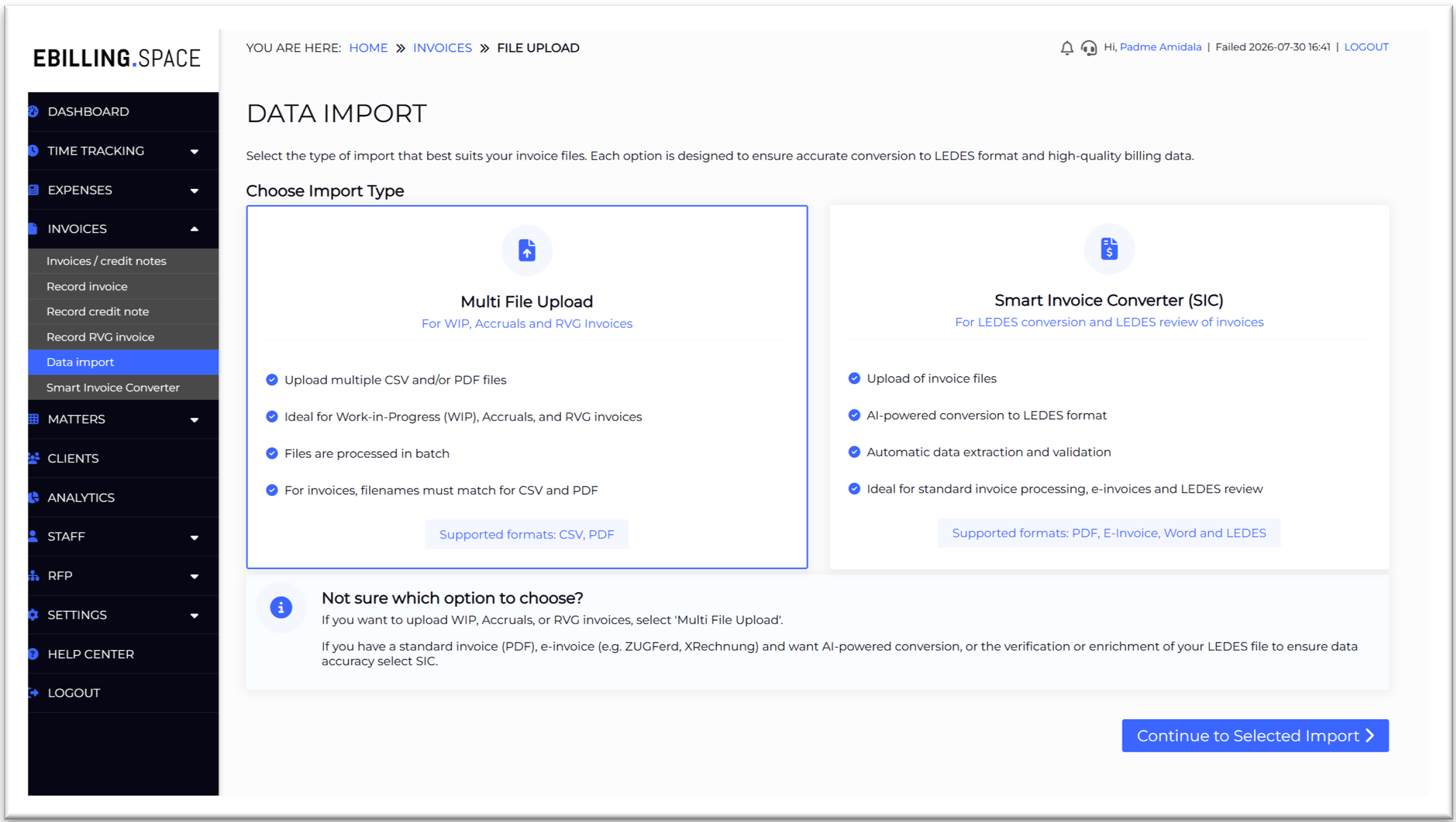
The user is prompted to choose one of the following import options:
Multi File Upload: Opens the standard data import page for uploading WIP, Accruals, and RVG invoices in CSV and/or PDF format. LEDES upload is prevented.
Smart Invoice Converter (SIC): Opens SIC in a new browser tab. Users can upload PDF invoices for AI-powered conversion to LEDES format or LEDES files for review and correction before submission. SIC automatically extracts, validates, and enriches invoice data, making it ideal for standard invoice processing, e-invoices, and LEDES review.
After selecting an option, click 'Continue to Selected Import' to proceed to the corresponding upload page.
Please note: This new import selection page is available only for Law Firm users. There are no changes to the data import process on the Client side, even when SIC is enabled.
Configurable Timekeeper Role for LEDES Uploads
Some customers allow Timekeepers to be created or updated automatically during LEDES file uploads (by feature toggle). Previously, these Timekeepers were always created with the Project Manager role. Client Admins can now configure the default role assigned to automatically created or updated Timekeepers, providing greater flexibility and control.
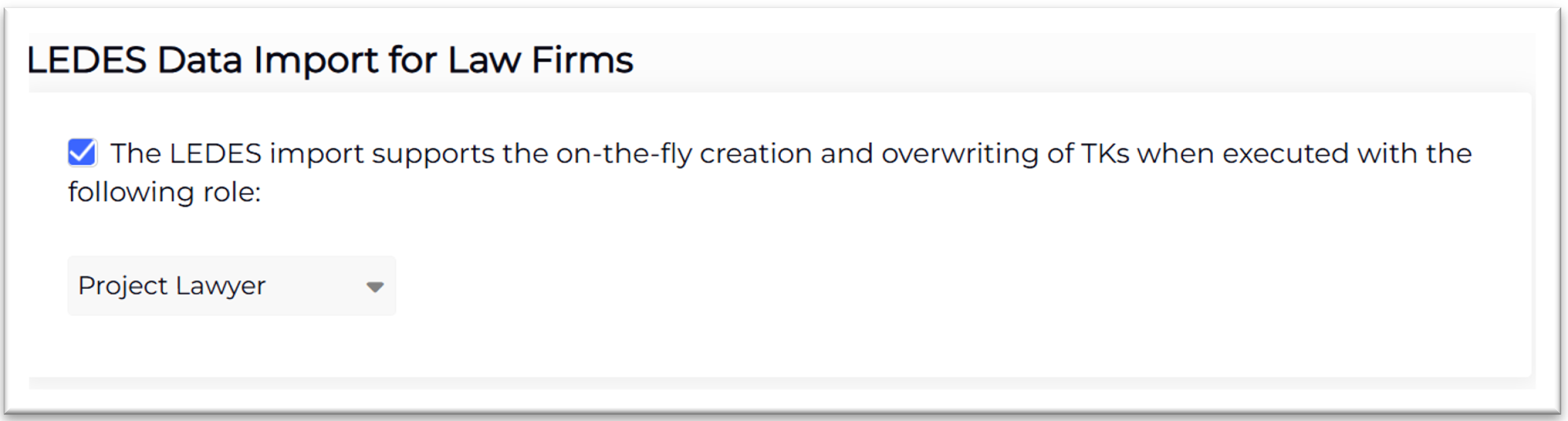
Please note: By default, this option is disabled to provide the existing behavior. As a result, Timekeepers created during a LEDES upload will still be assigned as Project Manager unless a different default role is configured.
Self -Service: Blocking Extensions for Law Firms and Lawyers
In October 2025, we introduced the "Global Blocking" feature for staff users accounts to address a common issue: former employees or legal department members continued to appear as valid, selectable accounts throughout the system. This meant these former users could still be selected when creating a matter, leading to inconsistencies and unnecessary conflicts.
The Global Block feature resolves this by allowing a user account to be completely blocked, ensuring that blocked users no longer appear as selectable options anywhere in the system.
With this release, the Global Block feature is now also available for law firms and their lawyers. This means that law firms that are no longer instructed on an open matter or part of your panel can be blocked in the same way. This prevents them from being selected during matter creation or elsewhere in the application - keeping your data clean and free of conflicts.
Global Blocking and Time Entries Blocking
For law firms there are two types of blocking available:
Block on time entries – icon
 : This existing type of block is currently indicated by this icon
  . If a law firm or lawyer is blocked in this way, they are displayed with a red icon and a red-bordered background; furthermore, it is no longer possible to add time entries for that lawyer or law firm. New: Now, this icon
  is displayed and the red background was removed.
Global blocking – icon
 : This new type of block prevents a law firm or lawyer from being added to new matters or requests for proposals (RFPs).
 If a law firm is blocked - globally or for time entries - all lawyers associated with that firm are automatically blocked as well.
Further details regarding the impact of the global blocking can be found below.
Impact of blocking
Affected features and workflows
With this release, law firms can be blocked, which means that EB.S won’t show such users in the user selection fields anymore. Those users are hidden.
The following sections of EB.S are affected:
Matter creation and Matter settings
Time entries and expenses
RFP creation and settings
Workflow allocation if applicable
Survey creation and editing
Please note: You can still search for or filter by blocked law firms and lawyers; these are also available as filters for reports. These blocking functions for Law Firms and Lawyers are accessible only to administrators.
Affected pages
The new icons and functions are displayed for law firms and lawyers on the following pages:
Matters
Settings page
Details page
Matter list page
Sourcing
Law firms
Lawyer
Law firms > details > lawyers
Blocking a Law Firm or Lawyer
To block a law firm and their lawyers, do the following:
Open Sourcing > Law Firms
Now you see a table with all law firms. In the 'Options' column you see the following new buttons:
 : New icon for blocking on time entries (replaces
  ). Click to block.
  : Global blocking: Click to block.
 : Displays blocked status.
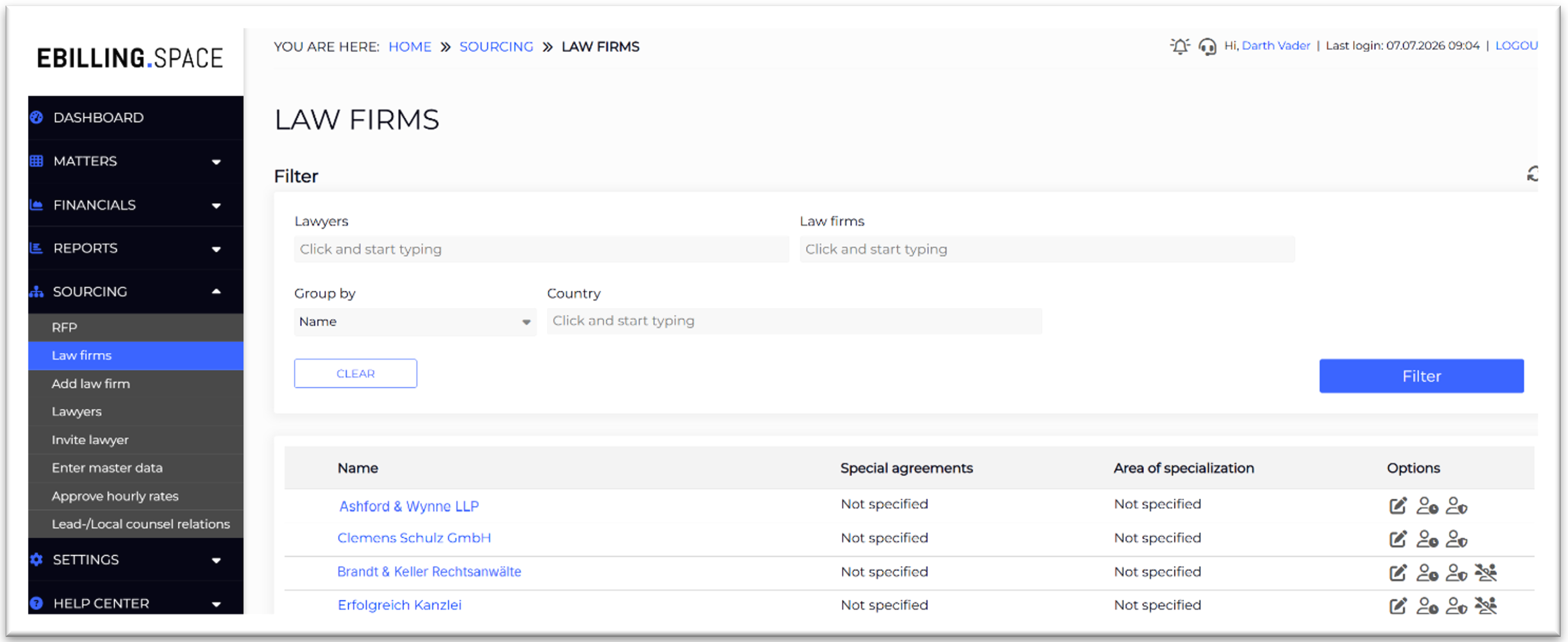
When you click on one of these buttons, you will receive a prompt to confirm.
Notifications
eB.S is still sending E-Mail Notifications, if a law firm and their lawyers or a single lawyer was blocked or unblocked.
Invoice PDF Preview on Invoice List Page
Another customer request has been to introduce a preview feature for the invoice PDF document from within the Invoices page. Instead of downloading it, the user can now access the preview view as follows:
Open Financials > Invoices
In the options column on the invoice record row there's a new icon

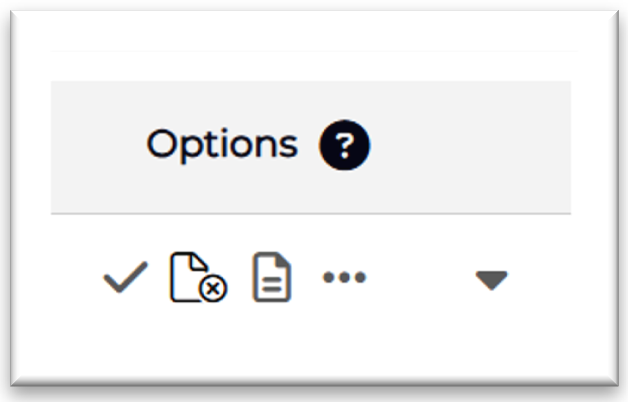
When the user clicks on this icon, the invoice PDF document will open on a separate view. The user can zoom and scroll through the document.
New Report and Wizard Report Extension
Here are the details on our new Report and Wizard Report extension.
Complete List for Invoices, Fees and Expenses
We have added three new reports to the Reports section, giving you comprehensive, ready-to-use overviews for:
Invoices - Complete List
Fees - Complete List
Expenses - Complete List
These new reports replace the previous export functionality, offering a more streamlined and consistent way to access and review this data.
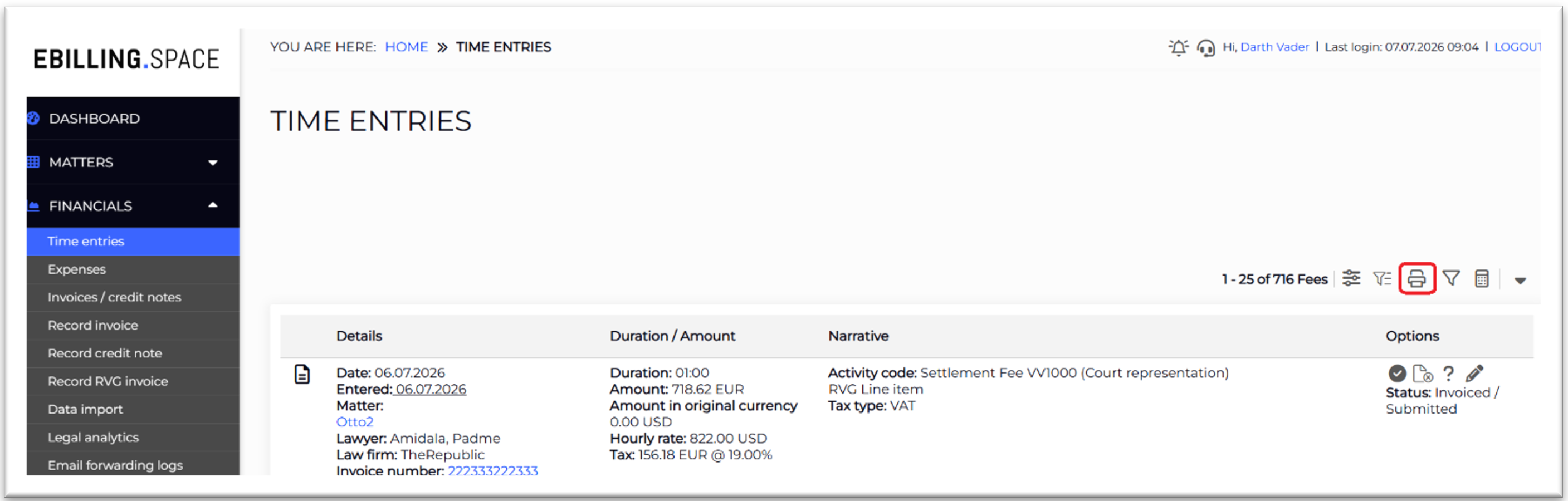
To make navigation even easier, we have also added printer icon buttons directly on the Invoices, Time Entries, and Expenses pages. Clicking this icon navigates you straight to the corresponding report, so you can quickly generate a complete overview without leaving your current workflow:
Report Wizard - Display Parent Matter Relationship
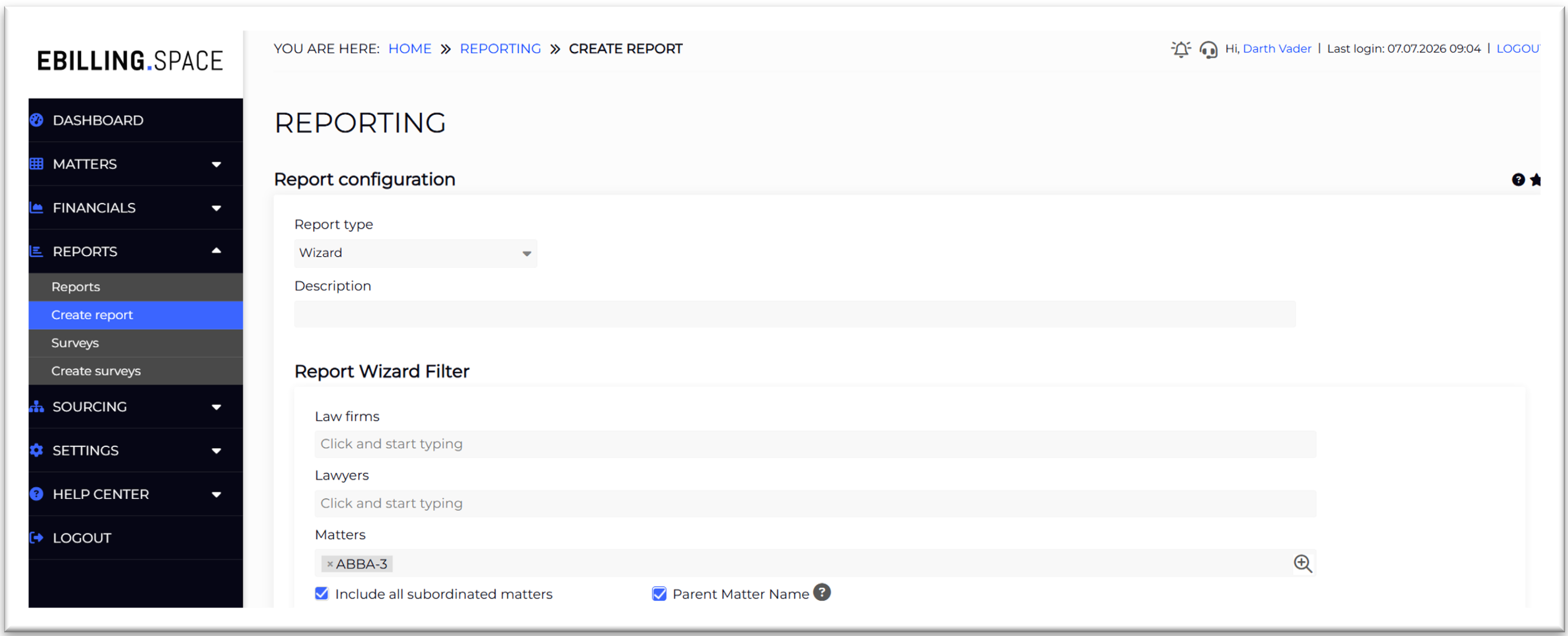
We have heard from you that reports do not clearly reflect the connection between related matters. While users can select the "Include all subordinated matters" option in the report wizard - causing sub-matters to appear as additional rows beneath their respective parent tasks - these rows lack any visual or structural indication of the relationship between the parent matter and the sub-matter, making the hierarchy difficult to identify.
We have made the relationship clearly visible in the wizard reports so that users can immediately understand how the matters are linked.
When the user selects a matter and its sub-matters like shown on the screenshot below, there's now an additional checkbox named 'Parent Matter Name'. This checkbox is only visible, when the user has selected the checkbox 'Include all subordinated matters' which ensures that this feature is only used in a relevant context.
When both checkboxes are selected, then the new column 'Parent Matter Name' is displayed in the report as follows:
Selection in report wizard:
Result in Excel:
