Onit's Timekeepers application lets you view information and rates for timekeepers associated with various vendors. Here, we'll break down how to use that application.
Note: For more information on working with timekeepers, be sure to check out the:
- ELM Timekeeper Rate Card Support User Guide
- Adding a New Timekeeper Rate in Counsel Exchange
- Adding a New Timekeeper Rate in Counsel Exchange (Unity)
- Adding a Timekeeper in Counsel Exchange
- Matter-Specific Timekeeper Rates in Counsel Exchange
- Submitting a New Client Timekeeper Rate in Counsel Exchange
Accessing the Timekeeper Application
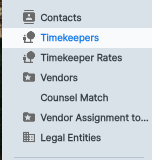
Click on the Timekeepers link on the left-hand side menu in ELM.
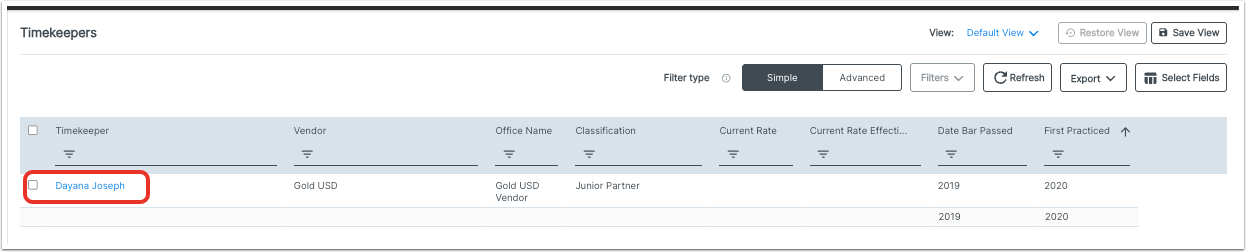
On the main Timekeepers screen, you'll see a list of timekeepers, along with critical information (Timekeeper name, Vendor, Office Name, Classification, Current Rate, Current Rate Effective Date, Date Bar Passed, First Practiced, etc.).
Click on each column heading to sort by that column; you can also add filters or search through that column's information.
Click on the Filter Type and View sections to further customize your view; you can also click Export to export the timekeeper information as Attachments or Grid to CSV or Grid to Excel. Use the check box next to each timekeeper (or the select all check box) to choose which timekeepers to export.

Working With a Timekeeper
Click on an individual timekeeper to go to their details page.
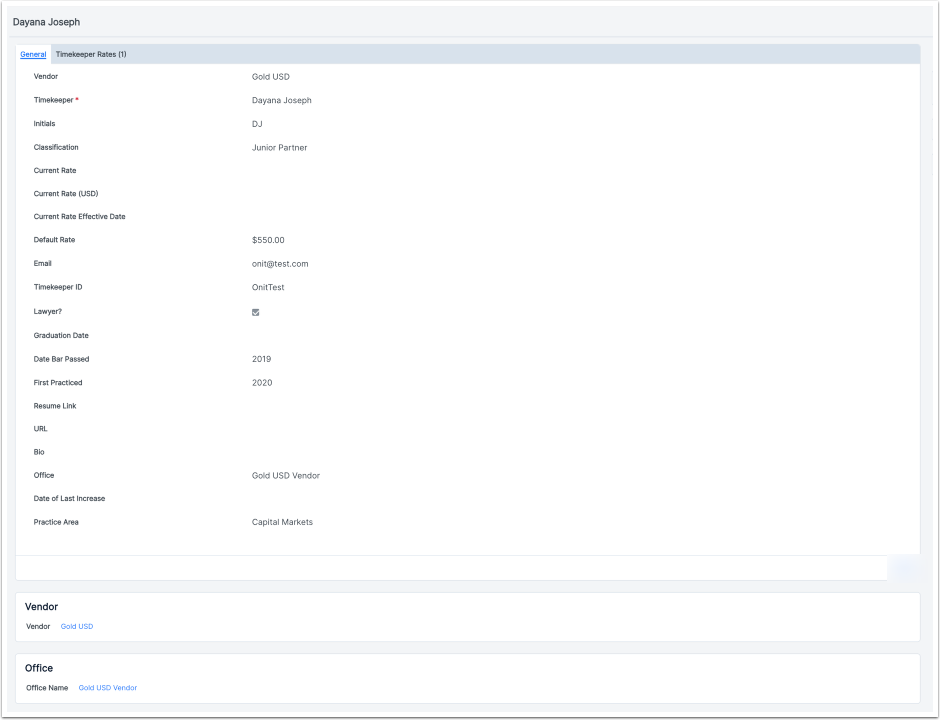
On the timekeepers detail page, you'll see a General tab and a Timekeeper Rates tab. Under the General Tab, you'll see key details about the vendor (Initials, Classification, Default rate, etc.), along with a Vendor and Office section. The links in both of those sections will bring you to their respective Vendor and Office records.
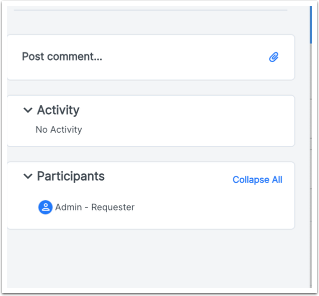
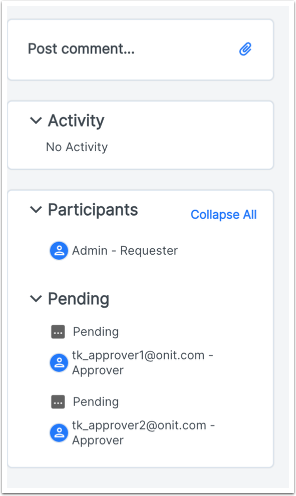
On the main page, you can also Post a Comment and view Activity and Participants on the page.
Click the Timekeeper Rates tab to view this timekeeper's rates.
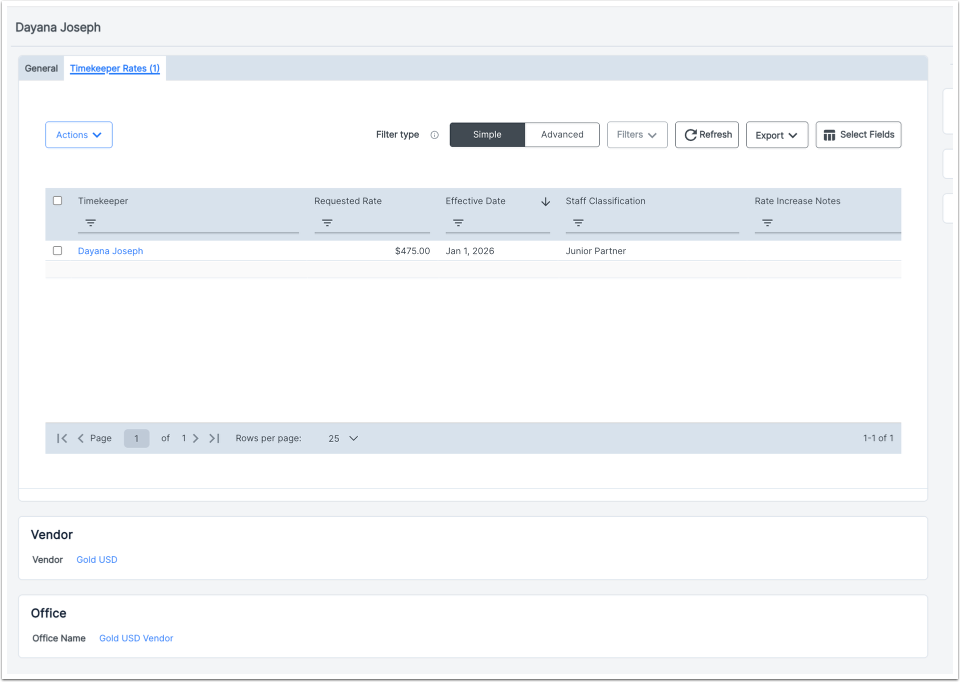
Timekeeper Rate Page
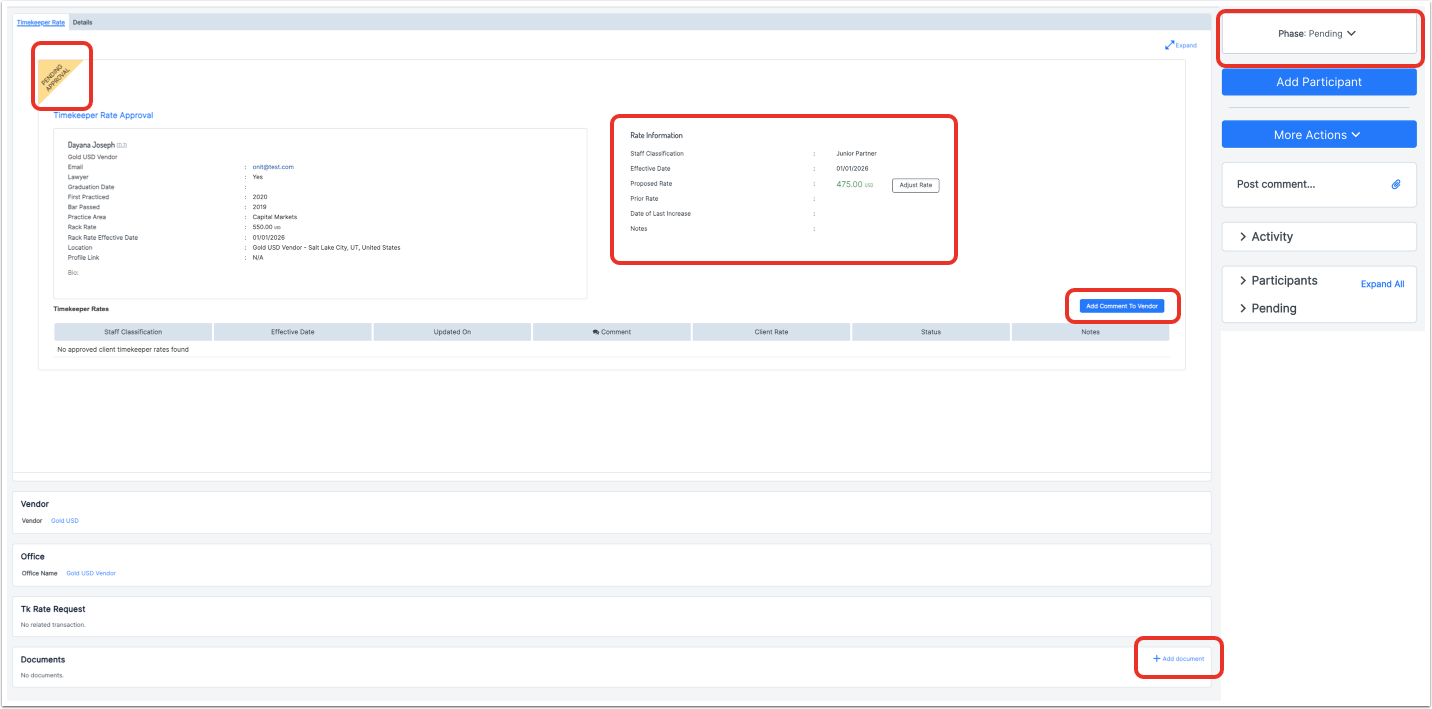
On the Timekeeper Rate page, there are two main tabs: Timekeeper Rate and Details.
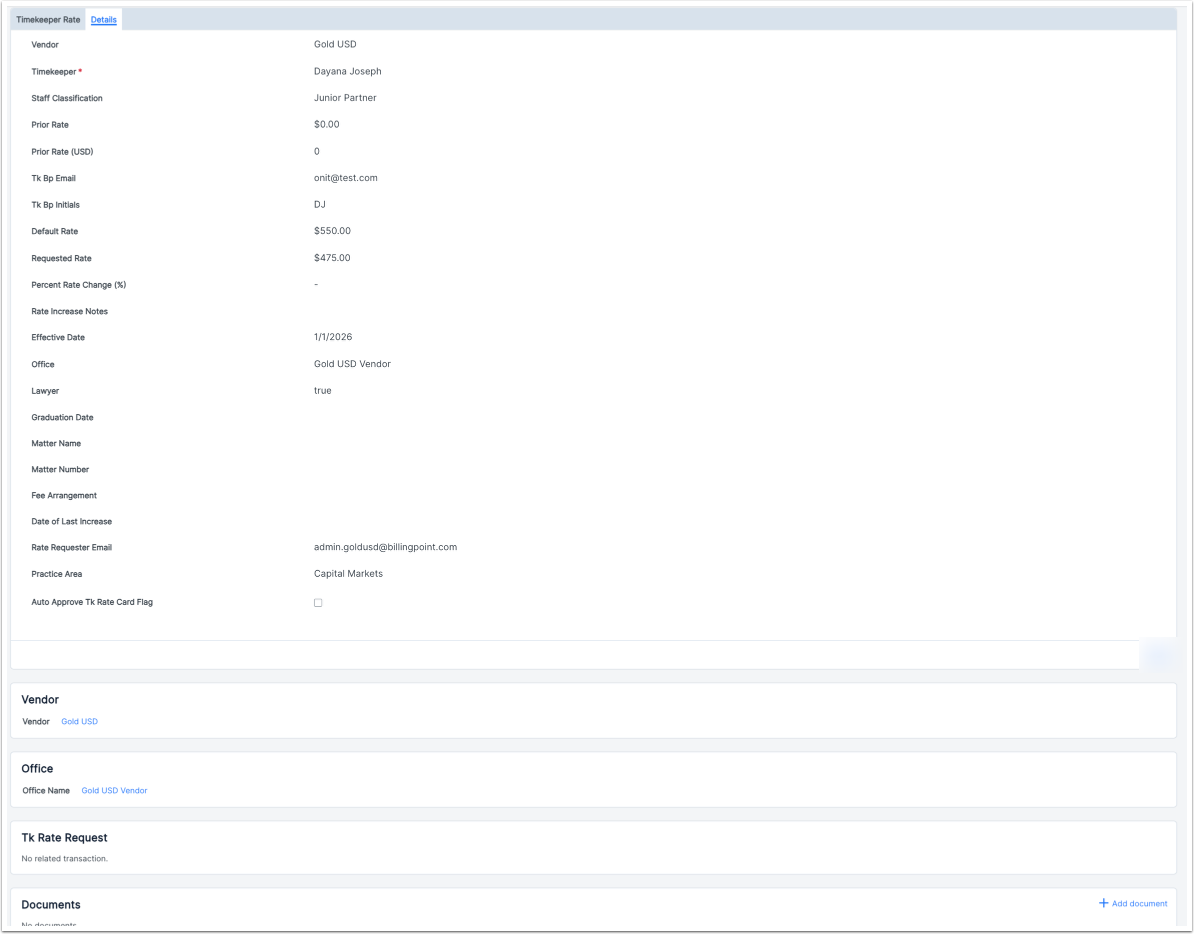
You'll see the Phase for the timekeeper in the upper-left-hand corner of the page, along with pertinent timekeeper details (name, email, graduation date, etc.). You'll also find links to the Vendor, Office, TK rate request, and Documents on this page.
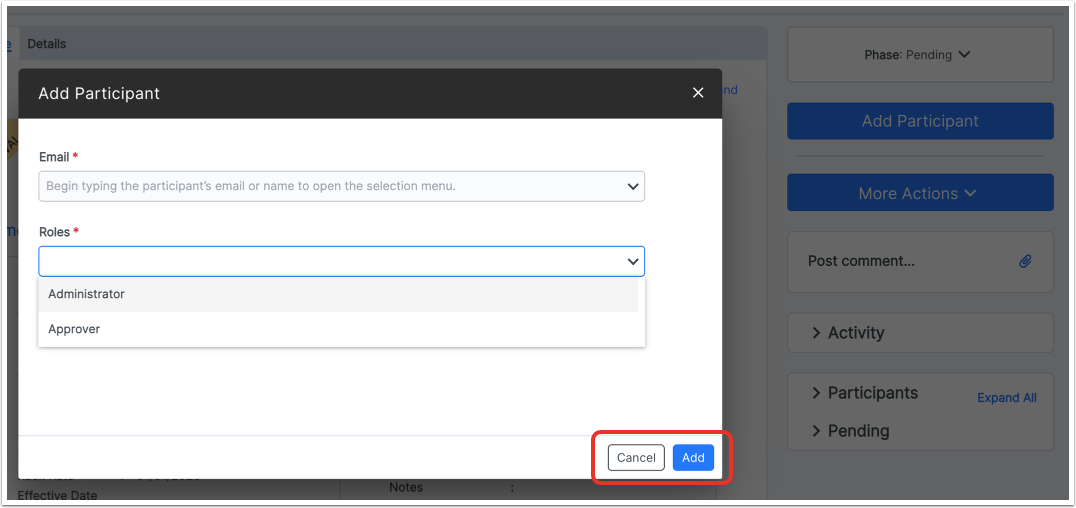
You can also Add a Participant to the timekeeper rate reviewer process. Click Add Participant to add someone to the process, either as an Administrator or an Approver. You can add the participant by typing their name in the Email field and then selecting it from the drop-down menu. Click Add to add the person to the process or Cancel to back out.
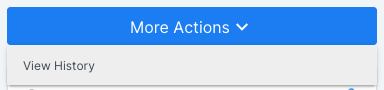
Under More Actions you can View the History of this timekeeper rate.
There are also options to Post a Comment (internal), view Activity, and see the Participants in the process.
Under the Details tab, you'll see the same detailed information you see under the Timekeeper Rate screen.
The Timekeeper Rate Process
After a rate is submitted, you'll see the information pop up under Rate Information in the main timekeeper rate screen.
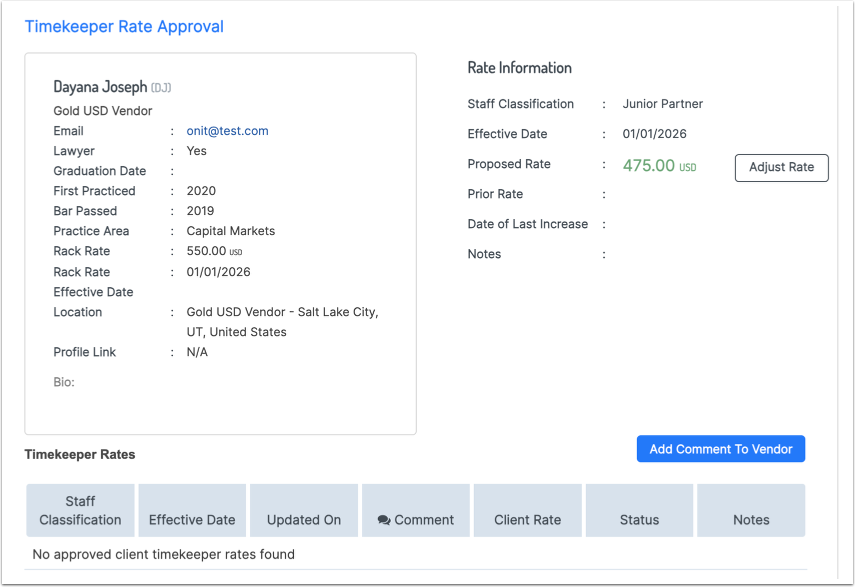
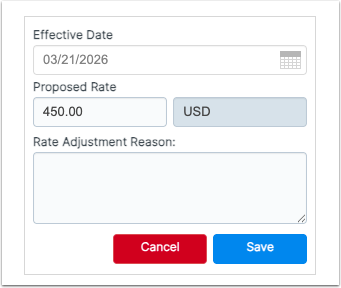
If an adjustment is needed, you can click on Adjust Rate to make a rate adjustment.
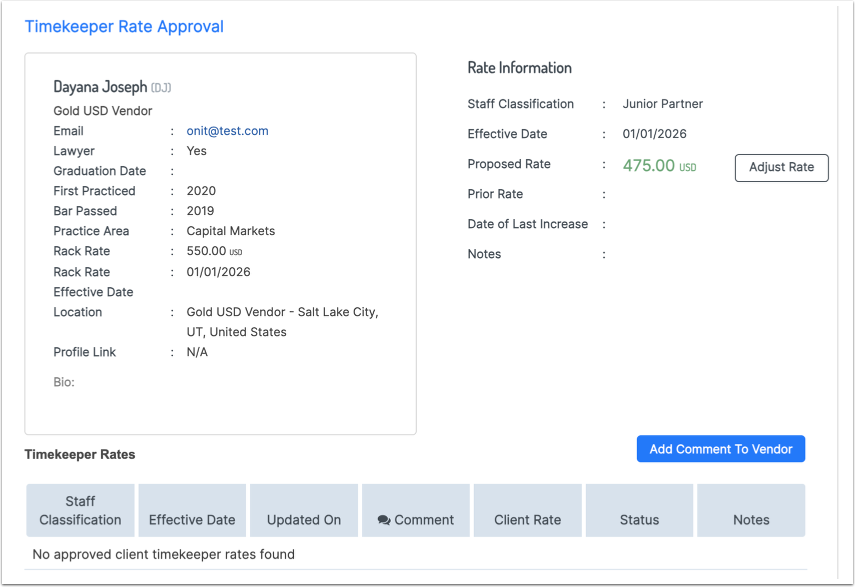
Fill in the new Proposed Rate, the Effective Date, and the Rate Adjustment Reason. Click Save to save the tweak or Cancel to back out.
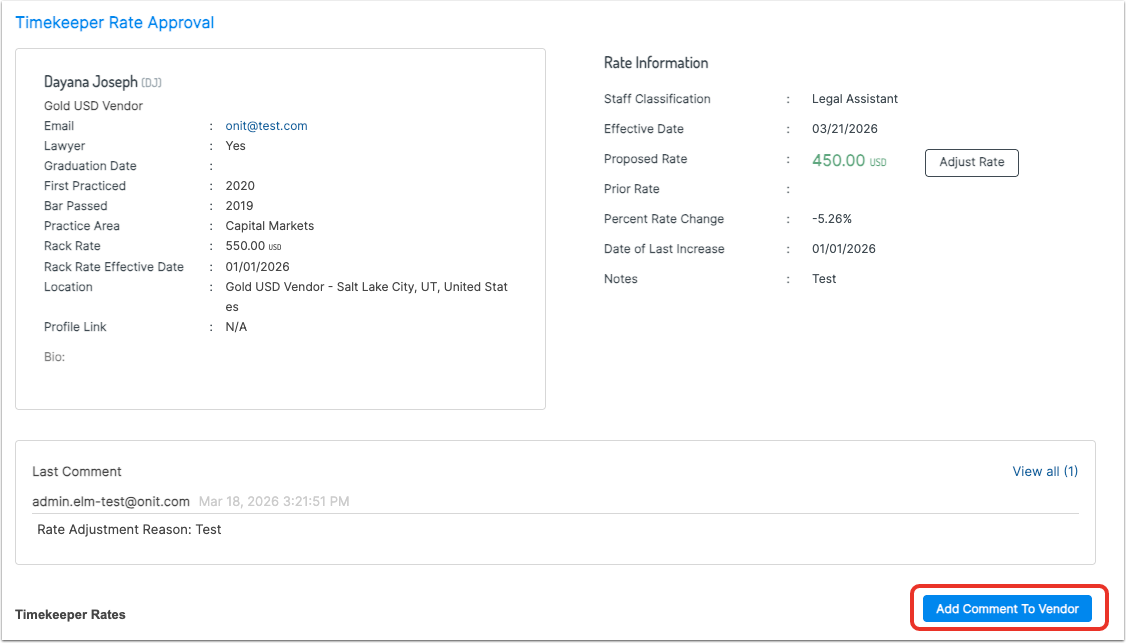
The new rate will show up in an automatic comment on the record.

Users can also click on Add Comment to Vendor to add another comment to the vendor.
Fill out the comment and click on Add Comment to send or Close to back out.

The vendor will see the new rates on Counsel Exchange; they can manage those rates and send comments back.
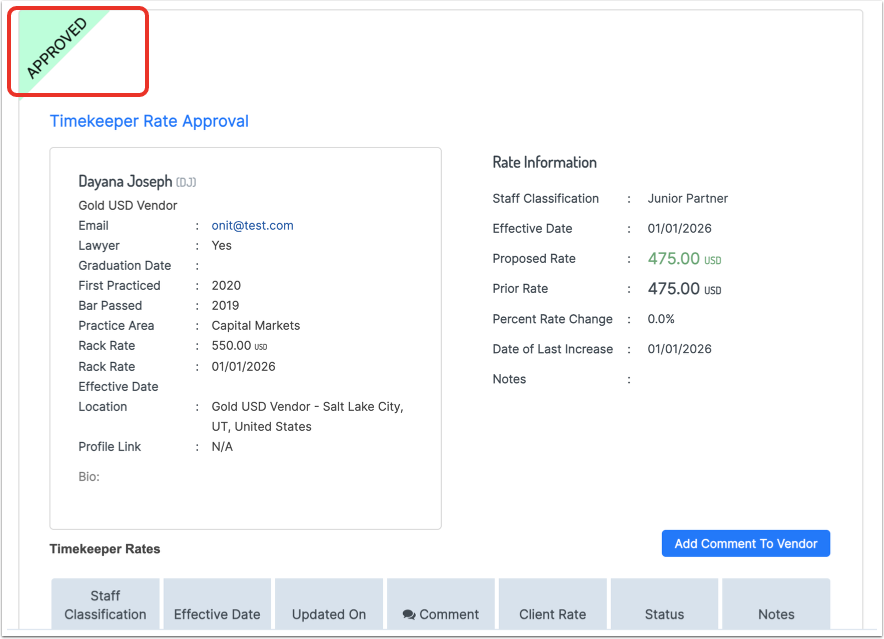
If the rate is acceptable and needs no other work, you can Approve the rate. The tab on the left-hand-side of the screen will update.
On ELM, users can also Reject the rate if the timekeeper is not approved or if other Timekeeper data needs to be updated.
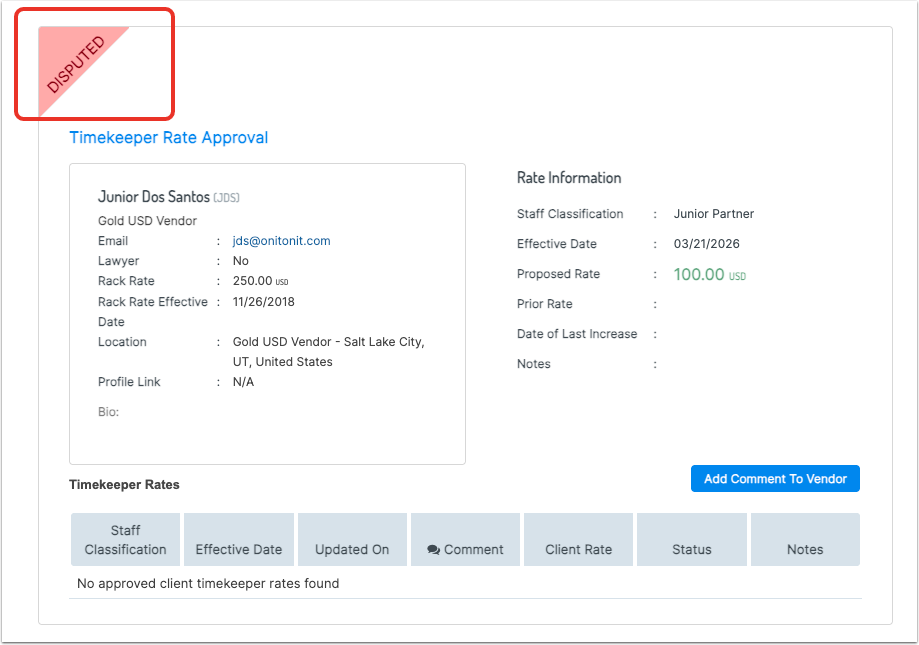
Within Counsel Exchange, the client will receive the rate back marked as Disputed. They can edit the rate and send the new rates / any comments back to the user to start the process again.
FAQ
What can a vendor update once a timekeeper rate is approved?
A timekeeper can update key information (name, classification, rack rate, etc.) in Counsel Exchange once approved; they can also submit new rates for approval.