Onit's Spend Agent reviews invoices submitted by vendors against natural-language billing guidelines uploaded by Onit clients. It instantly reviews invoices, providing detailed AI summaries to clients; this enables them to make highly informed decisions on approving or disputing invoices and allows the user to choose whether the AI automatically approves or disputes invoices as they come in.
This guide will take you step-by-step through using Spend Agent in your invoice workflows.
The Spend Agent Dashboard
Enabling Spend Agent
- To set up spend agent on the Vendor level, navigate to the Vendor application in Onit and select the vendor you'd like to enable.
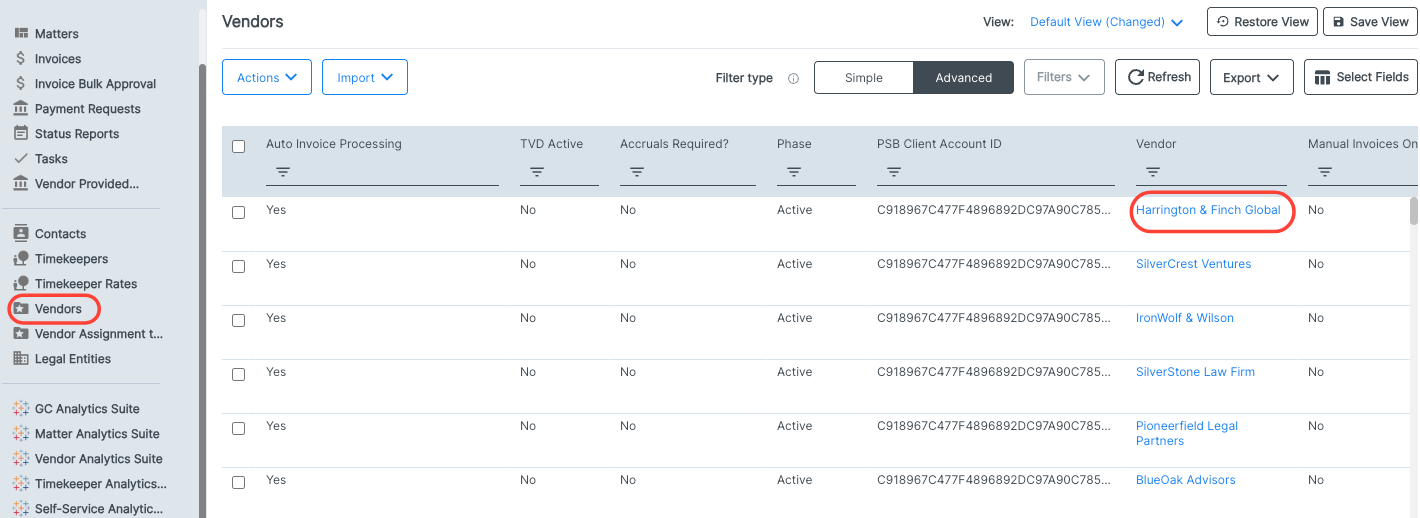
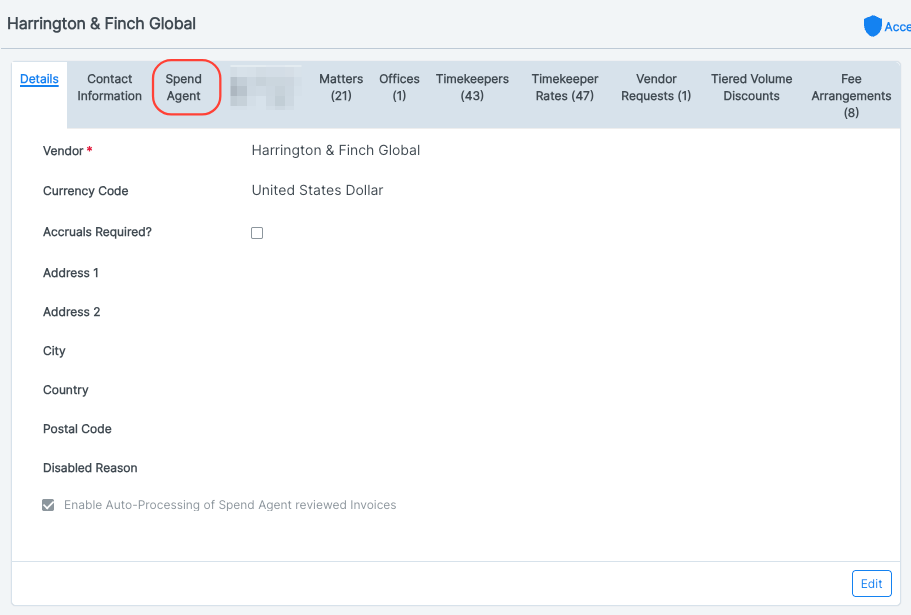
- Click on the "Spend Agent" tab within the vendor details page.
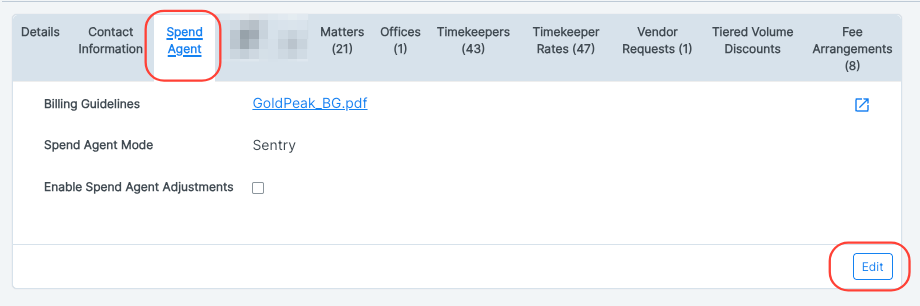
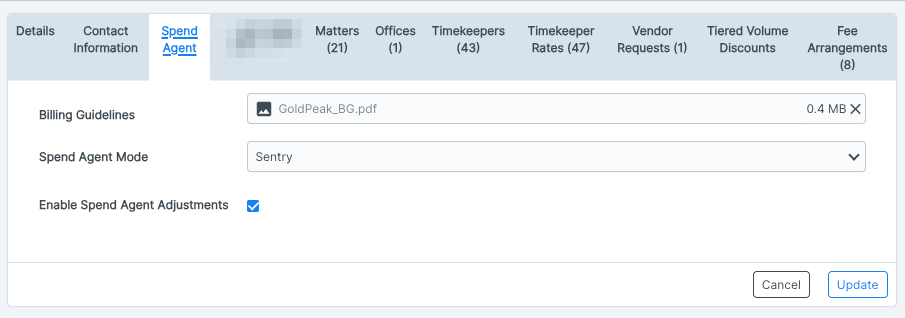
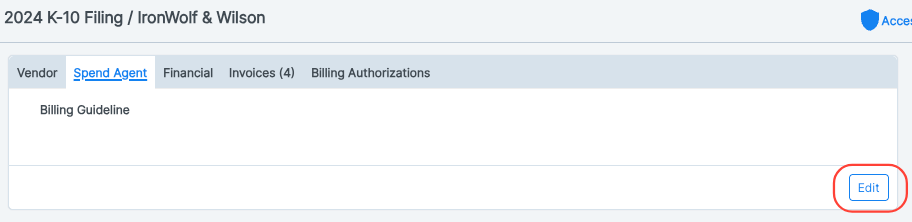
- On the Spend Agent tab, click "Edit" to upload your billing guidelines, choose your Spend Agent Mode, and Enable Spend Agent adjustments.
For the Spend Agent mode, you can choose:
- Sentry: Spend Agent reviews invoices and provides insights to clients; clients are the ones who approve or reject the invoices.
- Auto: Spend Agent automatically reviews and approves/rejects invoices. Rejected invoices are returned to the clients with insights into the rejection.
- Disabled: Spend Agent is disabled for the vendor.
When Spend Agent Adjustments are turnedOn, Spend Agent can display recommended adjustments and automatically apply them when applicable. When Off, Spend Agent continues reviewing invoices and showing violations but must not recommend or auto-apply adjustments.
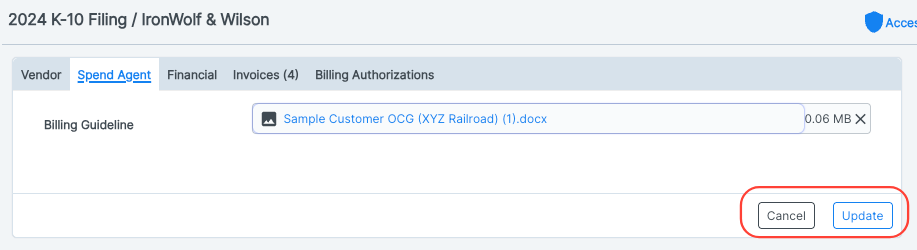
Click Update to update the Spend Agent selections or Cancel to back out.
- To enable Spend Agent for a specific matter, go into the "Matter" app within OnitX and select the matter you'd like to work on.
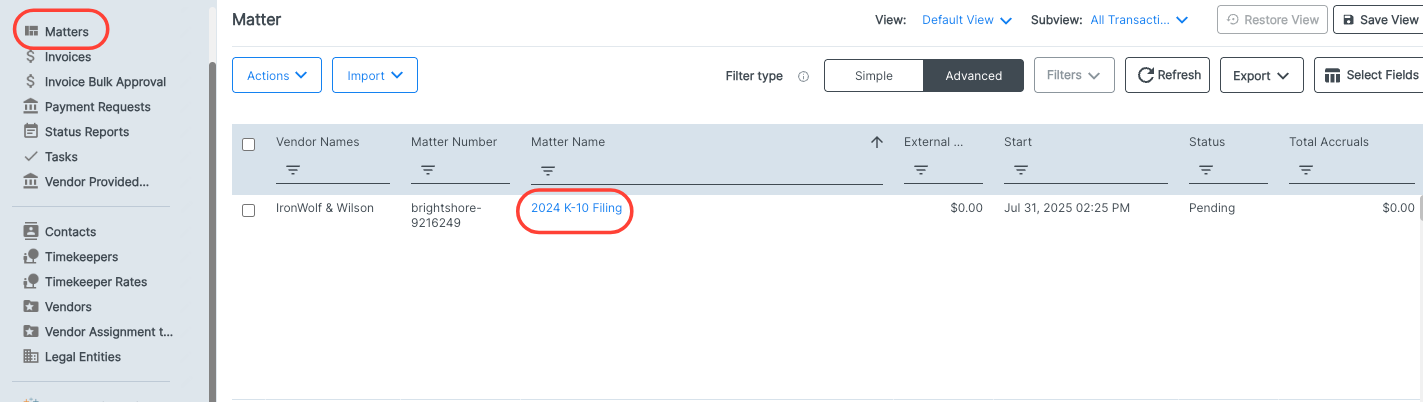
- Open the "Vendors" tab in the matter details page.
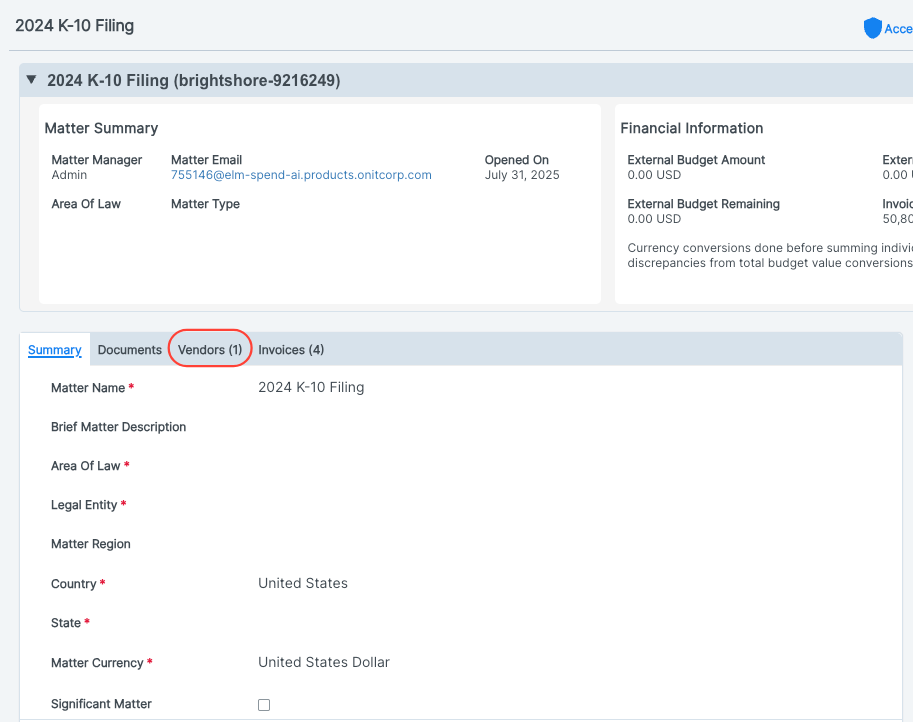
- Open the Vendor link page from the matter detail screen.
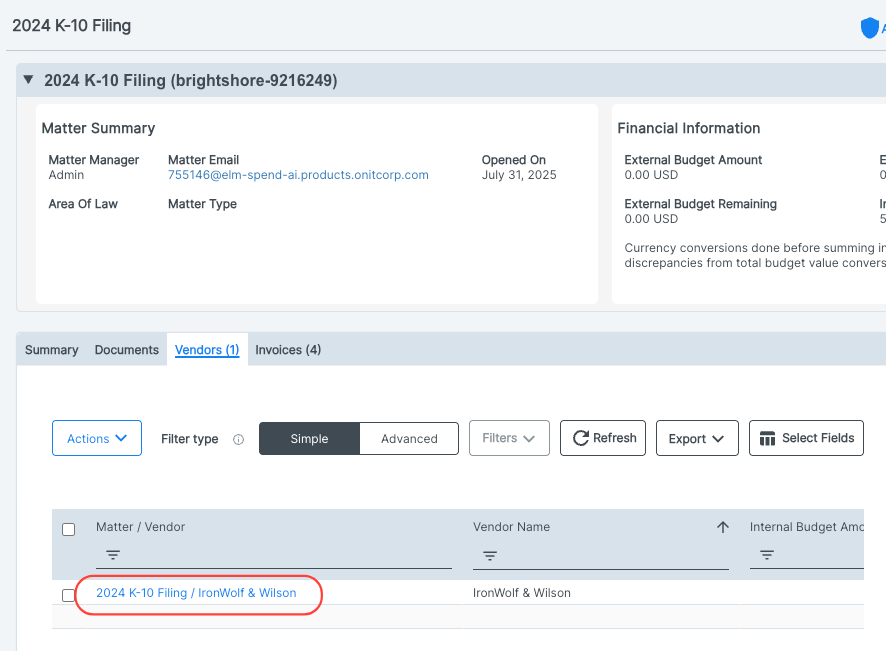
- This will create a matter-vendor link page where you can work on the "Spend Agent" tab.
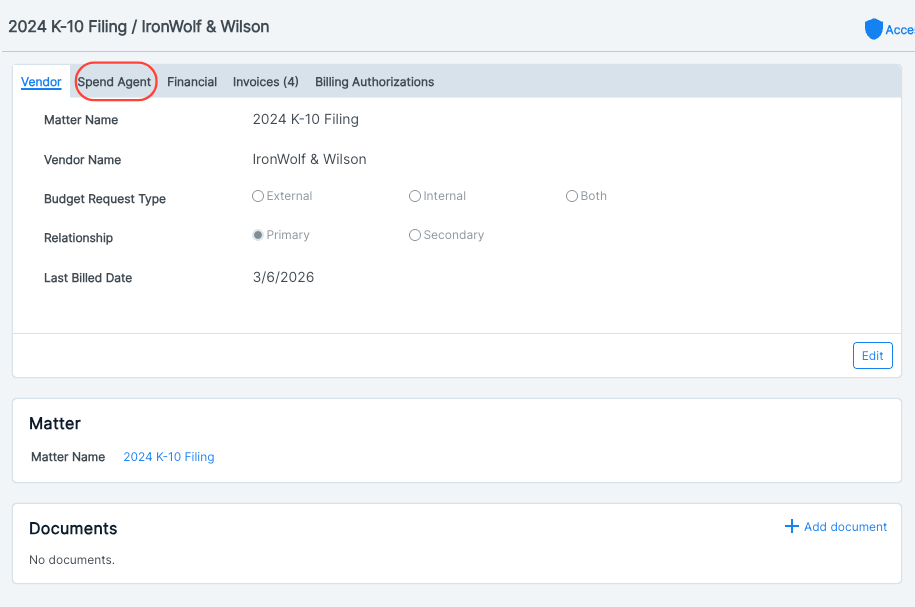
- On the "Spend Agent" tab, click "Edit" to upload your billing guidelines.
- Upload your billing guideline and click "Update" to upload. the file or "Cancel" to back out.
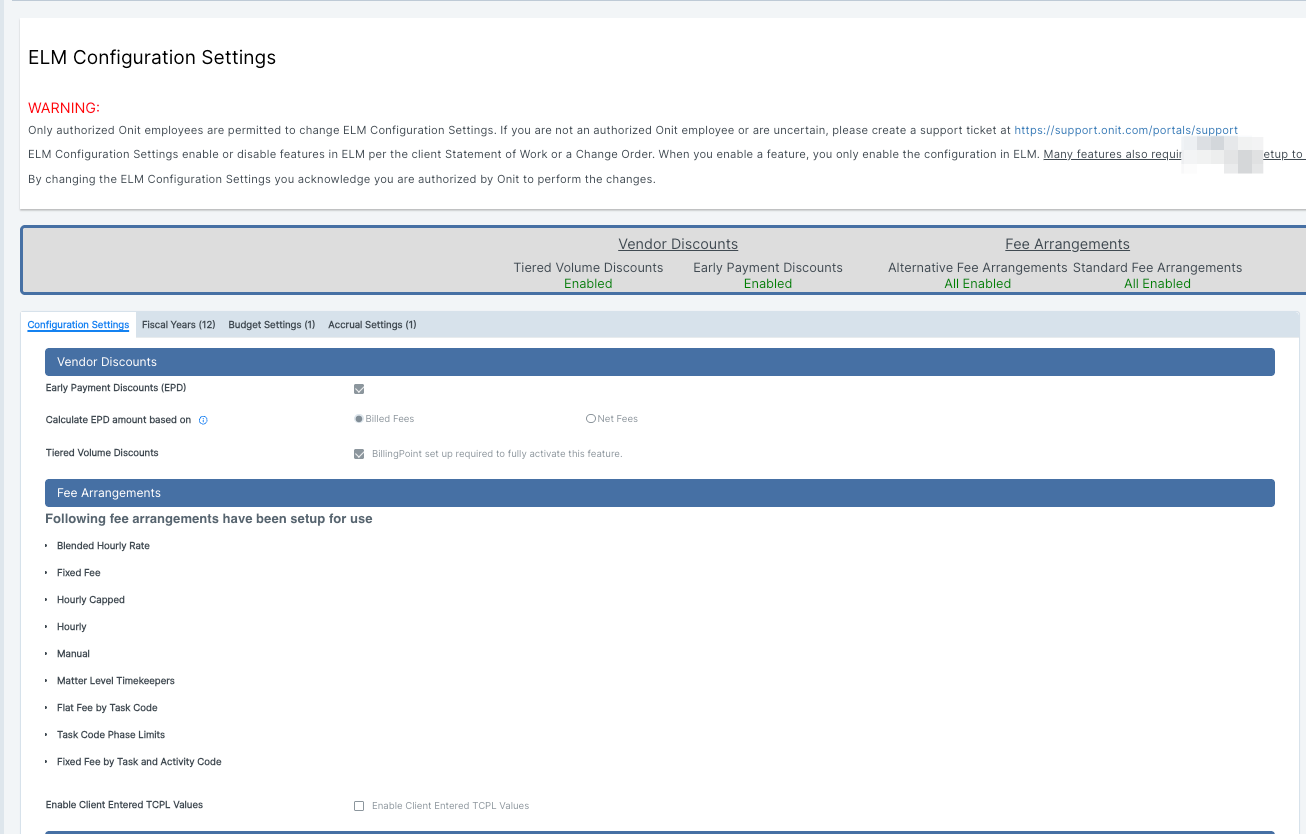
- To adjust client-level billing guidelines, use the ELM configuration settings.
Note that you must be an admin to adjust these configuration settings.
- Scroll down to "Invoice Settings" and click "Edit" to adjust or upload the billing guidelines.
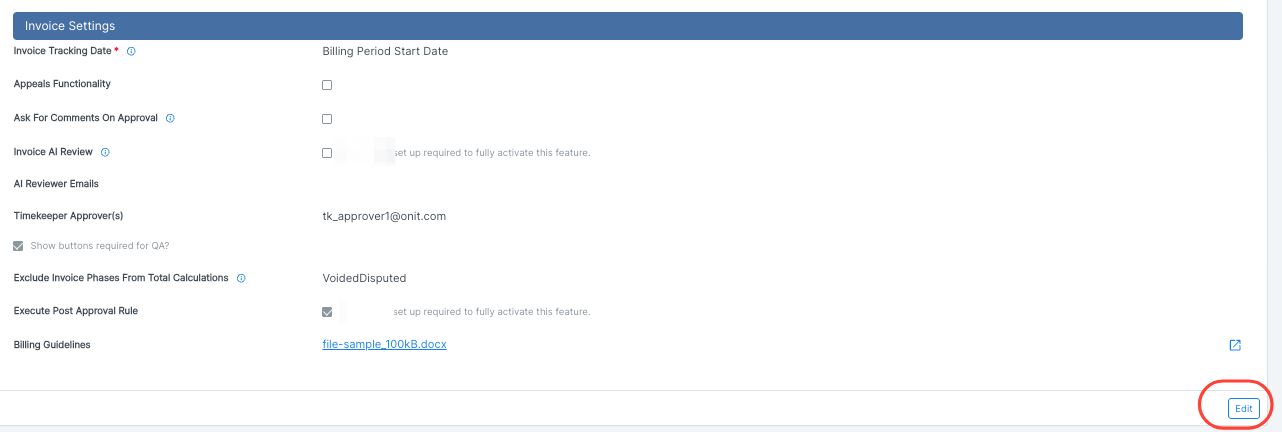
- Once you've updated the billing guidelines, click "Update" to save or "Cancel" to back out.
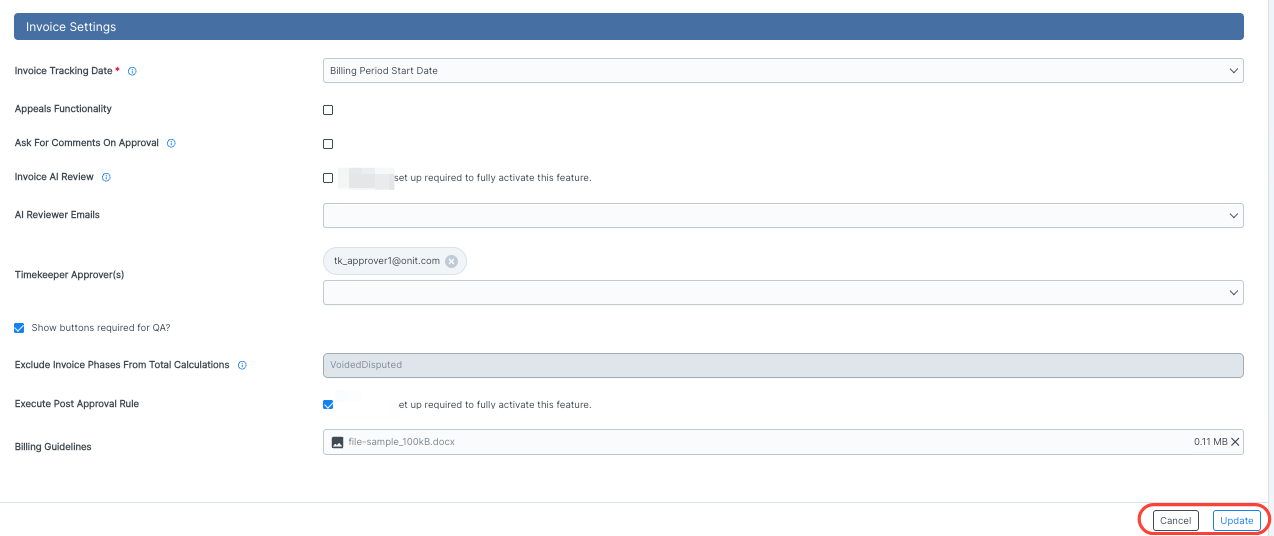
- Scroll down to "Invoice Settings" and click "Edit" to adjust or upload the billing guidelines.
Spend Agent in Action
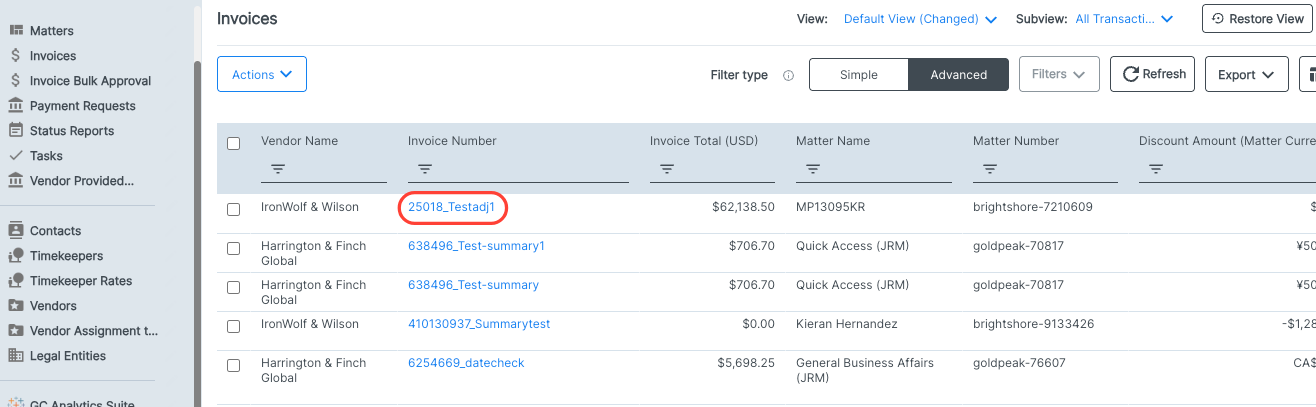
You'll see Spend Agent in action when you work with invoices in the Invoices application. Go to the application and pick out the invoice you'd like to work on.
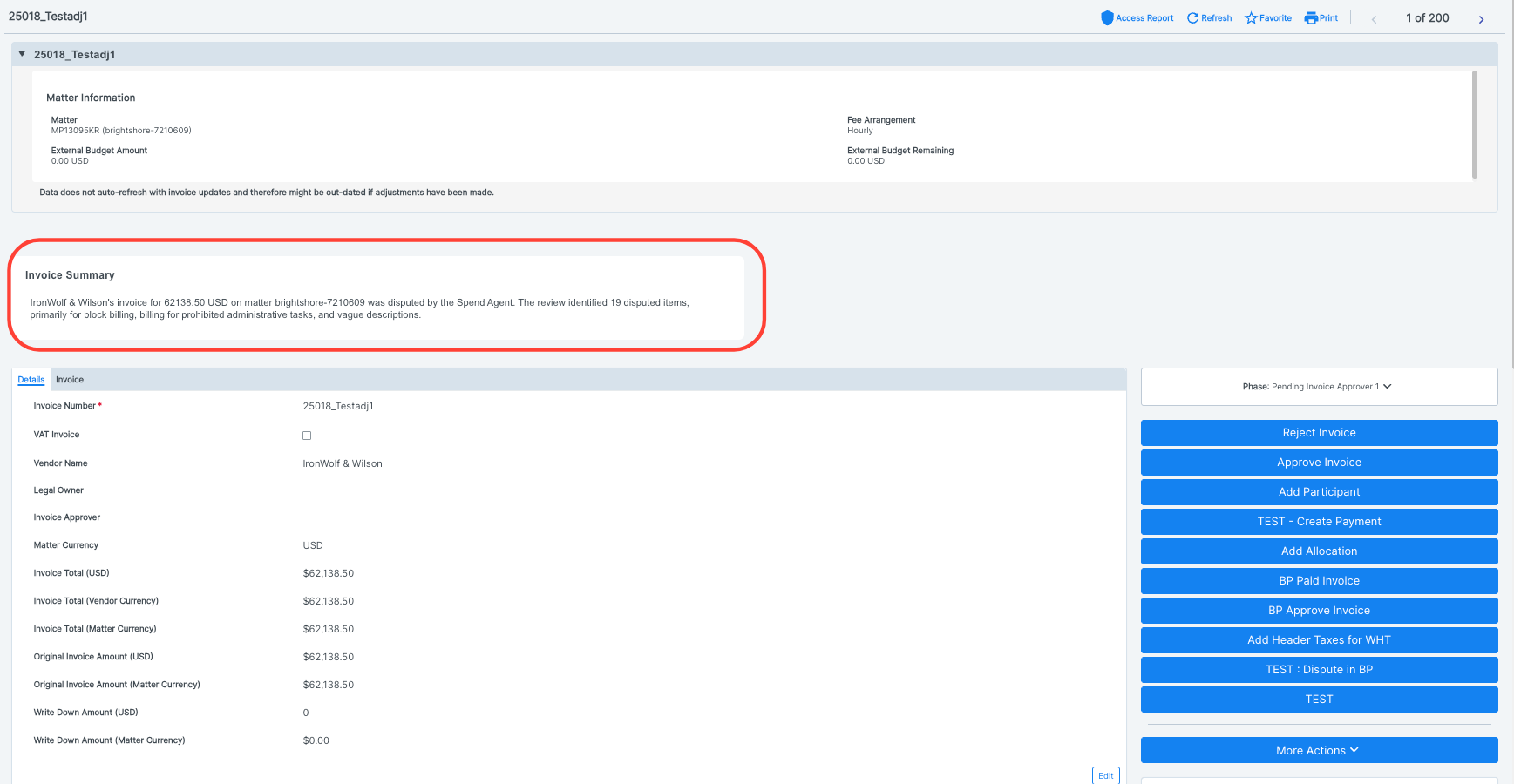
On the invoice details page, you'll see the Invoice Summary at the top of the page; this will alert users to any Spend Agent-discovered violations and provide a high-level summary of the disputes.
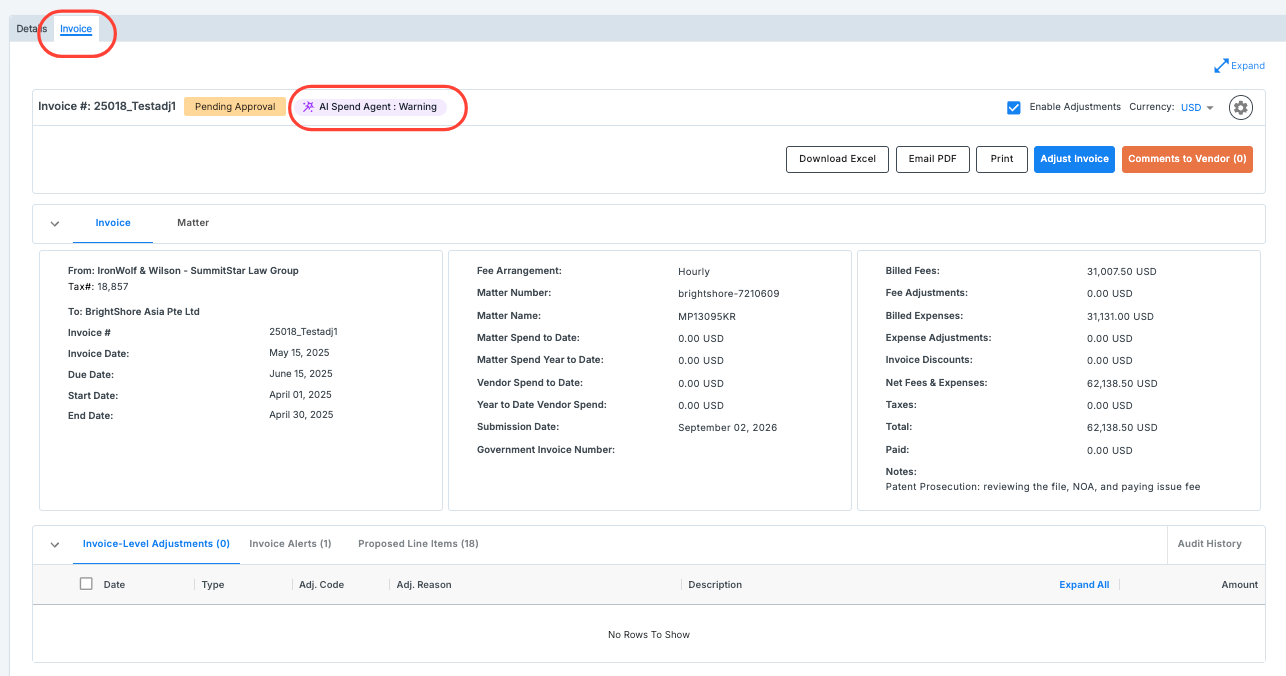
When you click on the Invoice view, you'll see the Spend Agent Warning at the top of the screen (if applicable)
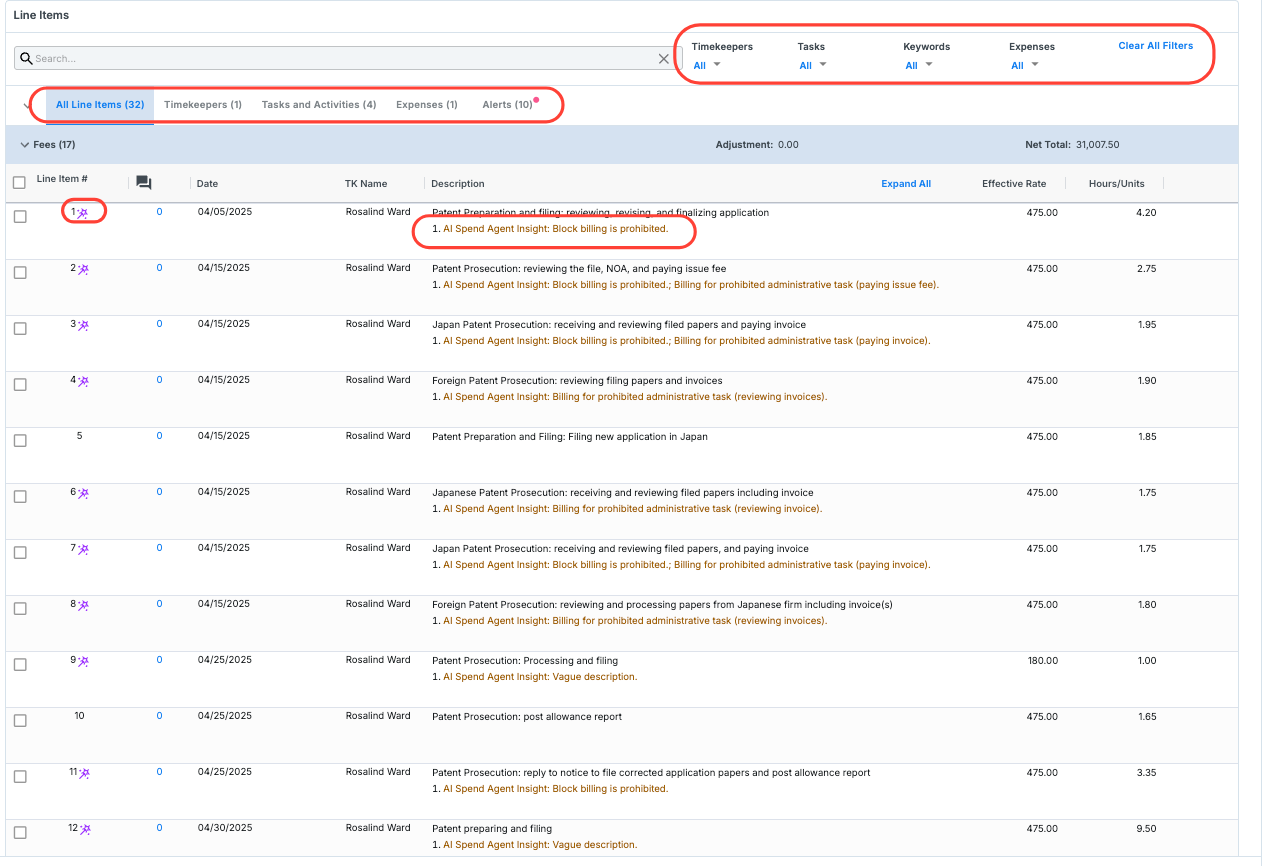
The Line Items section will display (in red) any Spend Agent-discovered violations under the Description section; you'll also see the Spend Agent logo next to the Line Item #. You can use the top tabs to view line items by specific categories or by all Alerts. You can also use the filters section to filter exactly what you want to see on the screen.
Use the search bar to search for specific line items.
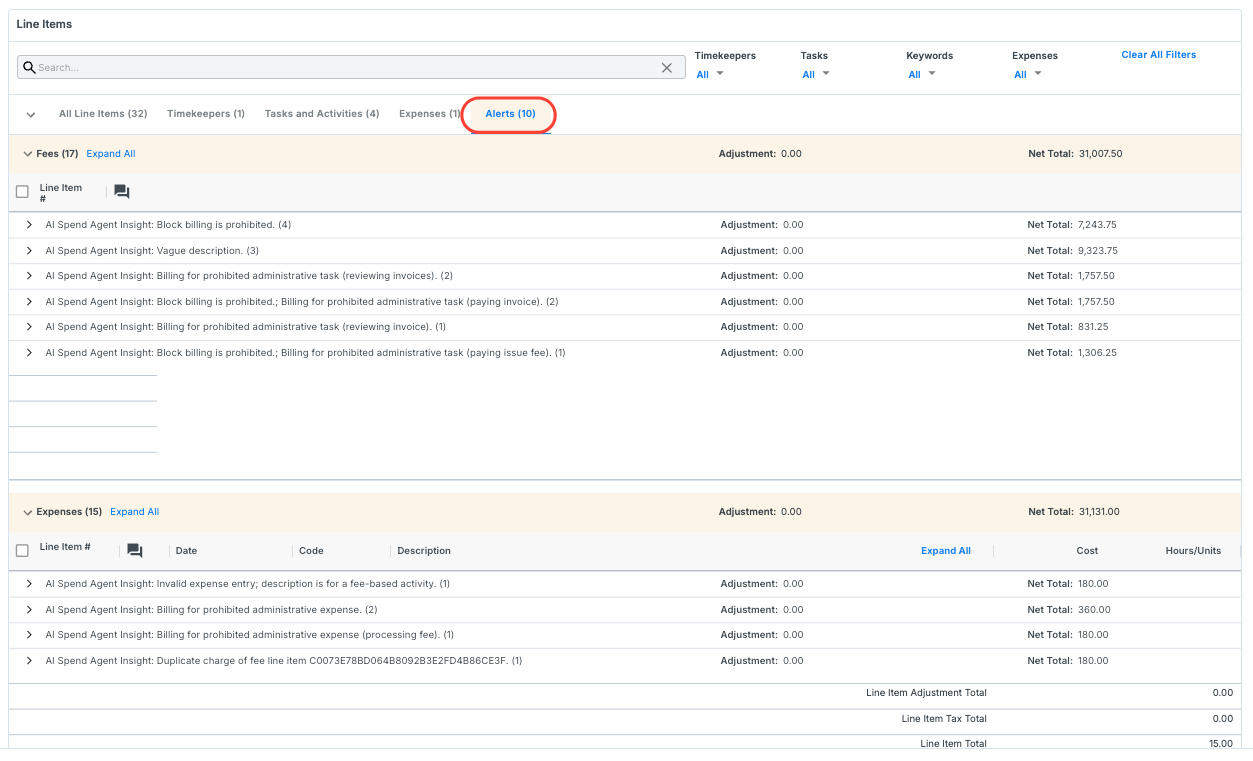
Click the check box next to specific line items to see the Spend Agent Insights, Spend Agent Adjustment, and Spend Agent Adjusted total under the AI Recommended tab. Here, you can choose the Adjustment Reason from the drop-down menu and add any comments. You can use the Adjust To or Adjust By tabs to perform manual adjustments.
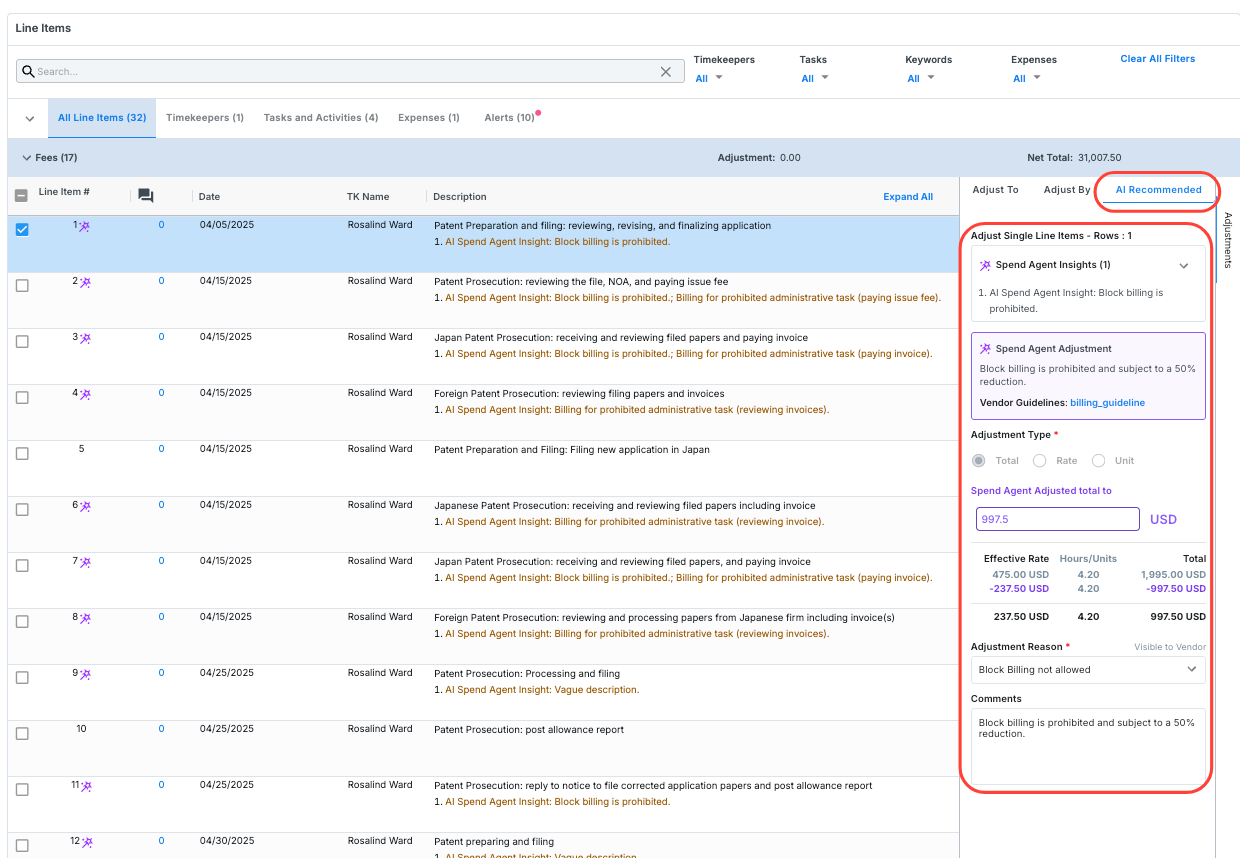
Note that when an adjustment is rejected, users can return to the AI recommended value and re-apply the values.