Setup Notes
Note that an Onit implementation specialist will initially enable the Appeals functionality in the Counsel Exchange and ELM administrative settings.
You'll also need to update your Configuration Settings to enable appeals. Heres how to do this:
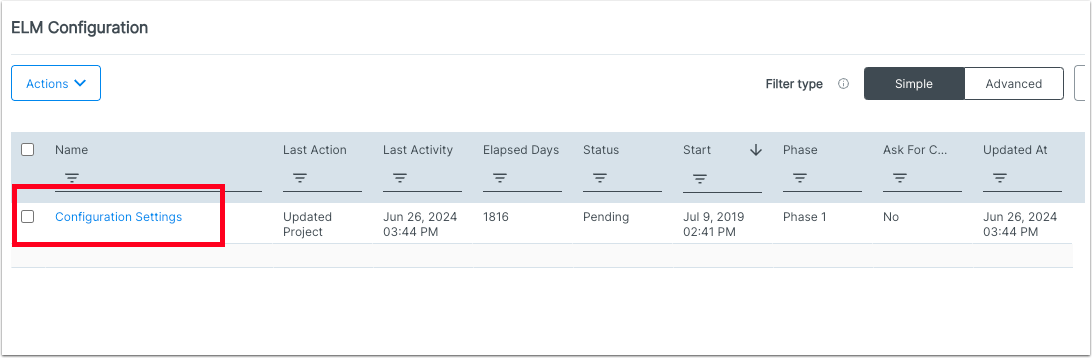
1. Navigate to Configuration Settings within the ELM Configuration application.
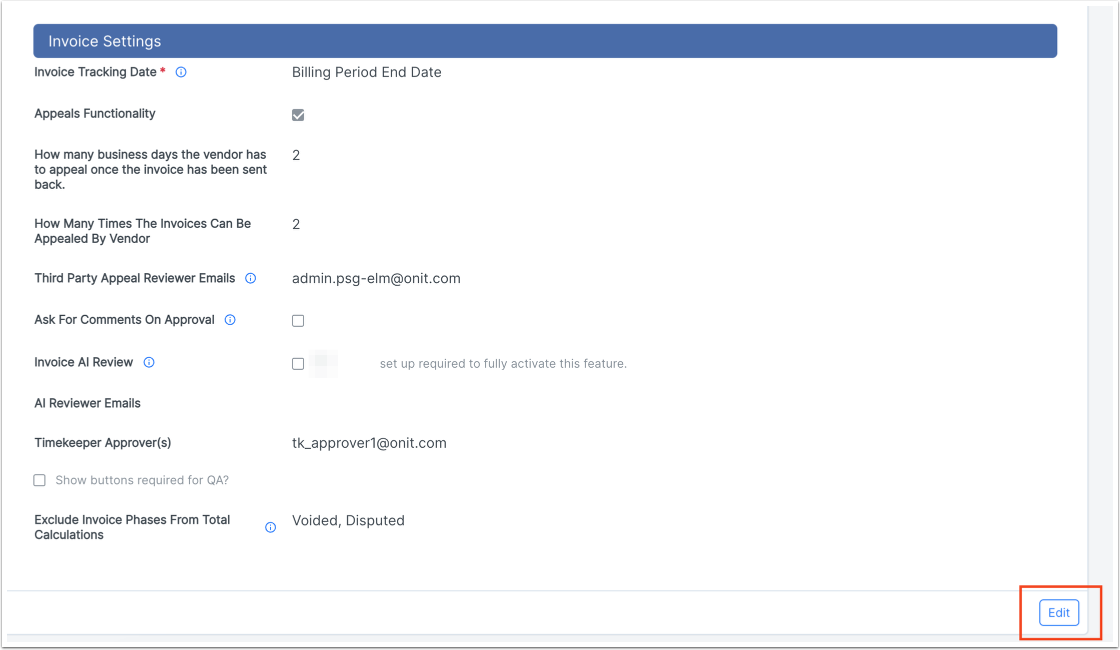
2. Click Edit to update the settings.
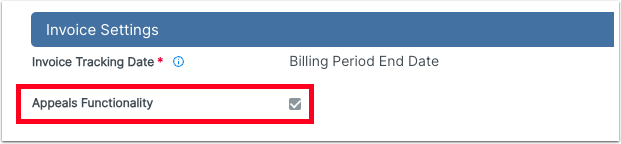
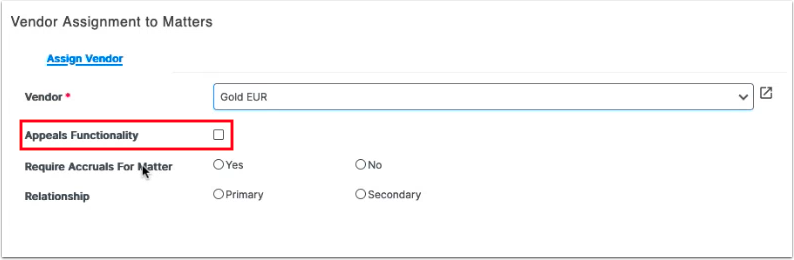
3. Scroll down to Invoice Settings and click the check box under Appeals Functionality.
4. Fill in the How many amount of business days the vendor has to appeal once the invoice has been sent back field.

5. Fill in the How Many Times the Invoices Can Be Appealed by Vendor field.

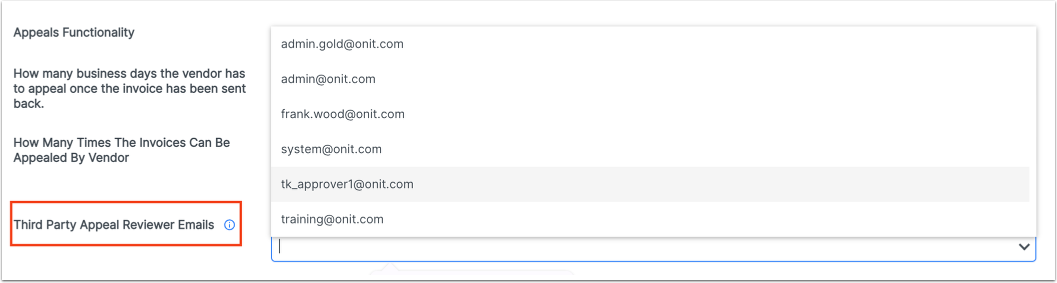
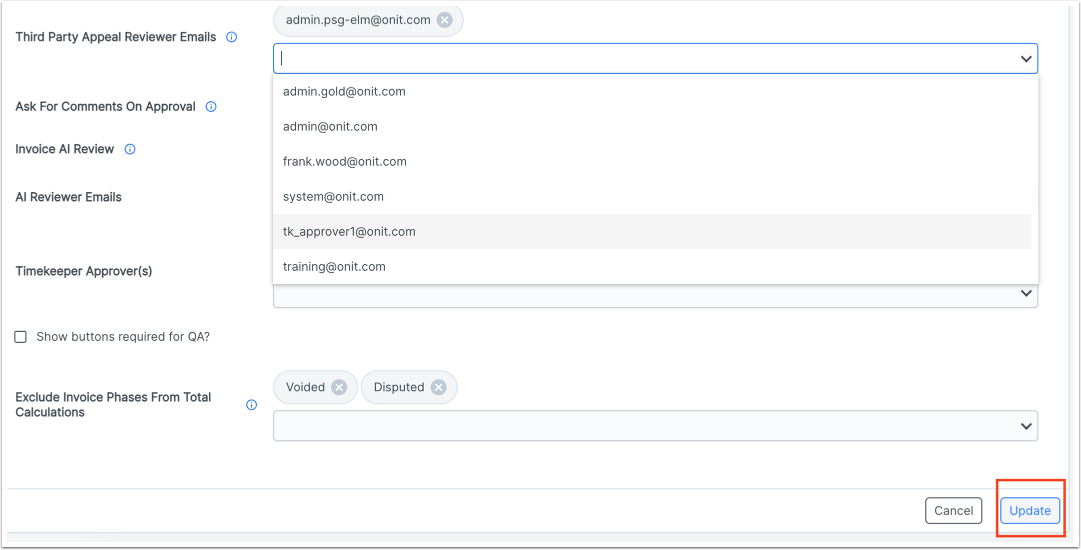
6. If your organization employs a third-party reviewer to examine invoices and appeals, fill in its contact information under Third Party Reviewer Emails.
7. Click Update to save changes.
Using the Appeals Function
1. To use the Appeals function, open an Invoice for review.
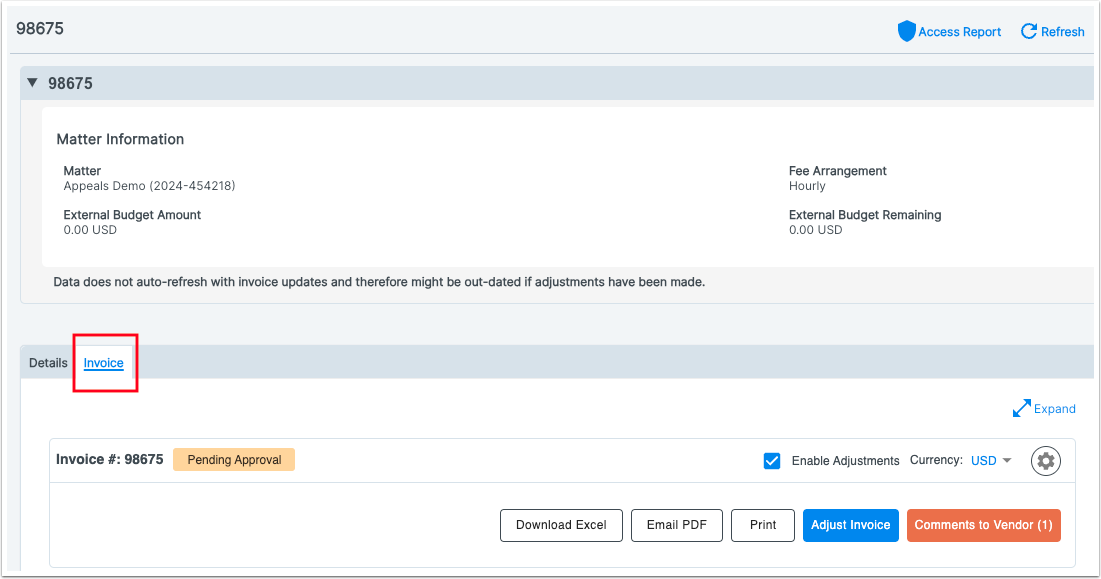
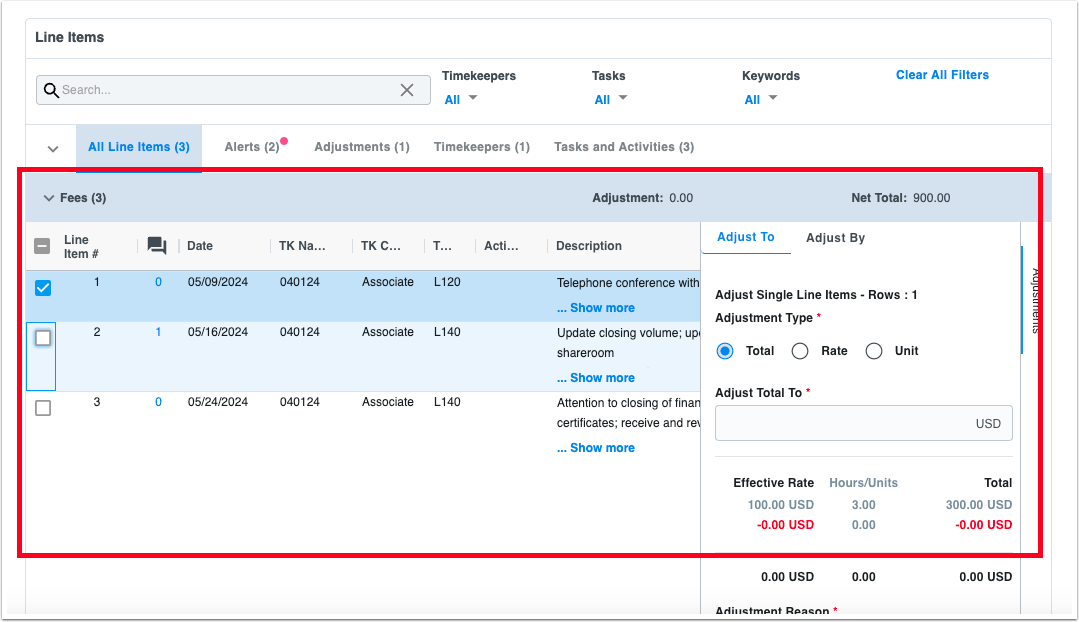
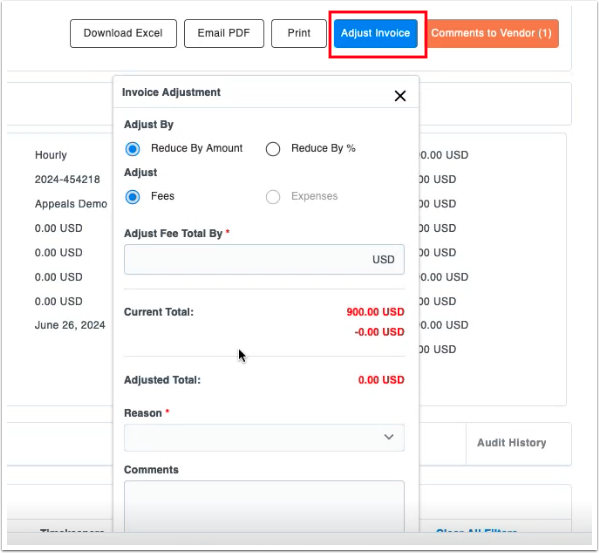
2. Make any needed line-item adjustments (at the bottom of the screen) or invoice level adjustments using the Adjust Invoice button at the top of the screen.
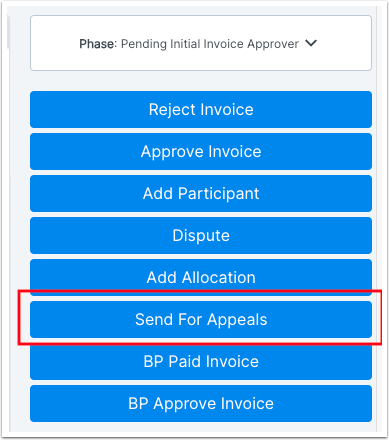
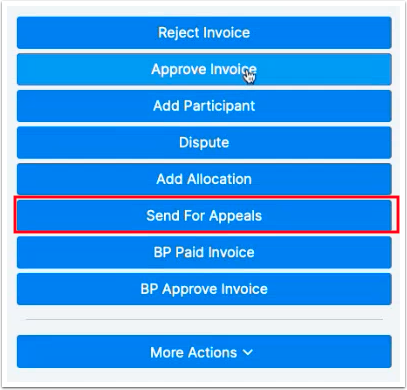
3. After the adjustments are made, click the Send for Appeals button on the right-hand side of the screen.
4. From there, users will see a message at the top of their invoice screen that details how many days the vendor has left to appeal the invoice.

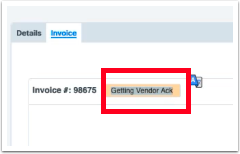
Additionally, you'll get this message at the top of the invoice screen letting you know that you're in the Getting Vendor Acknowledgement period.
The vendor will receive a notification email notifying them of the adjustment and letting them know how long they have to appeal the invoice. Vendor users will also receive a notification on the invoice directly within their Counsel Exchange account and see a banner on the top of the screen reminding them of the appeals deadline.
You can read more about the appeals process in the Appeals in Counsel Exchange user guide.
5. Click on Approve Invoice to finalize the invoice with the removed adjustment.
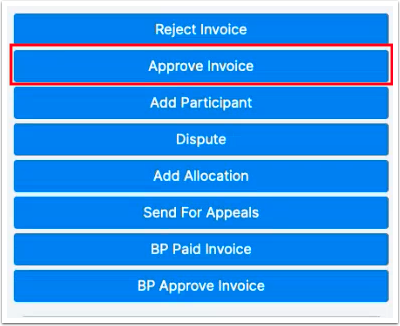
However, if you want to send the invoice back to the vendor, add whatever comments you have in response to their input and click back on Send for Appeals (this option is determined by the number of appeals you have input in the original settings).
Repeat the appeals process until both parties are satisfied.