Approving an Invoice
The environment is configured with one button for approving invoices: Approve Invoice.
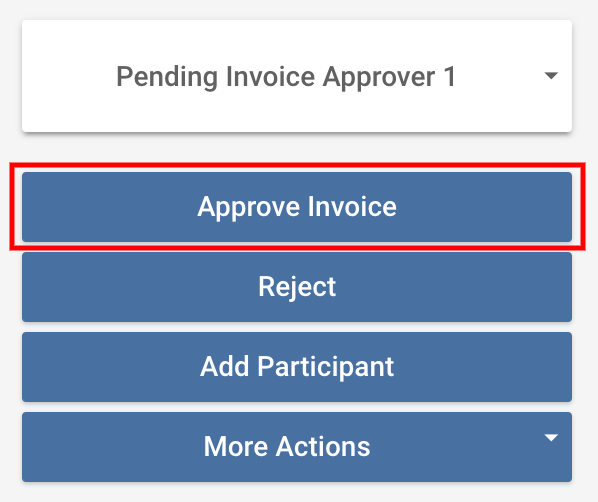
Clicking Approve Invoice causes the following dialog box to appear:
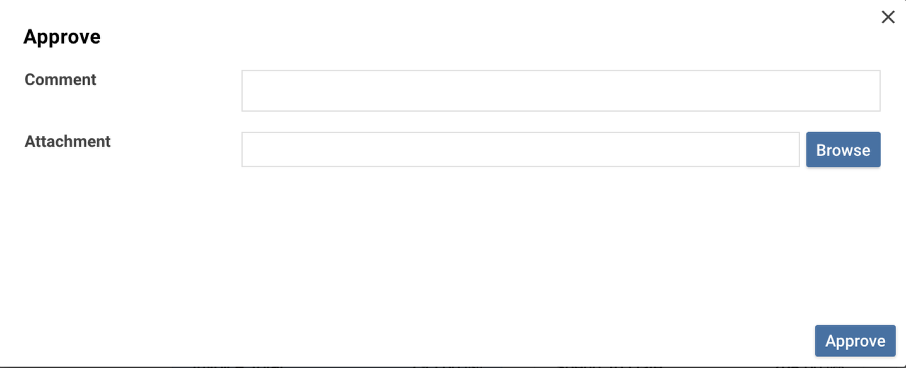
When an invoice Record in Onit has received all of its required approvals it will move into the Approved Phase. During this Phase, a few actions are triggered:
- The invoice’s approved_date Field is updated via the When Phase is approved, Set Approved Date Business Rule.
The status of the corresponding invoice Record in Counsel Exchange is also updated to Approved via a Business Rule named When Phase is approved, Approve Invoice at PSB. This will cause the invoice to appear as “approved” to the vendor in Counsel Exchange, as seen below:

The Phase of Onit’s invoice Record is automatically moved forward to Determine Payment by the Business Rule named Phase is Approved Change to Determine Payment (this important Phase will be described in more detail later in this document).
Rejecting an Invoice
The environment is configured with one button for rejecting invoices: Reject.
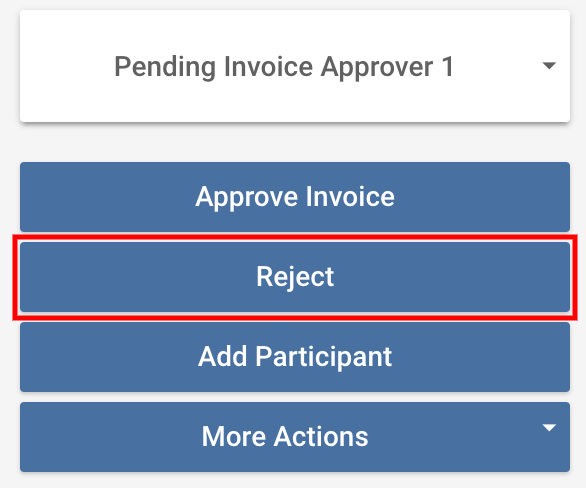
Clicking Reject causes the following dialog box to appear:
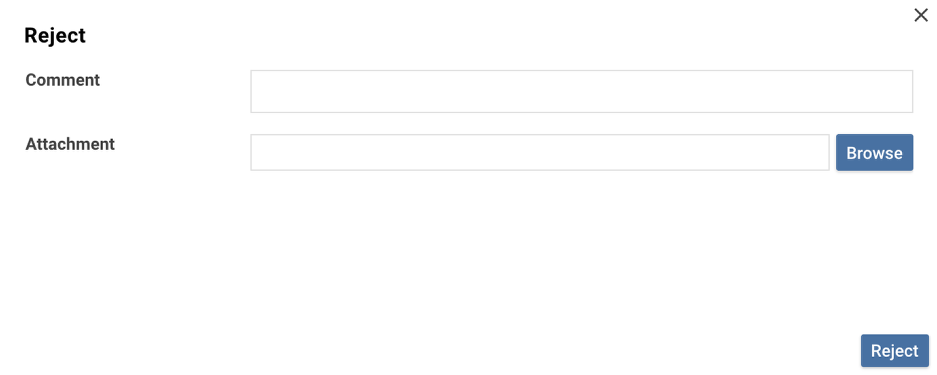
Once an invoice has been rejected, the following Participant Rejected Business Rules will fire:
- An email is sent to the vendor notifying them of the rejection through a Business Rule name Participant Rejected.
- The Add reject comment to Counsel Exchange Business Rule adds any rejection comment made on the Onit invoice Record to the corresponding Counsel Exchange Record.
- The Change Phase to Disputed Business Rule changes the Onit Record’s Phase to be Disputed.
Upon entering the Disputed Phase, the following Transaction Phase Change Business Rules will fire:
- The When Phase is disputed, Change PSB state to Dispute Invoice Business Rule changes the invoice object in Counsel Exchange to appear as “disputed” to the vendor:

- The When Disputed, Change Phase of Payments to Disputed Business Rule changes the Phase of the child Record in the Invoice Payment App to also be Disputed.
Once a Counsel Exchange invoice Record’s status has been updated to Disputed, the vendor can either edit the invoice and resubmit it or void the invoice.
Resubmitting an Invoice
When an invoice fails, the vendor must edit and resubmit it for approval. Read the Editing a Failed Invoice Counsel Exchange user guide to learn more.
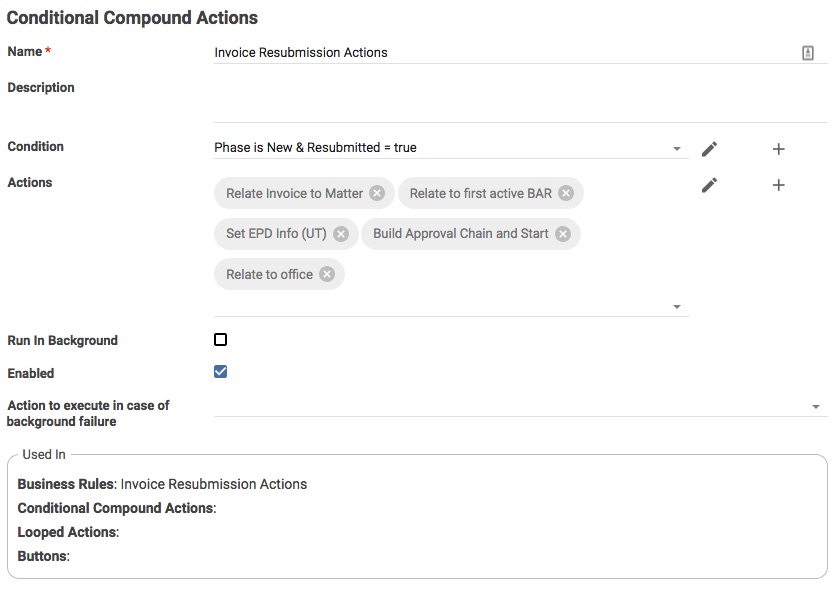
When a vendor resubmits an invoice by default, the corresponding Record in Onit’s Invoices App is set back to the New Phase.
Voiding an Invoice
If a vendor voids an invoice, the invoice object in Counsel Exchange and the Phase of the Invoices Record in Onit will be set to Voided. Learn more about this process in this Counsel Exchange guide: Editing a Disputed/Rejected Invoice in Counsel Exchange
Frequently Asked Questions
What are the different types of invoice/payment statuses within Onit?
This chart details the different phases:
Phase | Description |
|---|---|
Pending Initial Invoice Approver | Pending Billing Admin or Paralegal review. This phase is optional. |
Pending Invoice Approver 1 | Pending Matter Manager review; all invoices will be routed to this stop. |
Pending Invoice Approver 2 | |
Pending Invoice Approver 3 | |
Pending Invoice Approver 4 | |
Pending Invoice Approver 5 | |
Approved | |
Disputed | If the invoice is rejected by one of the approvers, it will move into a Disputed phase. |
Held | |
Determine Payment | |
Ready for Payment | Ready for Payment indicates an invoice that is fully approved and waiting to be sent to AP. |
Pending Payment | Pending Payment indicates an invoice that was sent to AP and awaiting payment confirmation. |
Voided | Voided indicates an invoice that was voided by vendor in Counsel Exchange. |
Paid | Paid indicates an invoice that has been marked as paid by either the AP system or manually. |
More details of selected phases are below.
Received
Received: The Invoice has been submitted by a vendor or added manually by an internal user, and Onit has performed initial invoice validation based on settings in your environment (e.g., timekeeper rate validation and/or automated flagging per validation rules).
- Approvable vs. Not Approvable: Depending on invoice validation settings in your environment, the system determines whether the invoice meets minimum billing requirements to move through the review cycle. If an invoice passes validation, the Approvable column on the Invoices list page displays Yes. If the invoice fails validation, the column displays No to indicate that further review/action is required. In this case, an admin may need to set the invoice status to On Hold. You can view validation issues by going to the Invoice Verification tab and switching to Approval Requirements.
- Spend Agent Invoice Verification: If you are using Onit's Spend Agent for automated invoice review/validation based on natural language billing guidelines uploaded to your environment, you can view the detailed AI summaries by going to the Invoice Verification tab from the invoice details page.
On Hold
On Hold: An invoice requires some further review or research outside of Onit. This may be necessary, for example, if key pieces of information are missing or if the invoice did not pass initial system validation based on settings. To change the status to On Hold, the current reviewer or an admin can click on the Invoice Actions dropdown in the top-right corner of the invoice's details page and select Pause Approval.
Placing an invoice on hold removes it from the review queue. Once the necessary information is collected or verified, the user can go to the Invoice Actions dropdown and select Resume Approval to revert it to Received status and move it back to the reviewer's My Invoices list for review.
Approved
Approved: An invoice has been approved by assigned reviewers or per auto-approval validation rules in your environment (if applicable). Once approved, invoices can be marked as Sent to AP for payment manually or via a finance system integration. Otherwise, one of the following options can be selected by clicking the Invoice Actions dropdown from the details page: Mark Paid, Pause Payment, or Revert to Received.
Approved Hold
Approved Hold: If an admin chooses Pause Payment on an approved invoice, the status changes from Approved to Approved Hold. This means the invoice will not be sent to AP via a finance system integration, if applicable.
Rejected
The invoice has been rejected manually by an assigned reviewer or automatically, depending on validation rules in your environment (if applicable). Rejected invoices do not appear on the invoices list page.
You can find rejected invoices by going to Reports > Standard and viewing the Invoice List report, which displays a comprehensive list of all invoices by status. You can use the status filter to only see rejected invoices for a specified date range. Access depends on your role and permissions.
Sent to AP
Indicates that the invoice is pending confirmation from the accounting team. Invoices can be set to this status manually or automatically via a finance system integration (if applicable). It can be set manually by clicking Invoice Actions from the details page and selecting Mark Sent as AP.
Paid
Invoices that have been marked as Paid manually by an admin, reviewer, or automatically via a finance system integration (if applicable). It can be set manually by clicking Mark Paid in the Actions column on the Approved tab of the invoices list page.
Additional statuses that may appear for Paid invoices include the following:
- Partially Paid. Marked via API as Paid but did not pay the full amount (informational only)
- Over Paid. Marked via API as Paid but paid more than the invoice total (informational only)