Electronic invoices are submitted by vendors via Counsel Exchange (not via Onit) – Onit and Counsel Exchange are two entirely separate systems (both owned and operated by Onit).
Upon invoice submission, Counsel Exchange runs billing rules against the invoice and then (if no failing rules are encountered) makes an API call to Onit to create a matching Record inside of an Invoices App. At this point, the invoice is represented by both an object in Counsel Exchange and by a Record in Onit. An out-of-the-box configuration in the environment will keep the two objects in sync.
The invoice approval workflow is facilitated in Onit. It begins when a vendor submits a new invoice and ends when an invoice is either successfully paid or is voided.
The invoice handling workflow is configured within the following Onit Apps:
- Invoices: One Record will be created in this app for each invoice object created in Counsel Exchange. This Onit Record will traverse through an approval process in Onit. In most cases, only Onit clients (not vendors) see and work with Records in the Invoices App – vendors only interface with the invoice object in Counsel Exchange.
- Invoice Payment: After the Invoices Record is fully approved and validated, a new Record will be created in a separate child App named Invoice Payment in Onit. All integration jobs that facilitate sending payments to an Accounts Payable Team/system will exclusively interface with Records in the Invoice Payment App. Integration jobs should never interface directly with Records in the Invoices App.
After an invoice has been submitted by a vendor, there are three parts to its lifecycle:
- Approval
- Validation
- Payment
Before you can submit an invoice to a Matter as the Vendor in Counsel Exchange, the client must first assign the Vendor to a Matter in Onit.
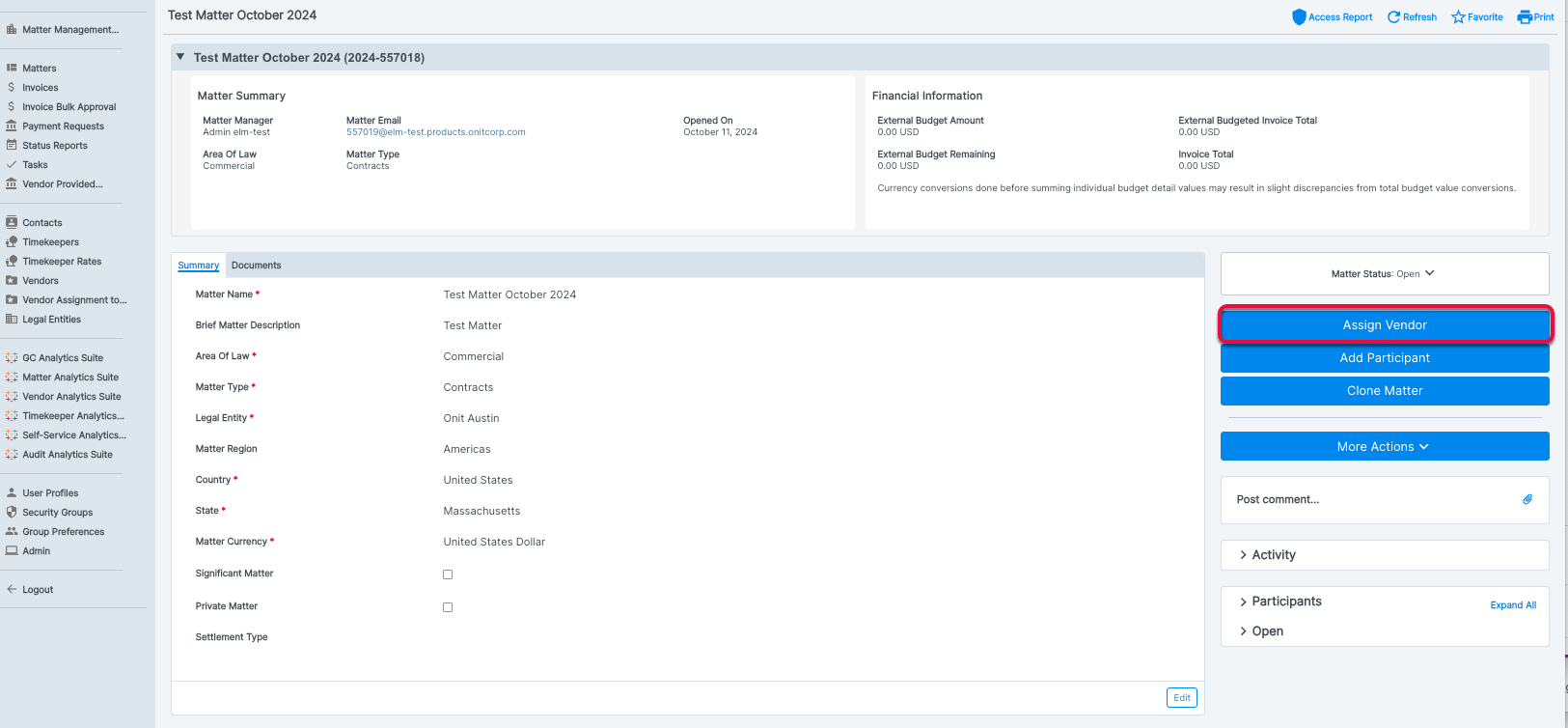
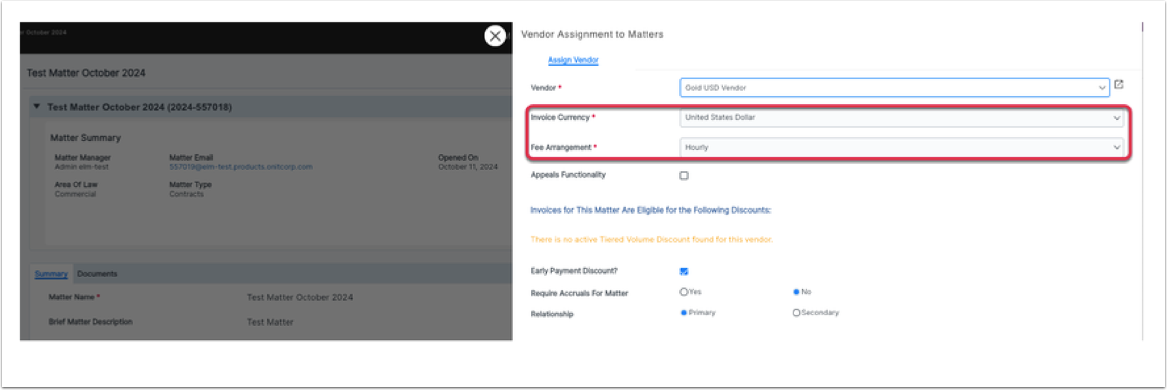
Two important pieces of information to Counsel Exchange are the Invoice Currency, and the Fee Arrangement.
The Invoice Currency, selected here by the client, will dictate the currency the Vendor must submit the invoice in from Counsel Exchange. The Fee Arrangement will decide which subset of billing rules to apply against all invoices submitted to this Matter for this Vendor in Counsel Exchange.
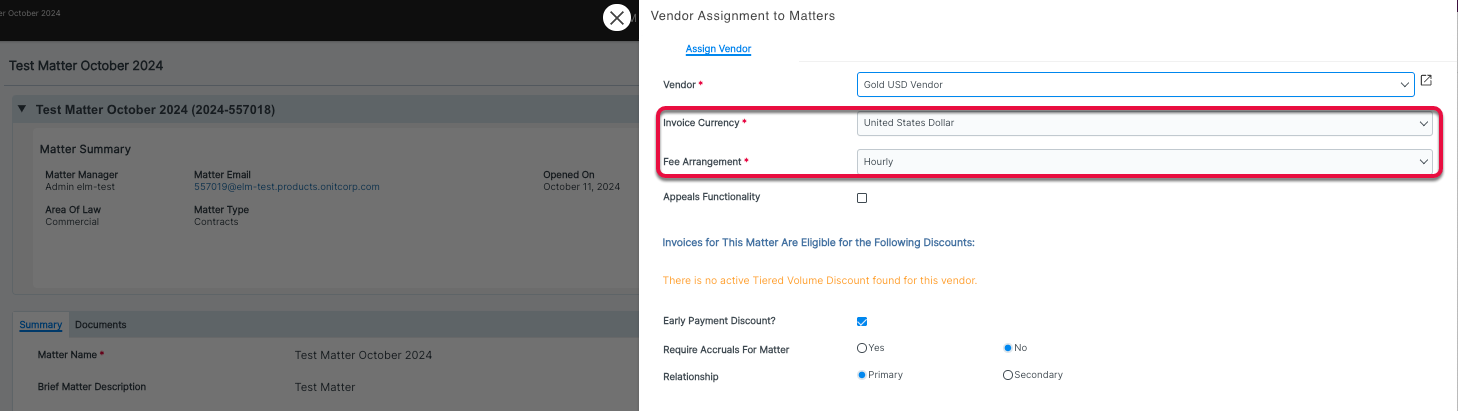
Once you click save, the Vendor Assignment to Matter (VATM) record will be created with an Open phase. An Open VATM is the trigger to create an Open Billing Authorization Request (BAR) for this Matter/Vendor relationship. The Open BAR then allows the Vendor to start submitting invoices.
FAQs
Spot Rates
How do Spot Rates work in Onit?
- If a vendor has timekeeper rates approved in a currency different from the invoice currency that is assigned by the client, the spot rates will be used.
- The invoicing currency on VATM defaults to whatever the vendor's currency is set at on the vendor record. For vendors who always bill in one currency, it should work without intervention from the client.
- The spot rate applied to an invoice is the spot rate for the date of initial submission.
- The variance is a "cushion" that can be given to vendors via billing rule configuration. It allows for normal exchange-rate fluctuations to not impact the billed rate when currency conversions are needed.
How does the rate conversion work for different invoice types?
• Manual Invoices: Spot rate is applied automatically by the system.
• LEDES Invoices: Vendors must generate their LEDES file in the correct invoicing currency. Most systems providing LEDES files can do this automatically, but the vendor can consult the client-specific spot rates in the system to ensure the conversion is done using the appropriate spot rate for the date of submission.
Should vendors be instructed on how to note the rate conversion?
- Yes, vendors may need additional guidance on this process. A banner or notice visible to all vendors could be used to provide instructions.
How often are spot rates updated?
- Spot rates can be updated via a bulk upload done by the Vendor Services team as often as monthly per the client requests via a support ticket.
- We also offer the ability for an integration to your AP system or another spot rate provider if spot rates need to be updated more frequently (such as daily).
- Updating a client's spot rates applies to all vendors.
- If Counsel Exchange does not receive explicit direction regarding the frequency or the completed spot rates template, they will update the spot rates once a year, in February, using this website: https://www.xe.com/.
Viewing spot rates and spot rate history in Counsel Exchange
In Counsel Exchange, viewing the specific client, Click on “Client Settings” > “Client Spot Rates”
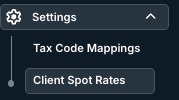
“Client Spot Rates” will list the client currencies and the current spot rate for the currencies:
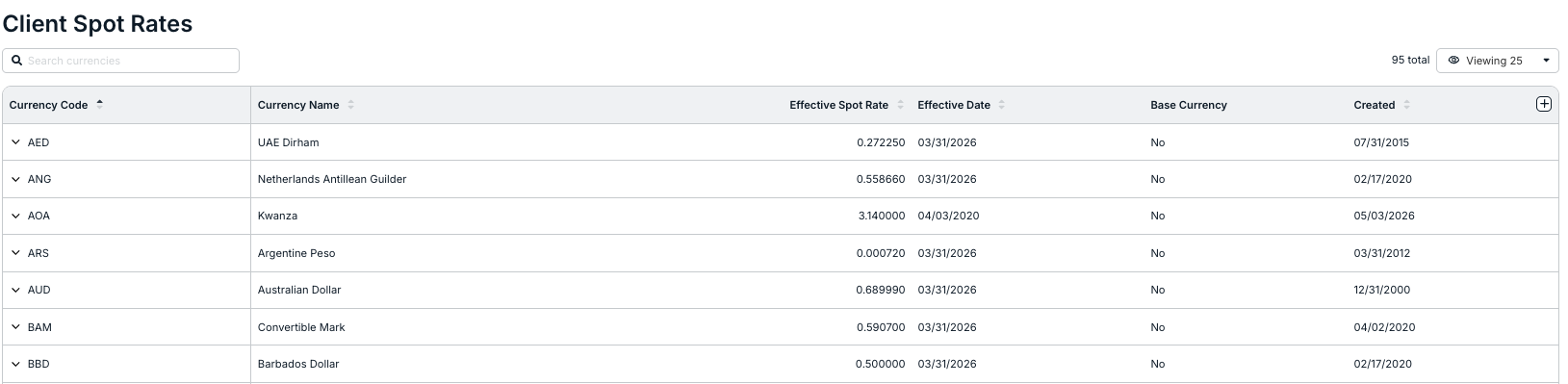
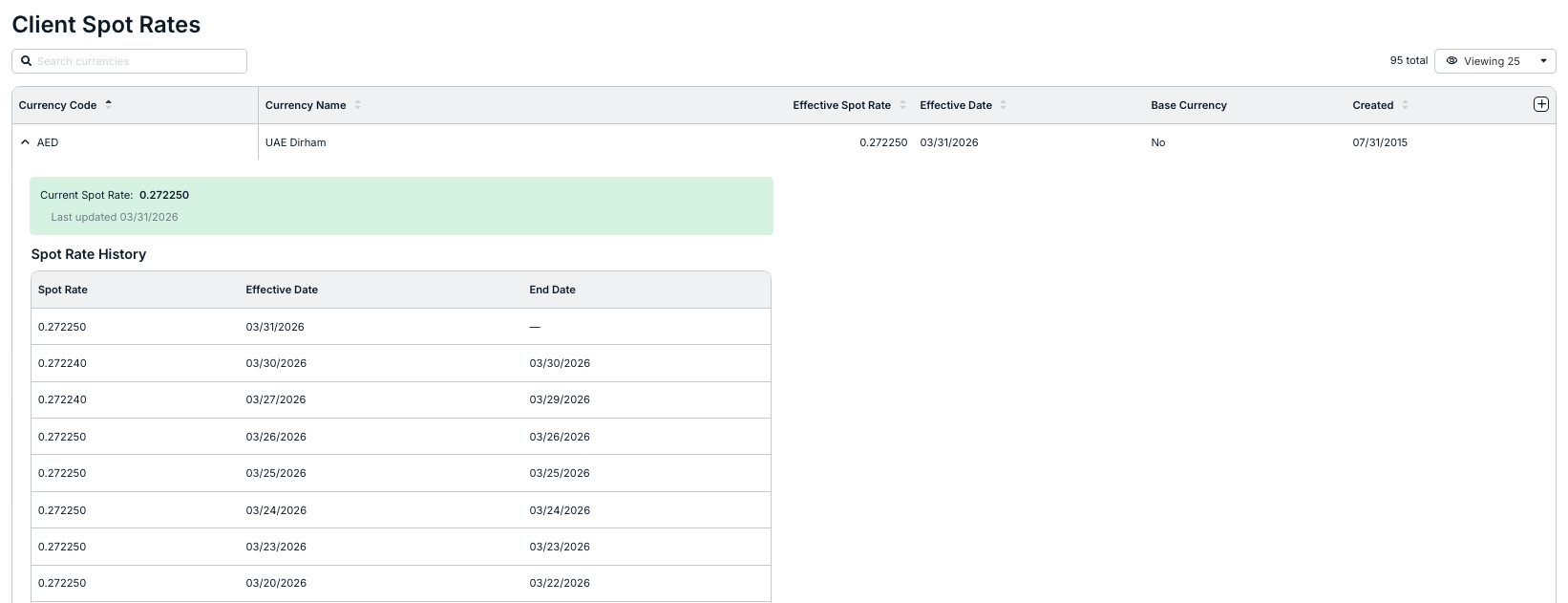
Then click on the expand/collapse arrow next to the Currency Code and look under “Spot Rate History” to see the rate history. Example below is reflecting AED – if there had been changes in the currency, that would be reflected below:
Spot Rates Vendor Process Flow
- START – Vendor Preparing Invoice
- Are Timekeeper Rate Currency and Invoice Currency the SAME?
- YES → Submit Invoice Normally (No Spot Rate Needed) → END
- NO → Continue to Step 3
- Find Client Spot Rate
- Go to: Client Settings → Client Spot Rates
- Vendors will see the current spot rate.
- Determine Invoice Type
- Manual Invoice → System automatically applies spot rate
- LEDES Invoice → Vendor generates LEDES file in invoicing currency, consulting the client-listed spot rate for correct currency conversions.
- Approved Timekeeper Rate × Client Spot Rate
- Use the current spot rate. The system will allow 1-5% tolerance (depending on what the client has selected).
- Submit Invoice → END