The new Messagebox component for Unity UX provides a consistent, design-aligned way to display banners and callouts on forms, replacing the legacy displayfields approach.
Here's how to use the Messagebox component on a form:
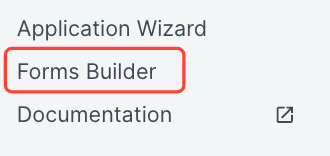
- Navigate to the Forms Builder and open a form.

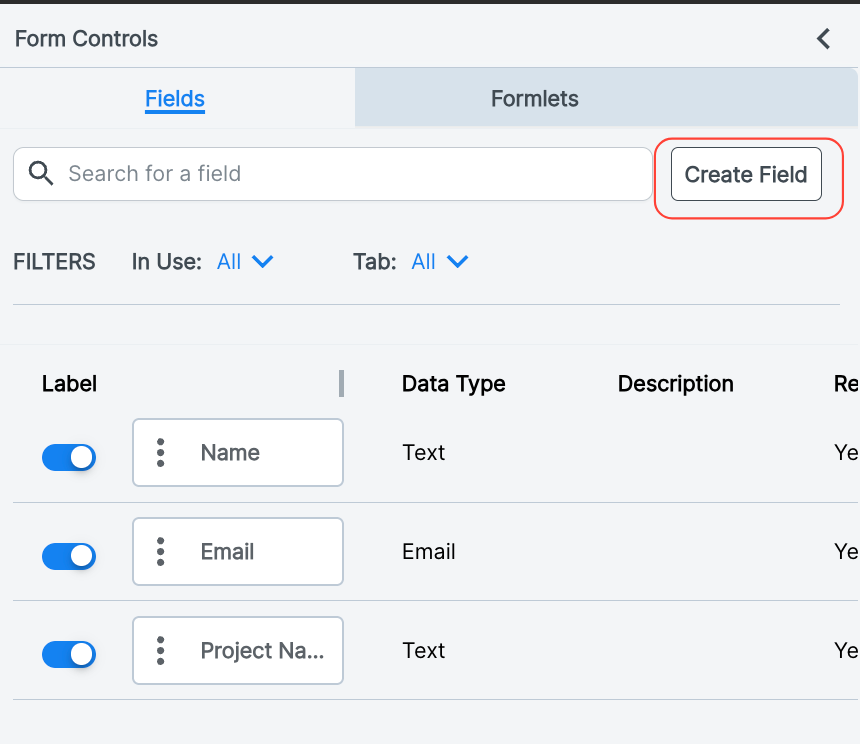
- Click the "Create Field" button.
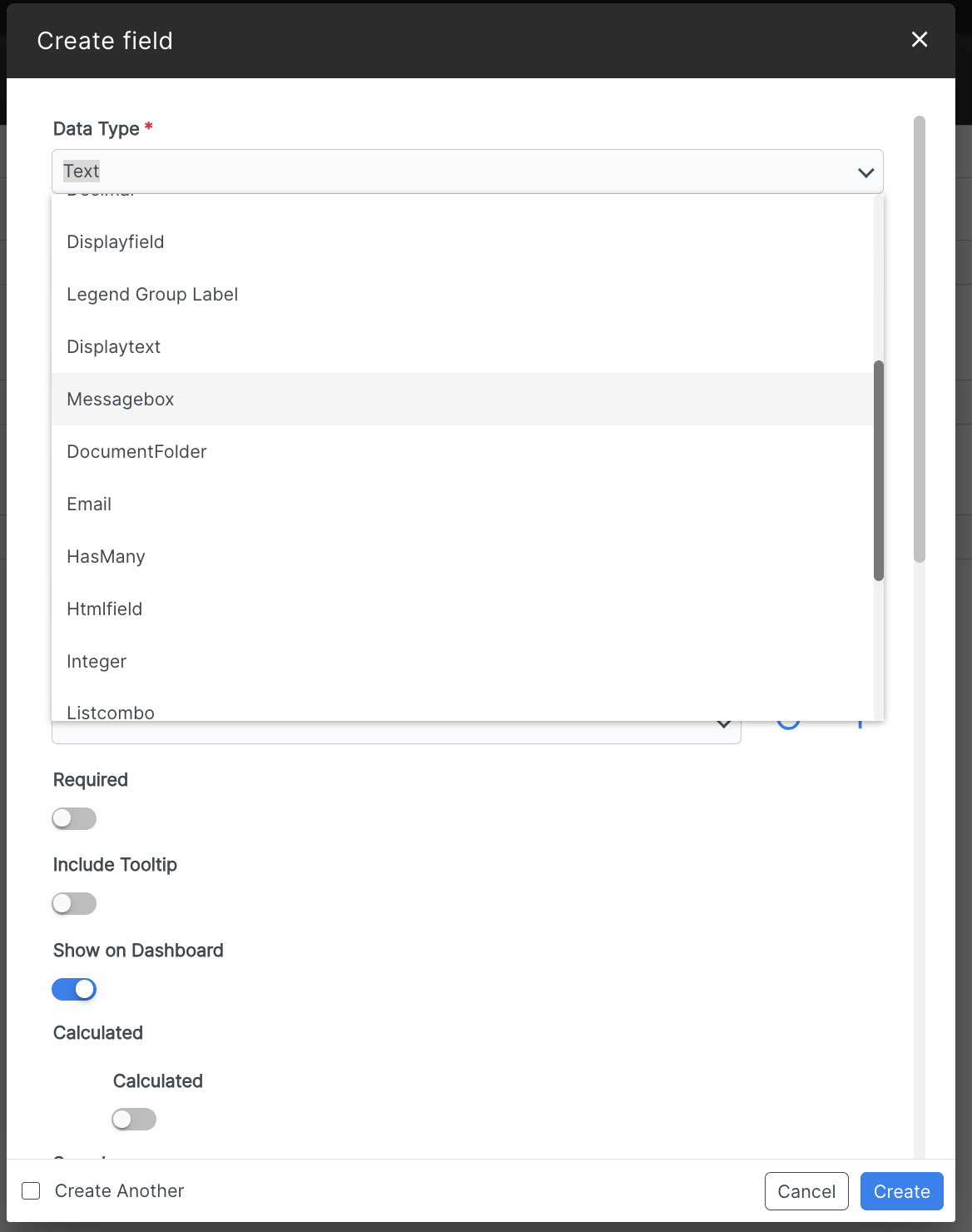
- Select "Messagebox" in the "Data Type" drop-down menu.
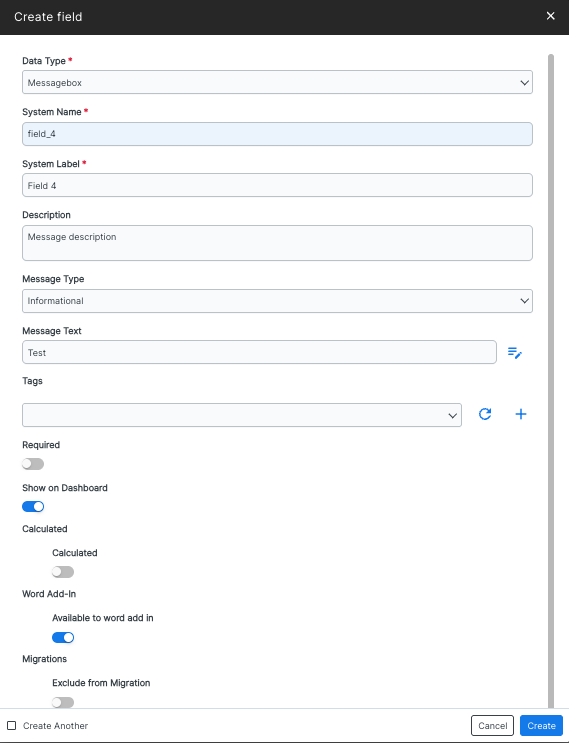
- On the Messagebox screen, you can fill out the:
- System Name
- System Label
- Description
- Message Type: You can choose from five message types, each with specific color coding and behavior:
Message Type
Color
Icon
Best Use Case
Informational
Blue
Yes
General updates or neutral information.
Success
Green
Yes
Confirming a completed action or positive state.
Warning
Yellow
No
Alerts that require caution but aren't blockers.
Error
Red
Yes
Critical issues, validation failures, or blockers.
Help Text
Neutral
No
Supplemental guidance.
- Message Text
- Tags (drop-down menu) - Use the Add (plus) button to add new tags
- Required option (toggle button)
- Show on Dashboard option (toggle button)
- Calculated option (toggle button); note that if you select this, you can fill out the Calculation Type from a drop-down menu
- Word Add-In option (toggle button under Available to word add-in)
- Migrations option (toggle button under Exclude from Migration)
Click Create to create the Messagebox or Cancel to back out.
- On the Messagebox screen, you can fill out the: