Onit Documentation

Feature Spotlight: Field Encryption at Rest in OnitX

by Michael Nadeau Updated on

Here's how to set up Field Encryption at Rest in OnitX:

  1. Go to the app in question, then "Wizard" and "Fields." Then, click on one of the fields you need to enable encryption on.


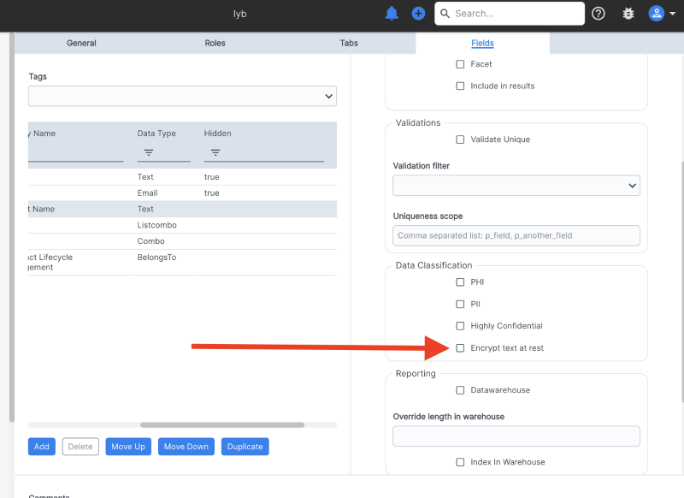
  2. Go to Advanced, then scroll down. You will see a checkbox labeled “Encrypt at rest” as shown below. Click this checkbox to enable encryption for this field.
  3. Repeat for other fields as needed.

    If historical emails need to be encrypted as well, please reach out to support so that they may run a script to both encrypt the existing mail data and cleanup their indexes so that these emails are no longer searchable. 


Previous Article Apptitude Release Notes - Q1 2026
Next Article Release Notes - January 2025 Minor Release

© 2026 Onit, Inc.

docs.onit.com contains proprietary and confidential information owned by Onit, Inc. that is subject to copyright. Onit presents it exclusively to you for your sole use in conjunction with using Onit products. No portion of the materials contained herein may be used for any other purpose. No portion of the materials contained herein may be shared with third parties or reproduced in any form.