The Knowledge Agent in Unity LSR allows users to interact with their policy documents through an AI agent before creating service requests. Here's how to use it within Unity LSR:
Setting up Knowledge Base
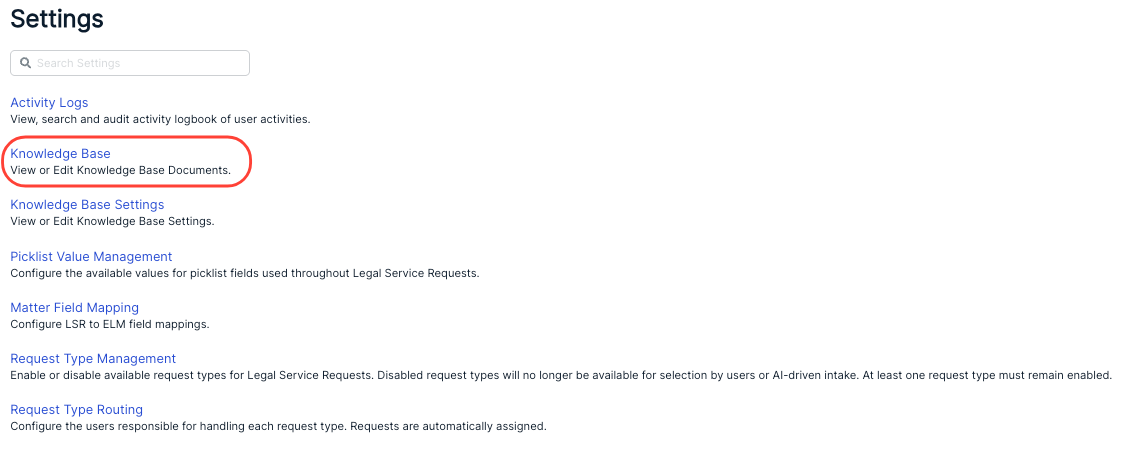
- Log in to Settings and go to "Knowledge Base."
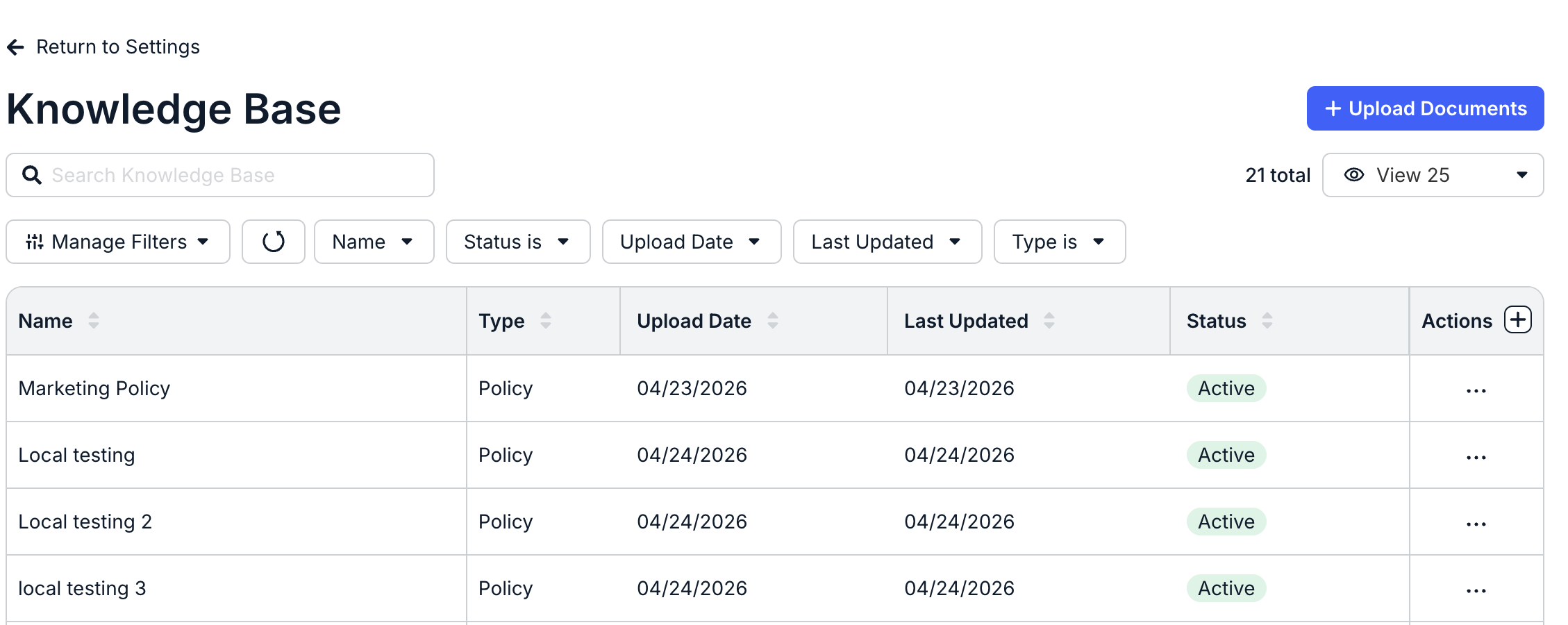
The Knowledge Base will open. This is where you'll see the different policy documents that make up the knowledge base the Knowledge Agent pulls from. The directory will show you the Name and Type of the document, the Upload Date and Last Updated date, the Status, and the Actions menu. Click the up/down arrows next to each column to sort by that column. Use the Manage Filters and other drop-down menus at the top of the screen to filter which documents you want to see, and use the View drop-down menu to customize how many documents you want to see on the screen. Use the search bar to search for a specific document.
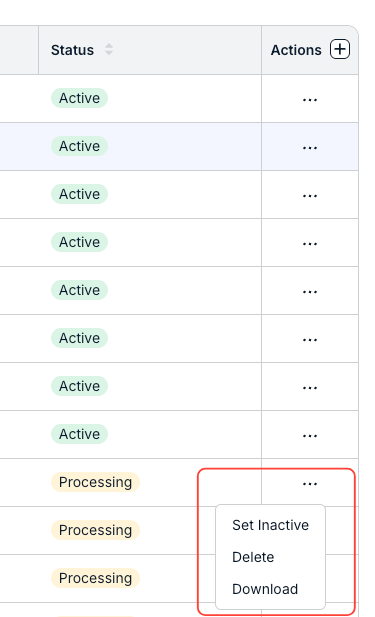
You can use the three-button Action menu to either make the document Active or Inactive. Active documents are used by the Knowledge Agent to answer questions; inactive ones are not. You can also Delete or Download the file.
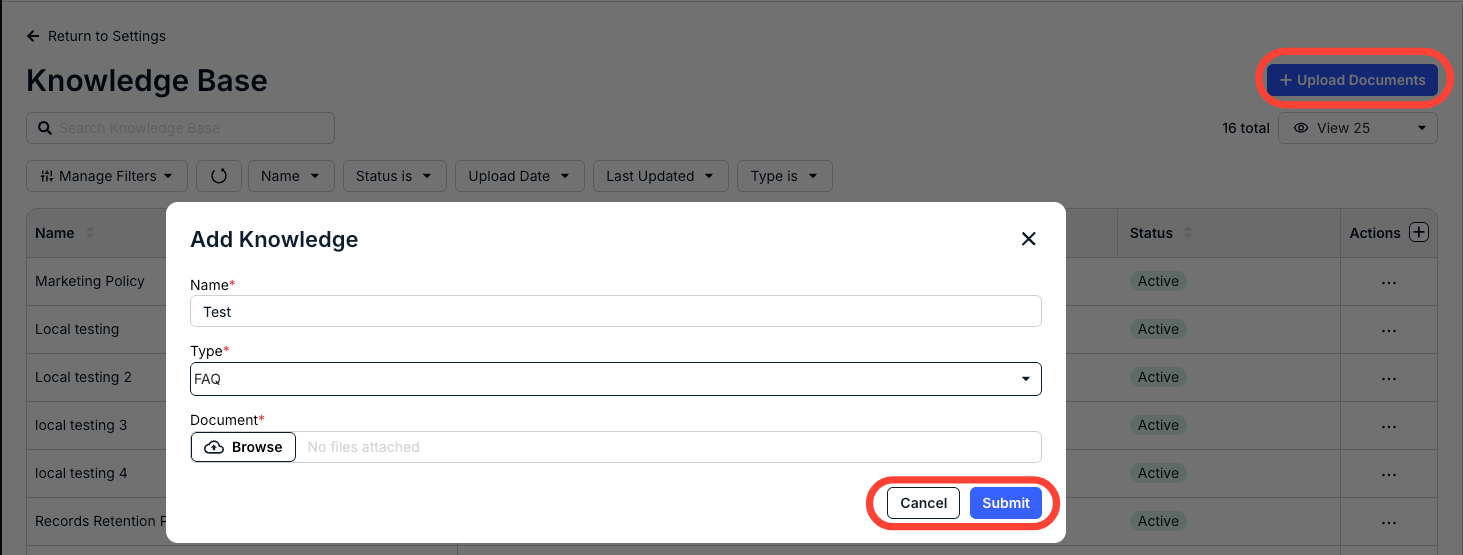
- Click on "Upload" to upload a specific document to the Knowledge Base.
The Add Knowledge screen will appear. Find the file(s) you want to upload and fill in the Name and Type of file. Click Submit to submit the file or Cancel to back out.
- Once created, the documents move to a Processing status.
Here, the AI tokenizes them; the documents automatically transition to Active status once ready, with options to set inactive, delete, or download.
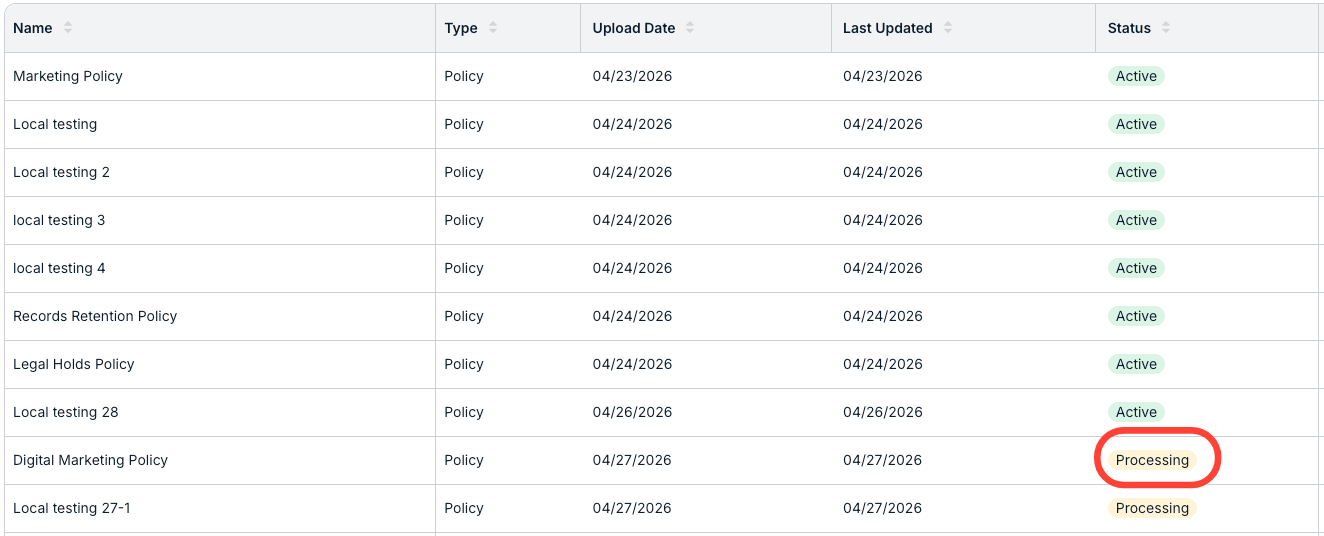
- Once created, the documents move to a Processing status.
- You can view and adjust the Knowledge Base Settings in the Settings menu.
These settings generally describe how confident the Knowledge Agent needs to be before it gives a definitive answer.
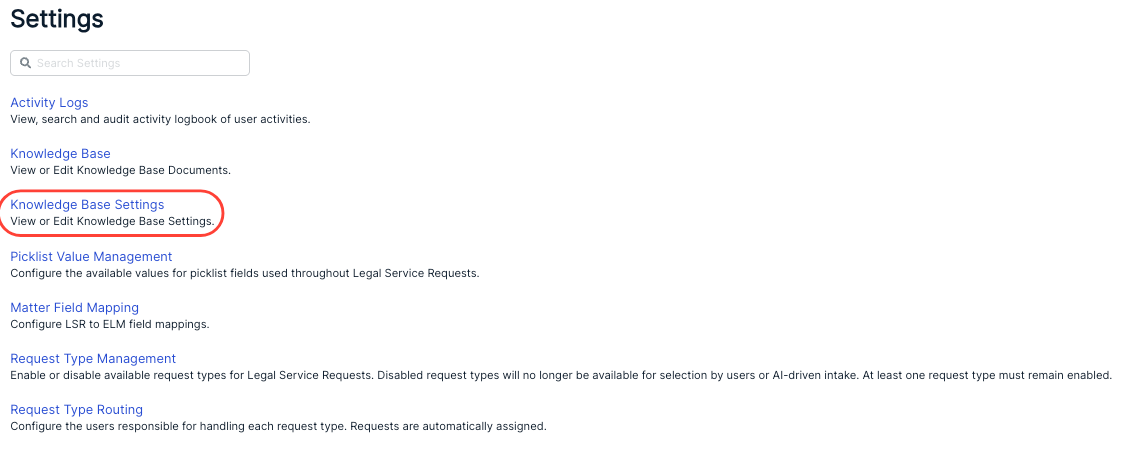
On the Knowledge Base Settings screen, you can use the search bar to search for specific settings or use the View drop-down menu to show how many settings you want to see on the screen. Settings include:
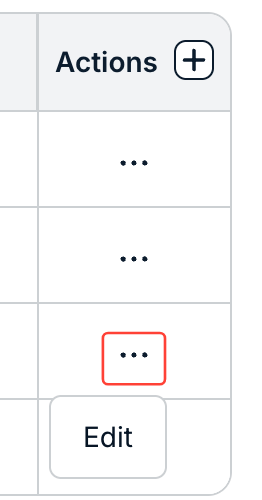
- Enable Auto-Resolve: This allows the system to automatically answer questions. You can Enable or Disable it. If you disable Auto-Resolve, the agent will automatically launch to create an LSR for human resolution. Click the three-button menu under Actions and click Edit to Enable or Disable.
- Auto-Resolve Confidence Threshold (%): The minimum confidence required for the system to provide an answer without human review. Higher values prioritize accuracy and reduce risk; lower values increase automation but may result in less precise responses. This will also provide a reference to the document that may answer your question, and will create an LSR to track the response. Note that 85% is the default.
- Clarification Confidence Threshold (%): The minimum confidence required for the system to ask follow-up questions before responding. If confidence is between this value and the auto-resolve threshold, the system will ask clarifying questions to improve accuracy. Note that 60% is the default.
- Escalation Confidence Threshold (%): Defines the confidence level below which the system will create a request instead of attempting to answer or ask follow-up questions. This ensures that low-confidence or high-risk questions are handled by a human. Note that below 60% is the default.
You can click the Edit option in the three-button Actions menu next to any setting to edit the percentages.
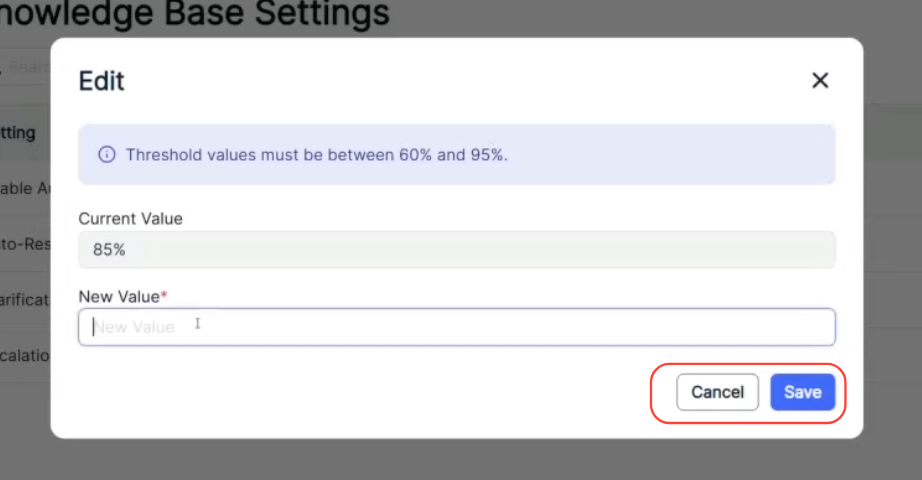
After you click Edit, the Edit screen will appear. Fill in the New Value and click Save to save your changes or Cancel to back out.
Using Knowledge Agent
Type your query into the right-hand-side Legal Service Request AI agent; the agent will respond with an answer drawn from the knowledge base covering any company policies, employee handbooks, legal procedures, procurement policies, or compliance documentation uploaded into the system.
Note that you can use the icons at the bottom-right to Try Again, Copy the answer, or mark it as a Good Response or a Bad Response.
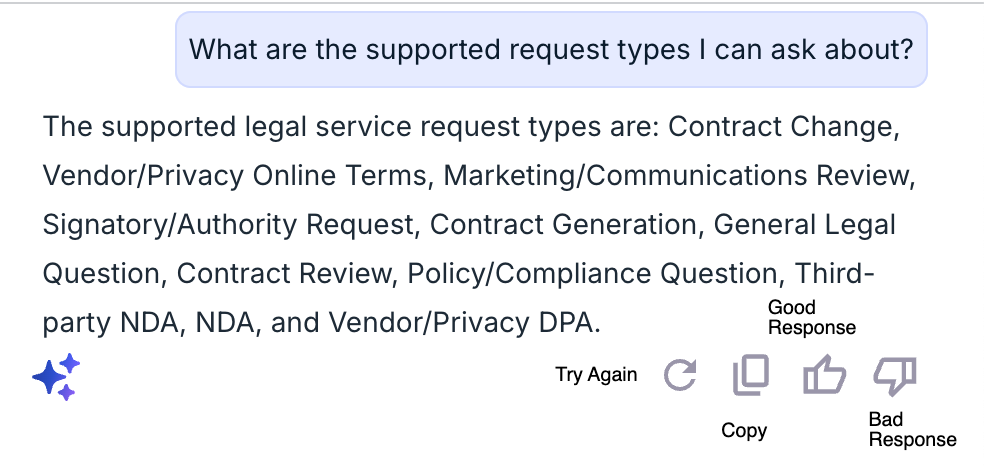
Some notes on Knowledge Agent usage:
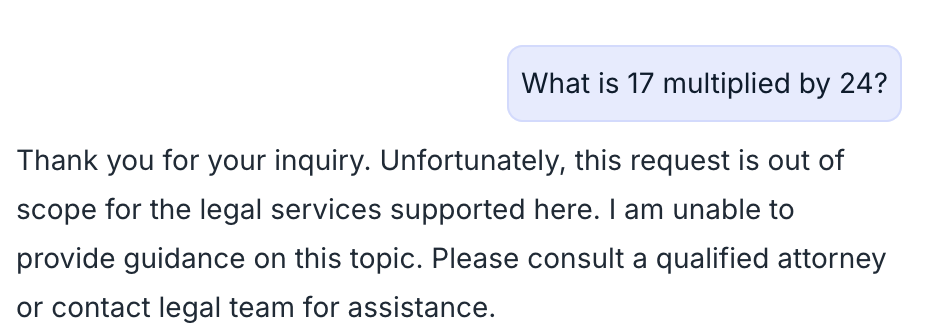
- Irrelevant questions will get an "out of scope" answer.
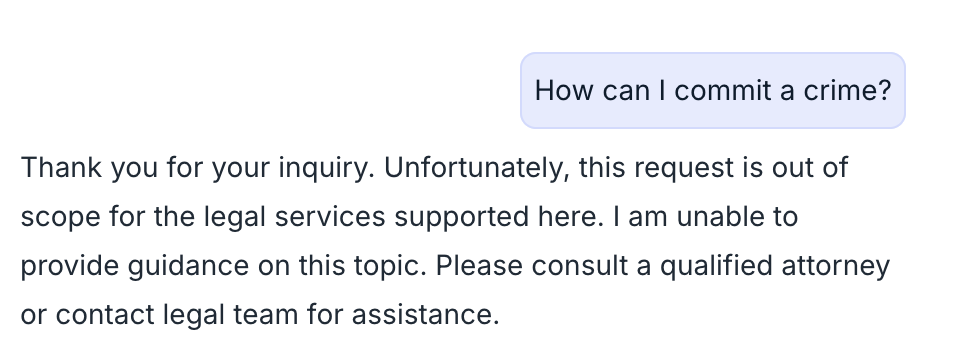
- Unethical questions will also get the same "out of scope" response.
- If the user asks about reviewing or creating any document (or termination of any contracts), the system will go back into the request agent to create a formal LSR for the service.
- AI-generated responses, supported by a knowledge agent, are for informational purposes only and do not constitute legal advice. This tool supports defined legal service requests only. Please consult legal counsel for matters requiring professional judgment. See our Privacy Policy for more details.