Intake Admins are notified via email when a new request is submitted. Click on the link from the email or go to Legal Service Requests from the left-side navigation bar in the portal and switch to the In Triage tab.
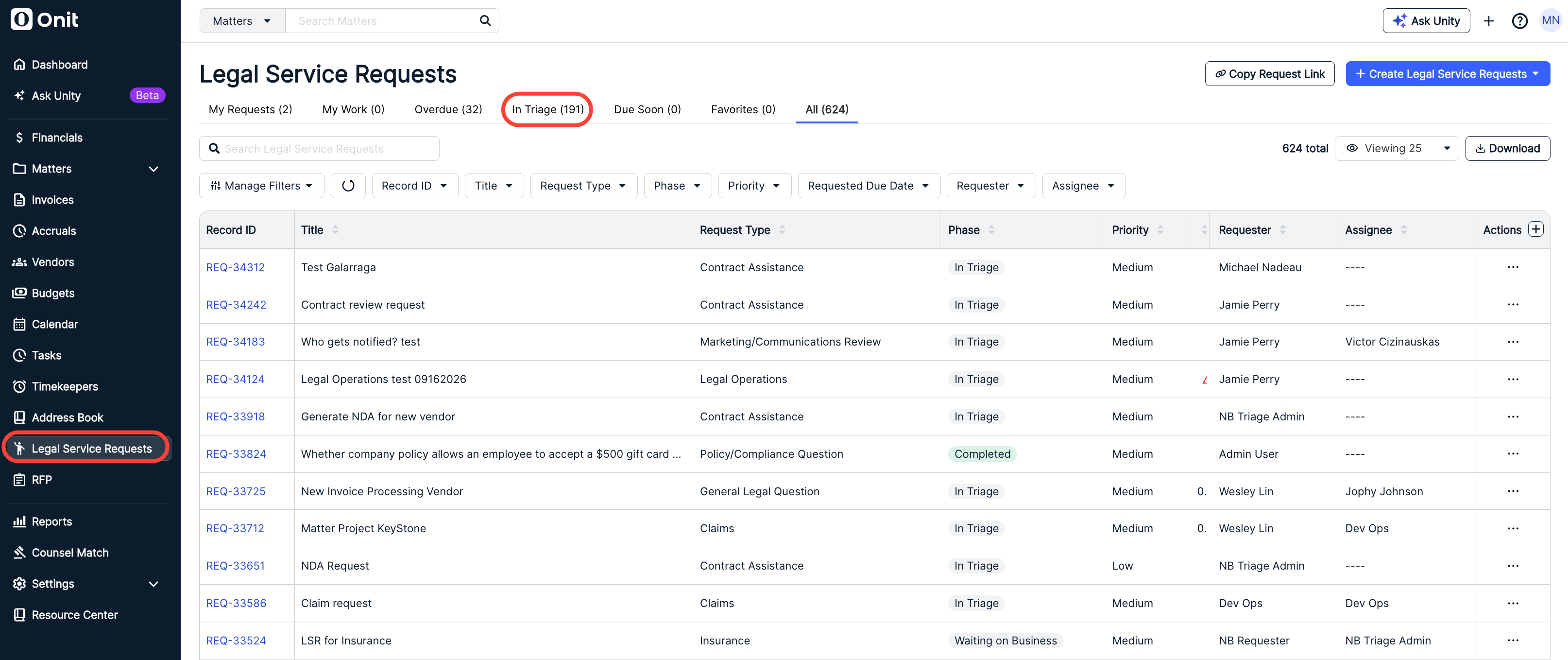
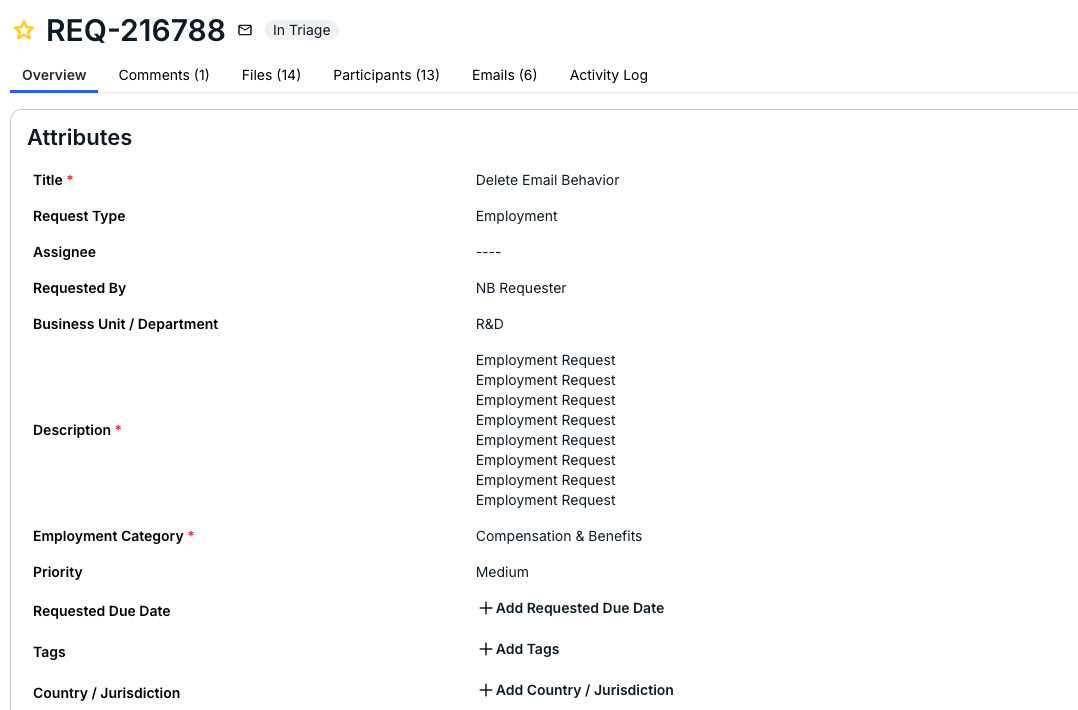
Click on the hyperlinked request name from the list to view details and take additional actions. The request record is separated into four tabs: Overview, Comments, Files, and Participants.
This article covers the following topics:
Overview
The Overview page shows key Attributes of the request.
The default fields below appear under Attributes for all requests. Additional fields may appear based on the type of legal service request.
To update the information, click on the value for a field to enable editing. Enter or select the information and then press enter/return (or click Apply, where applicable for dates and multi-select dropdown fields).
If you are ready to assign the request or need to take other actions, such as merging the record with a duplicate request, requesting additional information from the requester, or completing a quick request, see Service Request Actions below.
Comments
The Comments tab stores notes and other details left by the intake admin, assignee, requester, and/or other participants with access to the service request.

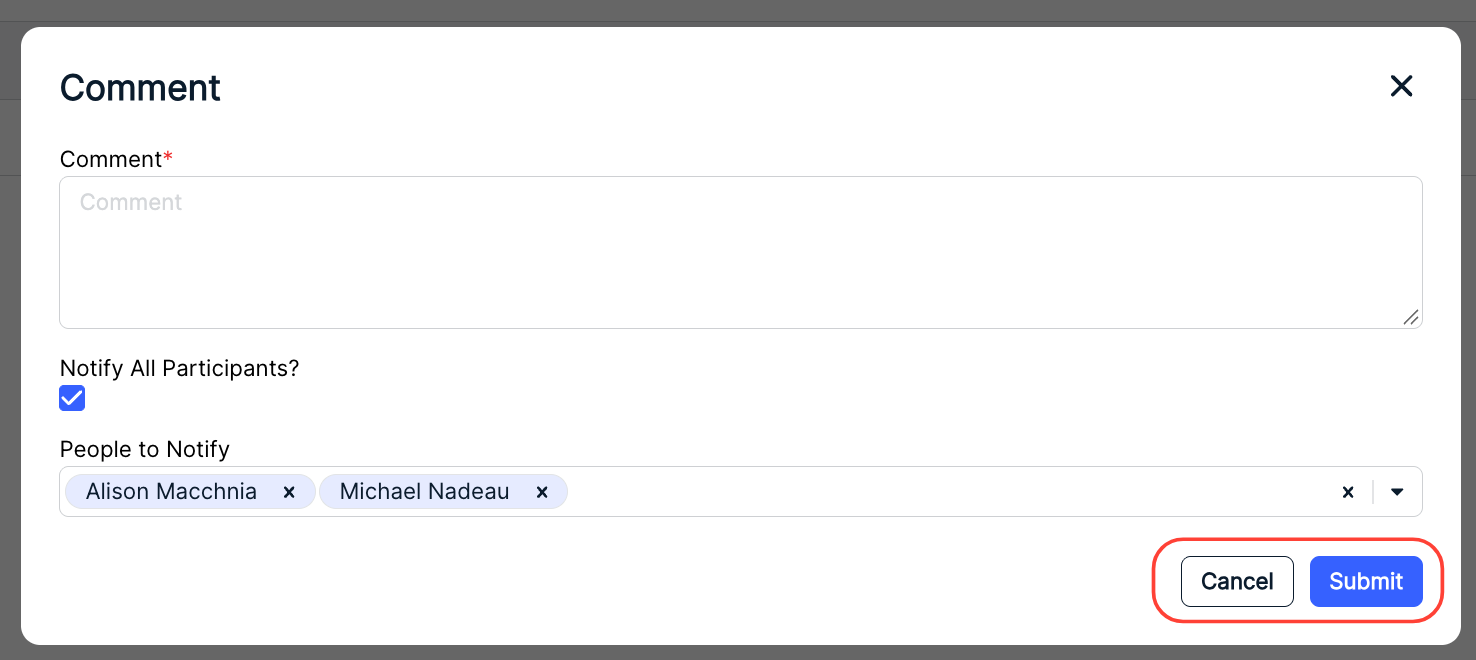
Click Add Comment in the top-right corner to add a comment.
You'll have to fill in the Comment; you can also choose to Notify All Participants or select specific People to Notify from the drop-down menu. Click the X next to each name to remove any selected person.
Click Submit to send in the comment or Cancel to back out.
Files
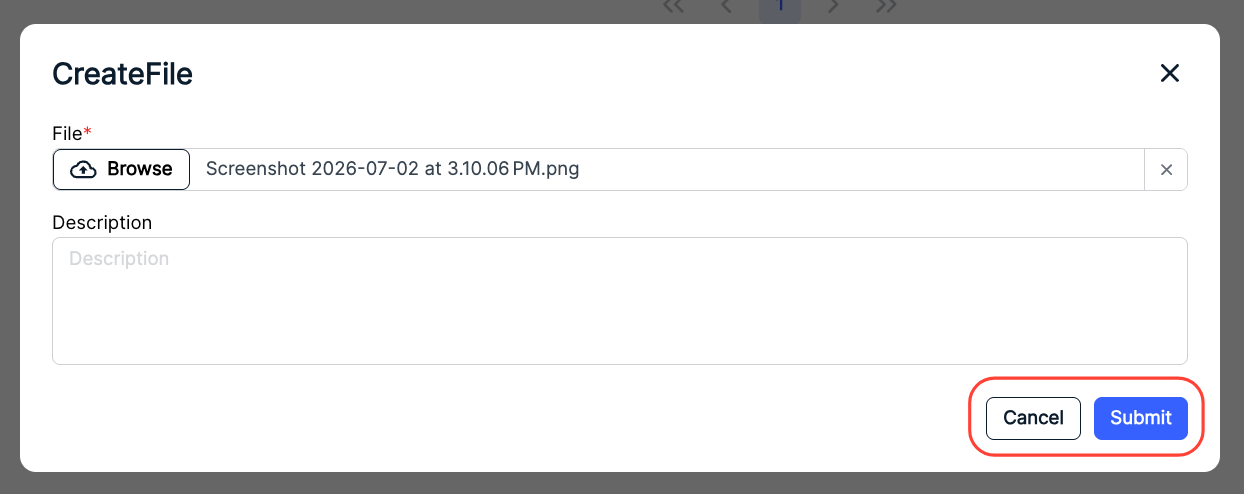
Documents (e.g., contracts, addendums, revised terms, etc.) added by you or other users for a service request appear under the Files tab. Click Add File in the top-right corner to add a document.

Click within the files field to find/select the document, enter a description (optional), and click Submit to send in or Cancel to back out.
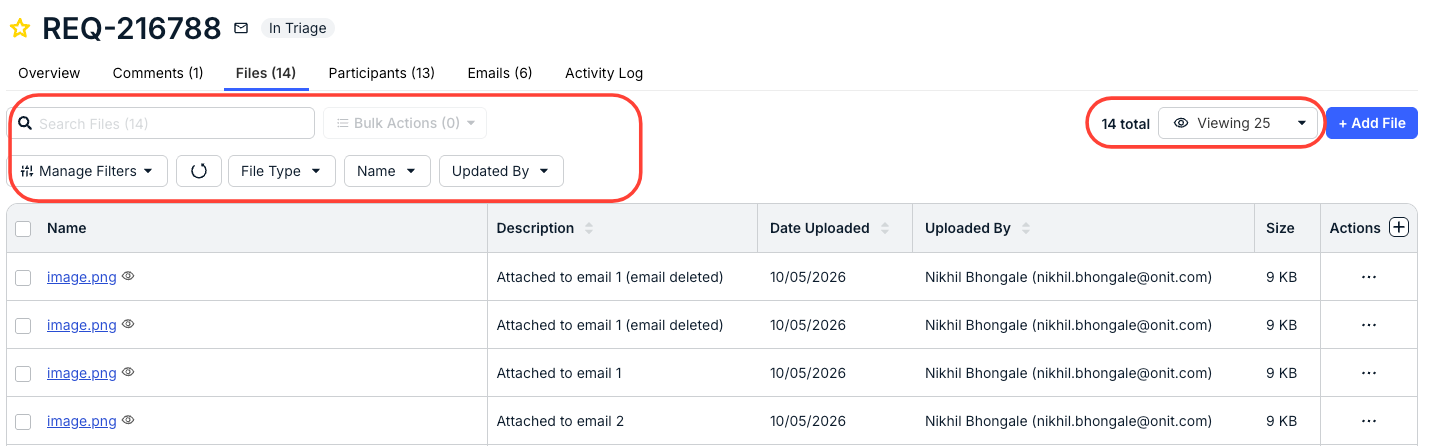
The main Files directory will show the complete list of files uploaded to the Request. Here, you'll see the file Name, Description, Date Uploaded, Uploaded By name, Size, and an Actions tab. Click the up/down arrow at the top of the column to sort by that column. Use the Search Files bar to search for a specific file. Use the Manage Filters button and other drop-downs to customize what you want to see on the screen. Use the Viewing drop-down menu to choose how many files you want to see on the screen.
Click on the links under Name to download a specific file.
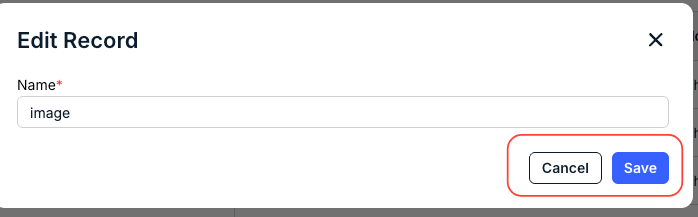
Use the three-button Actions menu to Rename, Download, Update, or Delete a file.

If you want to Rename a file, the Edit Record screen will appear. Fill in the new file name and click Save to save the name change or Cancel to back out.
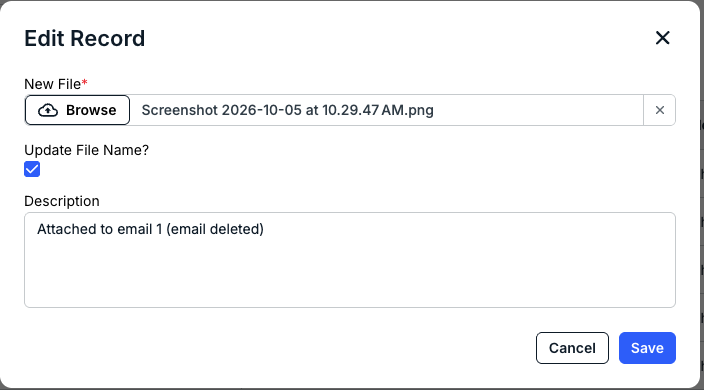
If you want to Update the file, find the new file version on your system, choose to Update File Name (if necessary), and fill out the description (if necessary). Click Save to save the updated file or Cancel to back out.
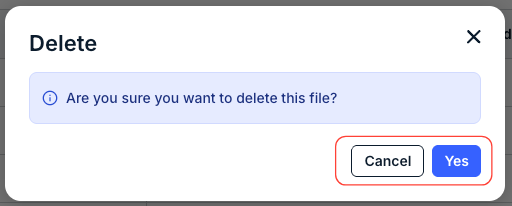
If you want to Delete the file, you'll get this message; click Yes to delete the file or Cancel to back out.
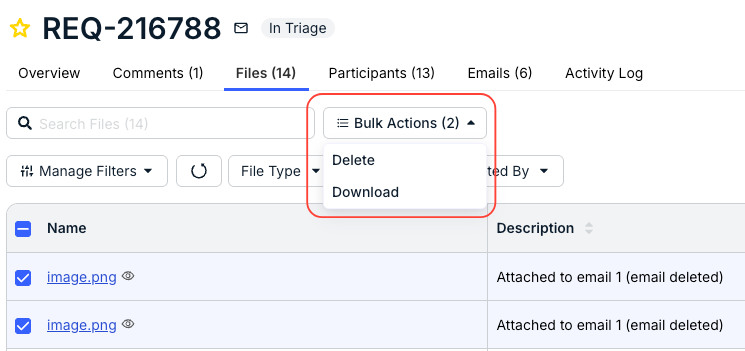
You can also use the Bulk Actions drop-down menu to Delete or Download in bulk.
Participants
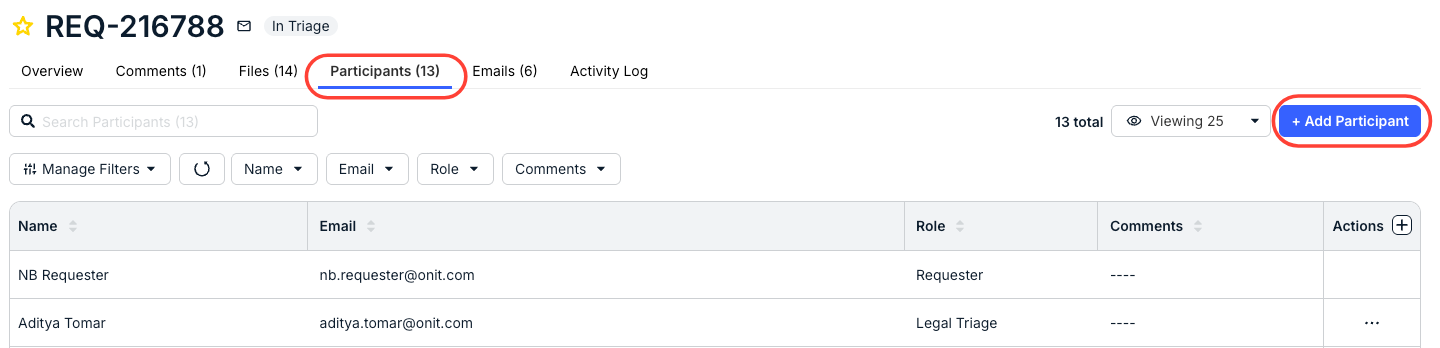
Use the Participants tab to add other users who should have access or need to remain informed of the service request, such as a backup assignee, watchers, or secondary requesters. Click Add Participant in the top-right corner.
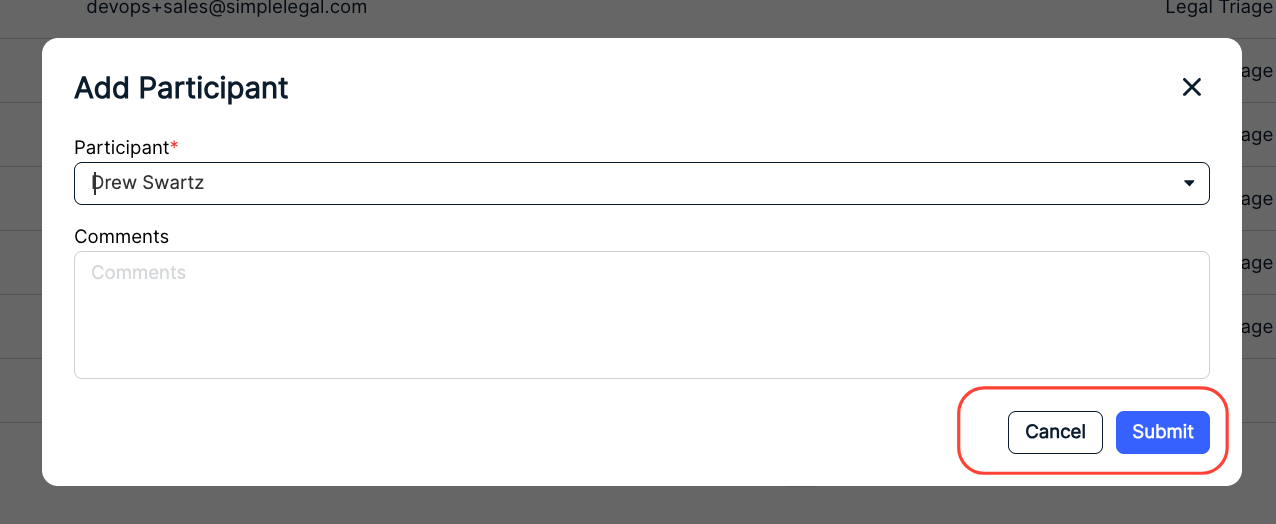
Select the user from the list, enter any comments (optional), and click Submit.
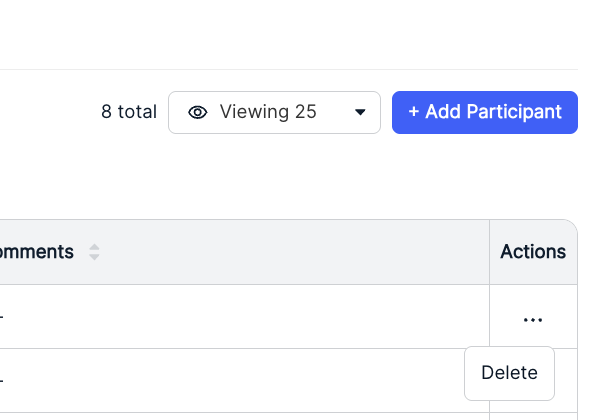
You can also Delete participants by using the three-dot menu under Actions.
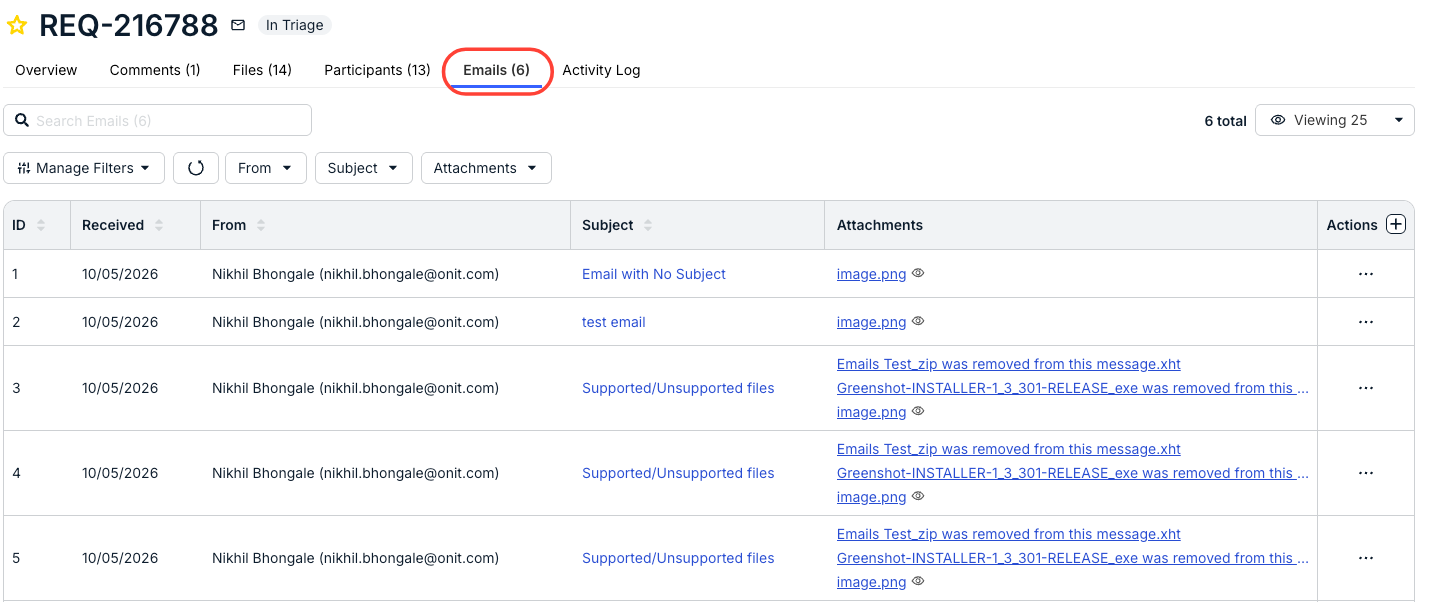
Emails
Use the Emails tab to view emails associated with the request. The main directory will show the email ID, Received date, From name, Subject, Attachments, and Actions menu. Click the up/down arrow at the top of the column to sort by that column. Use the Search Files bar to search for a specific email. Use the Manage Filters button and other drop-downs to customize what you want to see on the screen. Use the Viewing drop-down menu to choose how many files you want to see on the screen. C
Click the link under Attachment to download the file.
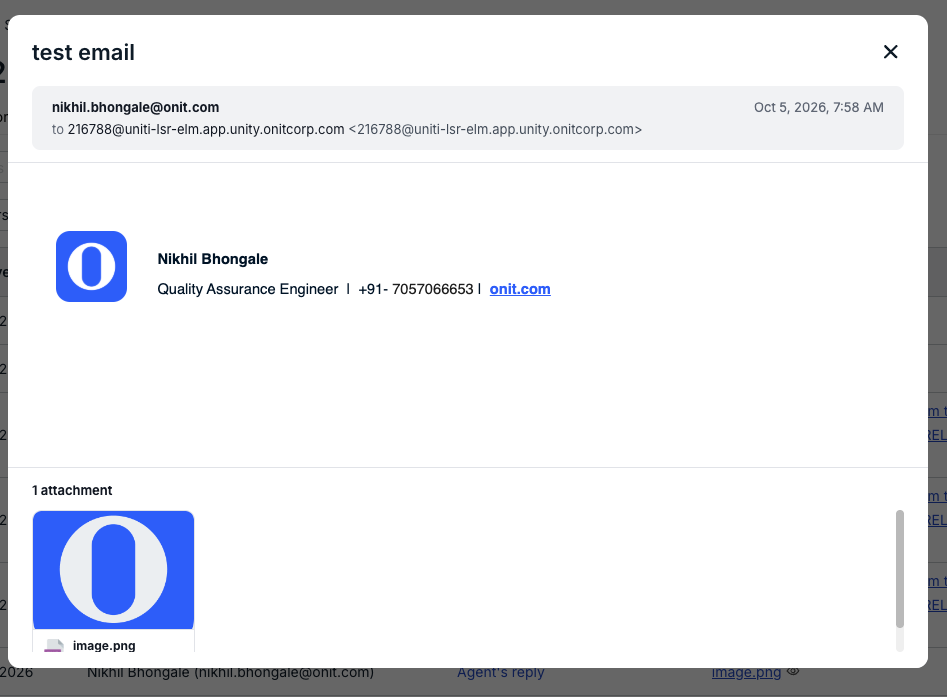
Click on the link under Subject to show a preview of the email.
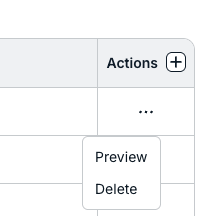
Use the three-button menu under Actions to open the Preview of the email or Delete the email.
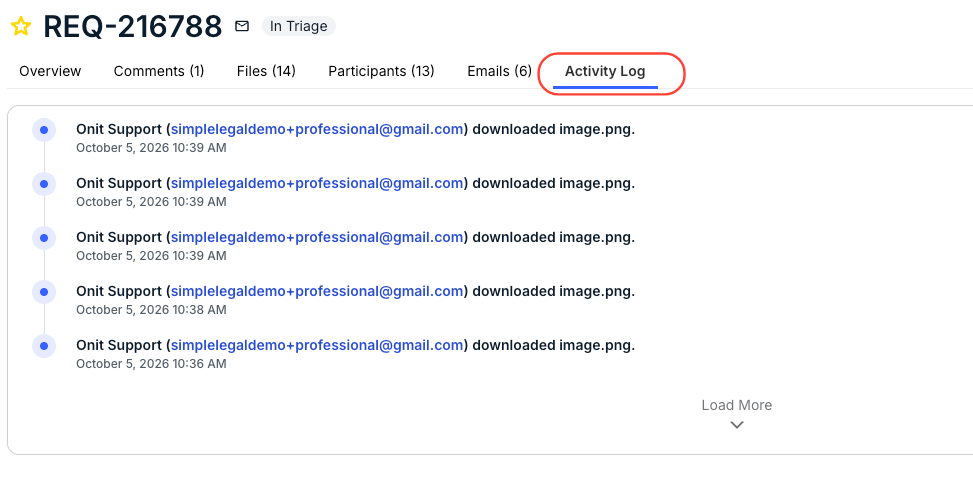
Activity Log
The Activity Log will show all important activity on the file.
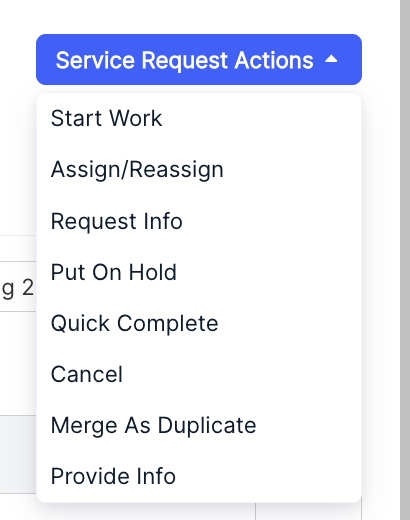
Service Request Actions
The Service Request Actions dropdown menu displays options available for the request depending on the type and status (e.g., assigning the request, starting work on the request, answering a general question, etc.). Review the sections below for additional details on how to move forward.
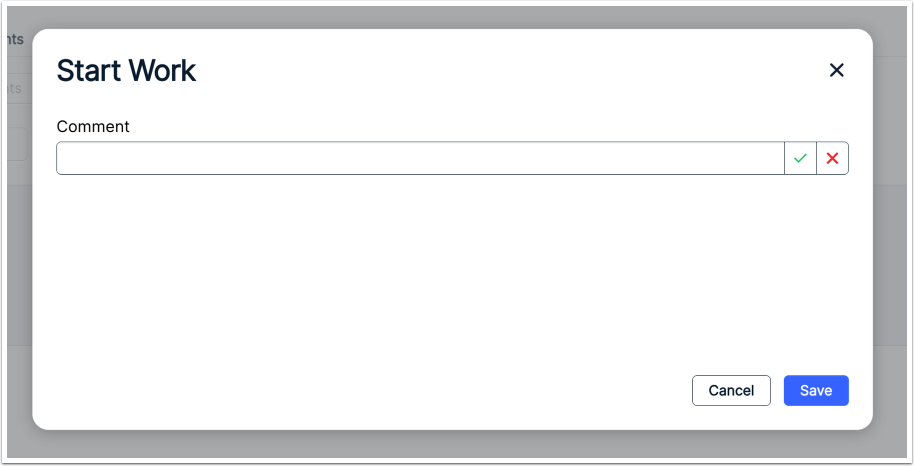
Start Work
The Start Work option automatically assigns the request to you and changes the request’s status from In Triage to In Progress. To move forward, enter any relevant comments (optional). Click Save when finished or Cancel to back out.
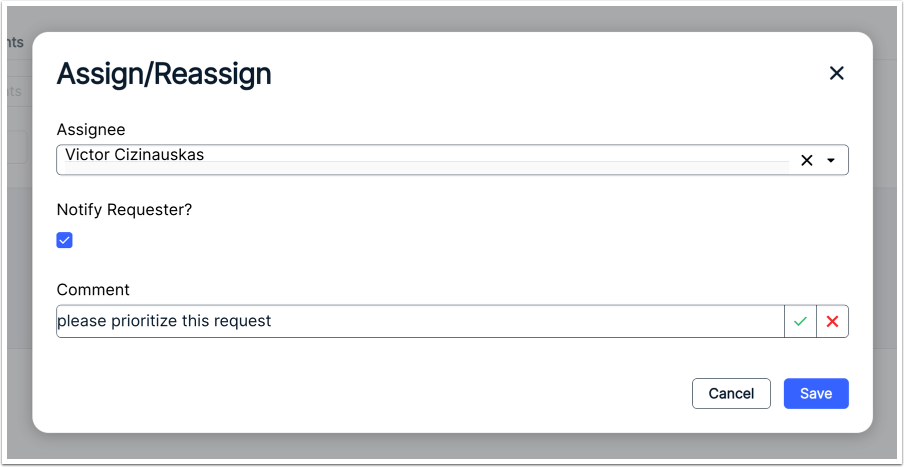
Assign/Reassign
Choose this option to select the user who will work on the request and enter any comments (optional) about the assignment. This triggers an automated notification to the selected user. You can also notify the requester about the update (optional) by selecting the Notify Requester? box. Click Save when finished or Cancel to back out.
Request Info
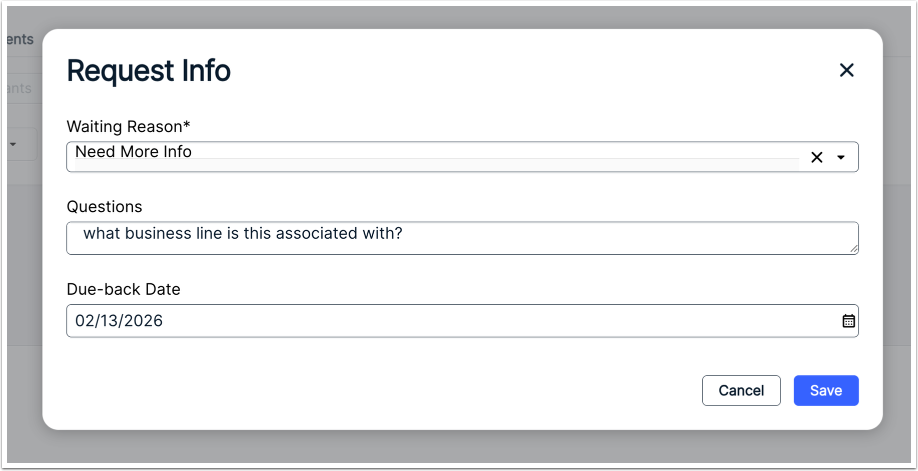
If additional information is required to continue with assignment or start on the request, choose the Request Info option, provide the Waiting Reason (required), any Questions, and the Due-back Date, and then click Save. This will change the status to Waiting on Business and prompt the requester to take action.
Put on Hold
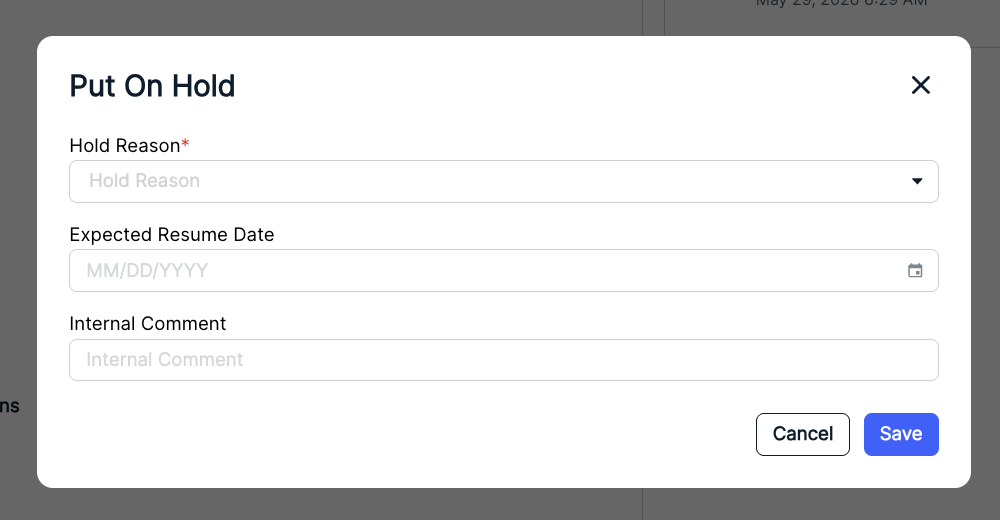
The Put on Hold option puts a hold on any work for the request. Fill out the Hold Reason from the drop-down menu, along with an Expected Resume Date and any Internal Comment (if necessary). Click Save when finished or Cancel to back out.
Quick Complete
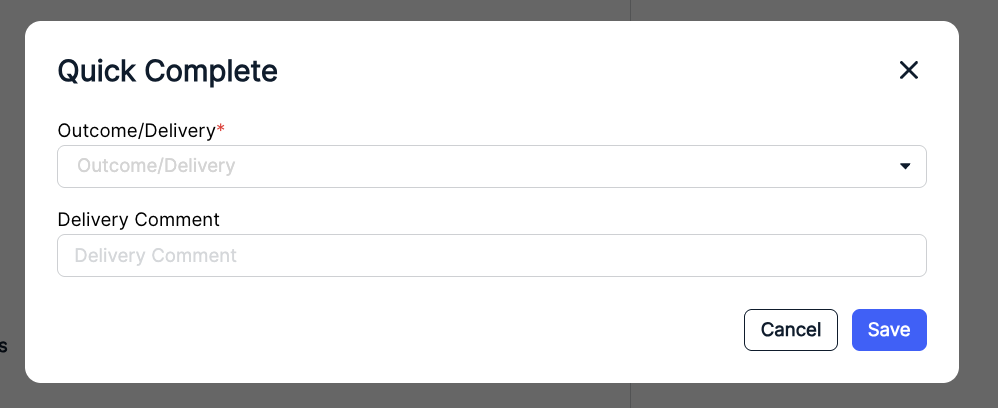
Quick Complete allows you to quickly mark the request as complete. You'll have to fill out the Outcome/Delivery from the drop-down menu (required) and add a Delivery Comment (if necessary). Click Save when finished or Cancel to back out.
Cancel
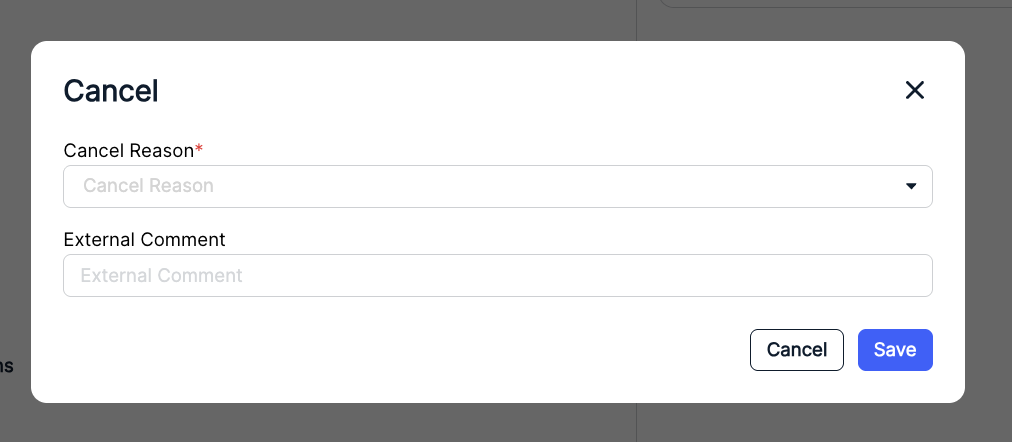
Cancel allows you to cancel the request. Fill out the Cancel Reason from the drop-down menu and add an External Comment if necessary. Click Save when finished or Cancel to back out.
Merge As Duplicate
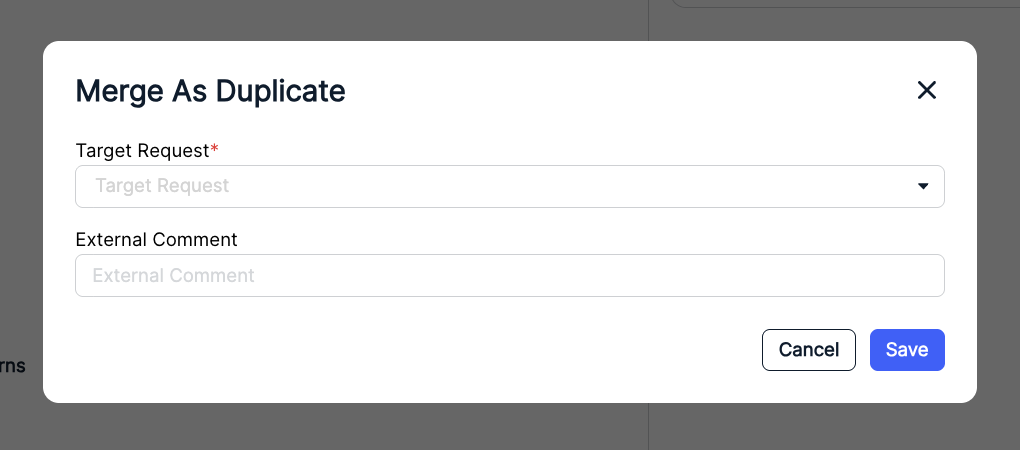
Merge As Duplicate allows you to combine this request with another request in the system. You'll have to select the Target Request (request to merge with) and fill out an External Comment (if necessary). Click Save when finished or Cancel to back out.
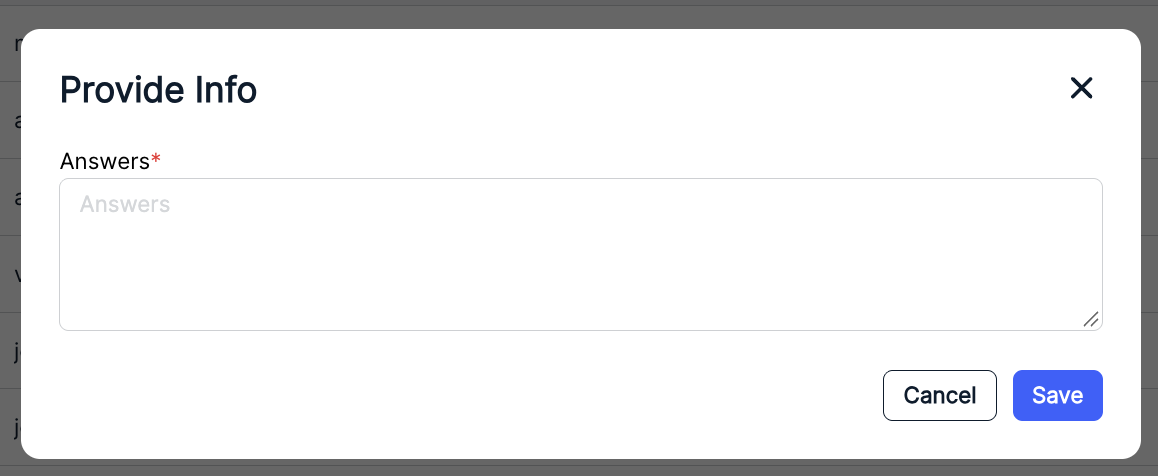
Provide Info
Provide Info allows you to send in any Answers to questions on the legal service request.