To grant Unity LSR access to people who submit requests and to users who triage and manage them, assign the following roles:
- Business Requester: Users from other departments (e.g., sales, procurement, or marketing) who submit requests, attach files, respond to requests for more details, and track the status.
- Intake Admin / Legal Ops: Users who triage queues, assign requests to Legal Analysts/Attorneys, set priorities and targets, and manage service request tags and categories.
- Legal Analyst / Attorney: Users who are assigned to requests and work on the related items, including collaborating with the requester, updating the status, and closing out the request.
- Legal Manager: Users who oversee workload, track KPIs, and reallocate workload as needed.
Adding New Users
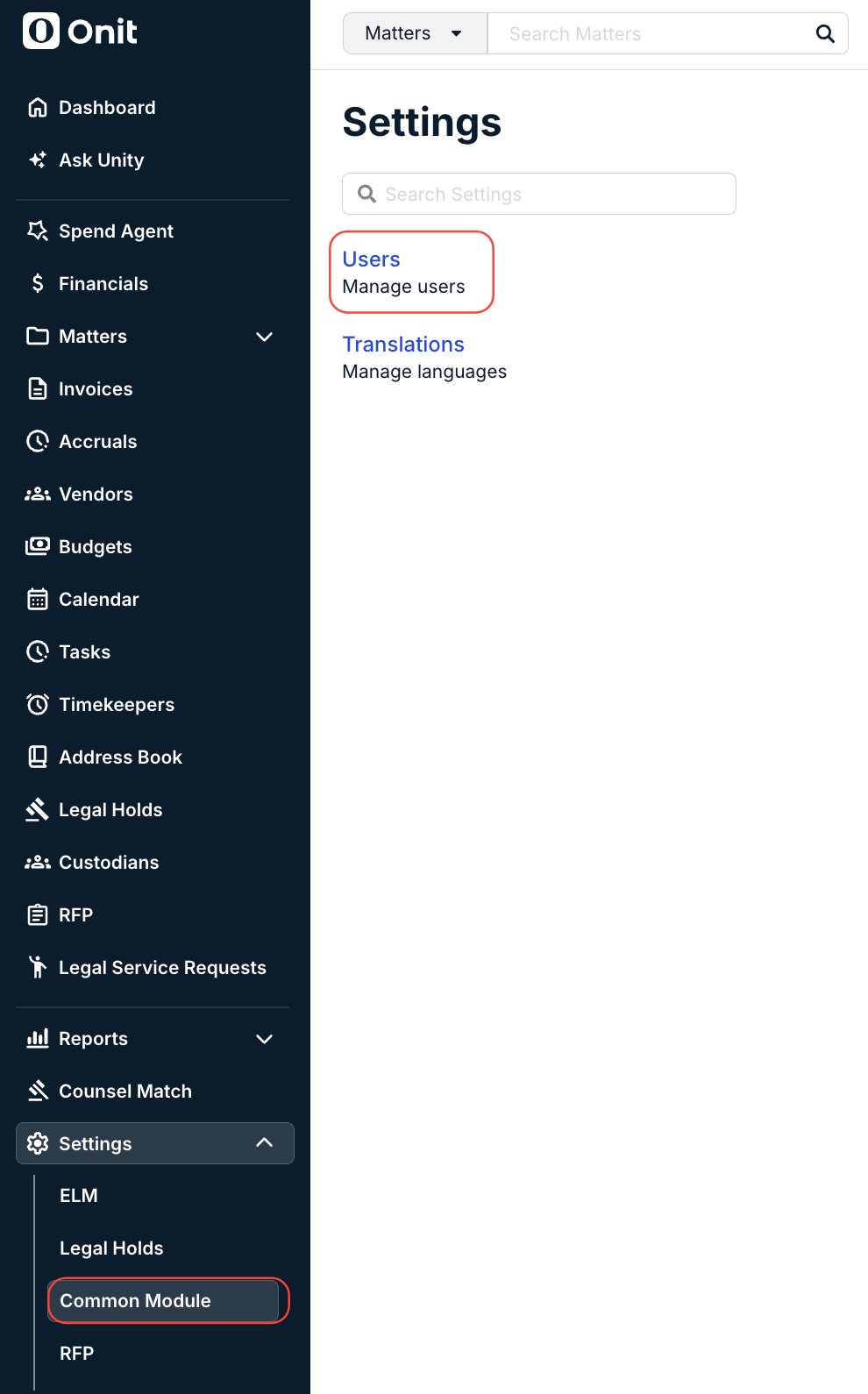
1. Go to Settings > Common Module, and then click on Users.
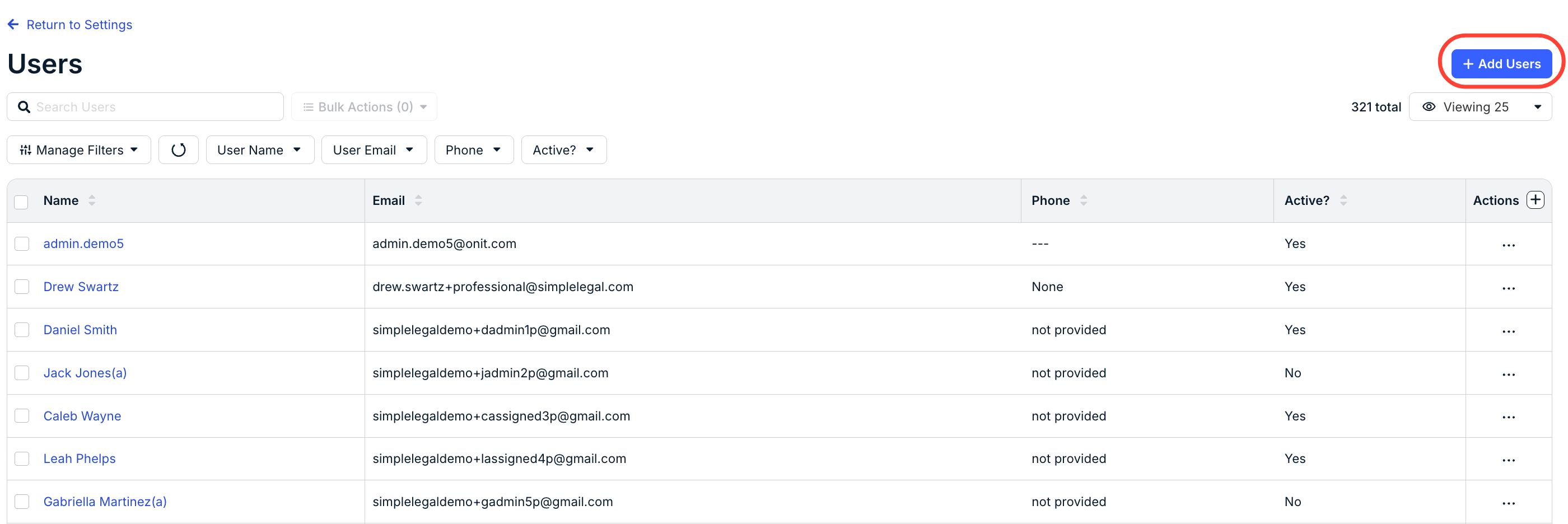
2. Click + Add Users in the top-right corner.
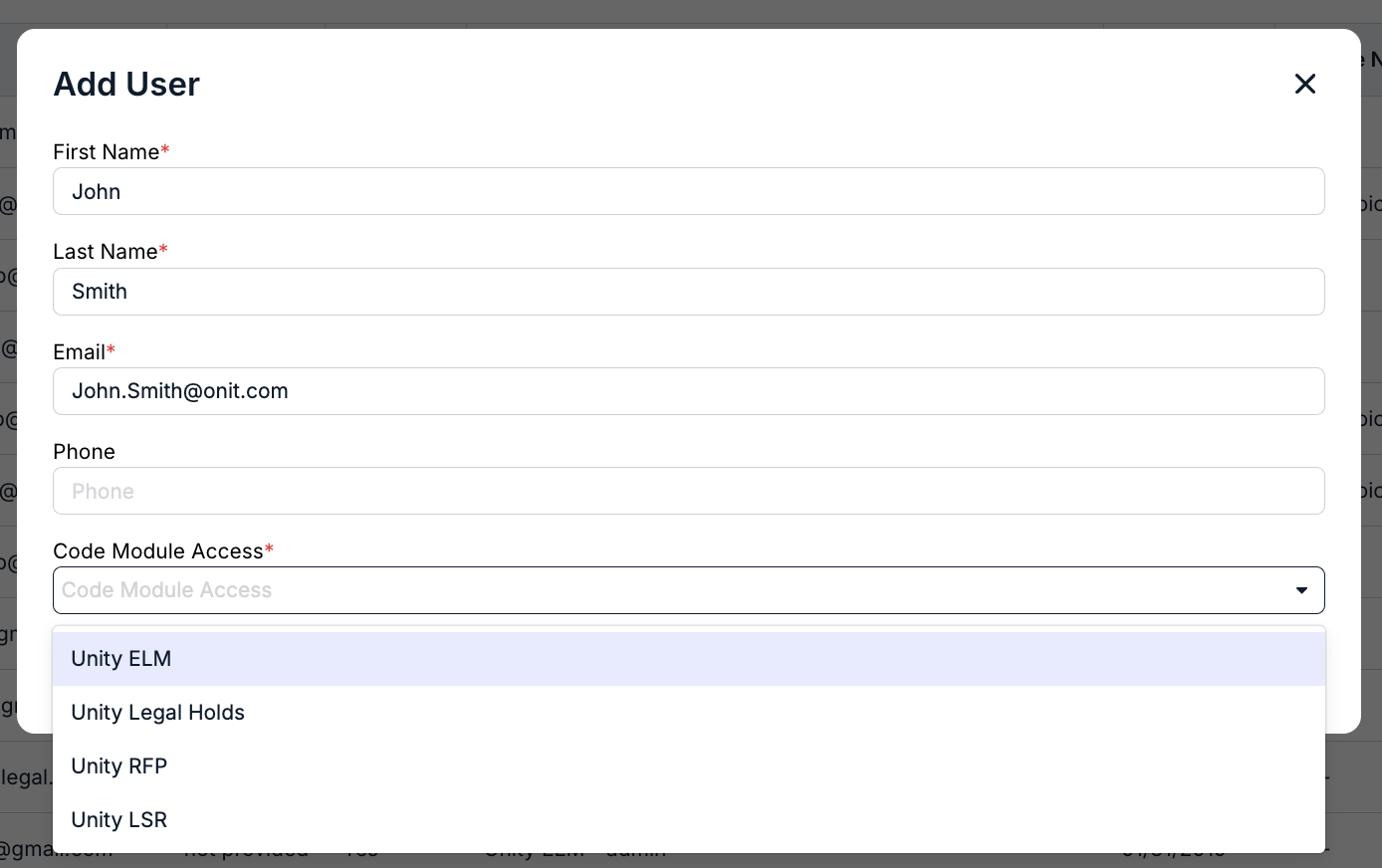
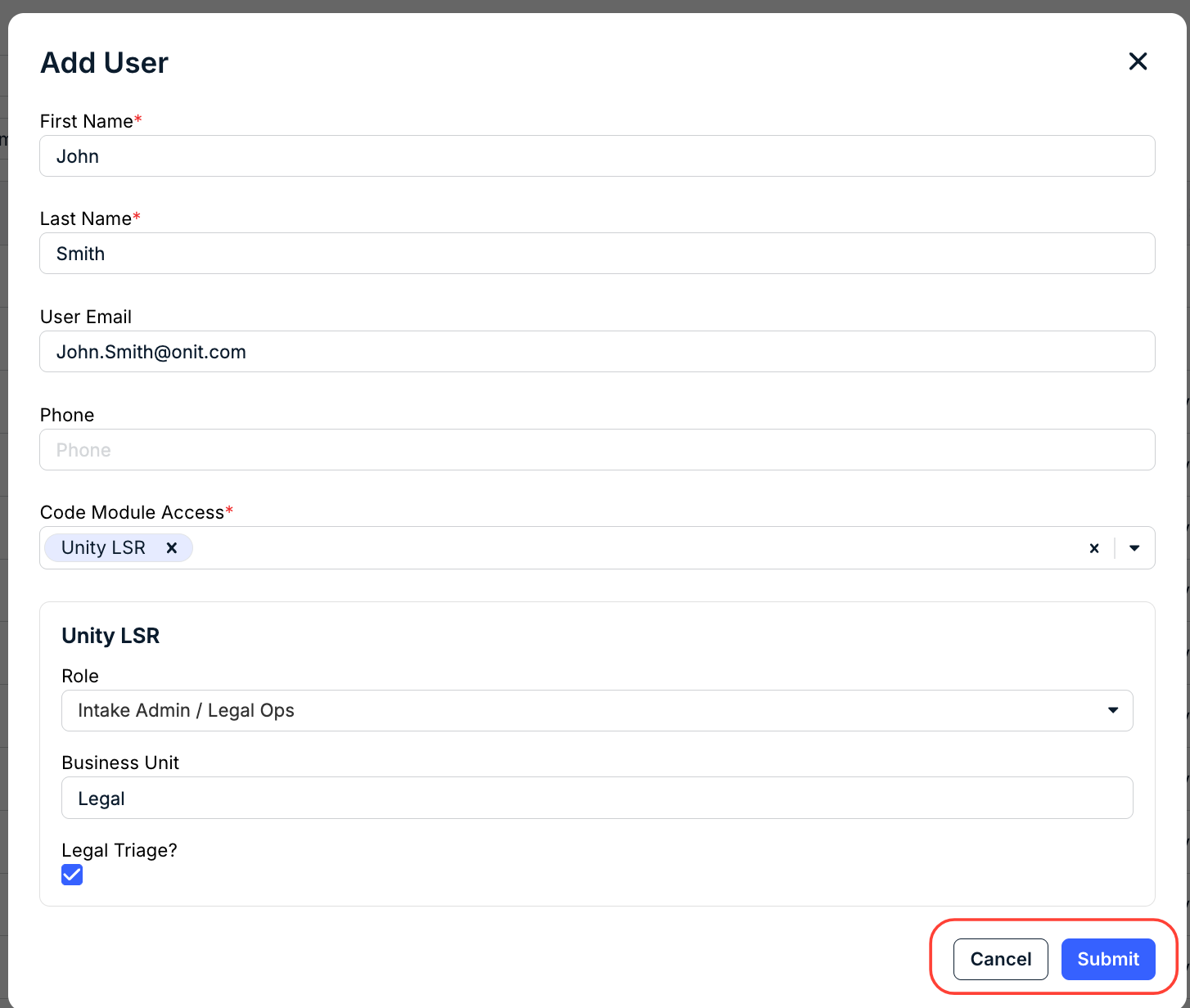
3. Enter/select the following information and then click Submit.
- Name (required): Enter the user’s first and last name as it should appear in their profile.
- Email (required): Enter a valid email address for the user to receive an account setup email.
- Phone: Enter the user’s business phone number.
- Code Module Access: Select LSR (and any other features they should have access to) from the drop-down menu.
4. Fill out the Role (Business Requester, Intake Admin / Legal Ops, Legal Analyst / Attorney, or Legal Manager) and Business Unit, and check the box if you want to give the user Legal Triage access.
Click Submit to send in the new user or Cancel to back out.
Editing Users
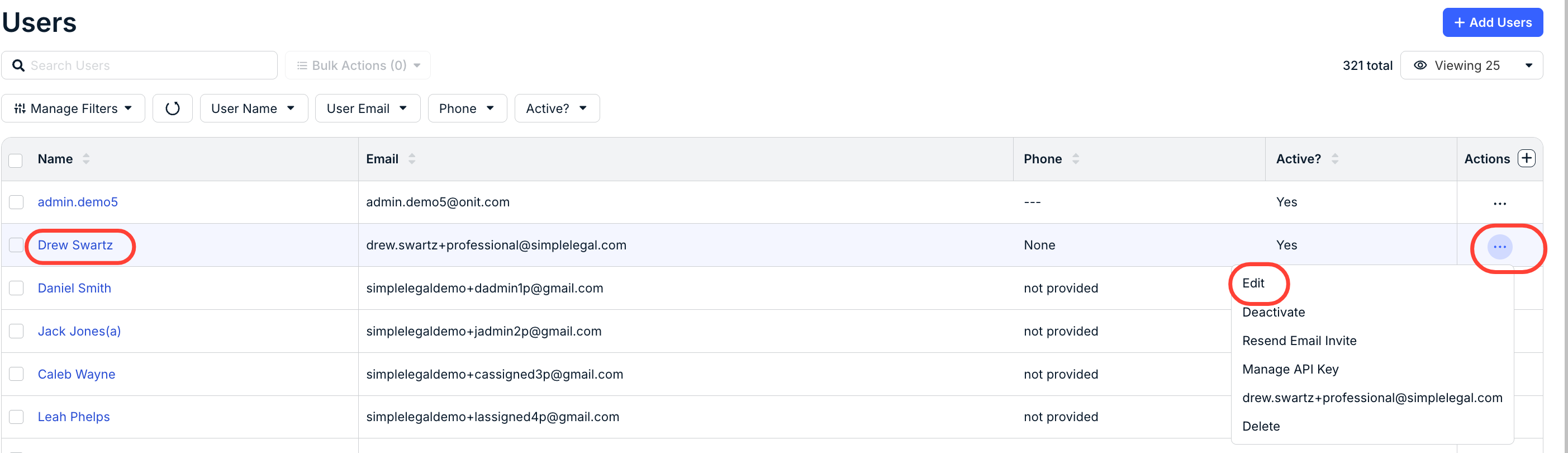
1. Click on the user's name from the list to go to their profile, or click on the Edit button after clicking the three-dot menu under their Actions link.
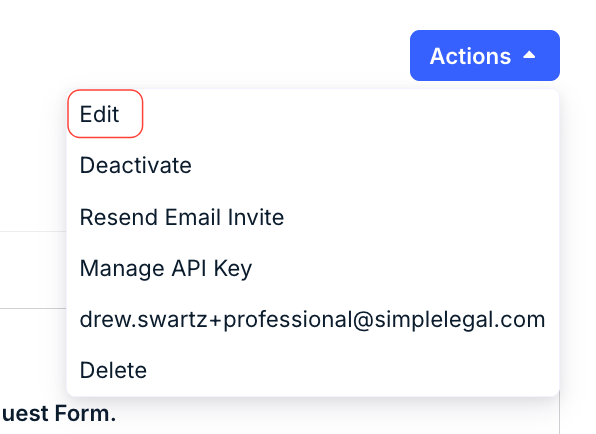
If you want to edit from their profile, click the Actions button on their profile and then Edit.
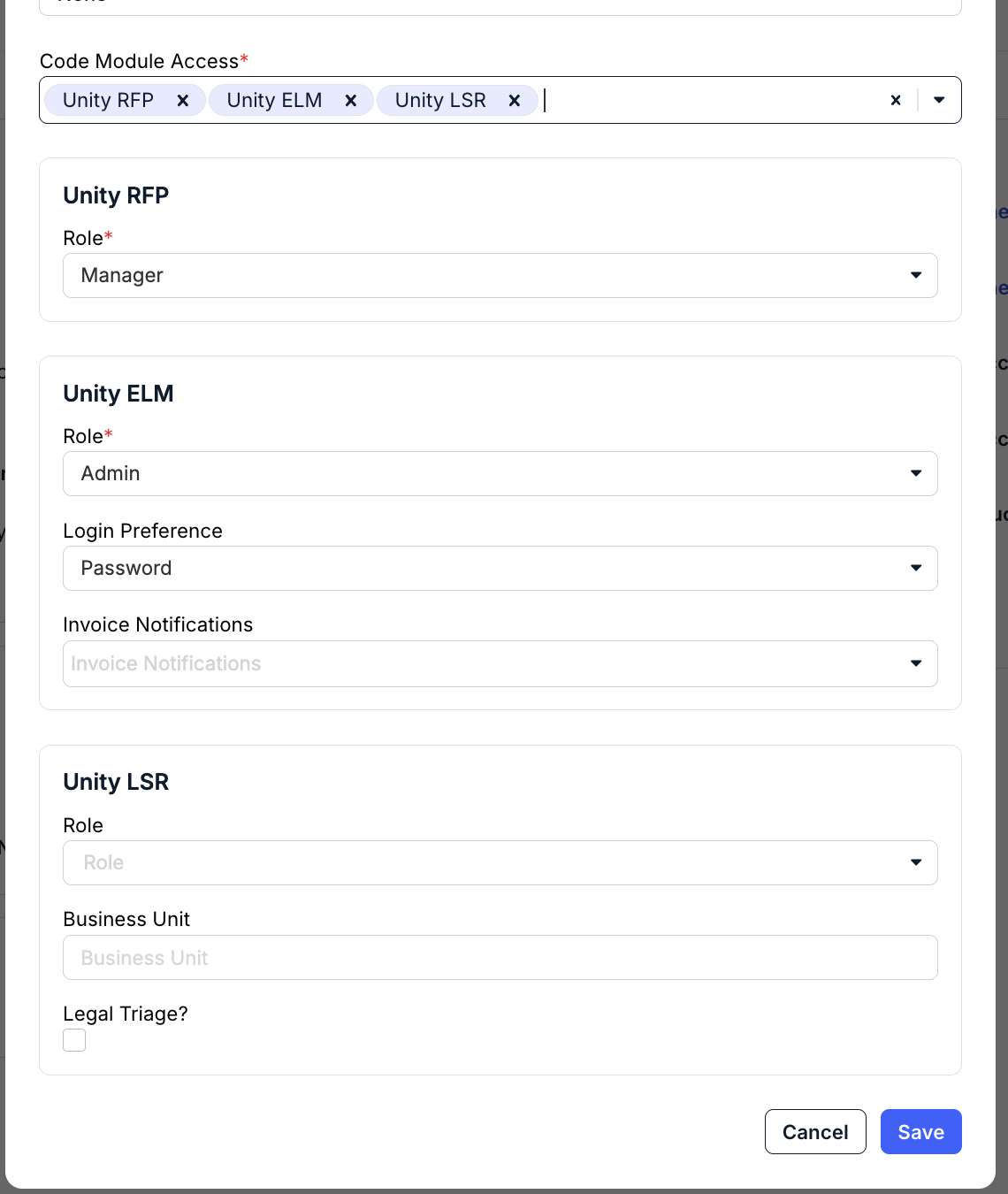
2. Under the Edit Record screen, you can add or remove LSR access under the Code Module Access section; you can also adjust their Role, Business Unit, and Legal Triage access. Click Save when you're done or Cancel to back out.
Deleting or Deactivating Users
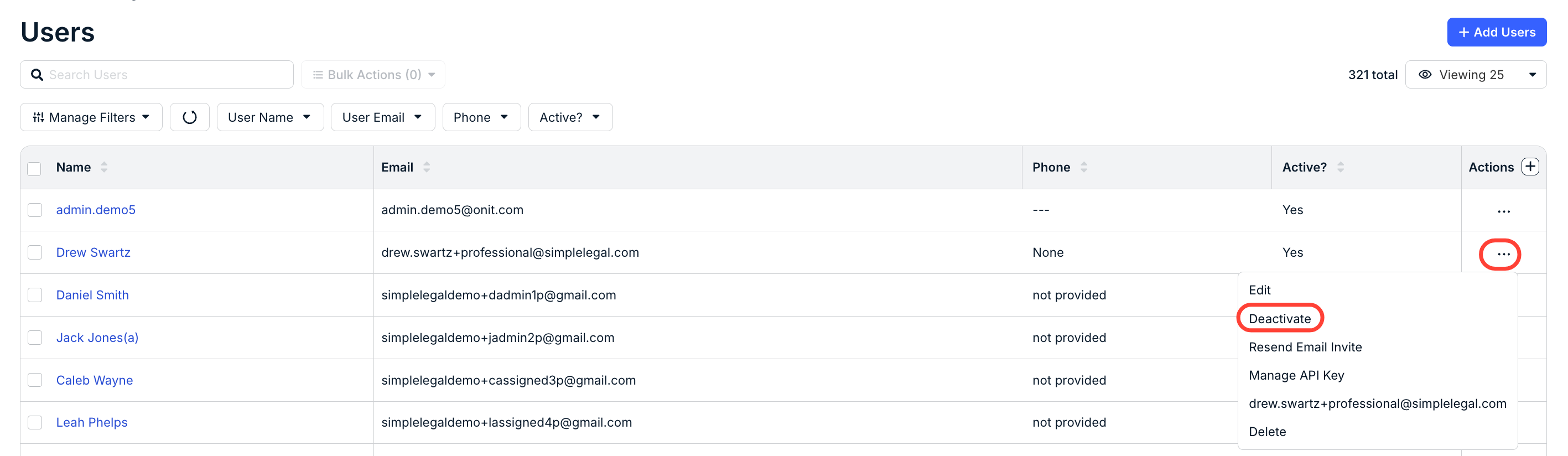
1. Click on the … (more) option under the Actions column.
2. Select Delete or Deactivate.