If your department needs support from the legal team, you can use Unity LSR to quickly submit the request and track any updates. These requests can be anything from new business contracts to legal review of marketing or other communications. To complete the steps below, you must already be assigned the Business Requestor role in Unity LSR at a minimum. Contact an admin from your organization for assistance.
This article covers the following topics:
- Creating a Service Request
- Tracking and Collaborating on a Request
- Canceling a Request
- Requesting a Follow-Up on a Completed Request
Creating a New Service Request
1. There are two ways to create a new Legal Service Request:
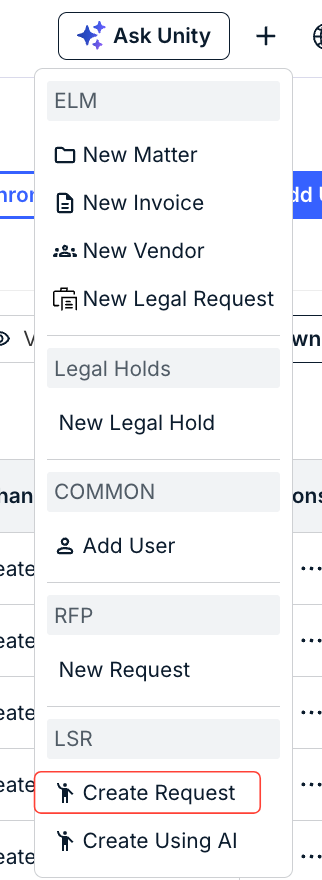
First, you can click the Create Request button under LSR from the quick-launch menu in the upper-right-hand corner of the screen.
The other option is to click the blue Create Requests button on the main Legal Service Requests screen and then select New Request.

NOTE: For information on using the Create Using AI option, read the Using the Request Agent to Submit Requests user guide.
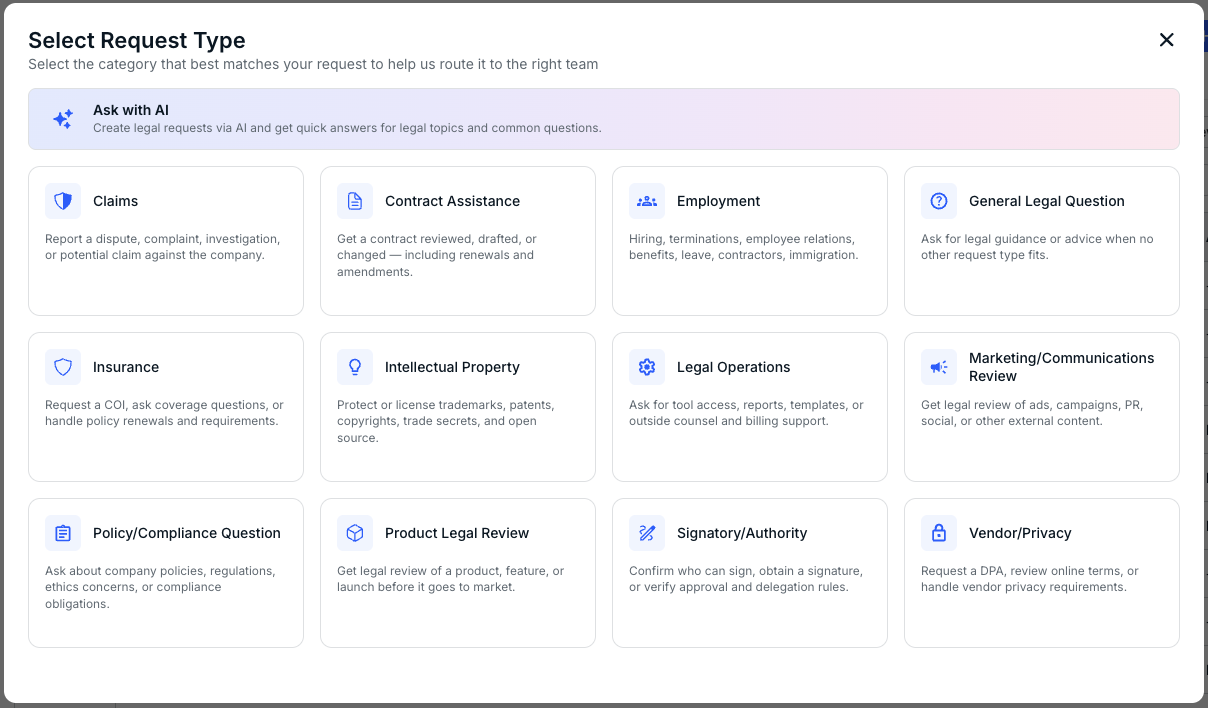
2. Choose a request type the Select Request Type screen.
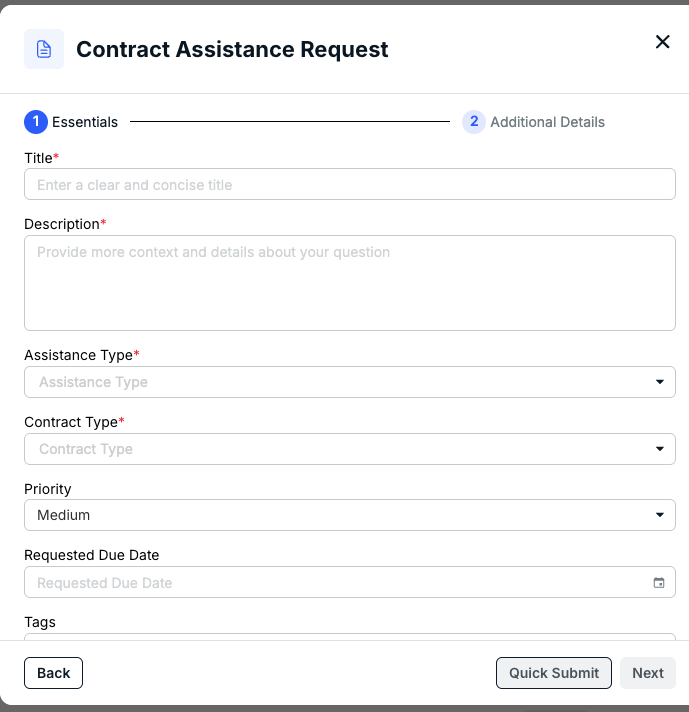
3. Fill in or select options for requested fields; required fields are marked with asterisks (*). Below are default fields for all request types; there may also be some other required fields that will appear for specific request types.
- Title*: Name as it will appear on the record in Unity LSR.
- Description*: Summary of the scope of the request.
Click Quick Submit to submit the information and create the record, or Next to move on to the Additional Details screen (if necessary).
Tracking and Collaborating on Your Request
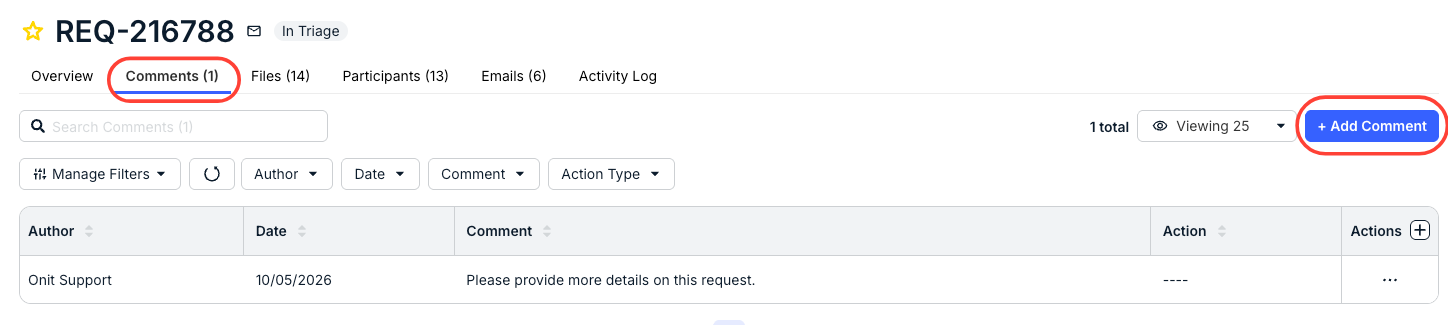
If you are notified that the legal department requires additional details or information to move forward, you can open the record and review their question or request from the Comments tab.
To respond, click Add Comment in the top-right corner.
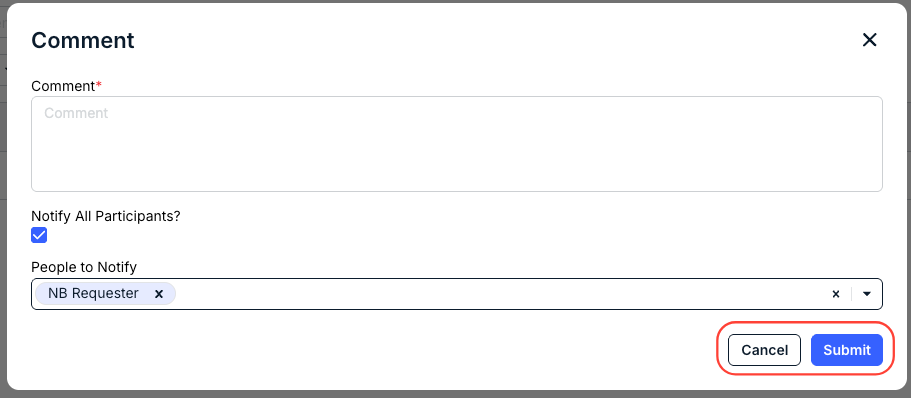
Add your comment, click the checkbox if you want to Notify All Participants? and/or select individual notifications from the People to Notify drop-down menu. Click Submit to send in the comment or Cancel to back out.
Canceling a Request
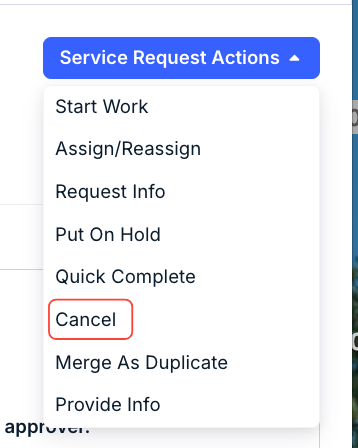
If you no longer need the legal department to handle your request, you can click Service Requests Actions in the top-right corner of the request record and select Cancel.
Requesting a Follow-Up
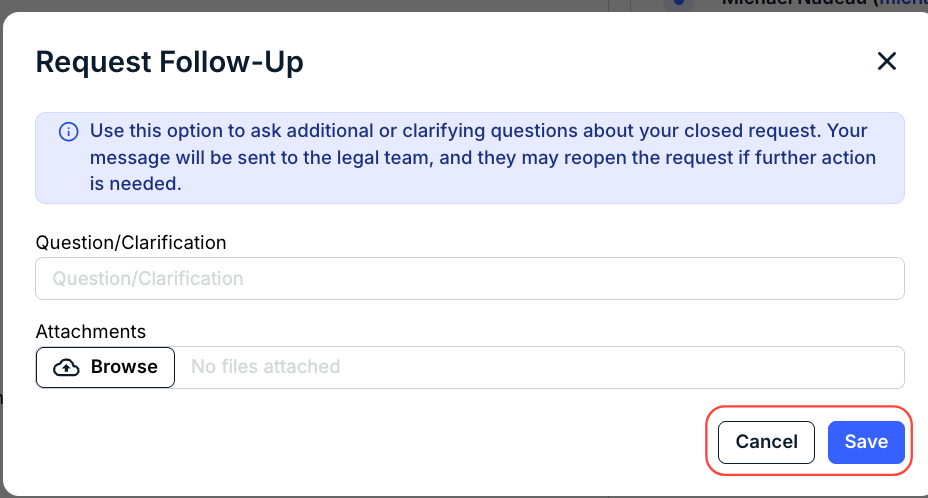
If a request has already been marked as completed by the assignee but you require additional support or information, you can click Service Request Actions in the top-right corner of the request record and select Request Follow-Up.

Enter the question into the field, click the checkmark, and click on Save in the bottom-right corner.
Reopening a Legal Service Request
If a request has already been marked as completed by the assignee but you need to re-open the request, you can click Service Request Actions in the top-right corner of the request record and select Reopen.
