Here's how to work with Reports in Unity Legal Holds:
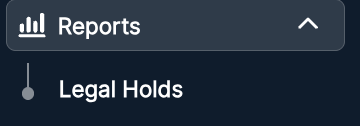
- Open "Legal Holds" under the "Reports" section on the Unity left-hand side menu.
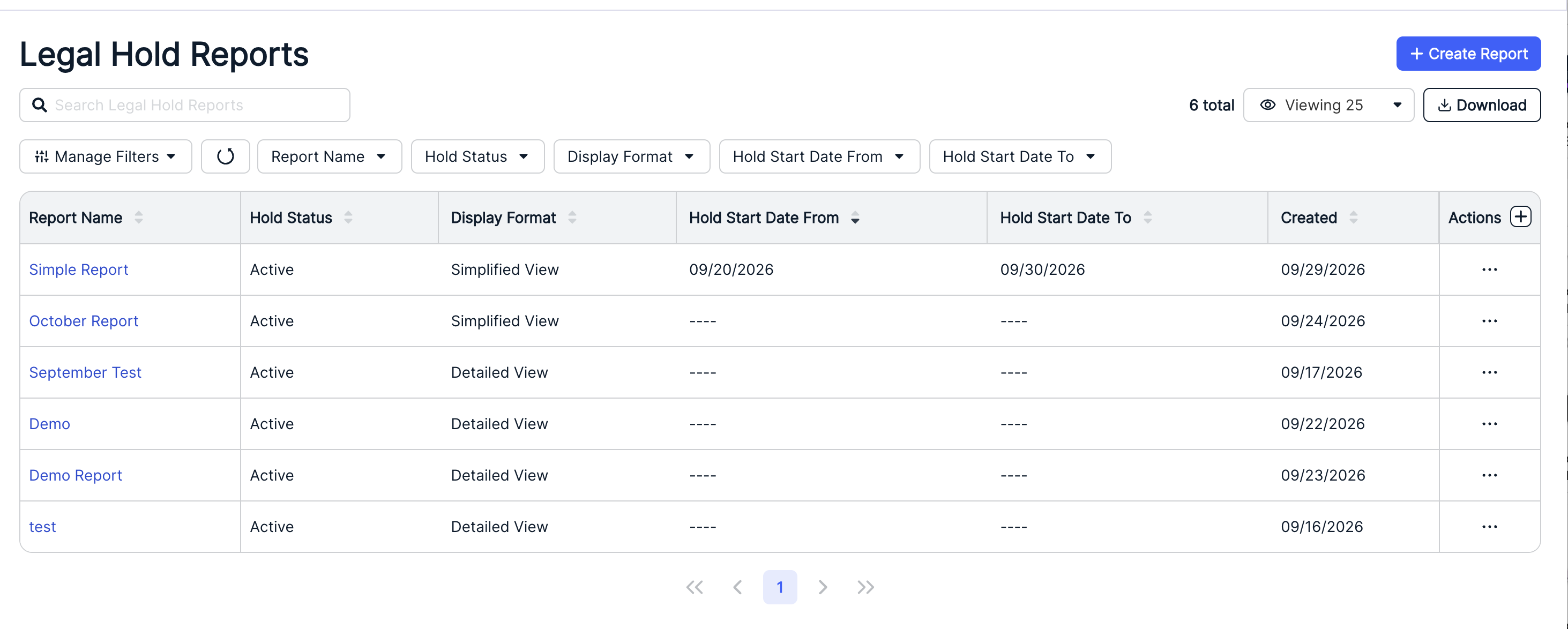
- On the main Reports screen, you'll see the existing Legal Hold reports.
The main directory will show the Report Name, Hold Status, Display Format, Hold Start Date From, Hold Start Date To, Created date, and an Actions menu. Use the up/down arrows at the top of each column to sort by that column. Use the Manage Filters and other drop-down menus to customize what you want to see on the screen. Use the Viewing drop-down menu to adjust the number of reports you want to see on the screen. Click Download to download reports information. Use the Search Legal Hold Reports to search through the existing reports.
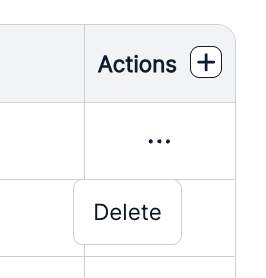
Use the three-dot Actions menu to Delete a report.
- Click "Create Report" to create a new Legal Hold report.
The Create Report screen will appear.
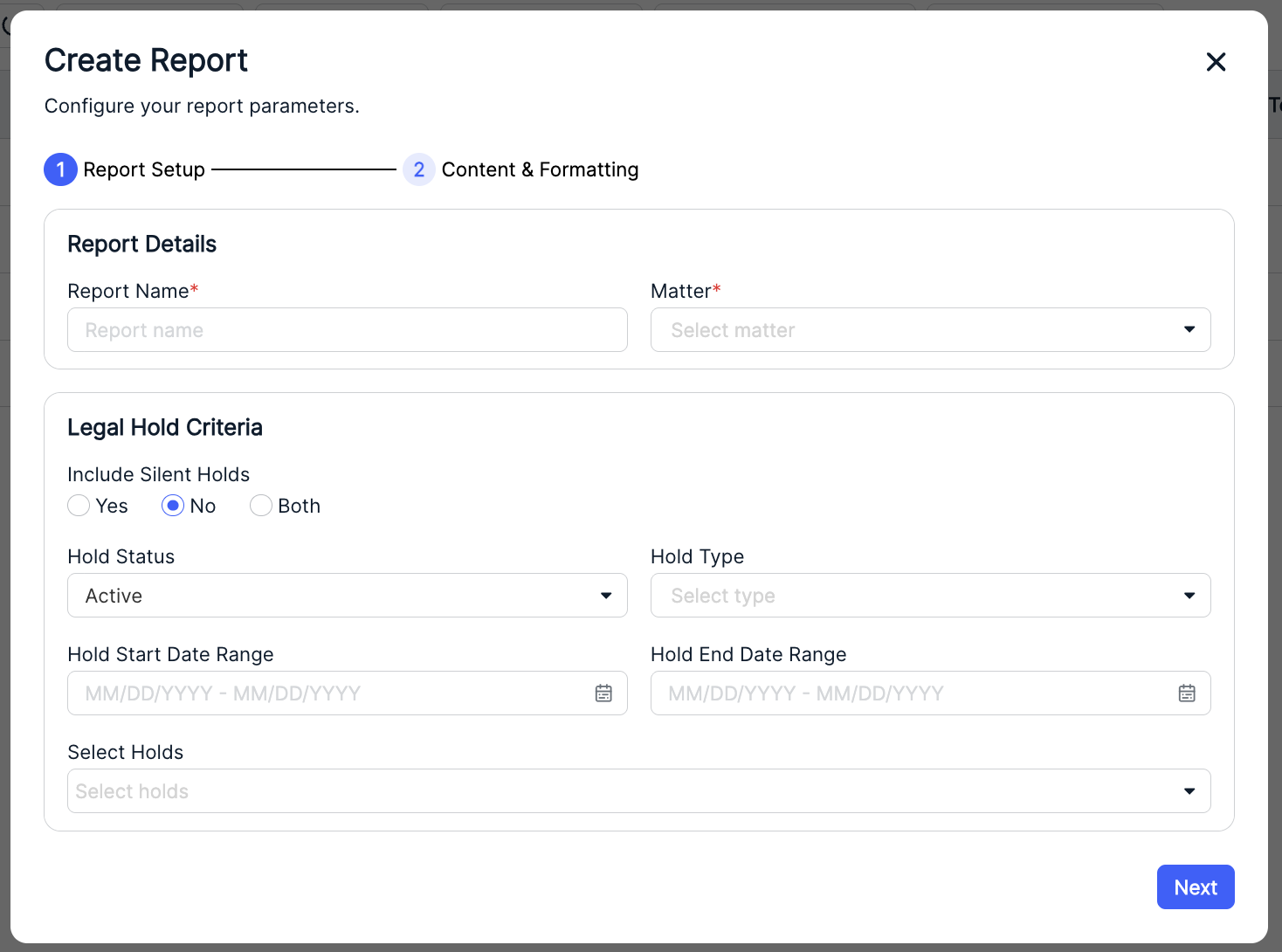
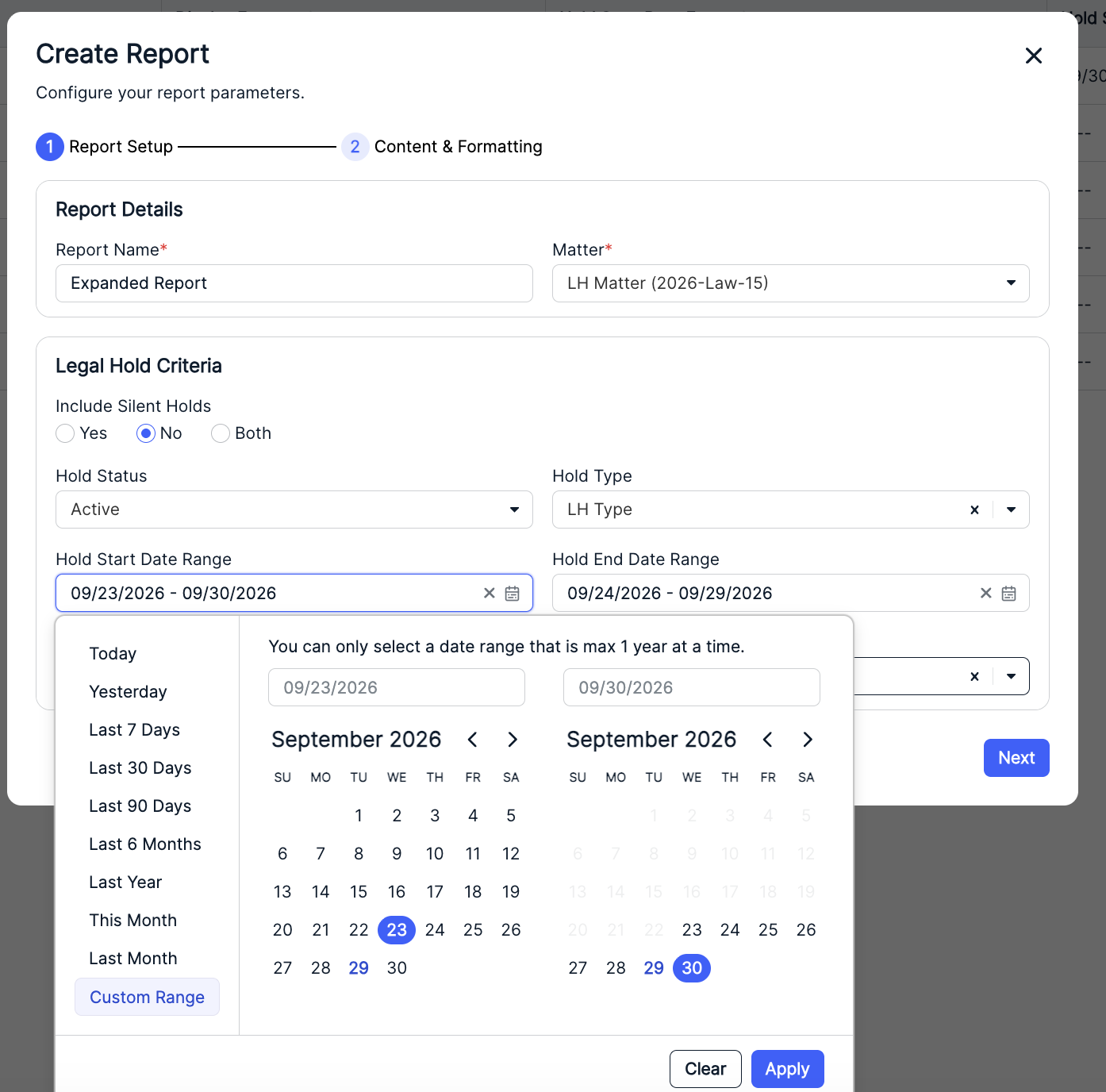
- Fill out the Report Setup screen.
You'll have to fill out the:
- Report Name (required)
- Matter (drop-down menu; required)
- Whether to Include Silent Holds (you can choose Yes, No, or Both)
- Hold Status (drop-down menu)
- Hold Type (drop-down menu)
- Hold Start Date and End Date Range
- Select Holds (drop-down menu)
Click Next to move on to the next step.
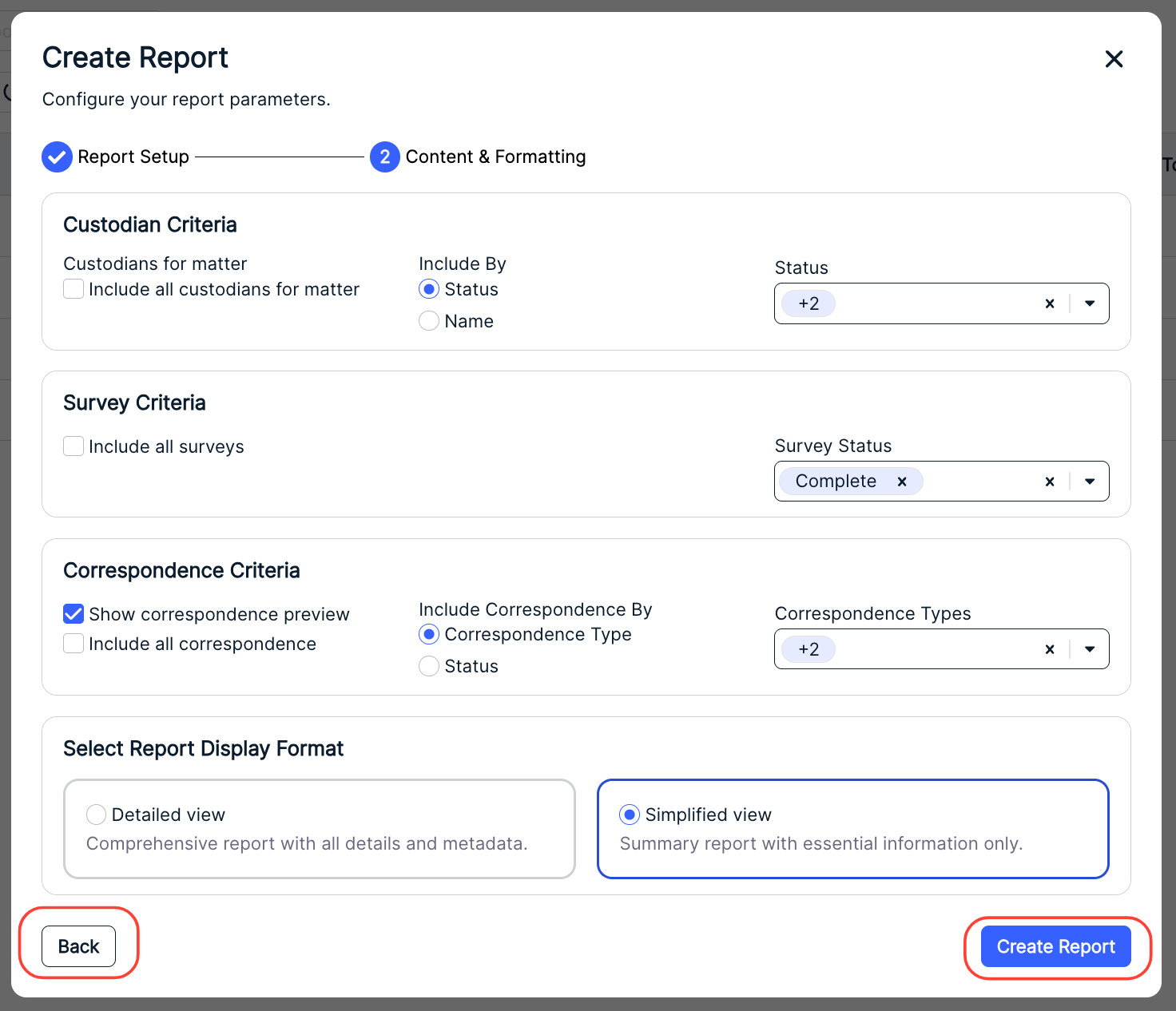
- Choose the Content & Formatting for the report.
- Under Custodian Criteria, you can either Include all custodians for matter or Include by Status or Name; use the drop-down menu to select the status/name (you can select more than one). Use the X button to remove selected statuses/names.
- Under Survey Criteria, you can either Include all surveys or select a specific Survey Status or statuses. Use the X button to remove selected statuses.
- Under Correspondence Criteria, you can choose to Show correspondence preview; you can either Include all correspondence or Include Correspondence By Correspondence Type or Status. Use the X button to remove selected types or statuses.
- Under Select Report Display Format, you can select either a Detailed view (Comprehensive report with all details and metadata) or a Simplified view (Summary report with essential custodian information only).
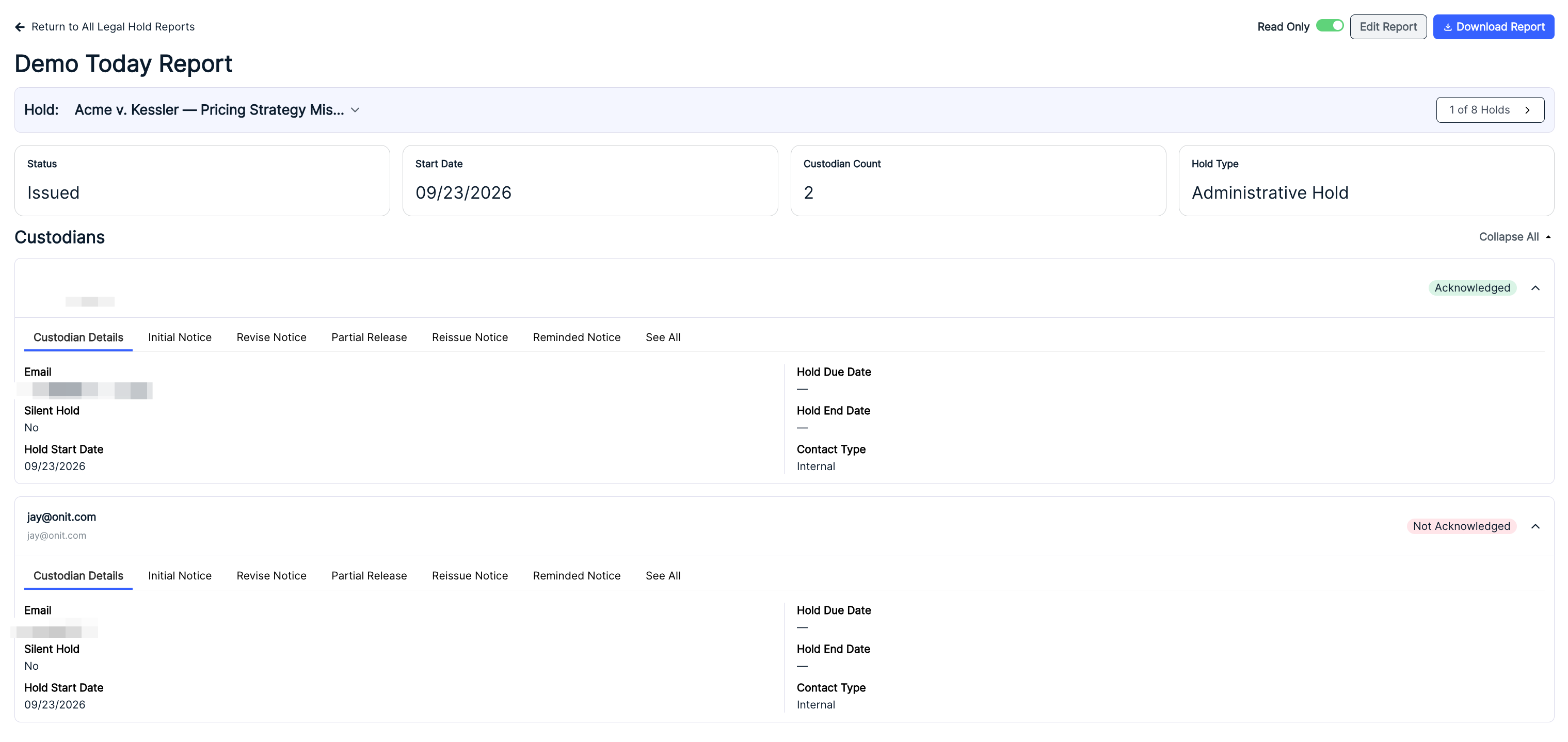
The Detailed View will display like this (after information is expanded):
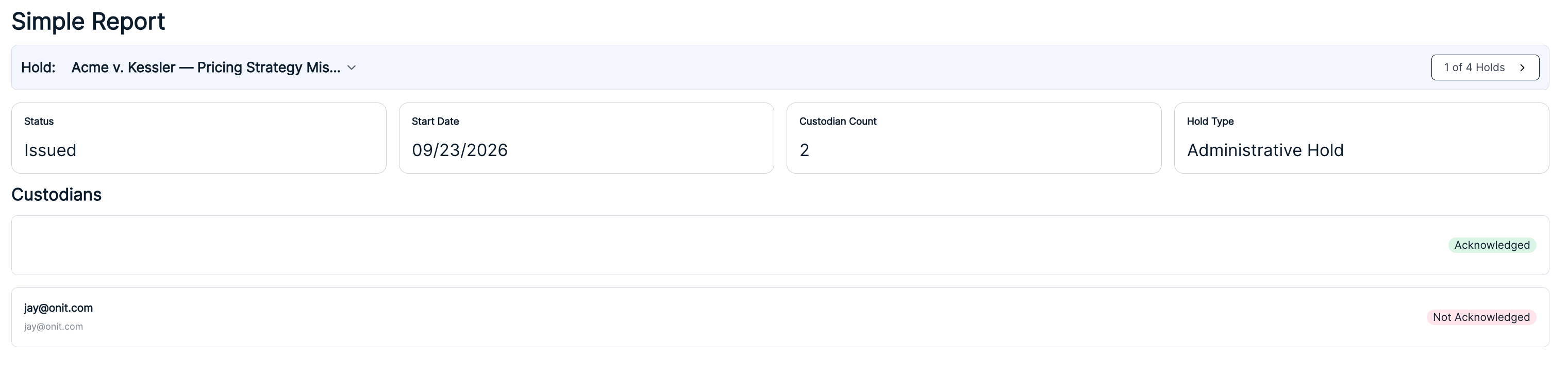
The Simplified View will display like this:
Click Create Report to create the report or Back to go to the prior screen.
- Once created, the report appears in the main Legal Hold Reports directory.
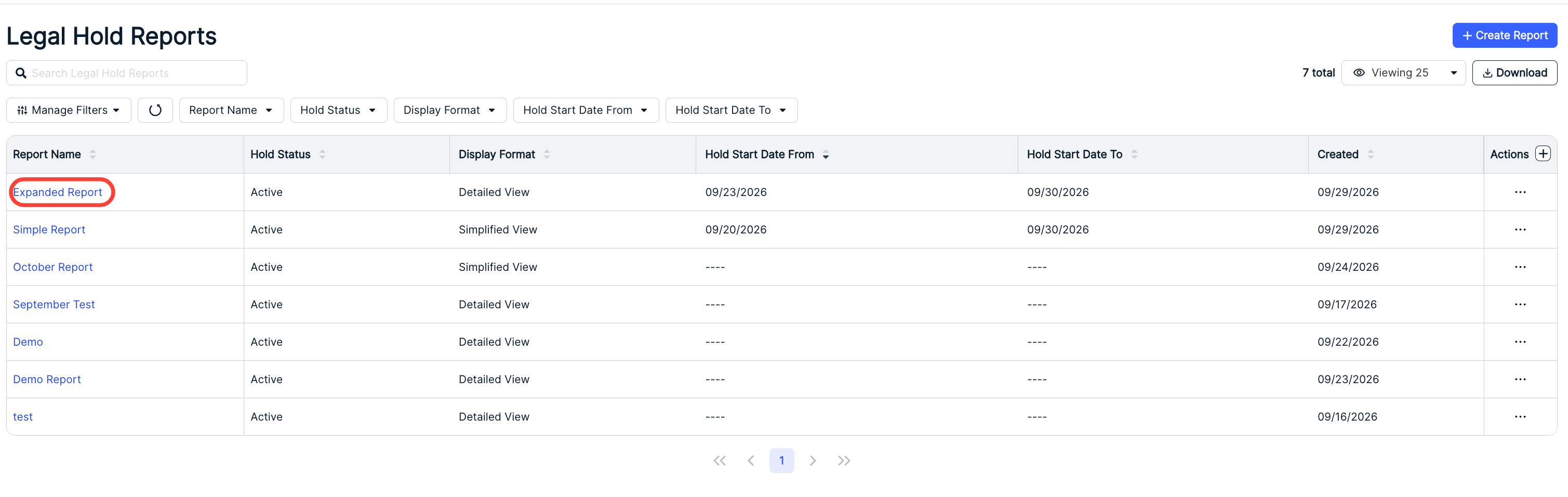
Click the report name to view its details.
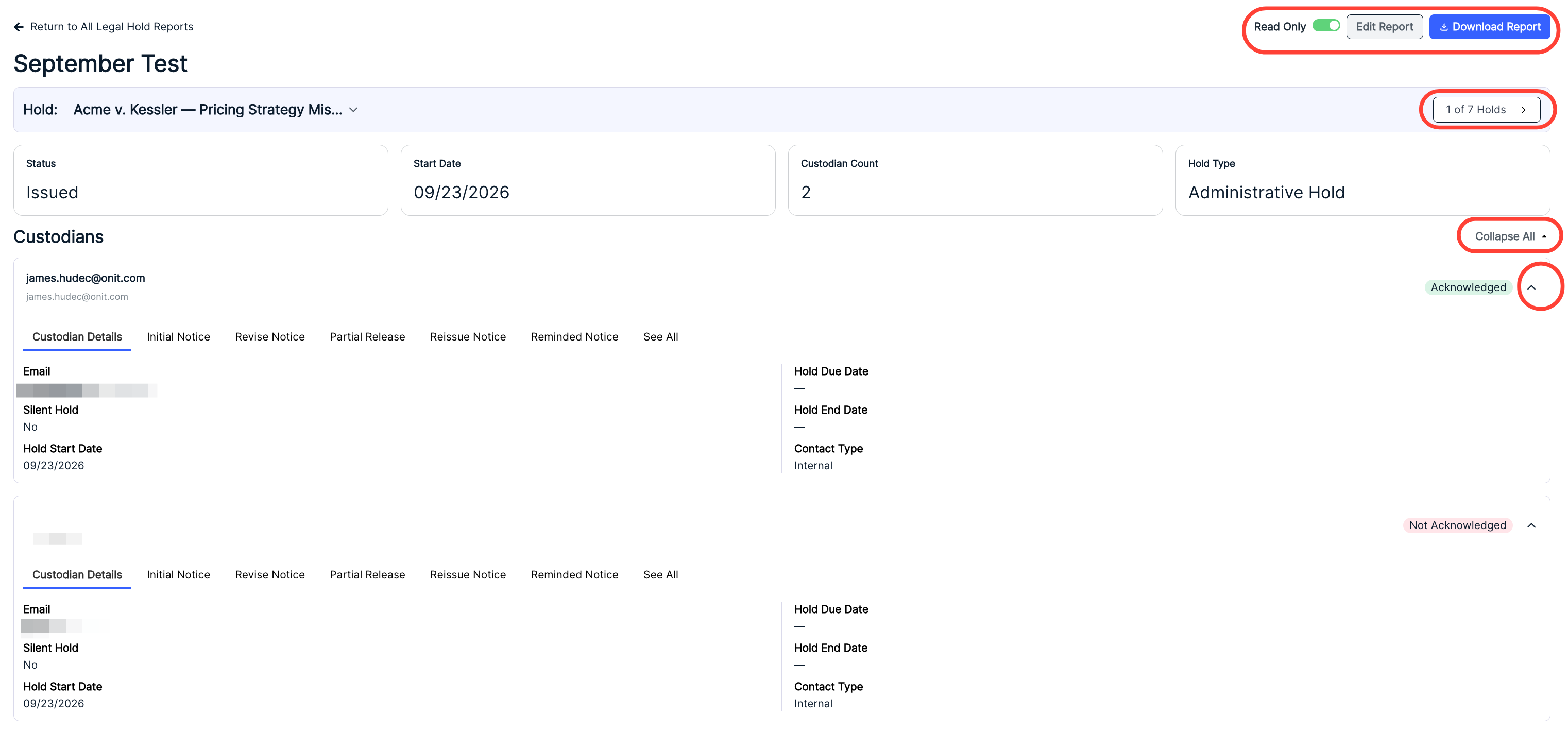
On the report details screen, you'll see the Status, Start Date, Custodian Count, and Hold Type. Use the top arrow counter to cycle through the holds on the report.
Under Custodians, you'll see the Acknowledged / Not Acknowledged / Released status; use the up/down expand arrows to see more information. Separate tabs provide specific details on Custodian Details, Initial Notice, Revise Notice, Partial Release, Reissue Notice, and Reminded Notice, or the See All tab combines them all into one list. Click Expand All to expand all custodians at once.
At the top of the screen, you can toggle the Read Only option, Edit the Report (if Read Only is off), and Download the Report. The Edit Report function will display the same screens as the Create Report function detailed above. Click Expand / Collapse All to show more details (available on the Detailed Report option).
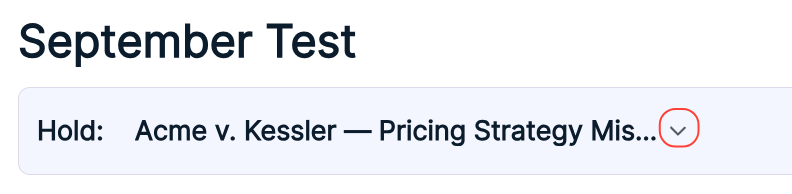
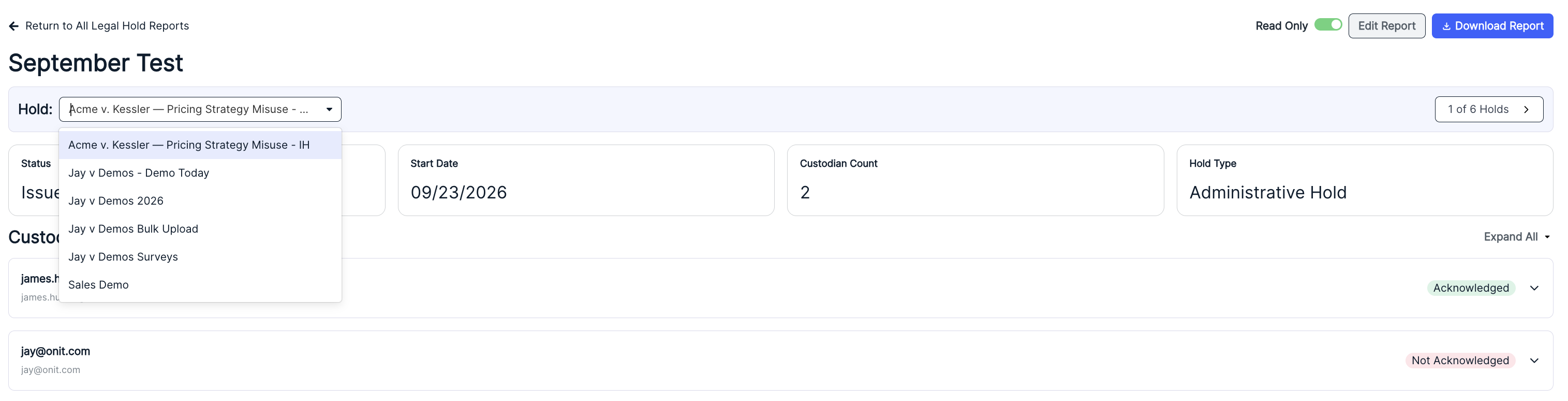
Click the up/down arrow next to the Hold name at the top of the screen to pick a specific hold to view.
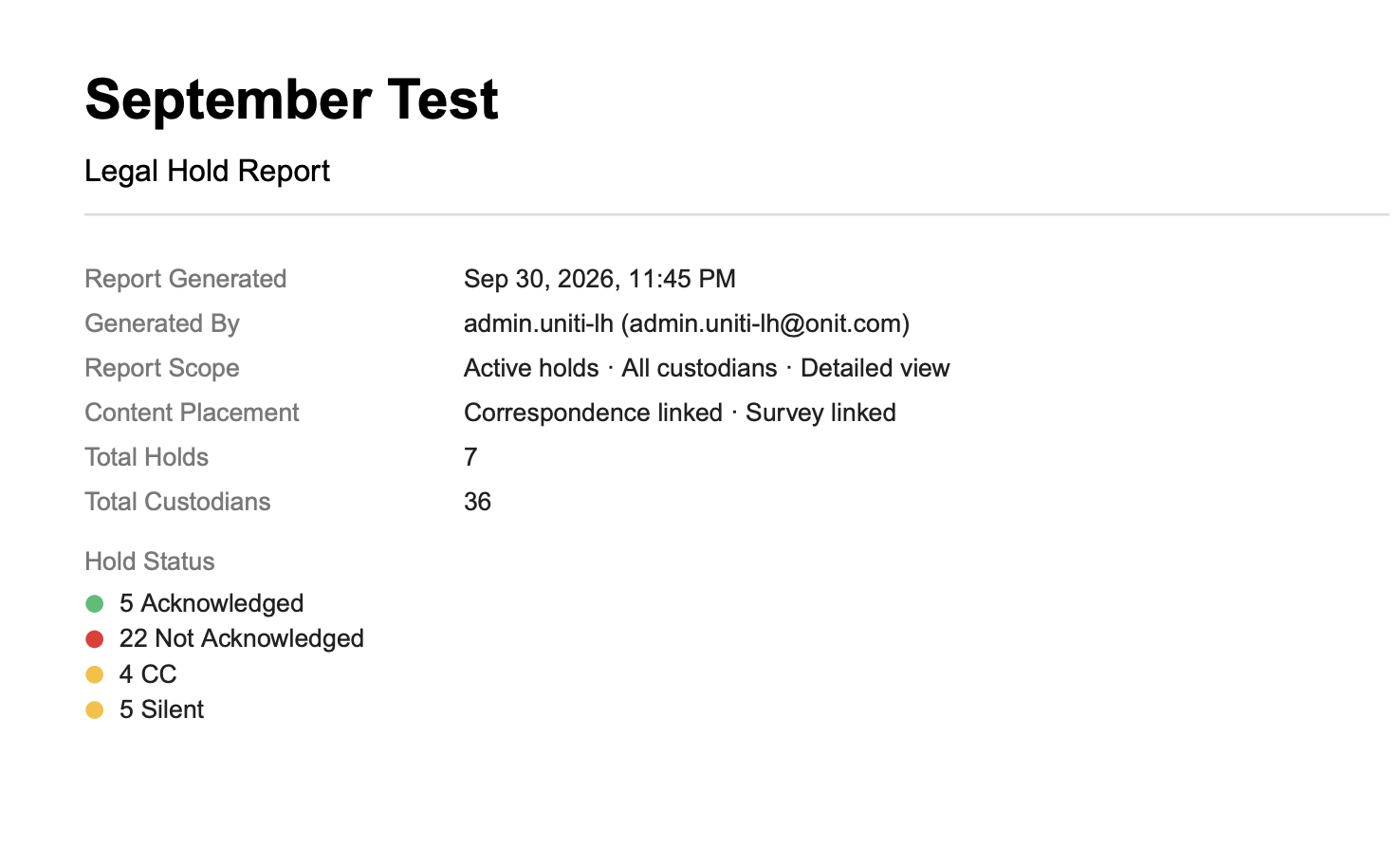
When you click Download Report, you'll get a PDF version of key report details and an executive summary before the full information from the report.
- Fill out the Report Setup screen.