Onit's Matters creation application within Legal Holds enables users to create matters right from Legal Holds. Here, we will take you step-by-step through the process of creating and modifying matters from the Legal Holds platform.
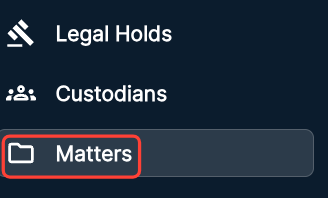
Click on Matters on the left-hand side menu to access the Legal Holds matters page.
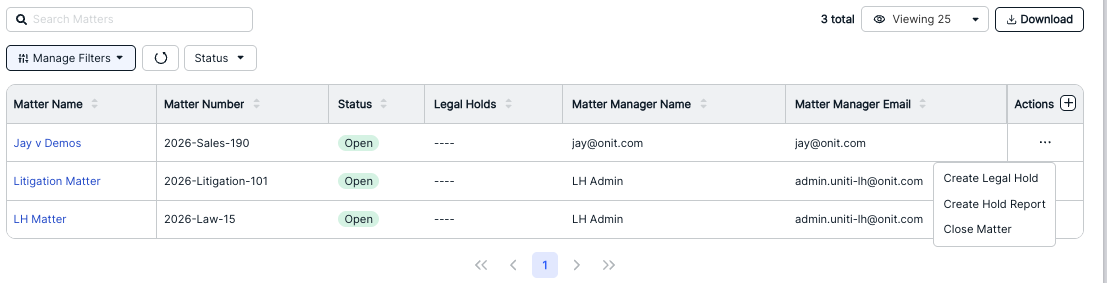
The main Legal Holds Matters page will appear. Here, you'll see the existing Legal Holds Matters with several key details, including Matter Name, Matter Number, Phase, Matter Manager Name, and Matter Manager Email. Click the up/down arrow next to each column to sort by that column. Use the Search LH Matters field to search through the matters. Use the Manage Filters and other filter drop-down menu to customize your views. Use the Viewing drop-down menu to choose how many matters you want to see on the screen.
Use the three-button menu under Actions to Close a Matter, Create a Legal Hold directly from the matter, or Create a Hold Report directly from the matter.
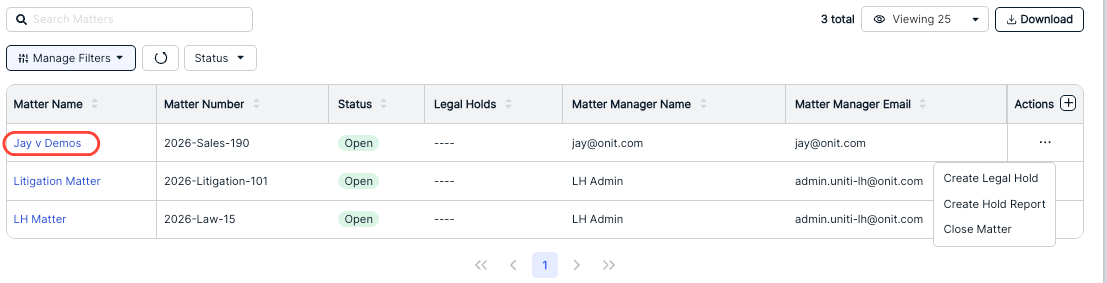
Click into any link under Matter Name to see the matter details.
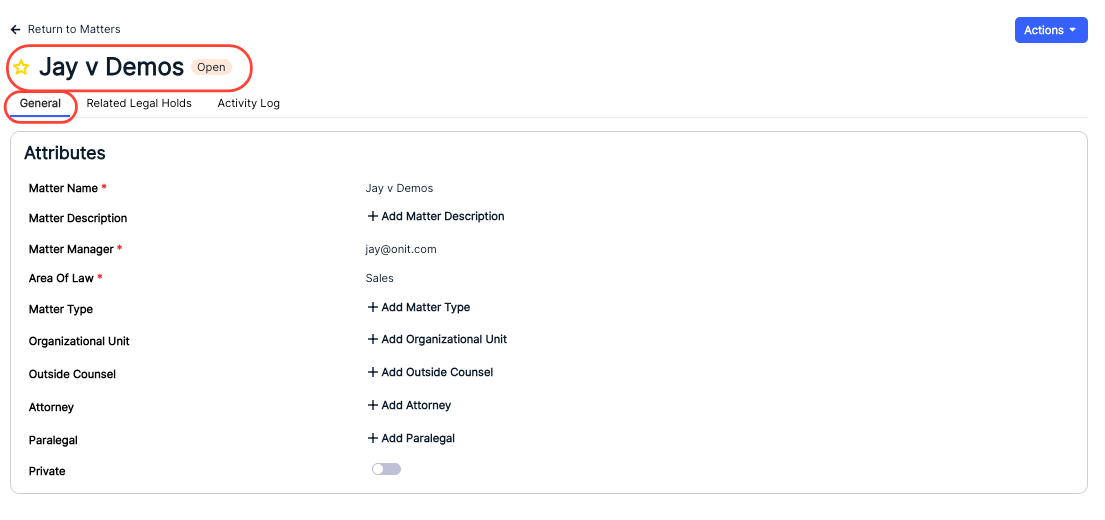
In the matter details page, you can see the key matter Attributes under the General tab, Related Legal Holds, and an Activity Log.
On the General page, click the star next to each matter name to favorite the matter. Use the Actions button to close the matter.
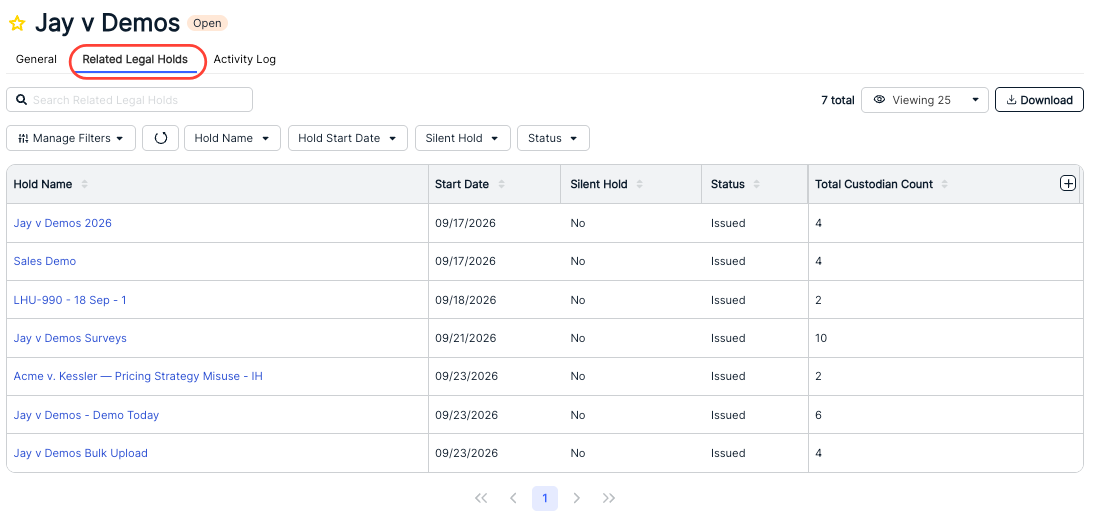
On the Related Legal Holds you'll see a full list of legal holds related to the matter along with key details - Hold Name (click on each hold name to go to that hold), Start Date, Silent Hold (Yes/No), Status, and Total Custodian Count. Use the Search related legal holds bar to search through the legal holds. Use the Manage Filters drop-down and other menus to choose what you want to see on the screen. Use the up/down arrow at the top of each category to sort by that category. Use the Viewing drop-down menu to choose how many records you want to see on the screen. Click Download to download the holds information.
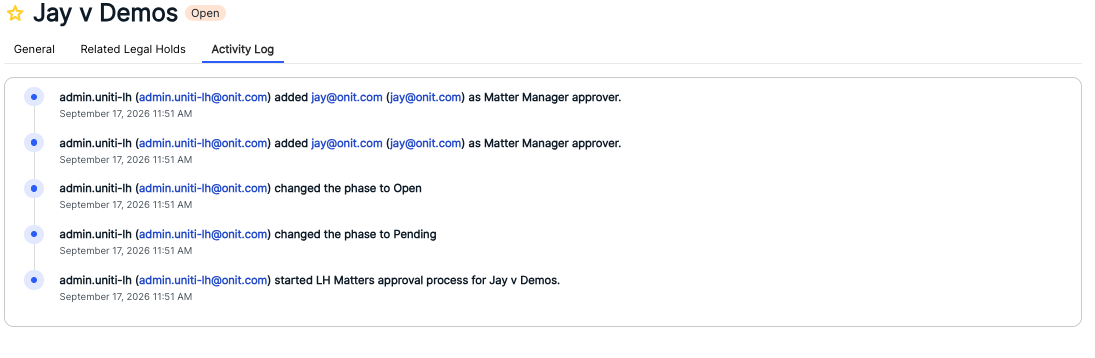
The Activity Log will give you a chronological list of matter events.
Creating a Matter
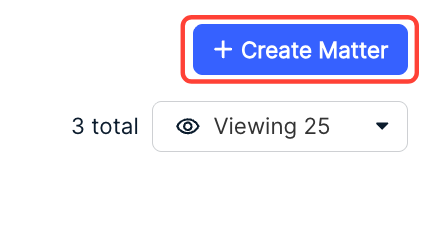
Click the Create Matter button to create a new matter.
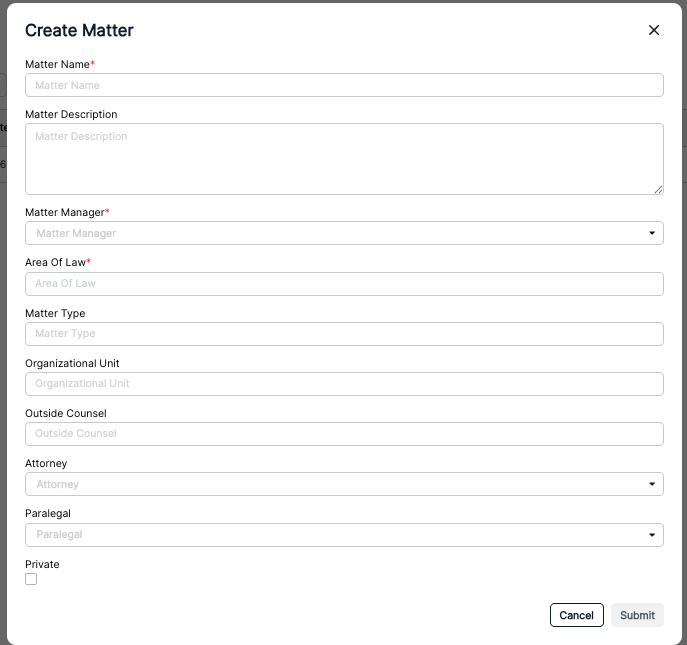
The Create Matter page will appear.
You'll have to fill out the:
- Matter Name (required)
- Matter Description
- Matter Manager (drop-down menu) (required)
- Area Of Law (required)
- Matter Type
- Organizational Unit
- Outside Counsel
- Attorney (drop-down menu)
- Paralegal (drop-down menu)
- Private checkbox (mark if you want to keep this matter restricted to only those users with designated access to the matter)
Click Submit to create the matter or Cancel to back out.
The new matter will appear in the main matter directory.