Here's how to work with Custodians in Unity Legal Holds:
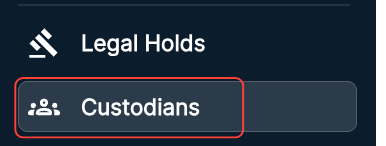
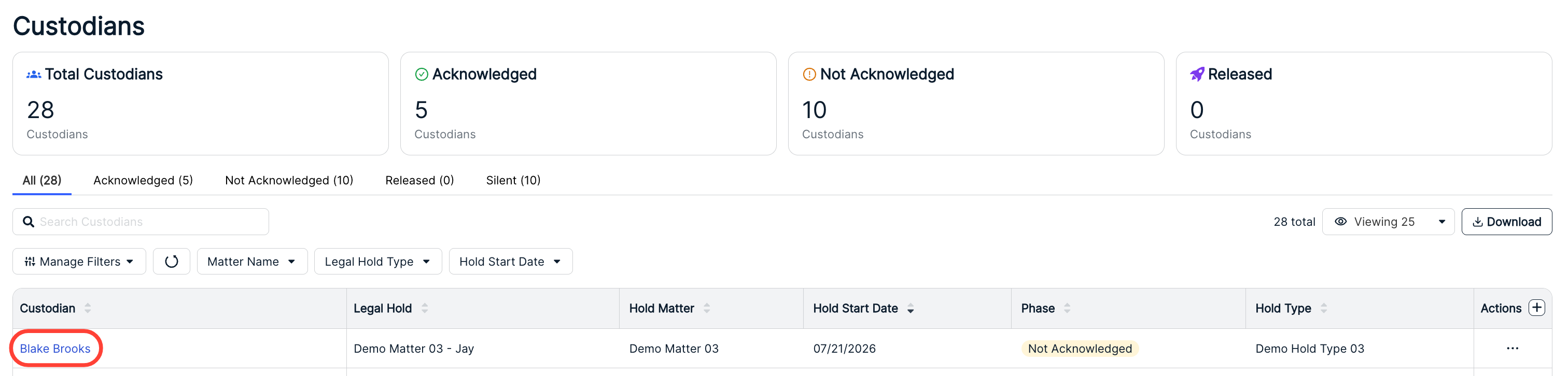
Click on Custodians on the left-hand side menu under Legal Holds to access the Custodians page.
The main Custodians screen will appear.
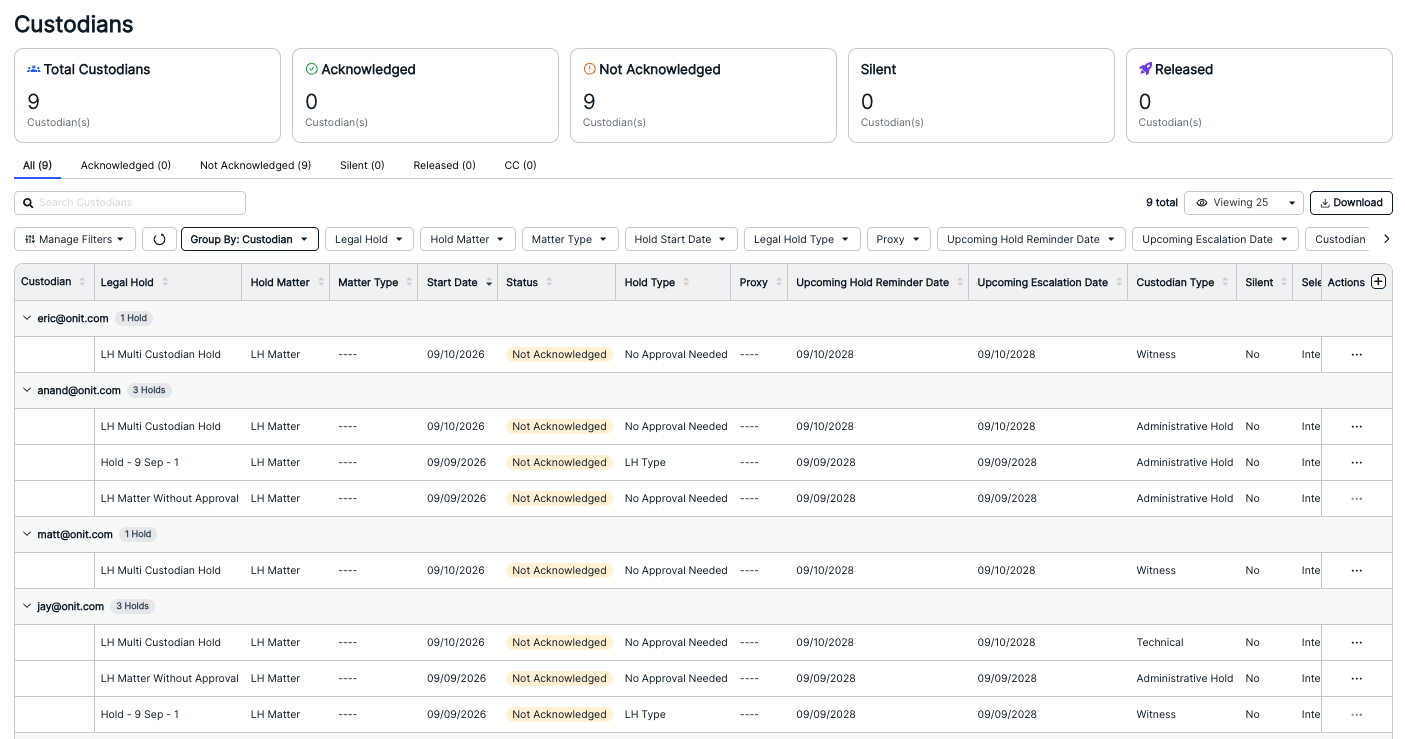
The top section will show the number of Total Custodians, Acknowledged holds, Not Acknowledged custodians, Silent custodians, and Released custodians.

Click into the directory tab to see specific custodian types: All, Acknowledged, Not Acknowledged, Silent, Released, and CC.

The main directory will show you the key custodian details, including Custodian name, Legal Hold name, Hold Matter, Matter Type, Hold Start Date, Status, Hold Type, Proxy, Upcoming Hold Reminder Date, Upcoming Escalation Date, Custodian Type, Silent (Yes/No), and a Survey Response link (see more information in the Custodian Details section).
The Actions menu will provide you with a list of different actions you can do for the custodian; these include:
- View - View the Custodian Details.
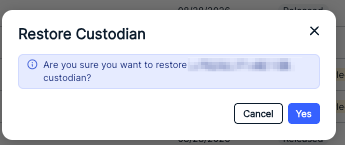
- Restore Custodian - Restore a custodian previously released from the hold (only available if the custodian has been released). You'll see this message appear; click Yes to restore or Cancel to back out.
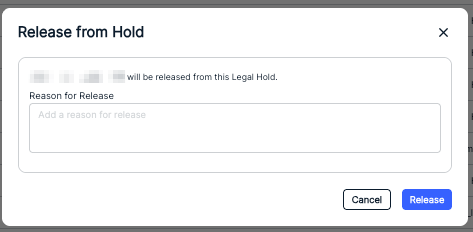
- Release from Hold - Release a custodian from the hold (only available if the custodian is active). You'll see this message appear; fill in a Reason for Release (if necessary) and click Release to send the release or Cancel to back out.
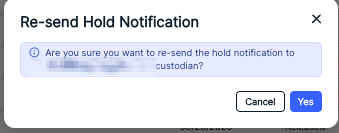
- Re-Send Hold Notification - Send a reminder of the hold notification to the custodian. You'll see this message appear; click Yes to re-send the notification or Cancel to back out.
- Send Hold Reminder - Send a reminder to the custodian that they are on a legal hold.
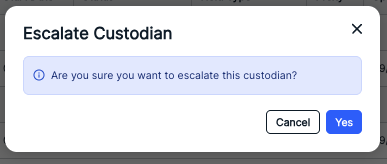
- Escalate Custodian - Escalate the custodian to the next level to push acknowledgment. You'll see this message appear; click Yes to escalate the notification or Cancel to back out. The escalation recipient is defined in the legal hold settings.
Note that these options will appear depending upon the Phase of the hold (for example, you can only Send Reminders to those who are have not acknowledged a hold). Use the up/down arrow next to each user's name to hide/show more custodian details.
Click the up/down arrow next to each column name to sort by that column. Click Download to download the custodian information as an Excel file.
Use the Manage Filters and other drop-down menus to filter what you want to see on the screen; use the Viewing drop-down menu to customize how many custodians you want to see.
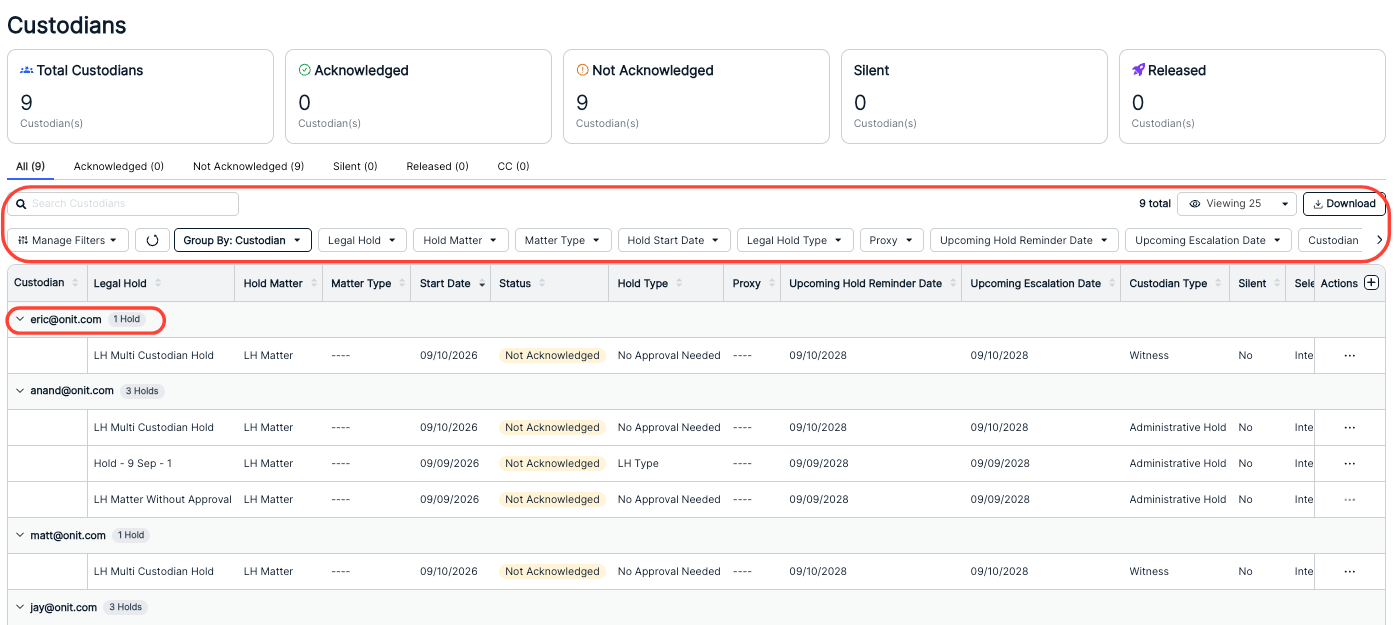
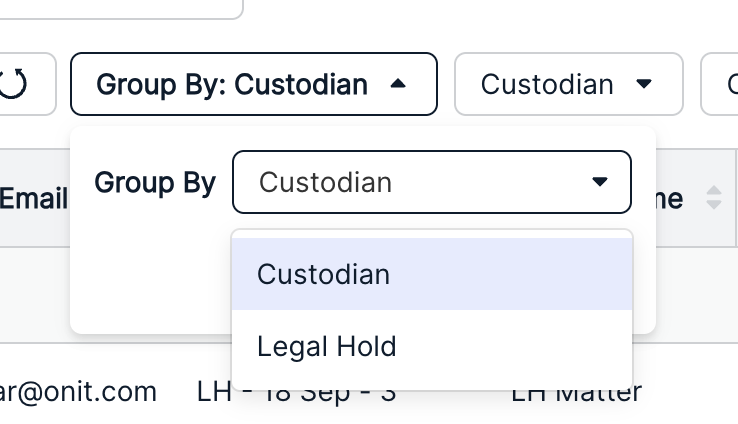
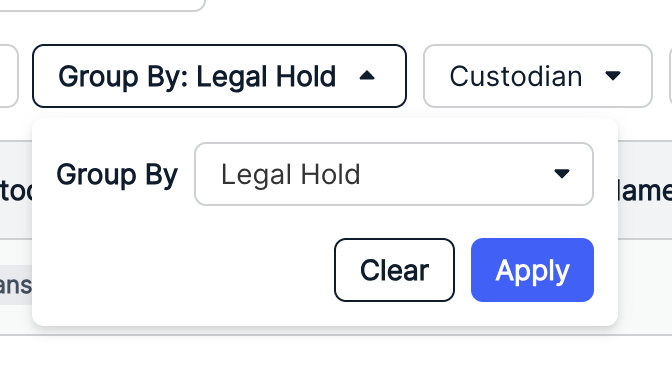
Use the Group By drop-down filter to group the custodians by Custodian or Legal Hold for clearer organization. Click Apply to Group the custodians or Clear to back out.
Custodian Details
Click on the link under Custodian to open that person's custodian details screen.
The custodian Details screen will open.
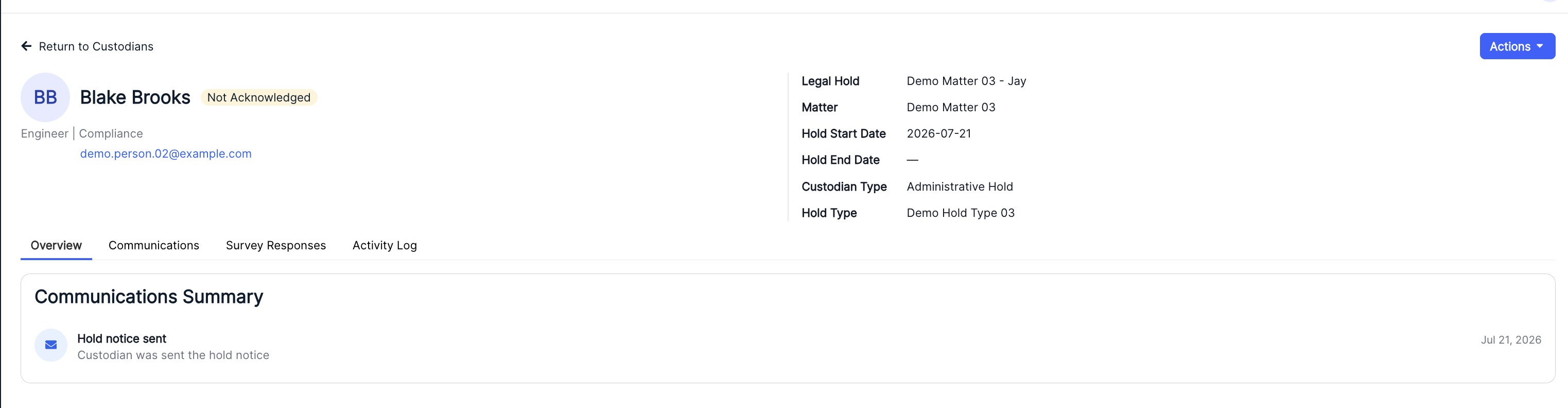
On the custodian Details screen, you'll see:
The Phase next to their name and profile icon, along with their title and email

- Key attributes of the legal hold (Legal Hold name, Matter name, Hold Start and End Date, Custodian Type, Hold Type) and an Actions button (Release From Hold, Re-send Hold Notification, Send Hold Reminder, Escalate Custodian, Suspend Notifications); note that this button will change depending on the Phase that the hold is in (for example, you can only Send Reminders to those who are have not acknowledged a hold).

Four tabs with different hold information (Overview, Communications, Survey Responses, Activity Log)
The Overview tab gives you a communications summary of the hold with key dates.

The Communications tab gives you another look at the communications; use the Search bar to search by subject or sender.

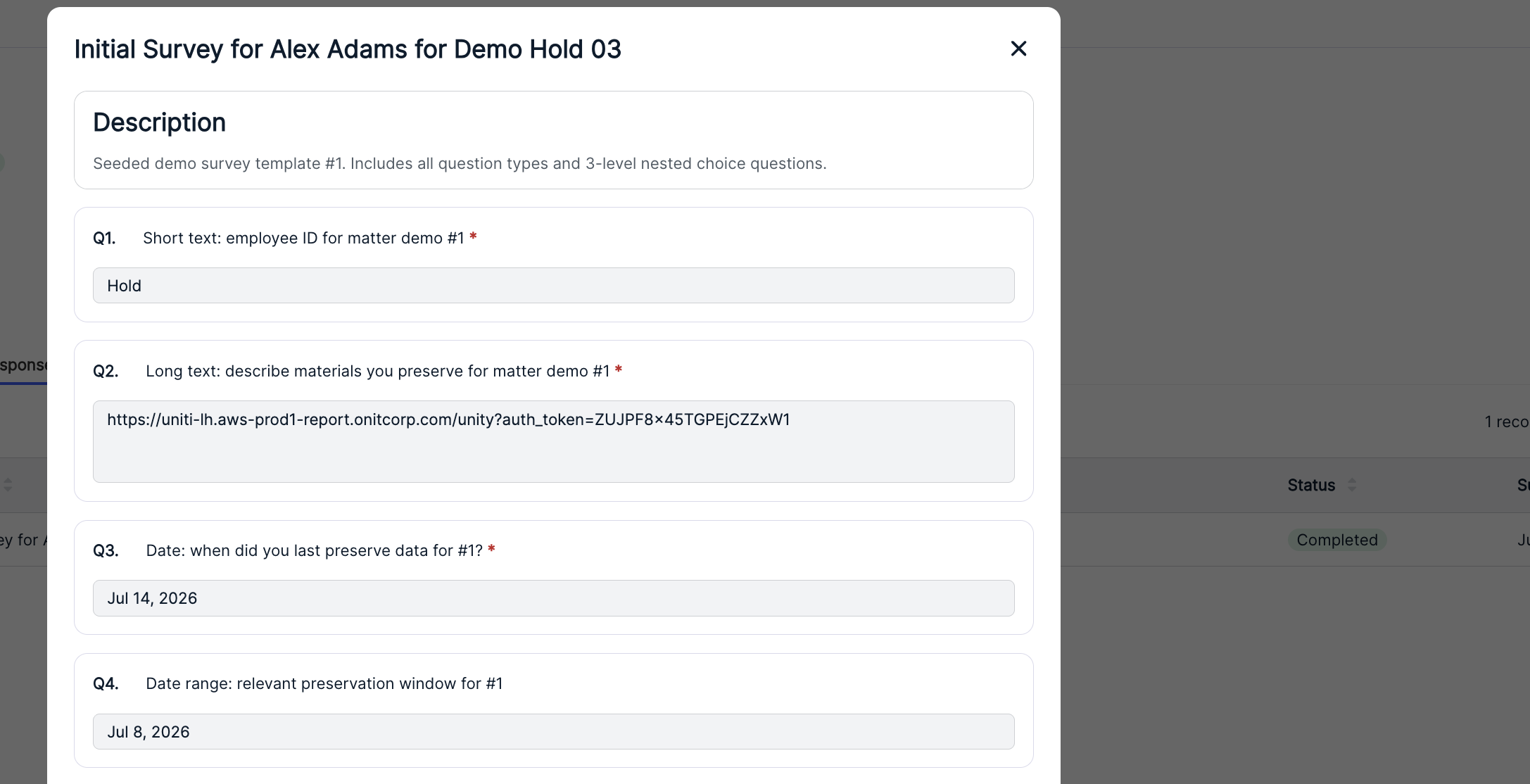
The Survey tab will give you a report on any surveys done with the hold; click on the line to see their answers.

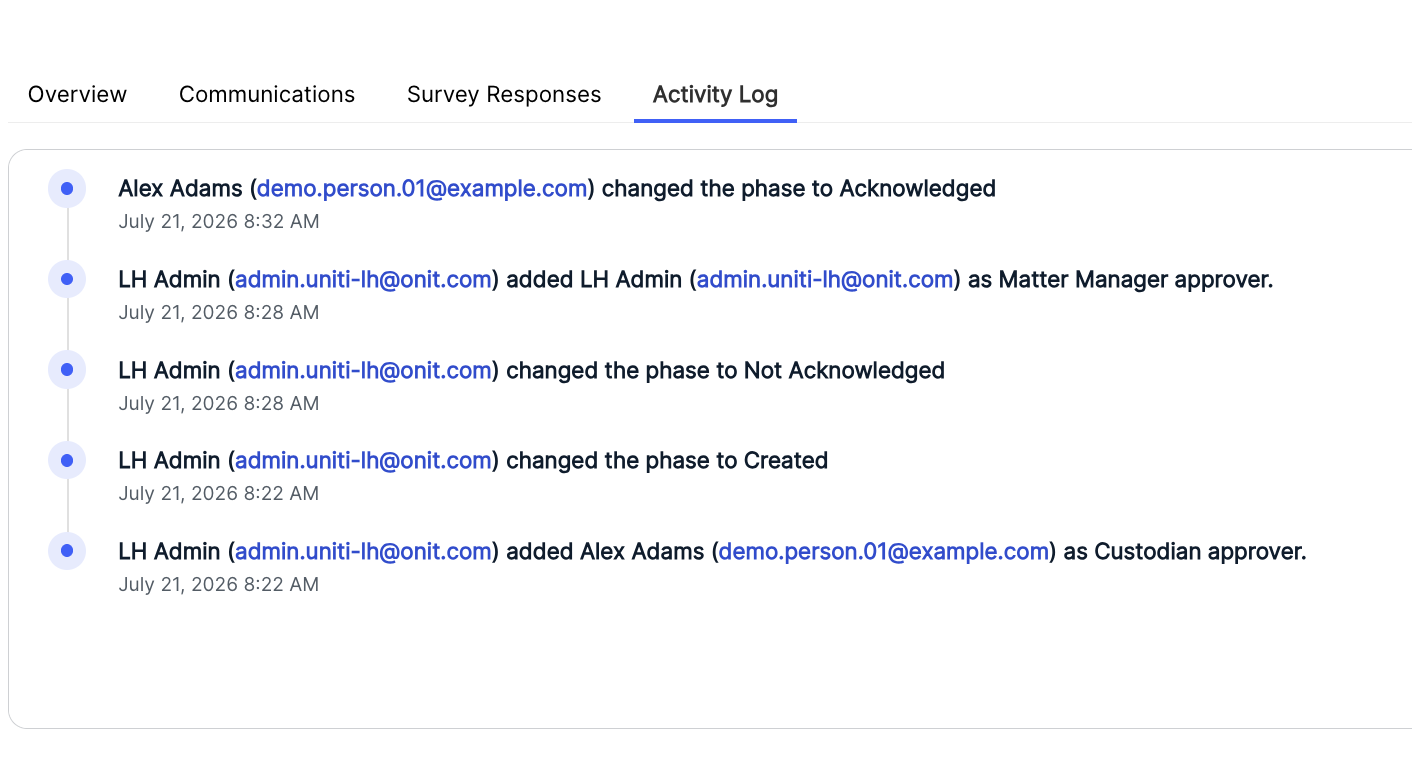
The Activity Log shows any activity on the hold.