Unity RFP offers teams the ability to create detailed Requests for Proposal to law firms and provides a simple way to ingest and analyze the results, including Rate Proposal Analysis capabilities.
Using Unity RFP
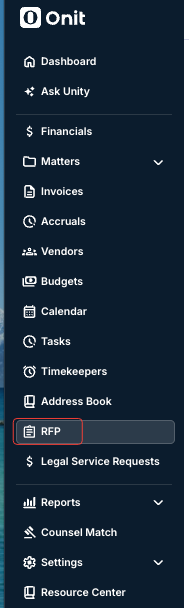
Click on the RFP option on the left-hand-side dashboard menu.
On the main screen, you'll see a database of RFPs; you can switch between the In Progress, Approved, Published, and All RFPs tabs to view specific RFPs.
- In Progress RFPs are still in the draft stage or are going through the review or approval process.
- Approved RFPs are the ones that have gone through the internal review process and are approved to go to the vendors.
- Published RFPs are the ones sent to the vendors.
- All RFPs will show RFPs in any of these stages as well as those that are withdrawn or inactive.
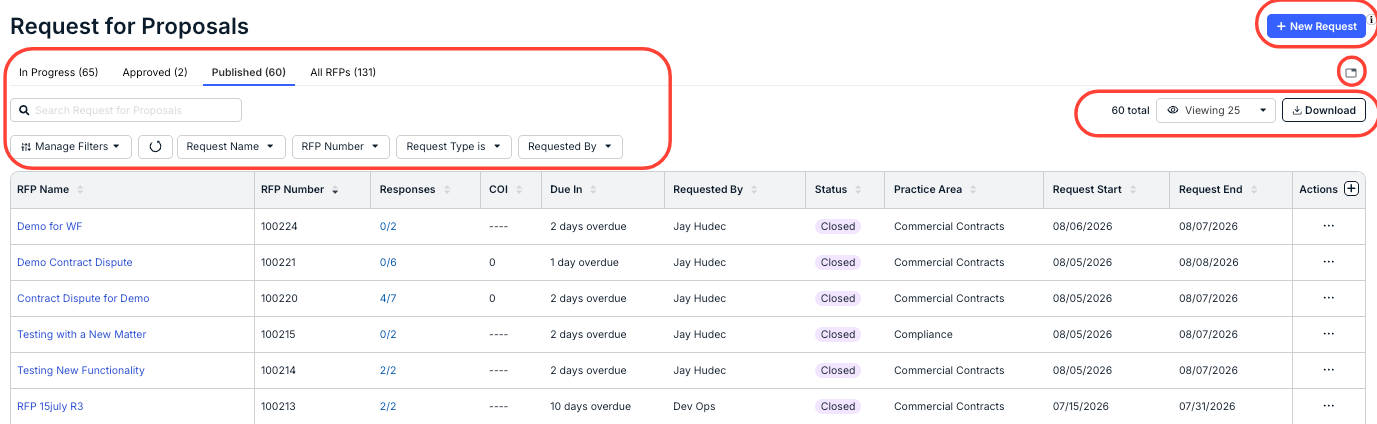
The RFP directory will show key details of the RFPs (note these categories will change per the tab selected). Use the up/down arrows next to each column to sort by that detail.
Use the Actions button to Delete, Withdraw, or Duplicate a RFP.
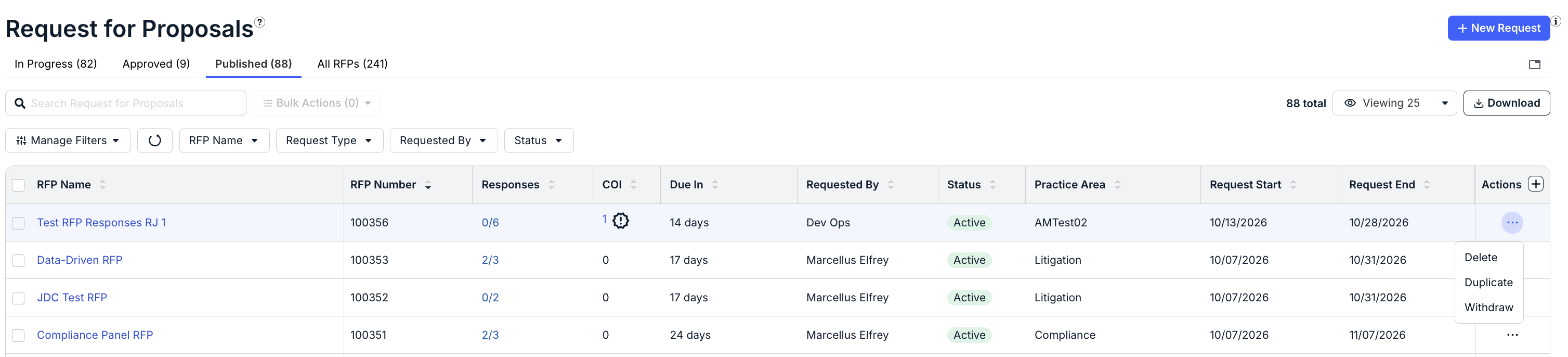
RFP Homepage Actions
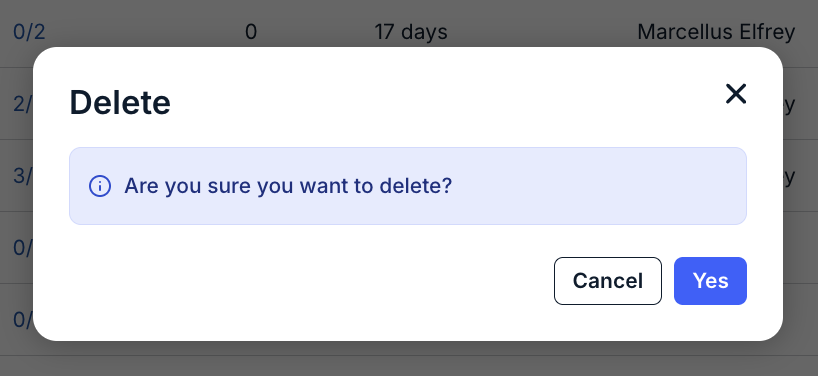
If you Delete an RFP, you'll get this message. Click Yes to delete or Cancel to back out. Deleting an RFP removes it from the system and it cannot be recovered.
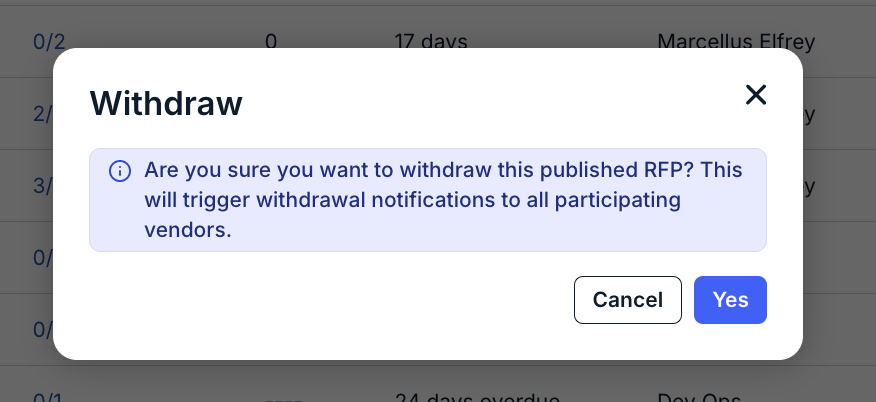
If you Withdraw a published RFP, it will prevent vendors from responding to it but it will remain visible in the database of RFPs so that it can be viewed or duplicated. Selecting the Withdraw option will prompt this message. Note that withdrawing a RFP triggers a withdrawal notification to all participating vendors. Click Yes to withdraw the RFP or Cancel to back out.
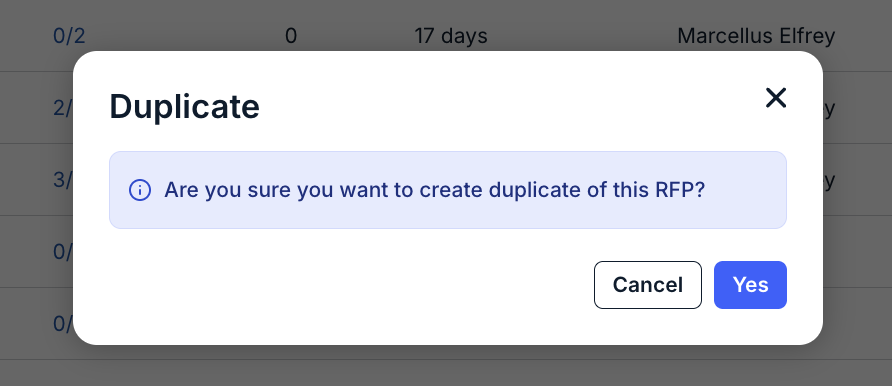
If you want to Duplicate an RFP, you'll get this message. Click Yes to duplicate the RFP or Cancel to back out. Learn more about this process in the Creating an RFP from an Existing Request section.
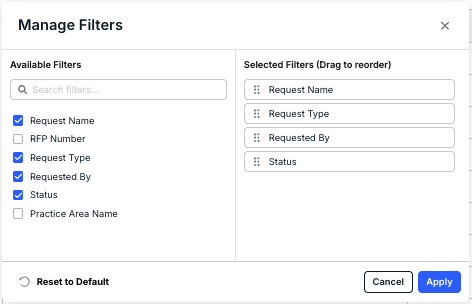
Click on Manage Filters to apply available filters or reorder selected filters; you can also Reset to Default. Click Apply to adjust or Cancel to back out. Use the Search bar to search for a specific RFP. Note that additional columns can also be added by using the + button. Use the Customize Tabs (folder) icon to customize the tabs you want to see on the screen.
You can also use the top buttons next to the filter to search within those specific columns; click Apply to search, Cancel to back out, or Clear to clear the text you entered.
Use the right-hand-side drop-down menu to choose how many records you want to display on the screen. You can also click on Download to download selected record information.
You can also click on the Responses link to get a quick preview of the response rankings.
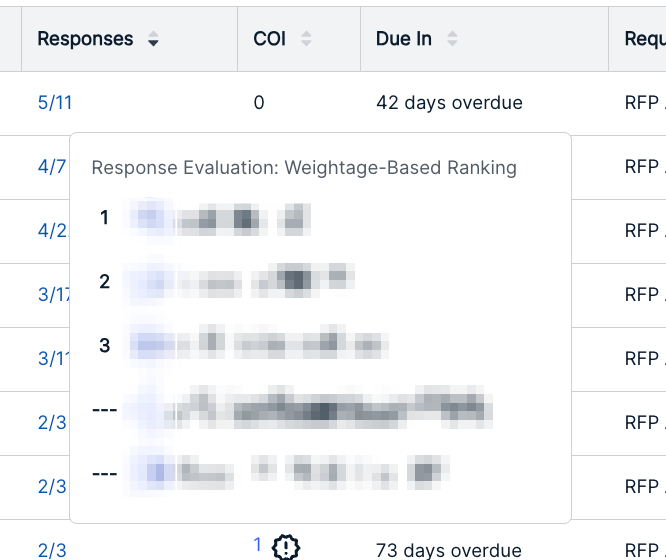
Click on the COI links to get a quick look at the Conflict of Interest status.
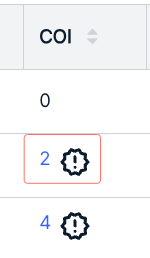
Conflicts of Interest
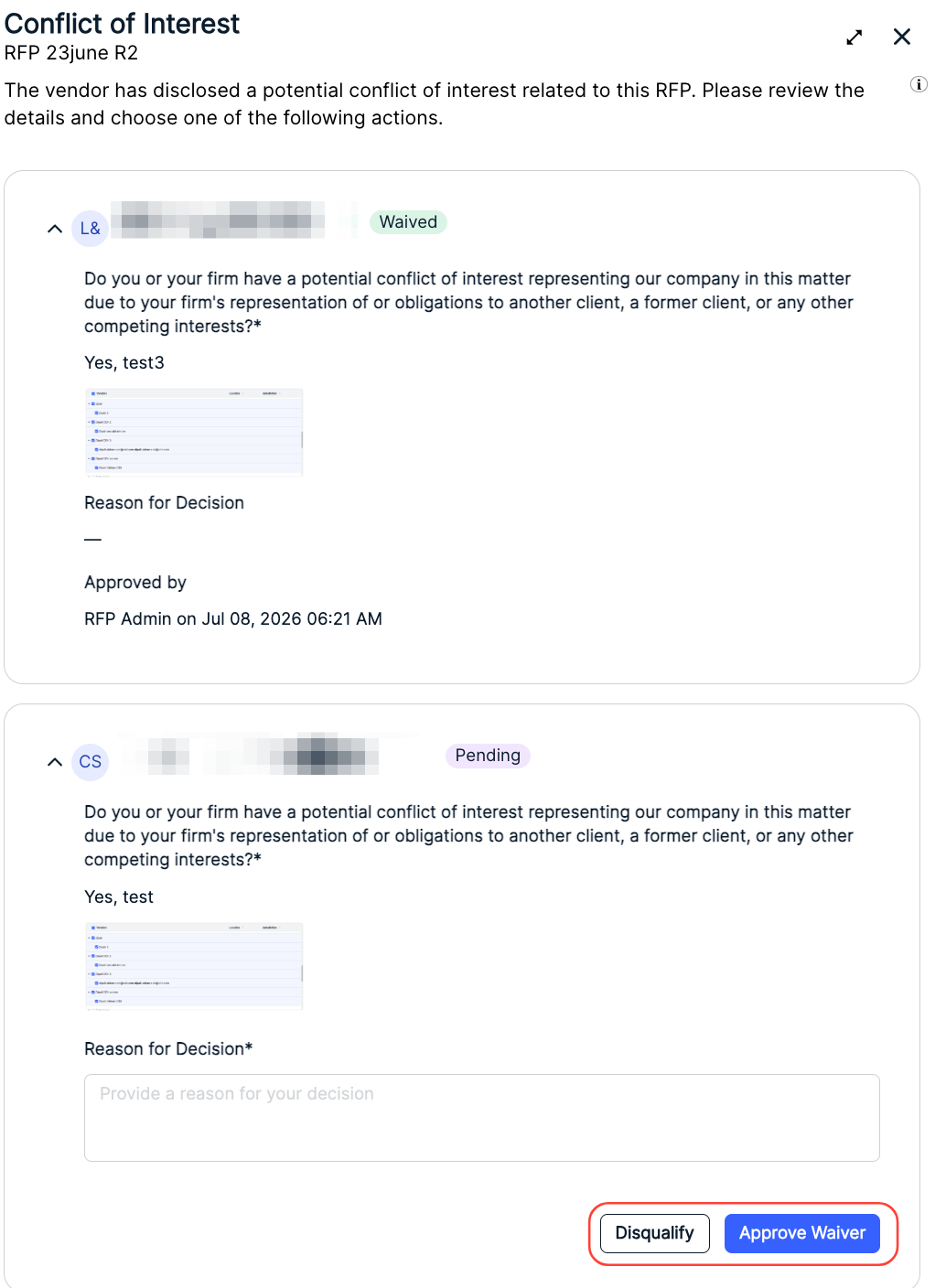
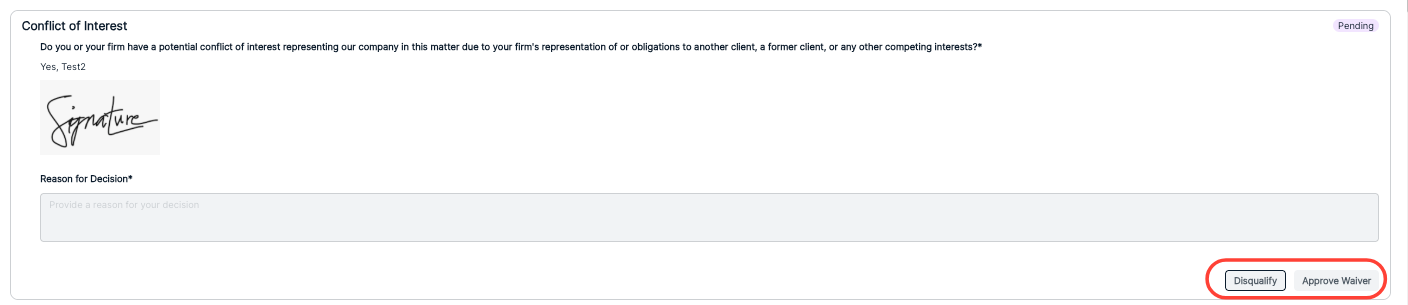
If you click on that link, the Conflict of Interest screen will pop up. Here, you can get a summary of any Conflict of Interest responses (and, if necessary, Disqualify or Approve Waiver).
Starting a New Request for Proposal
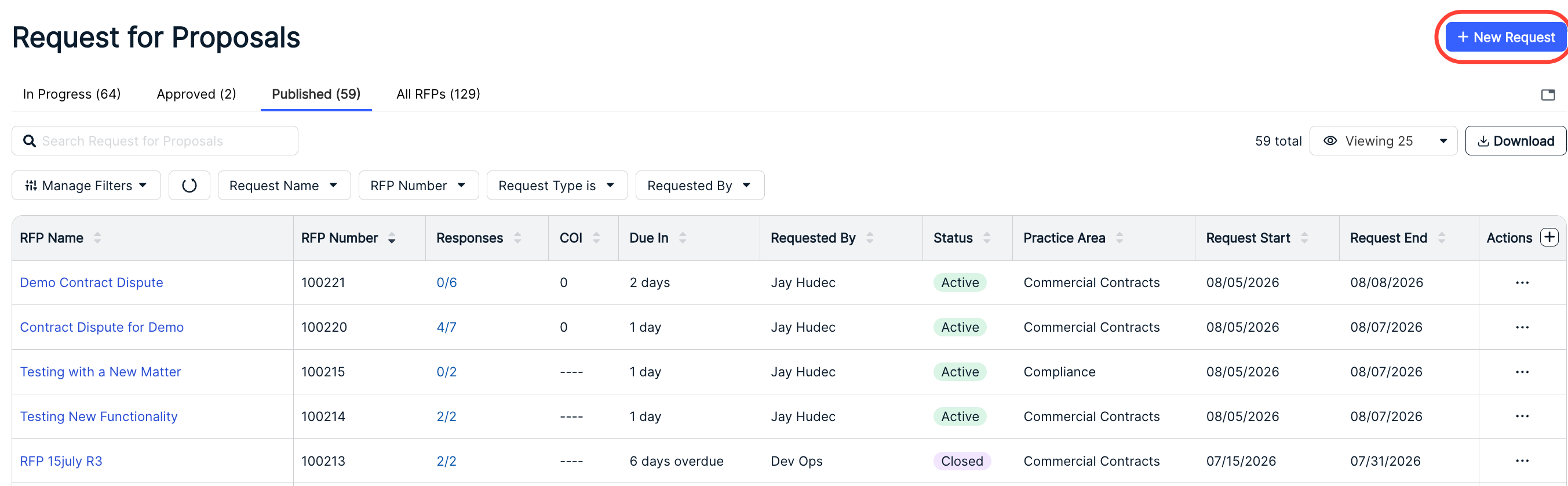
- Click on New Request to begin a new RFP.
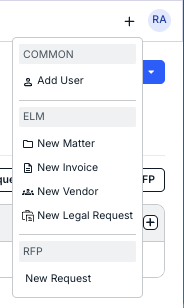
- You can also start a new request from the quick-start menu at the top of the screen.
- Additionally, you can Initiate an RFP directly from the "Vendors" tab of any matter without an assigned vendor.
Click on the Initiate RFP button on the Vendors tab for these matters to go directly to the Create Request screen.

With this method, when on the Create Request screen (more on that here), the form will pre-populate with the request name, description, practice area (if applicable), matter, and request type as a Matter RFP.
- You can also start a new request from the quick-start menu at the top of the screen.
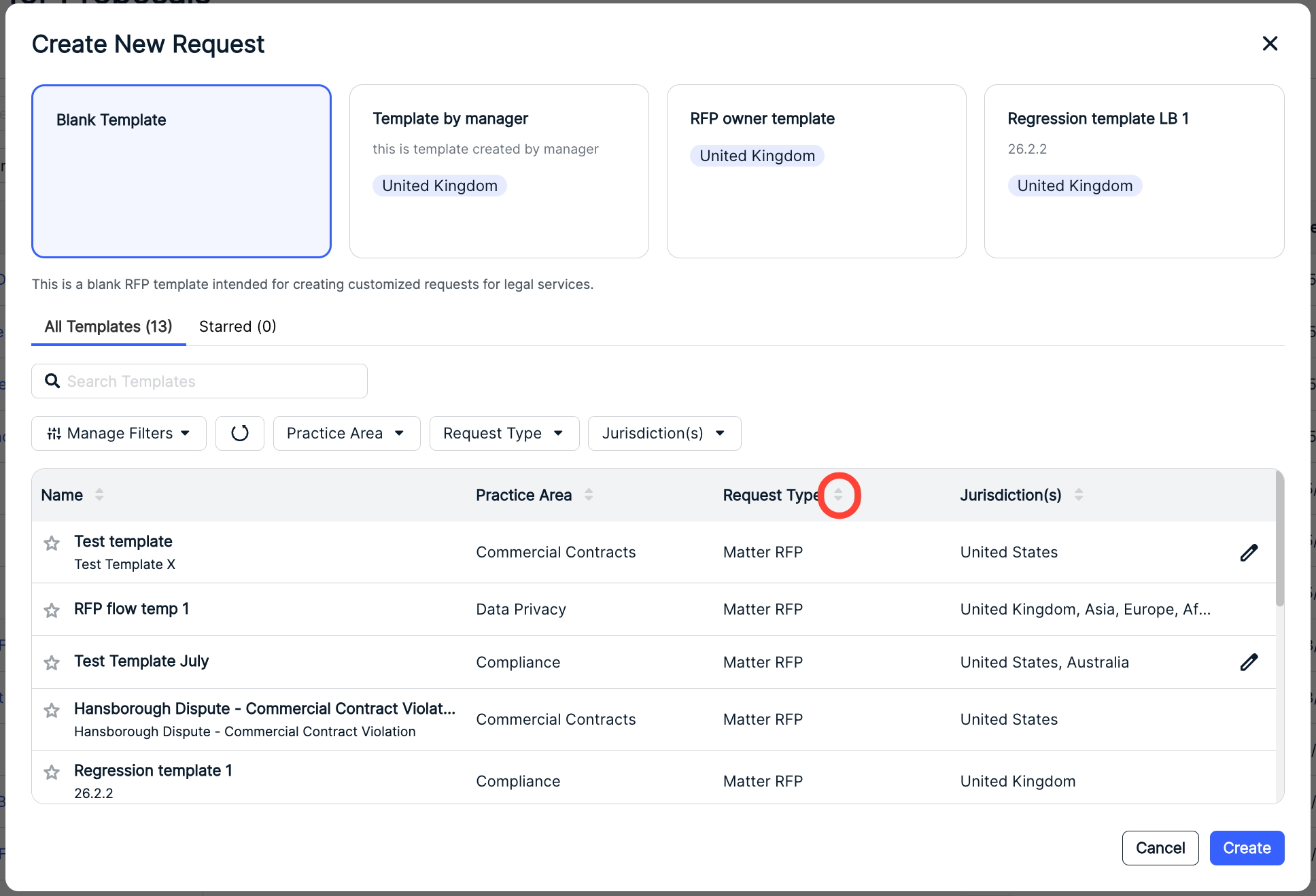
- After you create a new request, you can use either a Blank Template or an Existing Template for the new request.
You have different paths for creating a new RFP: from an existing Template, from a Blank Template, or by duplicating an existing RFP. TheCreate a New Requestscreen shows you existing templates; you can click the Edit (Pencil) button to edit them or click the Star icon to favorite one.
This screen will also show you key template details, including Name, Practice Area, Request Type, and Jurisdiction. Use the up/down arrows next to each column to sort by that detail, or use the Manage Filters or other drop-down menus to filter by specific information. You can also use the Search Bar to find specific templates, or the drop-down menu to sort by Request Type. Use the tabs above to filter by All Templates and Starred templates.
- New Request Settings
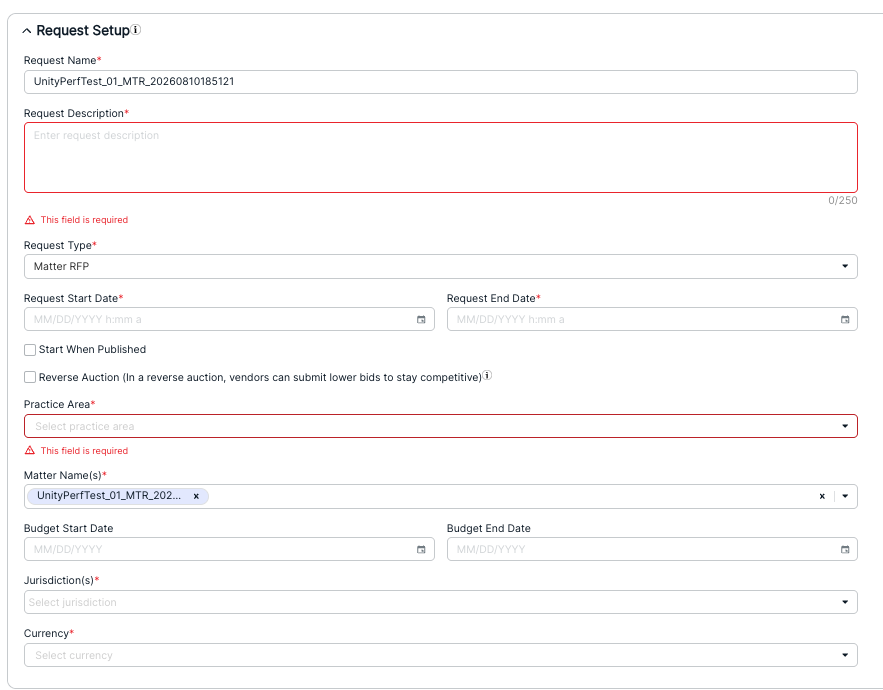
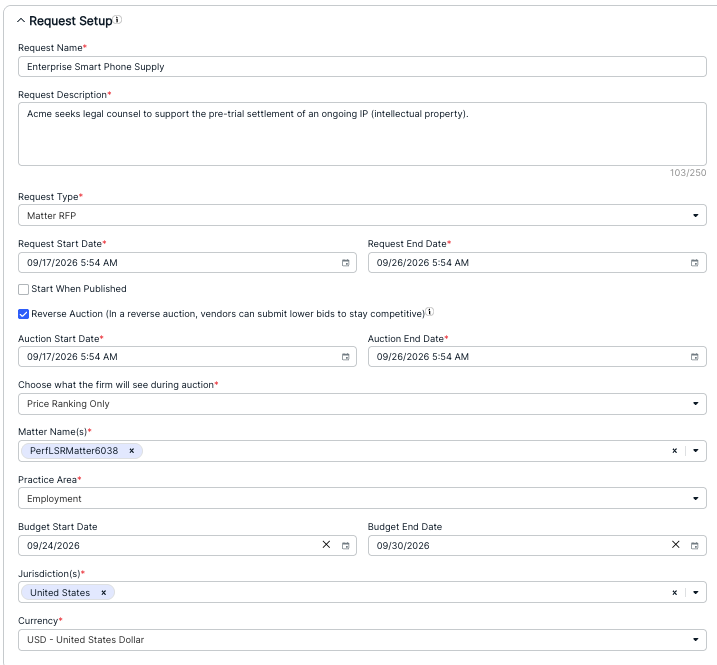
For the first step, you'll have to fill out some basic information, including the:
- Request Name
- Request Description. This will be empty in a blank template; you will have to fill in a description. For requests created from templates, the description is already filled in, but you will be able to edit the text.
- Request Type. From the drop-down menu, users can choose from either a Matter RFP for a standard RFP for a Matter(s), or a Panel RFP if you would like to start determining the panel firms for the year.
- Request Start and End Date (calendar selection). This is the period during which vendors must respond to the RFP.
- The Start When Published option (check box). When checked, the RFP will go out to vendors immediately after publication. Note that the Request Start date will gray out if selected; the Request End Date will remain.
- Reverse Auction option (check box). In a Reverse Auction, vendors can resubmit lower bids to stay competitive.
- Auction Start and End Date (calendar selection). If the Reverse Auction button is checked, this is the period during which vendors can update their bids.
- Choose what the firm will see during auction. If the Reverse Auction button is checked, users can choose Price Ranking Only or Price Ranking and Lowest Bid Amount of the RFP from a drop-down menu.
- Matter Name(s). This information is also pulled in from Unity. Users can select one or multiple matter names; click on the X next to an added matter to remove it from the selection.
- Practice Area. If a selected matter already has an associated practice area, the system will pre-populate with that information. If multiple matters are selected, this field is cleared and the system will instruct the user to select it from a drop-down menu. If there is no practice area associated with the selected matter, a user will have to select one from a drop-down menu.
NOTE: If you would like to just create a new matter from this RFP screen, click Create New Matter to set one up.

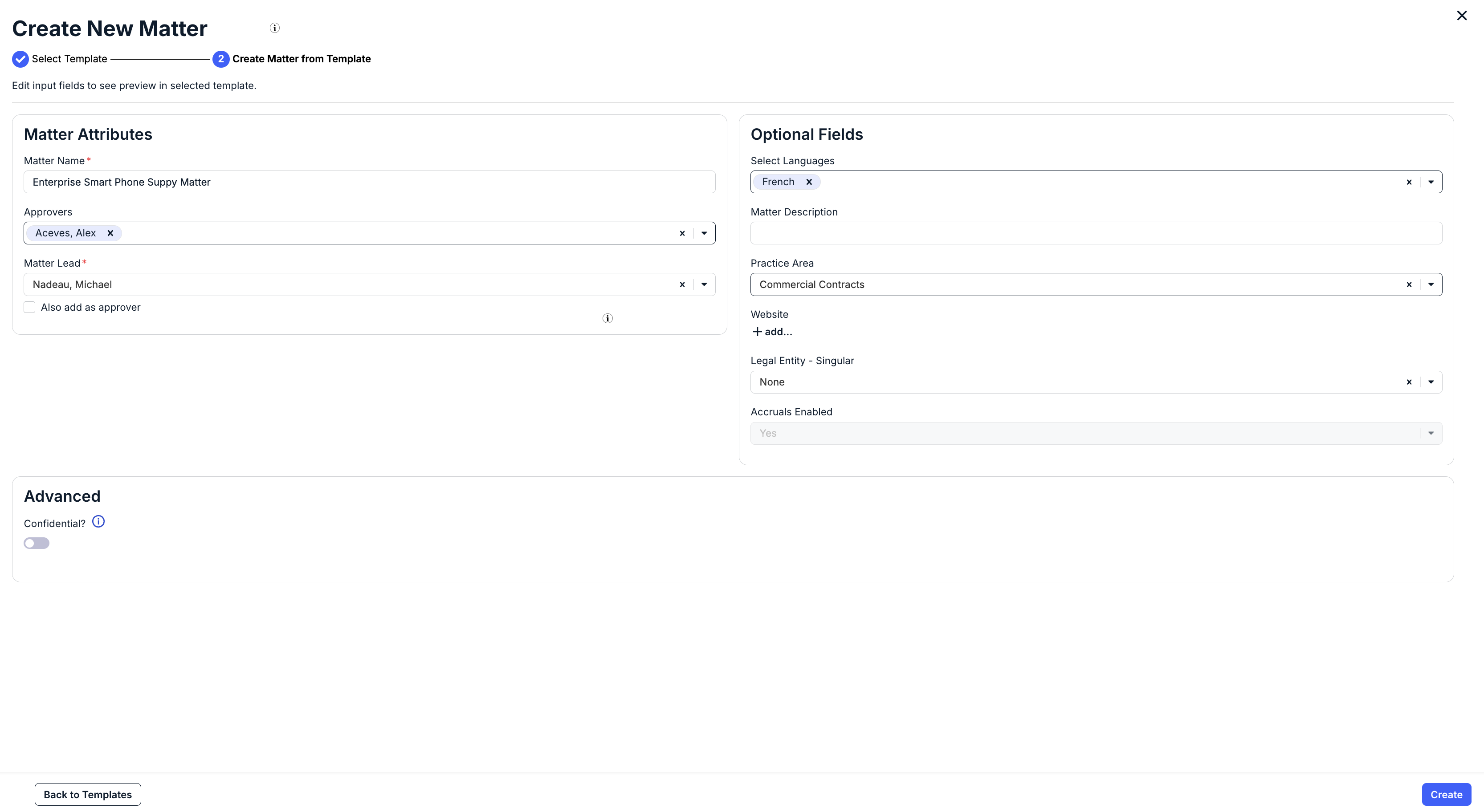
Creating a New Matter from the RFP screen
Select the matter template from the drop-down menu and click Next.
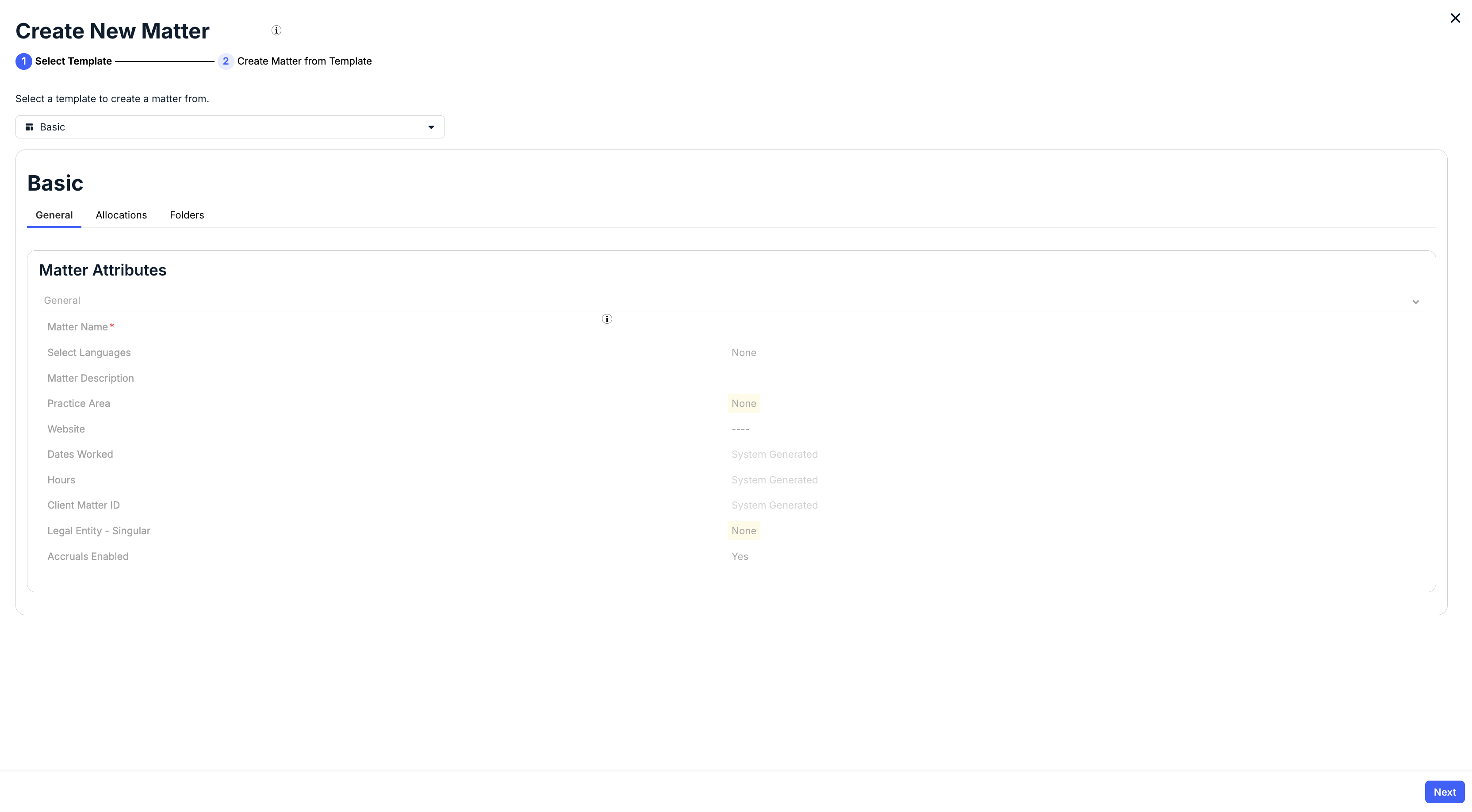
After you've selected the template, you can fill out the Matter Attributes and Optional Fields. You can also choose to mark the template as Confidential. Click Create to create the matter.
- Budget Start and End Date. This appears if you have selected a Matter RFP request type. Note that this is not required during setup, you can fill this in later in the RFP approval process.
- Jurisdiction. Select the country from a drop-down menu.
- Currency. Select the currency from a drop-down menu.
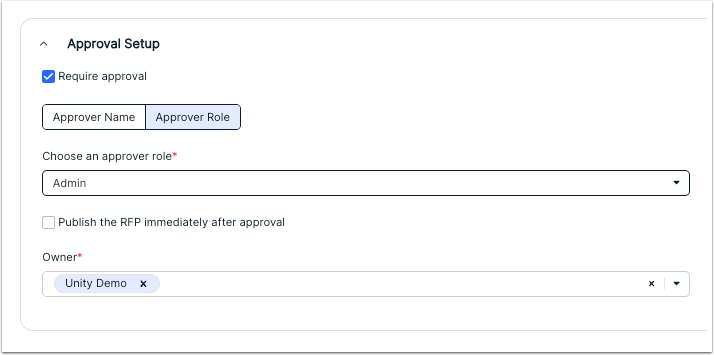
- Under Approval Setup, if you need approval for the RFP, select the Require Approval checkbox.
If checked, you can select the Approver Name and Approver Role (Admin, Owner, or Manager) from the drop-down menu.
You can also click the Publish the RFP immediately after approval check box to send the RFP straight to a published state after approval.
Users can also select multiple owners; click the X button to remove them. Click on Clear All to remove all owners. There must be at least one Owner to Save the RFP.
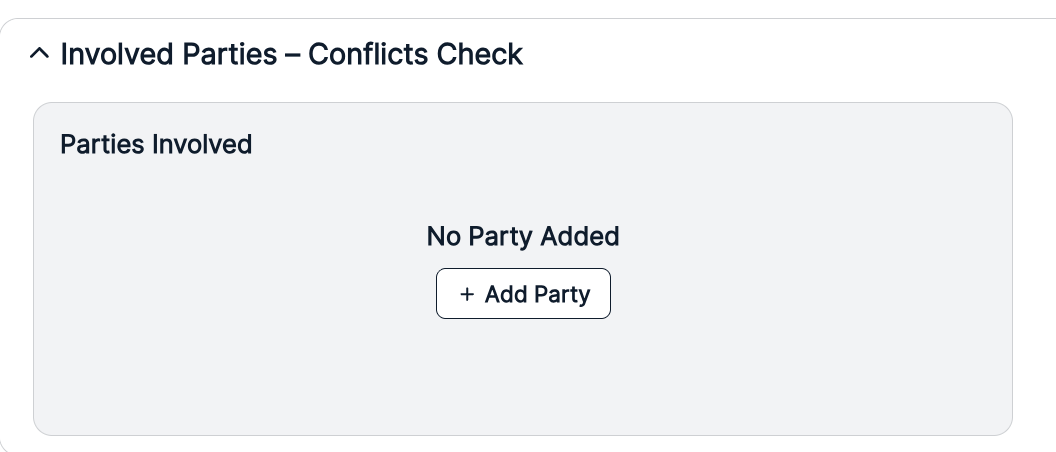
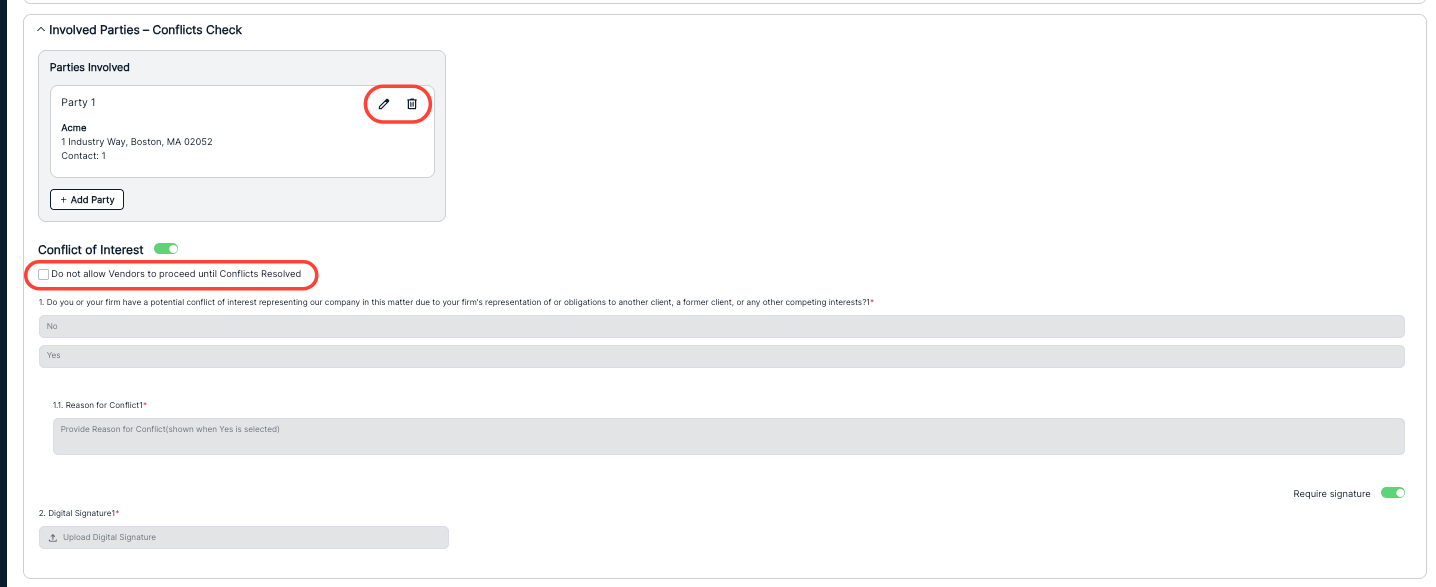
- Under Involved Parties - Conflicts Check, users can select the parties involved in the matter.
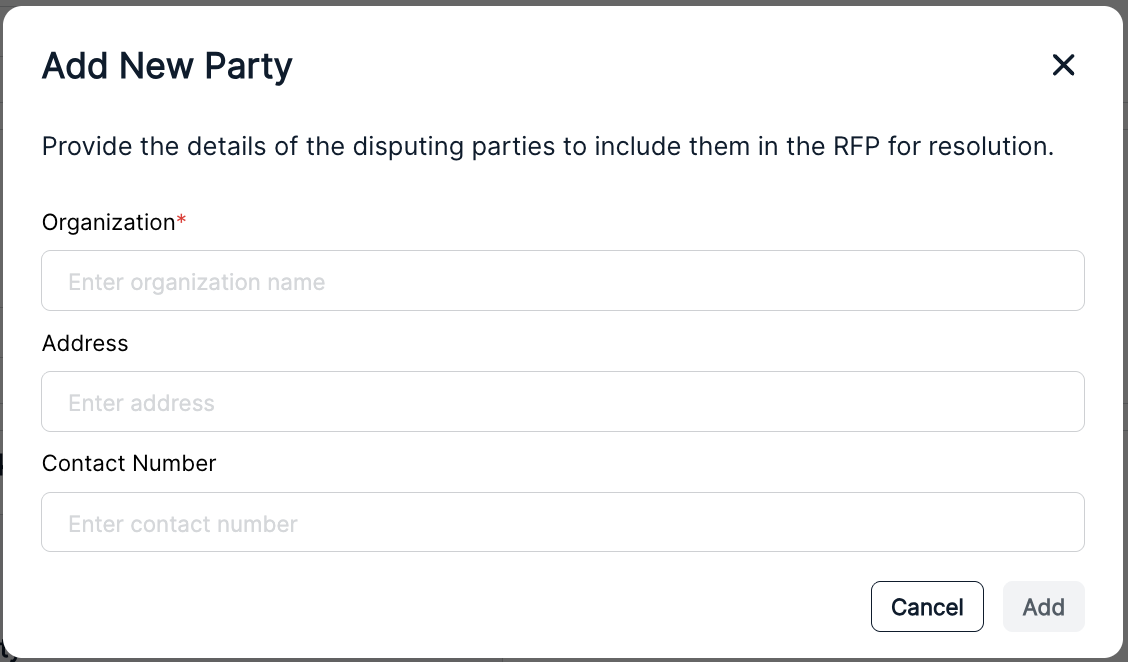
Click on Add Party to provide the details of the parties to include them in the RFP for resolution.
Fill out the Organization (required), Address, and Contact Number number of the party; click Add to add the party to the conflict list or Cancel to back out.
The Party will appear under Involved Parties and Conflicts. Users can also Edit (pencil symbol) the party involved or Delete the party involved (trash can).
After a party is designated, a Conflict of Interest question is automatically generated and added to the RFP (note that this question is generated from your settings; an admin can adjust it as necessary). Click the toggle button next to Conflict of Interest to toggle the question on and off.
You can also hit the Require Signature button to toggle whether a digital signature is required.
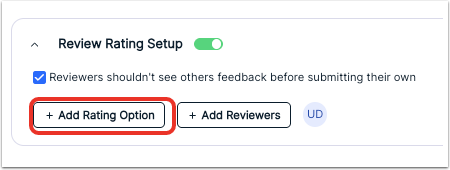
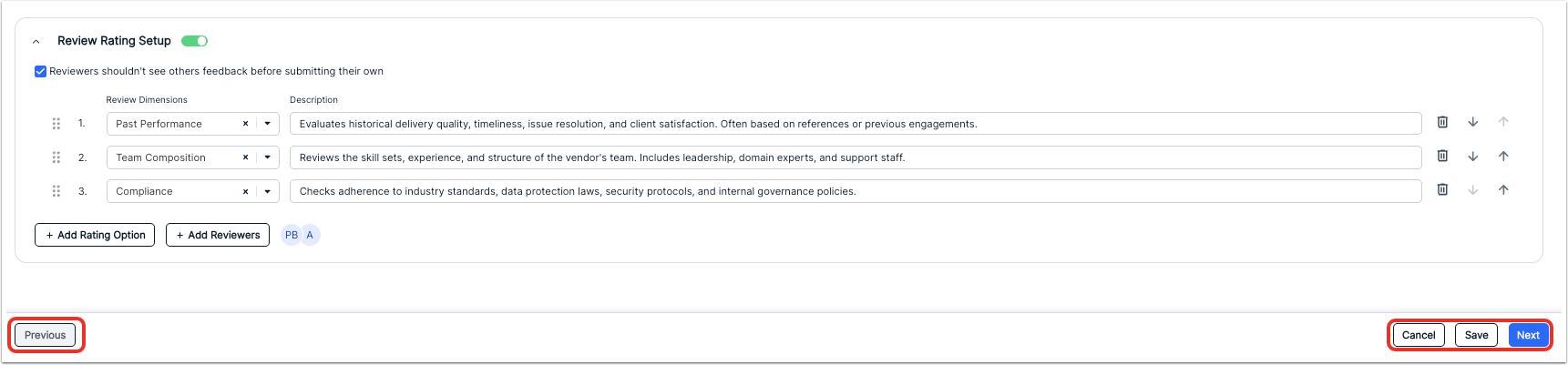
- Use the Review Rating Setup to add internal ratings to "score" the RFP.
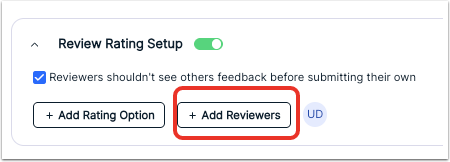
Click the On button to toggle the rating system. From there, you can click Add Rating Option and Add Reviewers. You can also click on the Reviewers shouldn't see others' feedback before submitting their own check box.
When you add a rating option, you can choose the Review Dimension from a drop-down menu. The dimension Description is automatically filled in for you from your RFP settings; you can edit the Description. Click the Delete (trash can) icon to remove a dimension or use the up/down arrows or dot pattern icon to adjust the order.

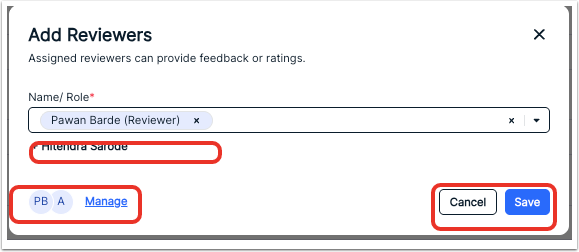
If you click on Add Reviewers, you can add assigned reviewers to provide feedback or ratings. Note that every owner is added as a reviewer. To add additional reviewers, click the plus (+) sign next to their name or select from the drop down. Click the Manage button to manage the reviewers. Click the X next to a reviewer to remove them.
Hit Save to finalize the reviewers or Cancel to back out.
Click Next to move on to the next step. You can also click Save to save the RFP as a draft, Previous to go to the prior screen, or Cancel to back out entirely.
Creating an RFP Template
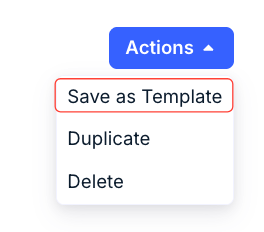
Note that you can save an RFP as a template at any time by selecting Save as Template from the Actions drop-down menu.
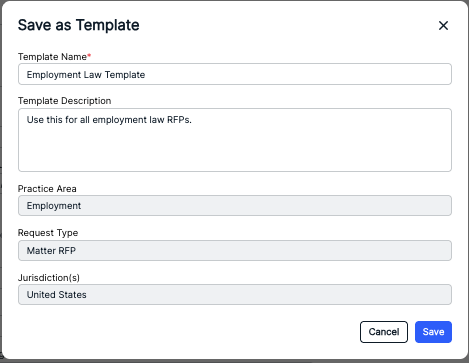
After clicking Save as Template, you'll have to fill in the Template Name and Template Description; Practice Area, Request Type, and Jurisdiction(s) are automatically populated. Click Save to save the template or Cancel to back out.
The new template will appear as an option after you start a new request. Note that MOST of the information will pre-populate from the template into the new RFP; however, you'll still have to fill in:
- Request Start and End Date
- Budget Start and End Date, if applicable.
- The Reverse Auction option
- The Matter Name(s)
- Involved Parties and Conflicts
- The Scope and Vendors
You can manage templates in the Settings section.
- Defining Scope
In the next step, you can add:
A summary of the RFP case for the recipients.

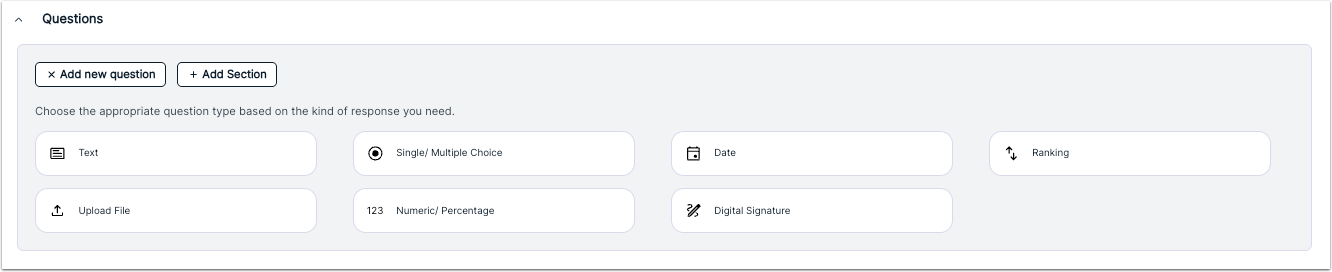
- Questions for the recipients. You can select from several different types of questions, including Text, Single/Multiple Choice, Date, and Ranking; you can also choose the Upload File, Numeric/Percentage, and Digital Signature options. Click Add new question to add a question or Add Section to add a full section.
Question Types
Question types include:
Text: Needing a written text response. Fill out the text field with your question. You can toggle whether to make this question Required, and, if you want, provide a Long Answer field option to increase the number of characters allowed. You can click the up/down arrows to move the question or click the Delete (trash can) to remove the question.

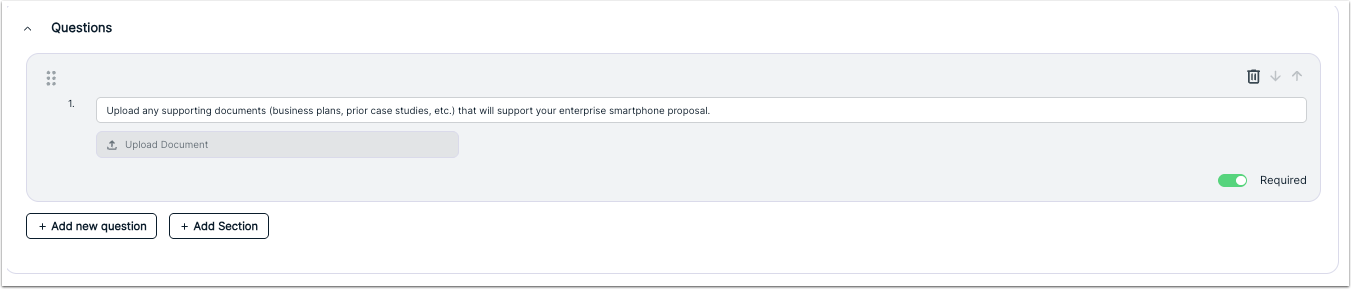
Upload File: An option for the responder to provide written responses, supporting materials, or other uploads. Fill in the text field with any instructions. You can toggle whether to make this question Required. You can click the up/down arrows to move the question or click the Delete (trash can) to remove the question.
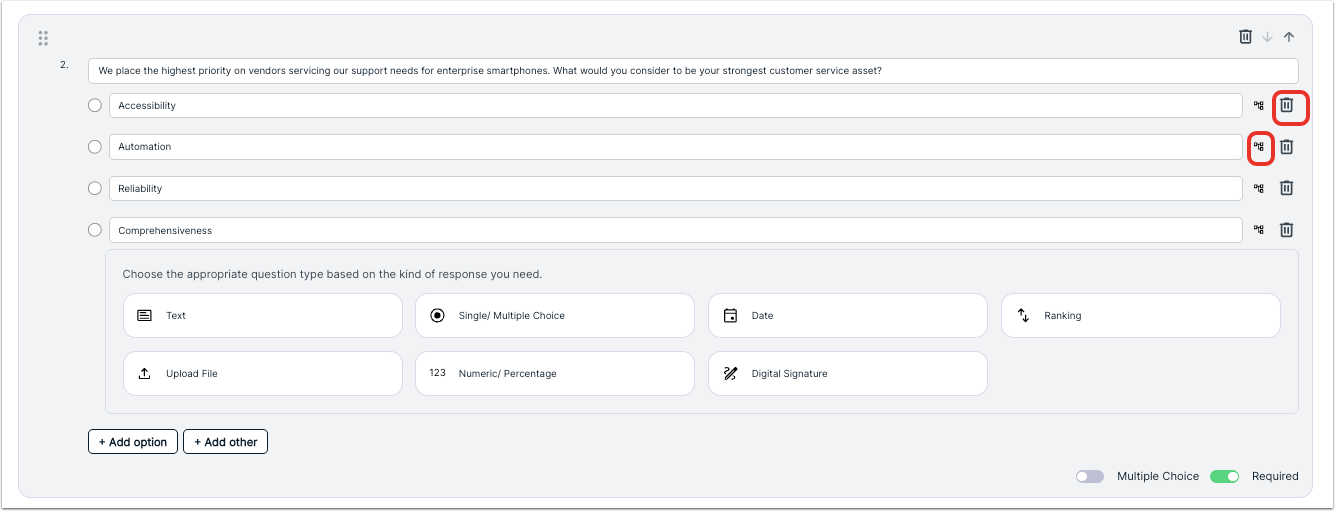
Single/Multiple Choice: Needing a single or multiple choice response. Fill out the text field with your question and then Add Option(s) or Add Other to the possible responses. You can toggle whether to make this question Required and if you want to provide a Multiple Choice option. You can click the up/down arrows to move the question or click the Delete (trash can) to remove the question.
Note that you can also click on the Branch icon next to the Delete icon to add other sub-questions based upon the respondent's choice.
Numeric/Percentage: Add a question that requires a number or percentage format in the answer. Fill out the text field with your question. You can toggle whether to make this question Required and/or a Percentage. You can click the up/down arrows to move the question or click the Delete (trash can) to remove the question.

Date: Add a question that requires a date or date range in the answer. Fill out the text field with your question. You can toggle whether to make this question Required and/or a Date Range instead of a single date. You can click the up/down arrows to move the question or click the Delete (trash can) to remove the question.


Digital Signature: Add a place to upload a digital signature (which will restrict uploads to image file types). Fill out the text field with any instructions. You can toggle whether to make this signature Required. You can click the up/down arrows to move the question or click the Delete (trash can) to remove the question.

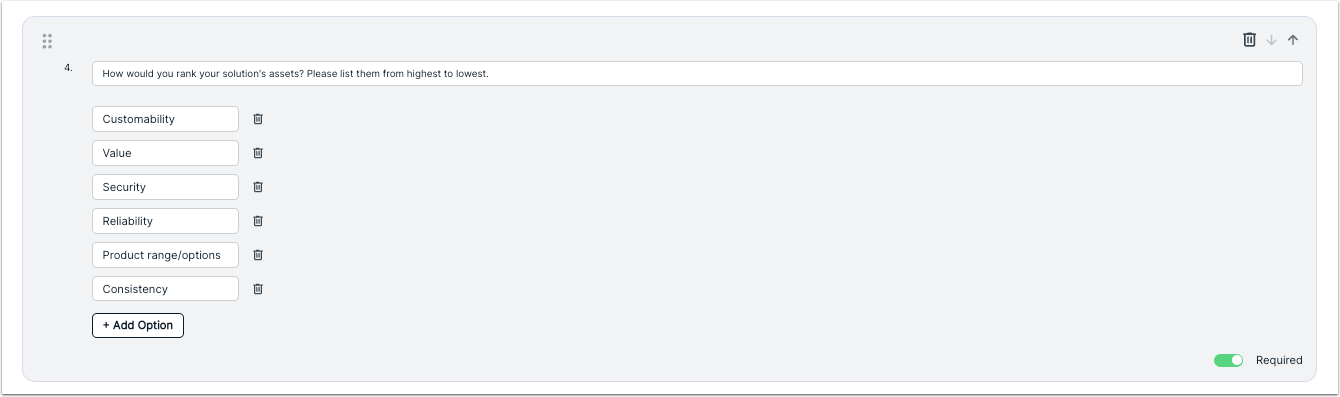
Ranking: Add a question that requires ranking of answers. Fill out the text field with your question and click Add Option to add options for ranking; click the Delete (trash can) to remove an option. You can toggle whether to make this question Required. You can click the up/down arrows to move the question or click the Delete (trash can) to remove the question.
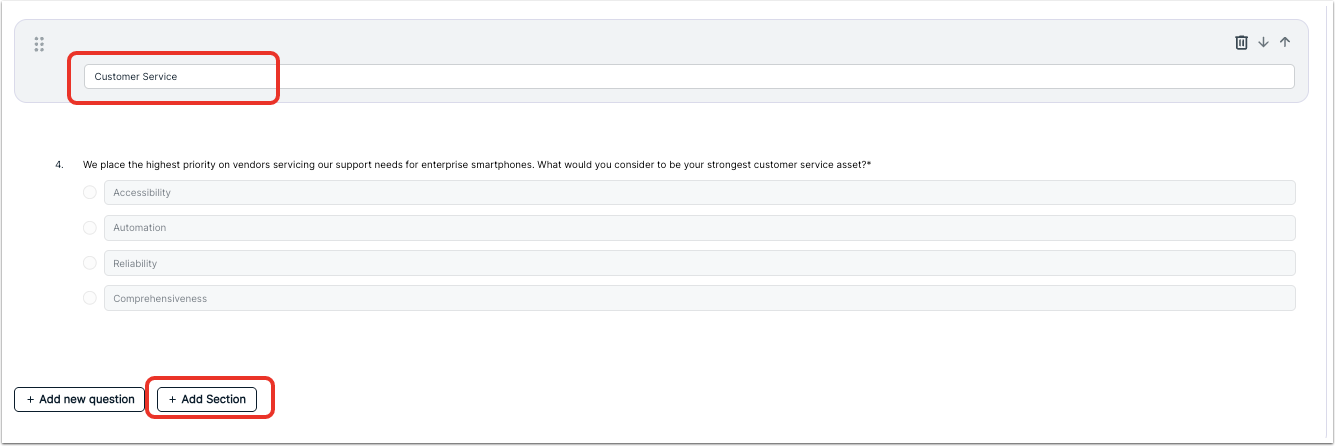
You can also click Add Section to add a new section to your questions. You'll have to fill in a section title; once you do, you can drag-and-drop questions underneath it or move the entire section.
You can click the up/down arrows to move the section or click the Delete (trash can) to remove the section.
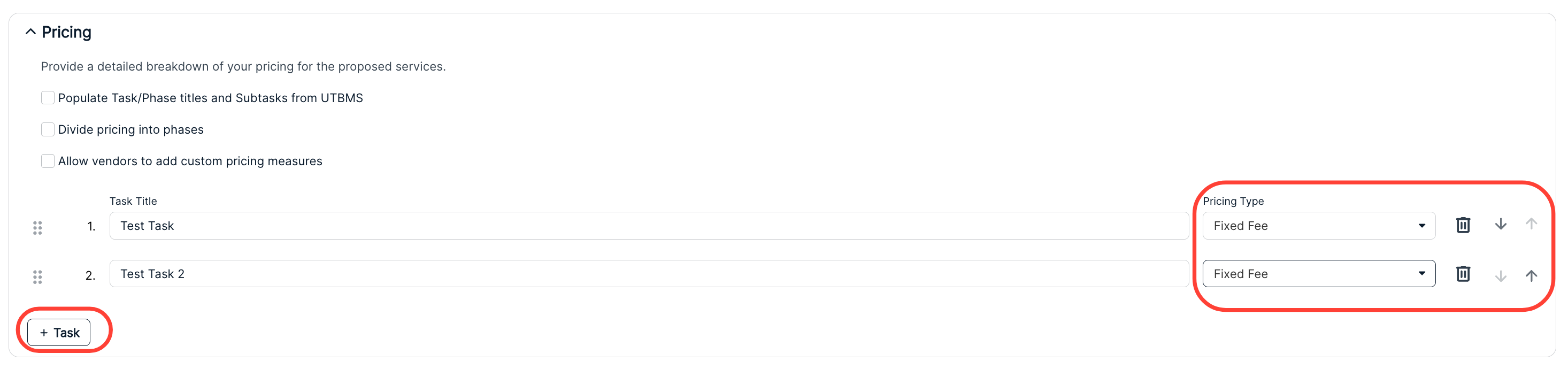
- The Pricing section, where you can provide a detailed breakdown of your pricing for the proposed services. Here, you can choose to:
- Populate Task/Phase titles and Subtasks from UTBMS
- Divide pricing into phases
Allow vendors to add custom pricing measures

Click on Task to add a task to the pricing; you'll have to add the Task Title and choose the Pricing Type (Fixed Fee or Hourly Fee) from the drop-down menu. Click the Delete (trash can) option to remove a task and use the arrows / dot symbols to move the tasks up or down on the list.
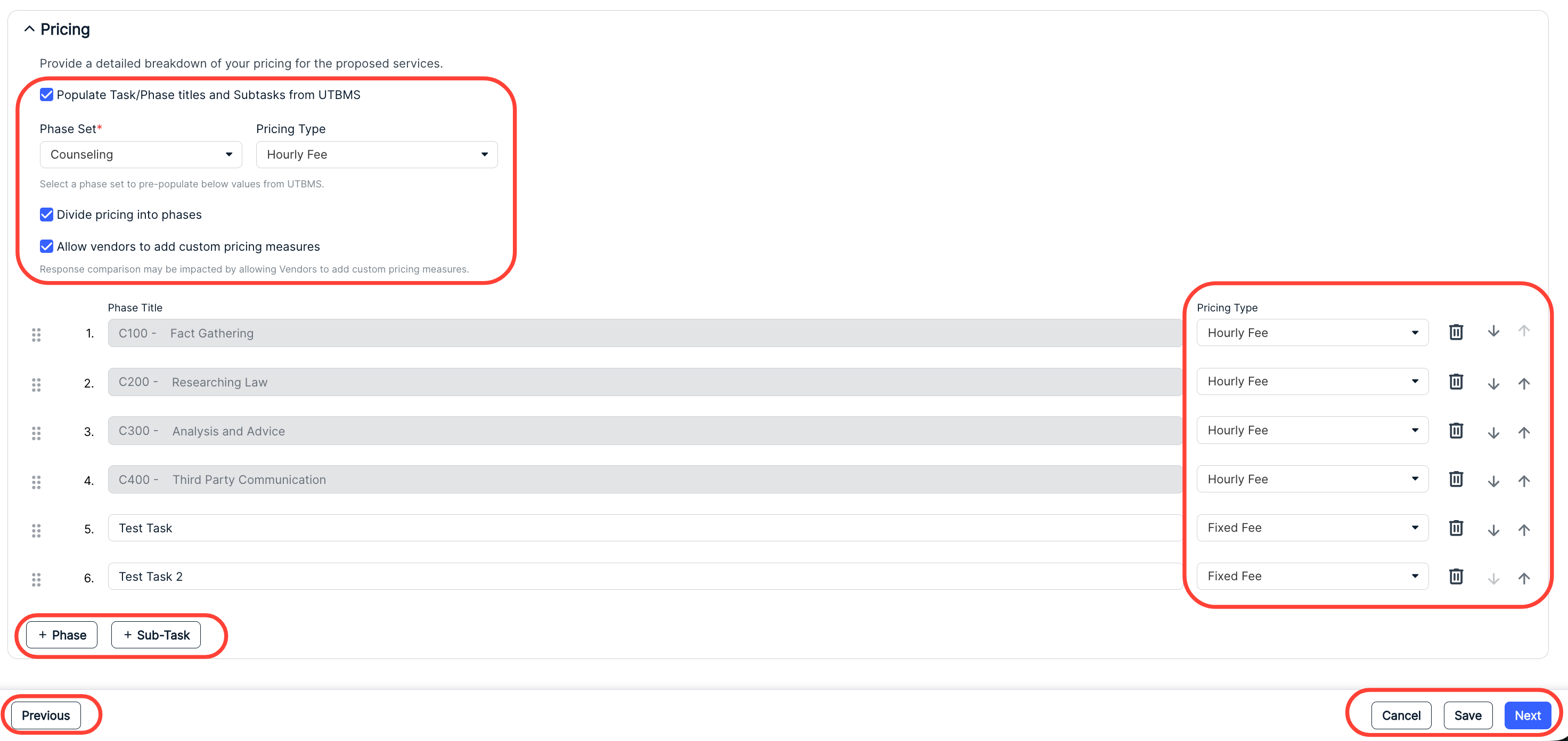
If you select Divide pricing into phases, users can choose the Phase Set and Pricing Type from drop-down menus; phase information will automatically populate. Users can specify the Pricing Type (either Hourly Fee or Fixed Fee, with more options coming soon), use the Delete (trash can) icon to delete a phase or sub task, or use the up/down arrows or dot pattern icon to adjust the order.
Users can also click on the Phase or Sub-Task buttons to add custom phases or subtasks.
Click on Next to move to the next stage or click on Save to save the in-progress RFP. You can also click Cancel to end your work, or click Previous to return to the previous screen.
- Inviting Vendors
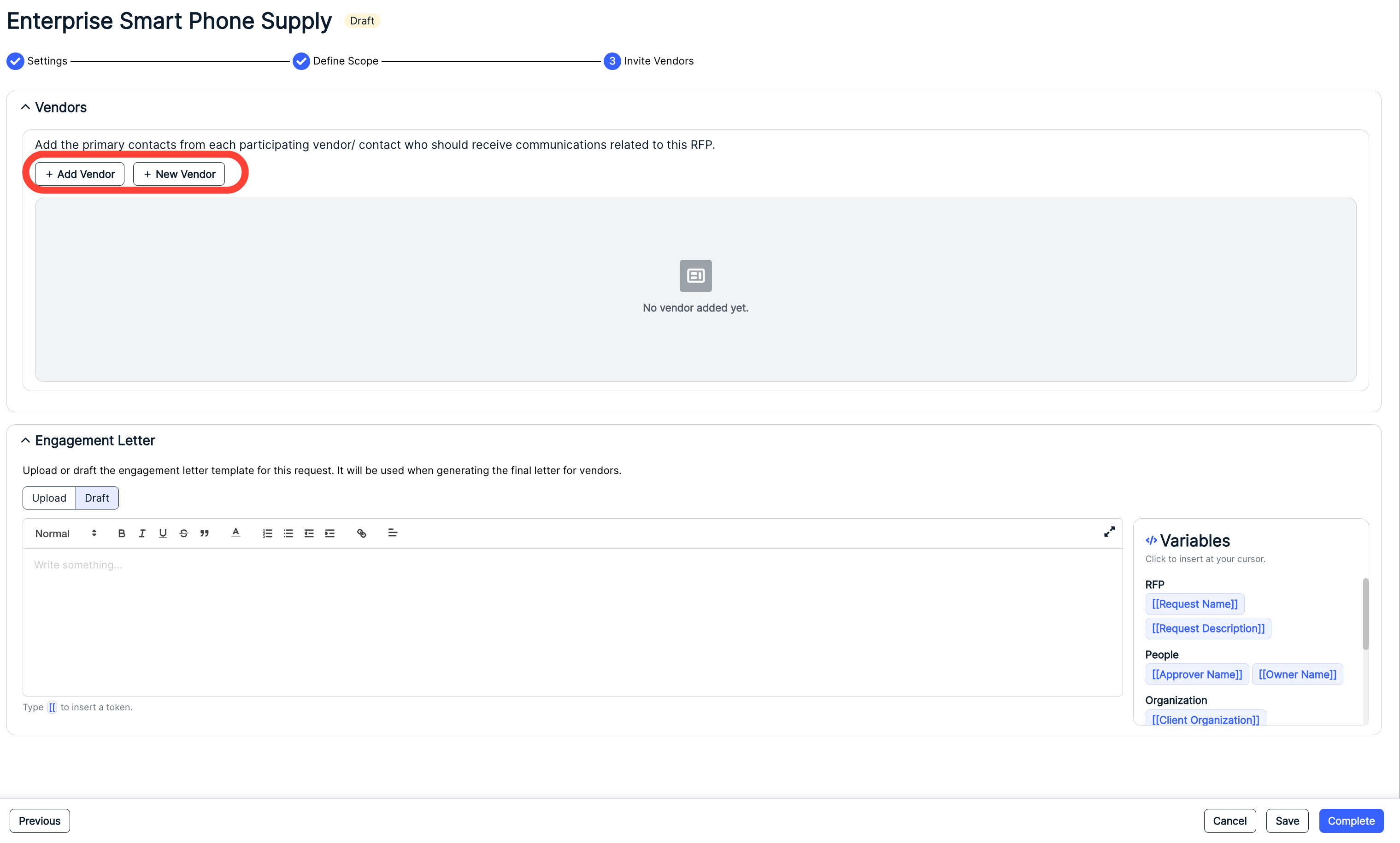
Finally, you'll move to the Invite Vendors/Contacts screen. There, you can invite vendors and contacts to receive the RFP and add an Engagement Letter.
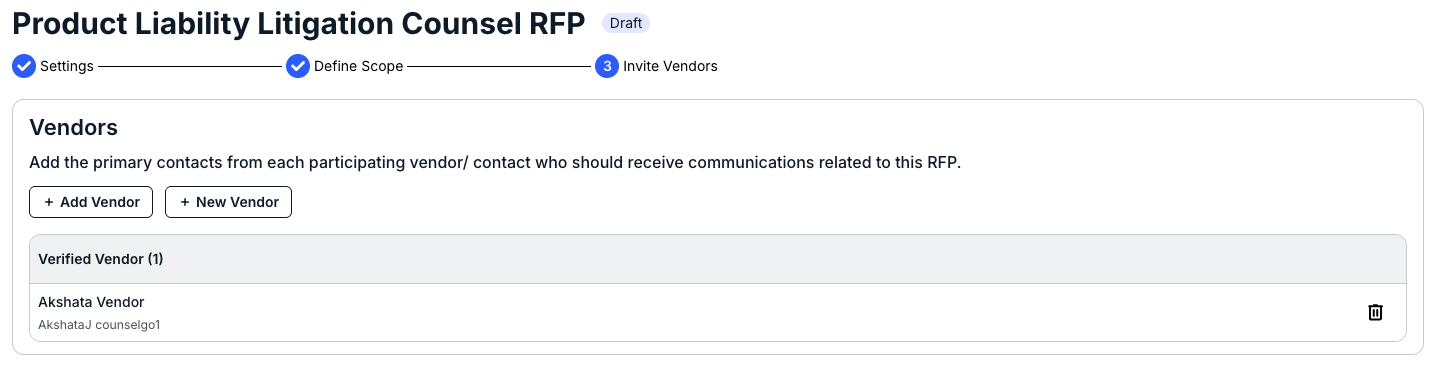
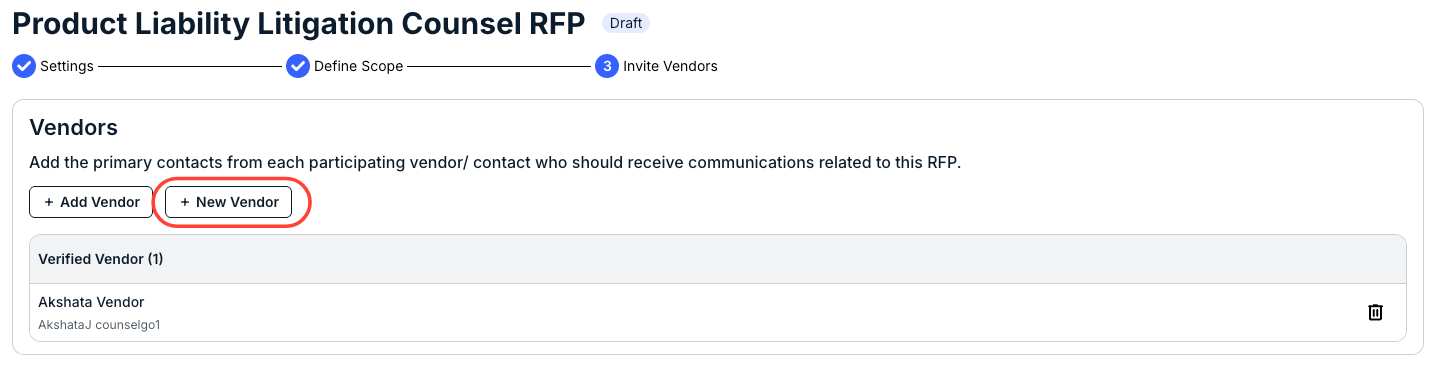
Click Add Vendor to add an existing vendor, or New Vendor to add a new vendor.
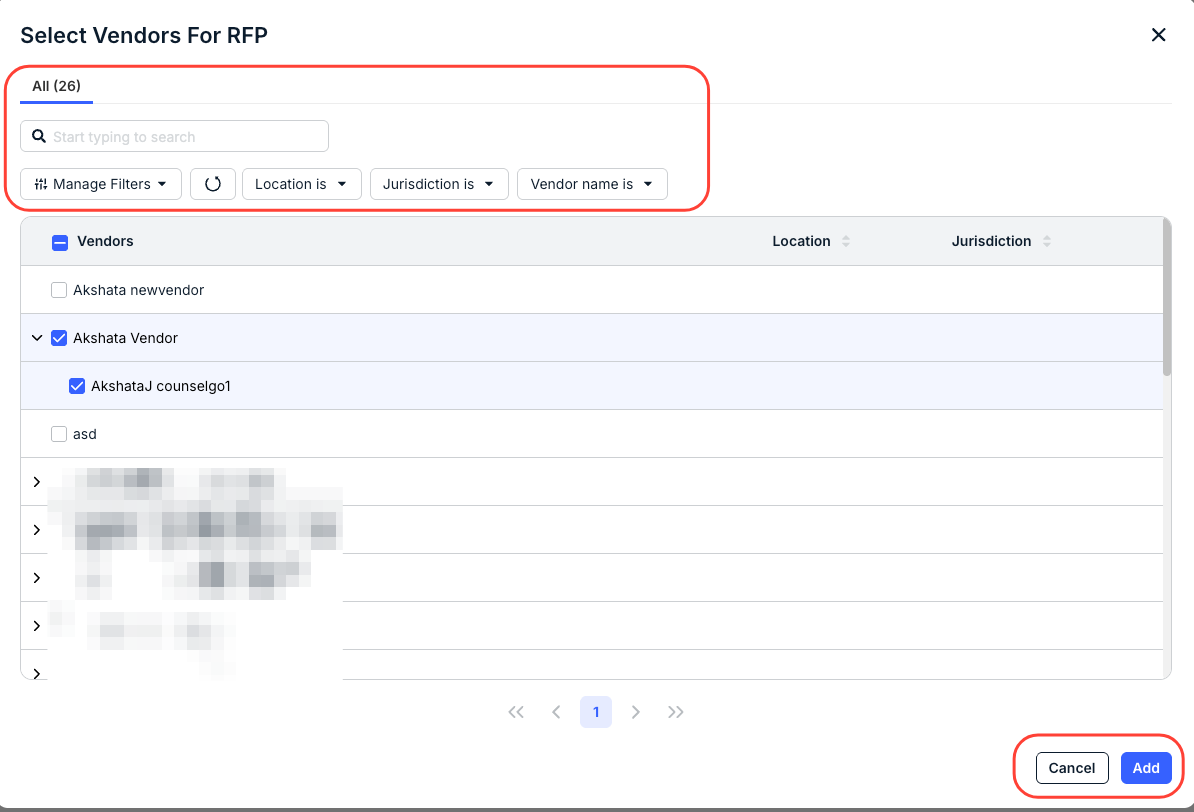
- Click Add Vendor to add an existing vendor.
You can use the Manage Filters or the top drop-down menus to customize which vendors you see on the screen, or use the search bar to find a specific vendor. The screen will display the name of the Vendors, their Location, and their Jurisdiction. Click the up/down button at the top of every column to sort by that column. Click the up/down arrow next to a specific vendor to select individual vendor contacts, or use the main check box to select all the vendor contacts.
Click the check boxes next to the vendor contacts you want to add (or click the top check box to add all of them for the vendor) and then click Add to add the vendor(s) or Cancel to back out.
- The vendor will display on the main screen as a "Verified Vendor."
Click the Delete (trash can) button to remove the vendor.
- Click New Vendor to add an entirely new vendor.
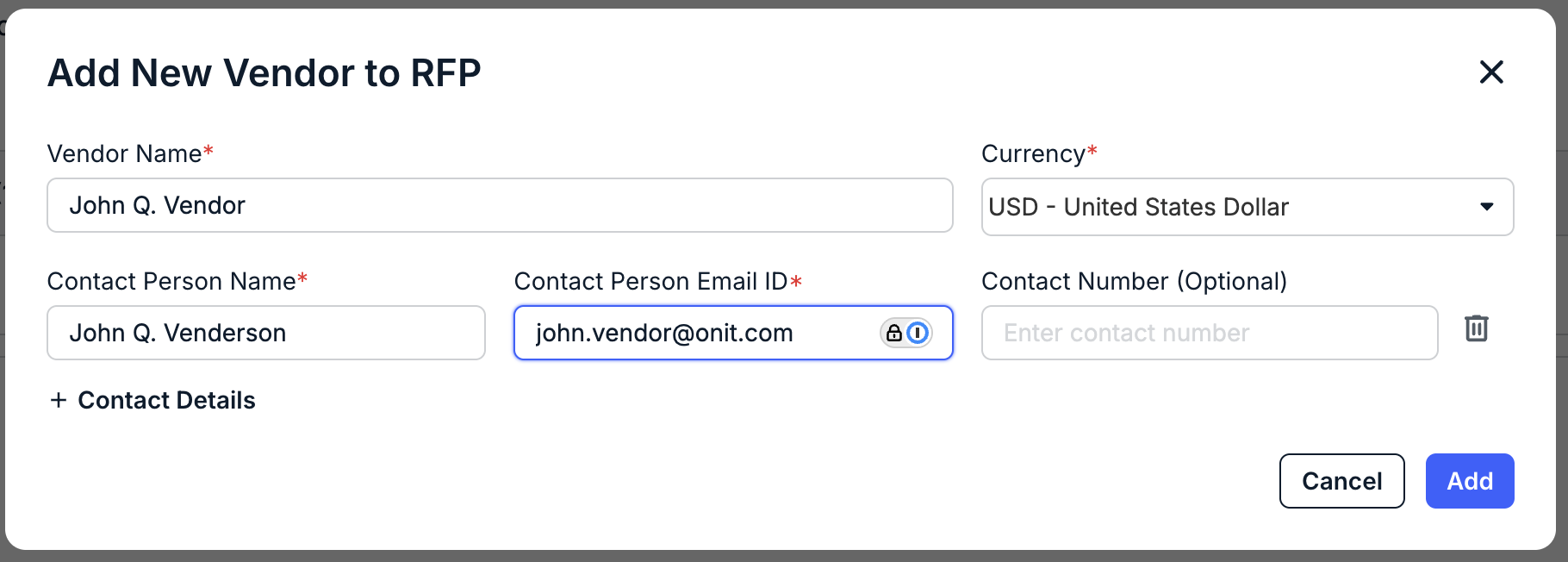
You'll have to fill out the:
- Vendor Name
- Currency
- Contact Person Name
- Contact Person Email ID
- Contact Number (Optional)
Fields with an asterisk (*) are required.
Click +Contact Details to add another contact person. You can click the Delete (trash can) icon to delete the contact person.
Click Add to add the contact or Cancel to back out.
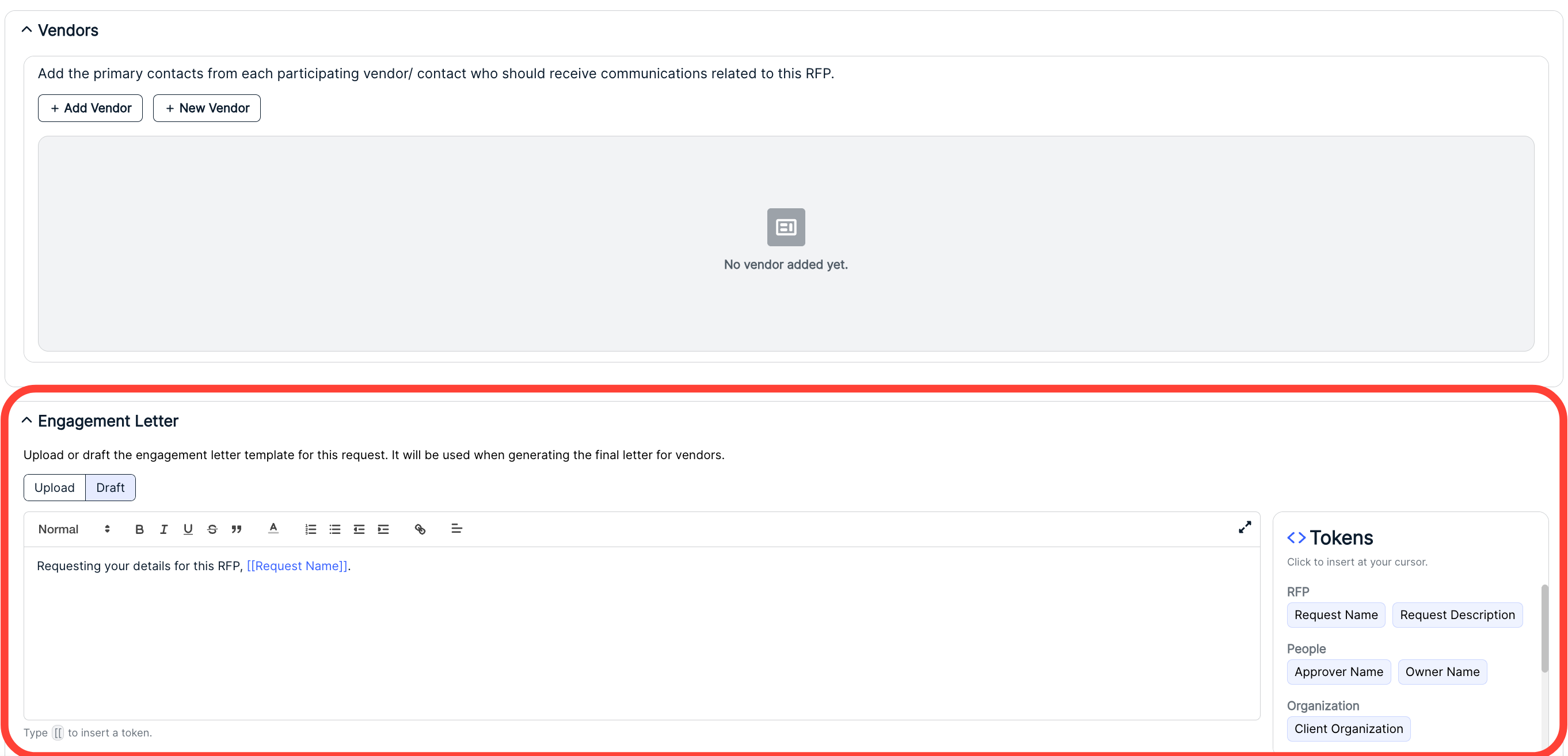
The New Vendor will show up as an Unverified Vendor in the system.

- Fill out the Engagement Letter text (if desired)
You can type your text in the main field or hit Upload to upload an existing document. Use the [[ command or the Tokens option on the side of the screen to insert tokens that will populate with information brought in from Onit.
Creating an RFP from an Existing Request
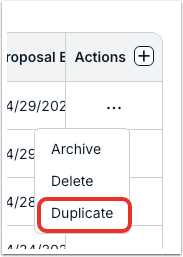
Note that you also have the option to create a request from an existing RFP by using the Duplicate action. You can do this one of two ways:
1) From the Actions menu on the main RFP directory
2) Or, from the RFP Actions menu on the upper-right-hand corner after opening up a request detail page.
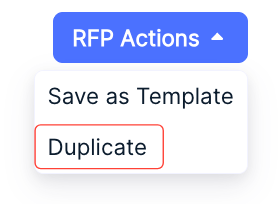
Either one will create a direct copy of the RFP in Draft stage, copying over all of the details for Settings, Scope, and Invite Vendors. You can find the copy in the main RFP directory.

- Click Add Vendor to add an existing vendor.
- Viewing Request Details
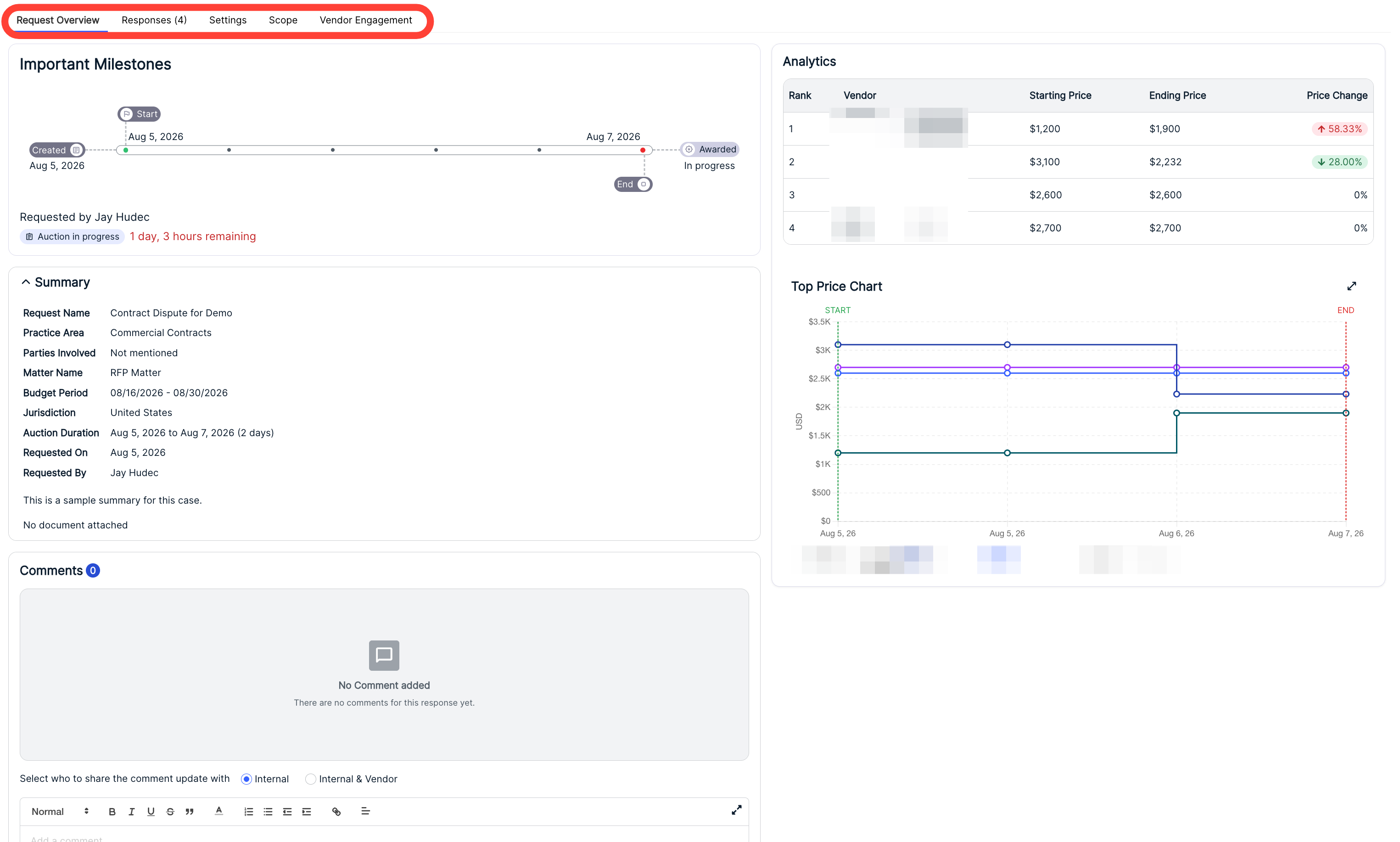
When you click on an individual request, you'll see the RFP details page. Use the top tabs to switch between the Request Overview, the Responses, RFP Settings, the Scope, and the Vendor Engagement.

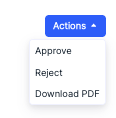
Note that you can also use the Actions menu in the top right of the screen to perform key actions on the document. Note that these options will change depending on the status of the document. Use the Download PDF option to download the full RFP as a .PDF file.
Request Overview
The Request Overview delivers:
- Important Milestones for the request; this will show key dates (creation, awarded, RFP delivery) along with the Status.
- Analytics about the request, including a Top Price Chart and comparison of bids in the Reverse Auction.
- A Summary of the request, with key information
- Any Questions included in the request and a place to provide Comments
Responses
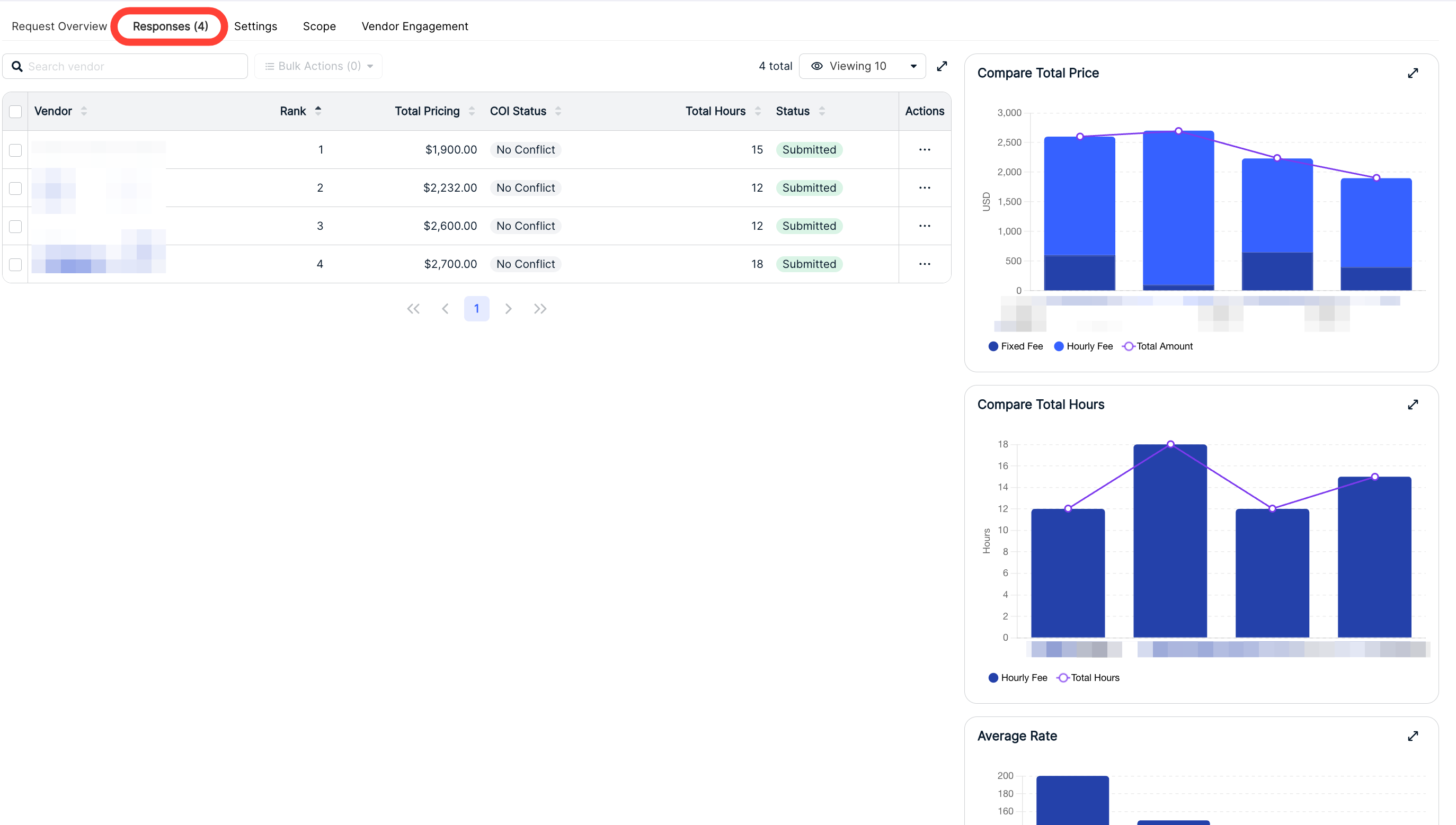
- Click into Responses to view the RFP responses.
Here, you can see the response details, including Vendor, Rank, Total Pricing, COI Status, Total Hours, and proposal Status. Click the up/down arrow at the top of each column to sort by that column. Use the search bar to search for vendors. Graphs on the side of this screen will allow you to Compare Total Price, Compare Total Hours, and view other important metrics.
The proposal response Status could be:
- Submitted: Response is submitted.
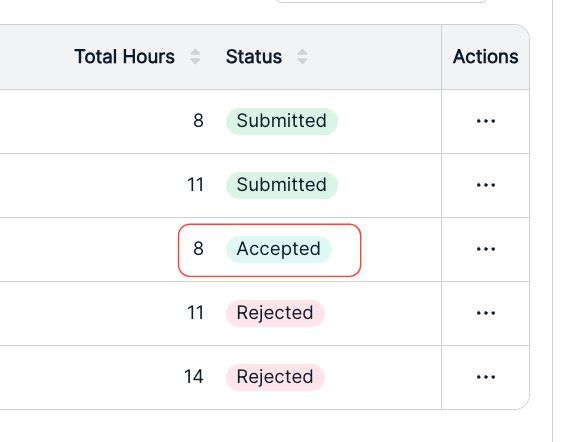
- Accepted: Proposal is accepted.
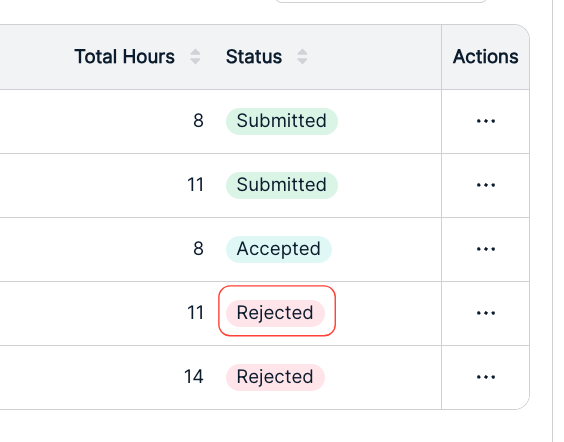
- Rejected: Proposal is rejected.
- In Negotiation: In negotiating rounds with the vendor.
- Awaiting Vendor Acknowledgment: Waiting for the vendor to acknowledge their engagement letter.
COI Status could be:
- No Conflict: No conflict of interest.
- Pending: The vendor has submitted a COI.
- Waived: The vendor has had their COI waived (more on that option below).
- Disqualified: The vendor has been disqualified (more on that option below).
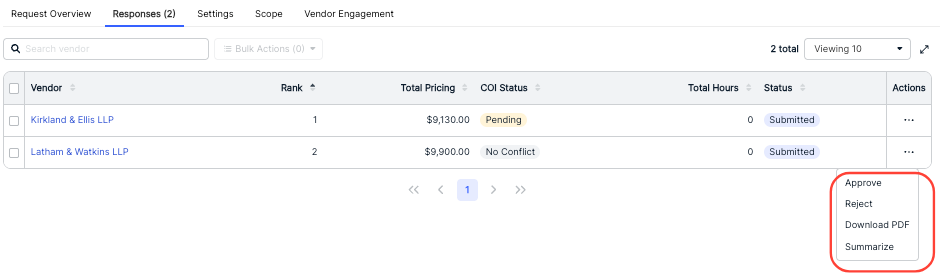
You can also use the three-button Actions menu to Approve the response, Reject the response or Download PDF.
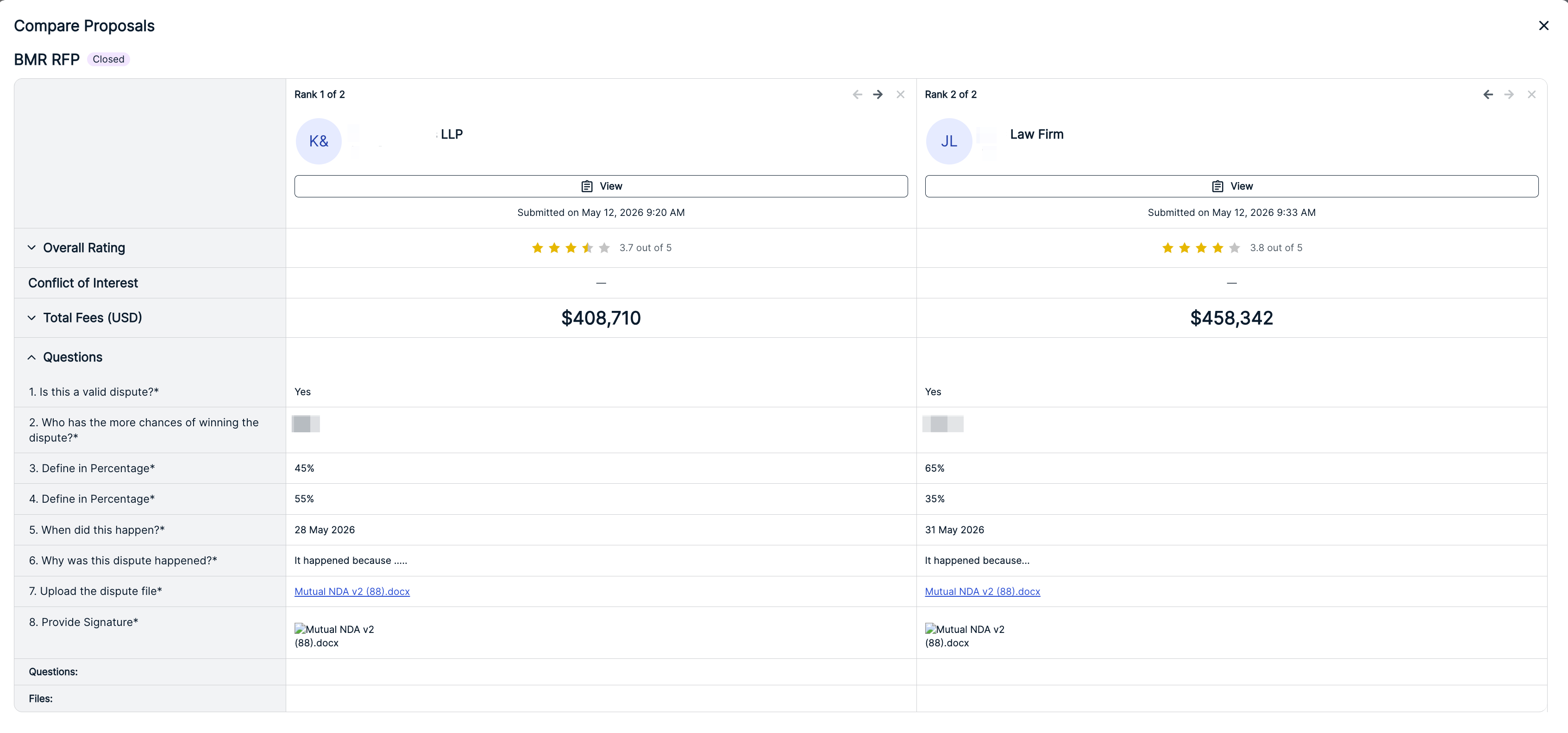
- Use the check boxes and the "Compare" option under "Bulk Actions" for a quick comparison between proposals.
You can also click the Download PDF to download the proposals as PDFs.

The Compare Proposals screen will allow you to get a quick comparison breakdown of the proposals sent in. Click the up/down arrows next to each left-hand heading to display or minimize the information.
- Click into the proposal to view the response details and evaluate it.
The Proposal Details screen has five different tabs: Proposal, Negotiation, Communications, Settings, and Activity Log.
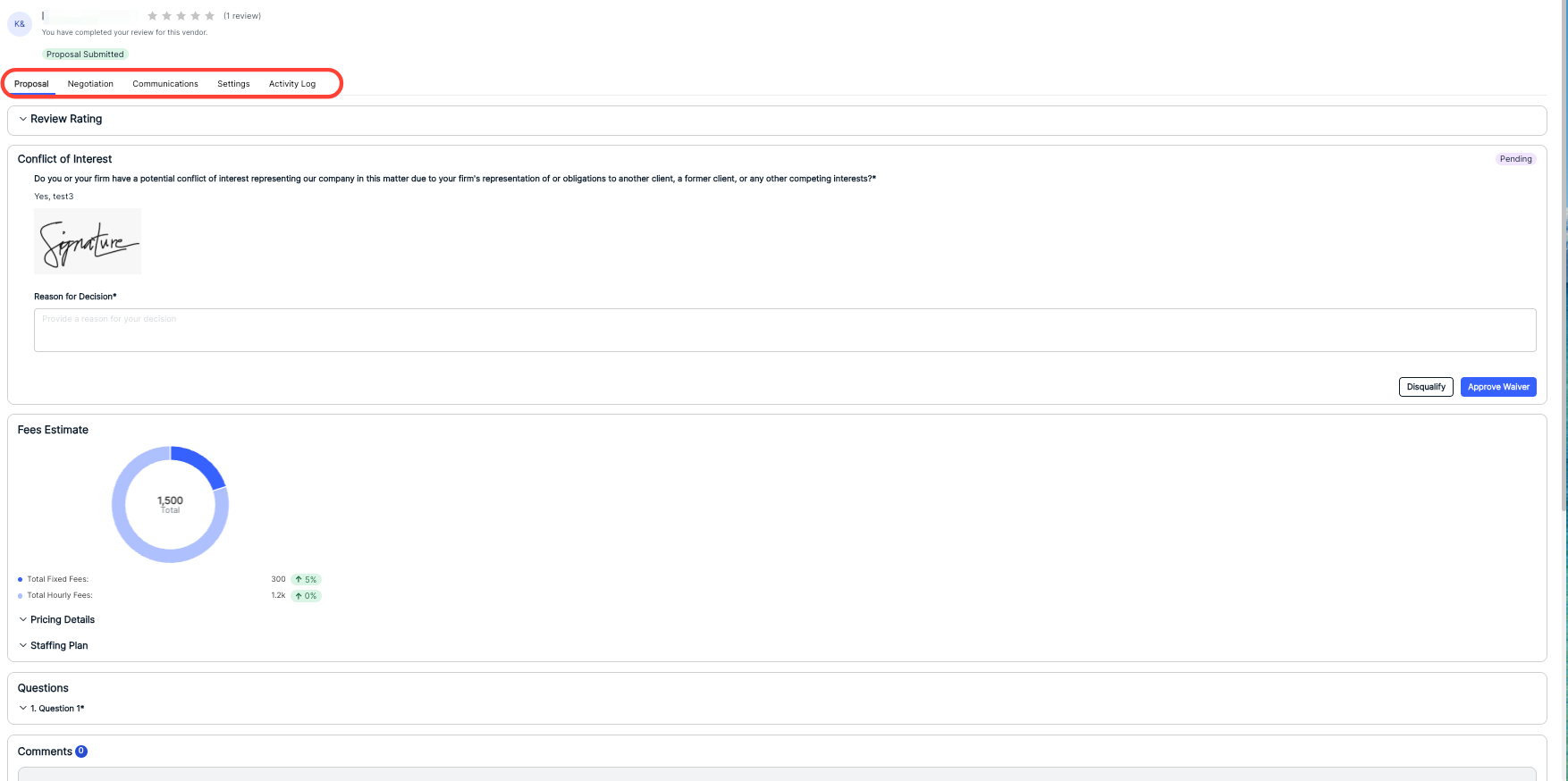
Proposal
On the Proposal tab, users will be able to provide a Review Rating, view the responses to the Conflict of Interest question, view the responses to any Questions, and view the Fee Estimates. They can also use the Comments section to communicate back and forth with the vendor. Note that the top of the screen will show review details and the current Status of the proposal.
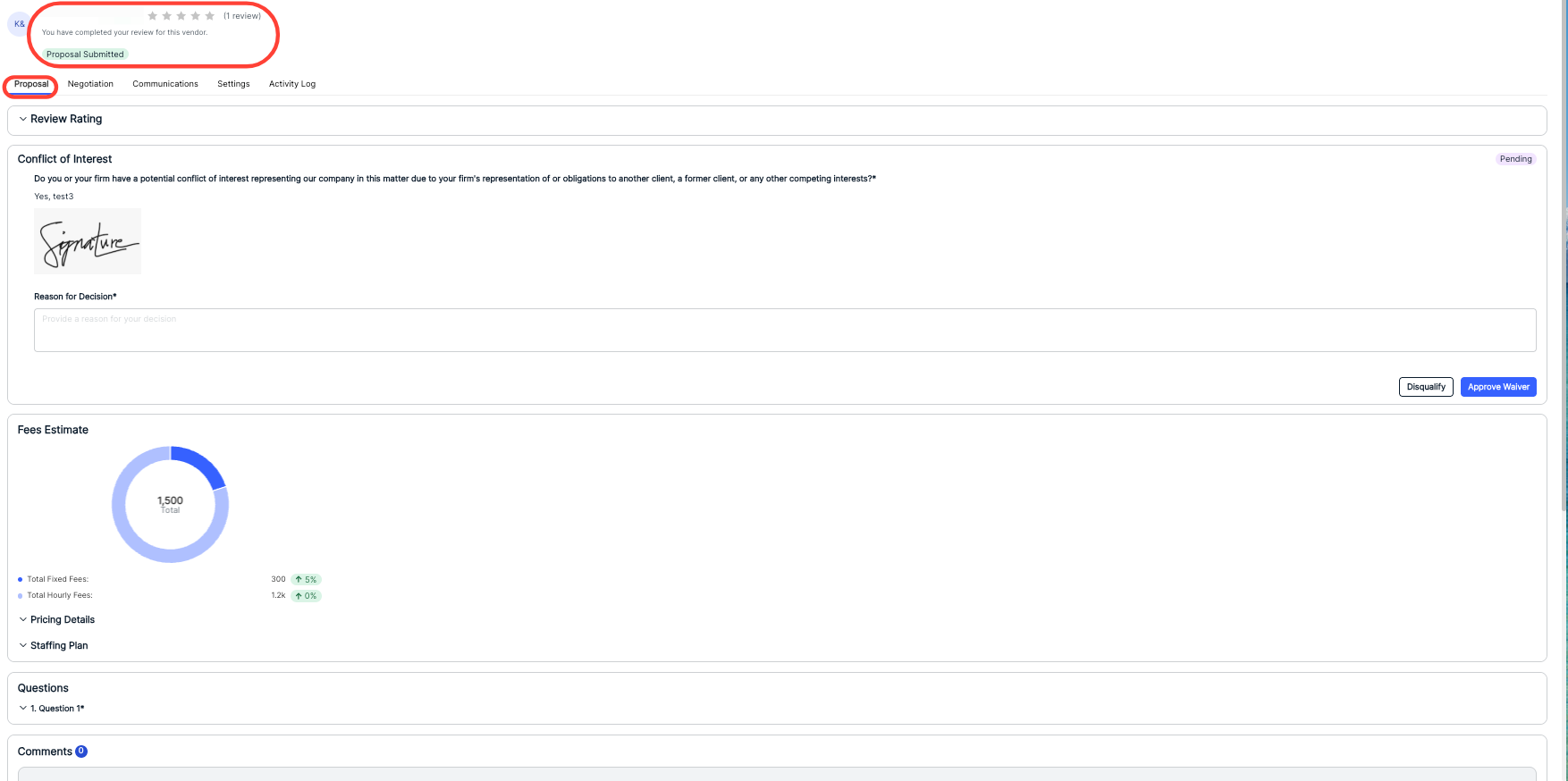
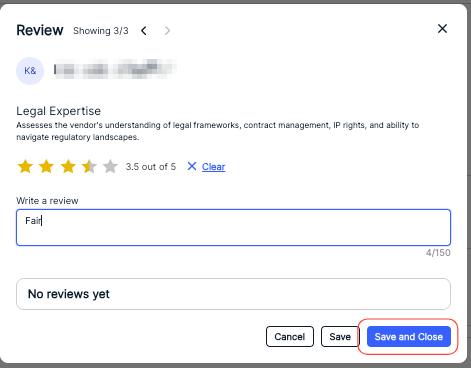
Use the Review Rating section to score the proposal. Users can click on the Review button on the Scorecard Criteria to evaluate the different parts of the proposal.
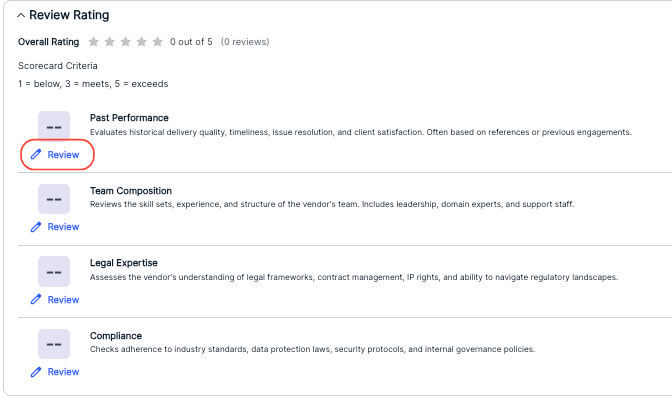
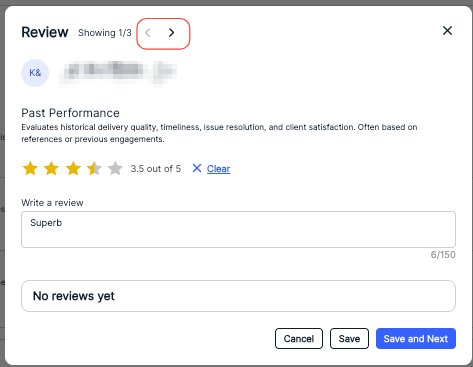
Users can rate on a scale of 1-5 stars, add comments, and view existing reviews. Click Clear to remove any reviews. The Overall Rating at the top will summarize the collected reviews. Use the arrows at the top of the screen to cycle through the criteria.
Click Save to save the review of one criterion, Save and Next to save a review and move on to the next criterion, to send in the review or Cancel to back out. The final criterion will have a Save and Close option.
Under the Conflict of Interest Section, you can see the respondent's Conflict of Interest Response. Here, you can review the response and either Disqualify the response or Approve Waiver to let them move on in the process.
Negotiation
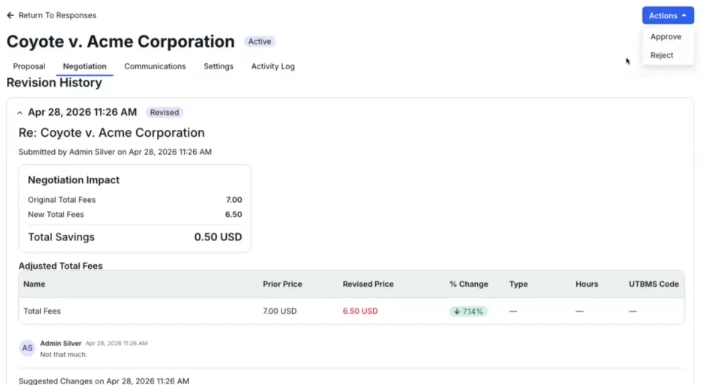
Click the "Negotiation" option to continue negotiating with the vendor.
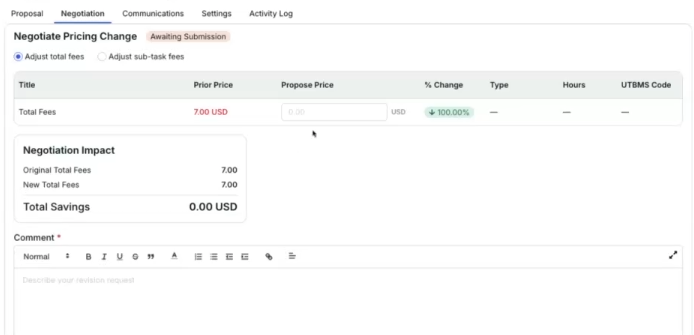
If the pricing after the reverse auction is not satisfactory, but you still want to work with the firm, you can use this tool to continue negotiating.
Here, you can update the Total Fees and Sub-Task Fees. The Negotiation Impact screen will display updated numbers to reflect the impact.
You can add any Comments to the negotiation on this screen. Hit Submit to send the negotiation in, Save to save your work and come back later, or Cancel to back out.
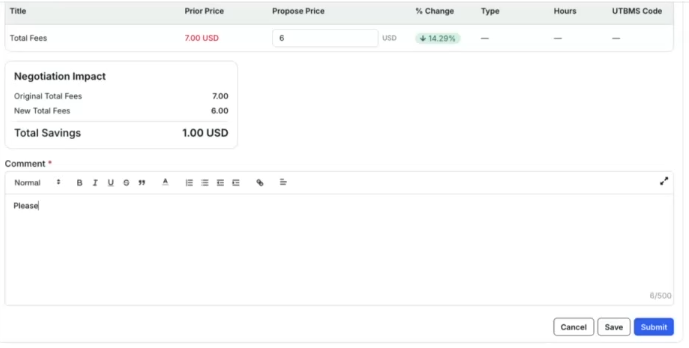
The vendor will send back their negotiated rate. From there, you can Approve or Reject their submission.
Communications
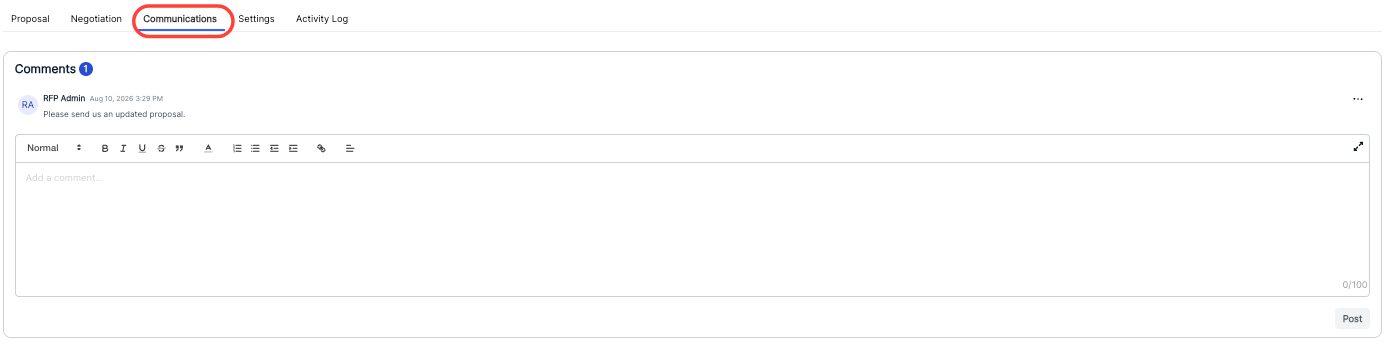
Use the Communications tab to send comments to the vendor (and view any responses). Use the Add a comment field to send a comment to the vendor. Any existing comments will appear at the top of the screen.
Settings
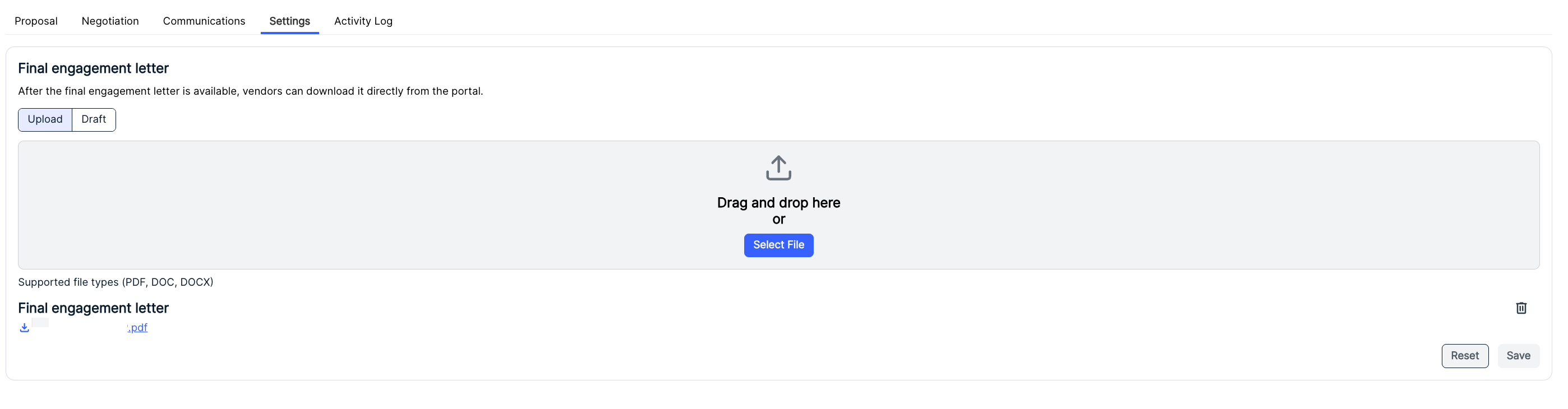
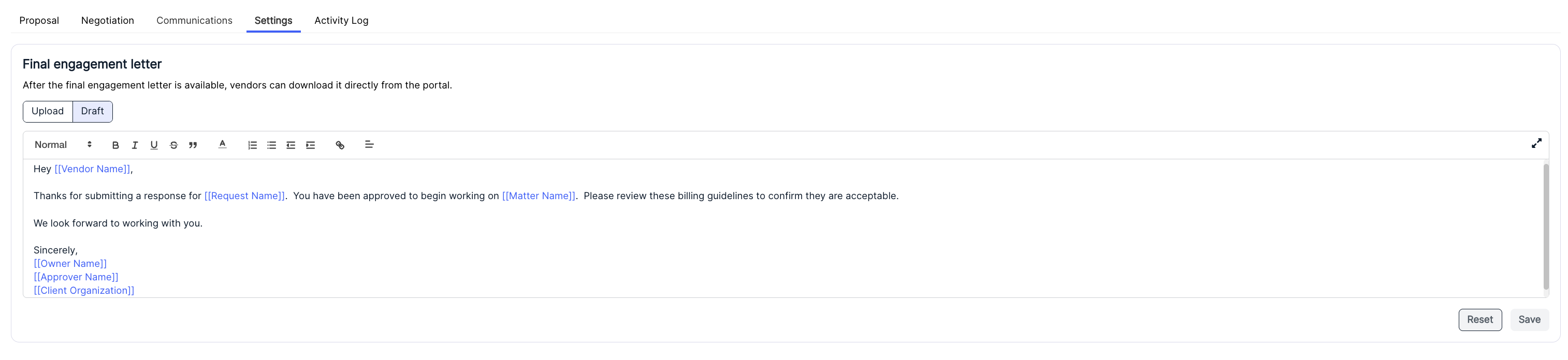
Use the Settings tab to view or create the Engagement Letterfor the vendor. Use the Upload tab to view uploaded files or upload new files or the Draft tab to draft a new letter.
Note that if an engagement letter has already been drafted, it will appear here with the tokens populated correctly.
Activity Log
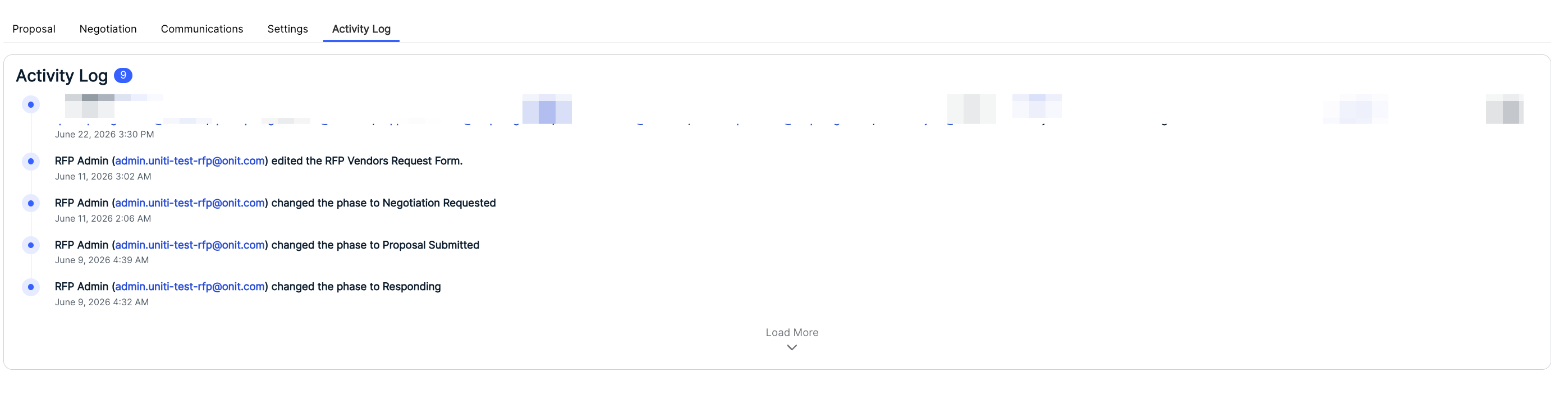
Use the Activity Log to view any activity on the response.
Settings
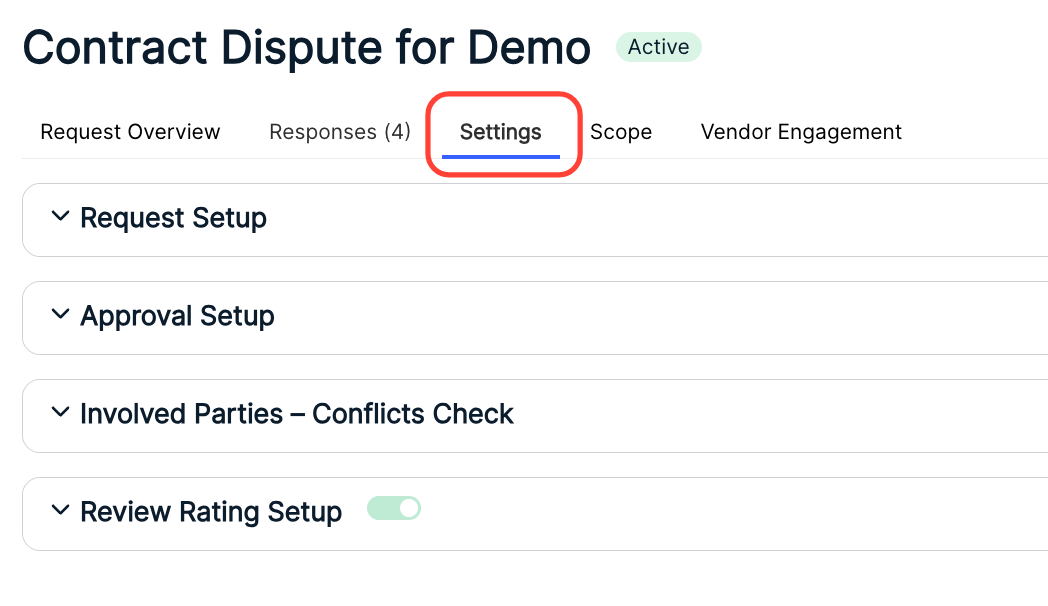
- The Settings tab lets you adjust key settings for the RFP.
You can adjust the Request Setup, Approval Setup, Involved Parties - Conflicts Check, and Review Rating Setup.
See the Starting a New RFP section for details on editing these elements. Note that these can be adjusted only if the RFP has not yet been published.
Click Save to finalize any changes or Cancel to back out.
Scope
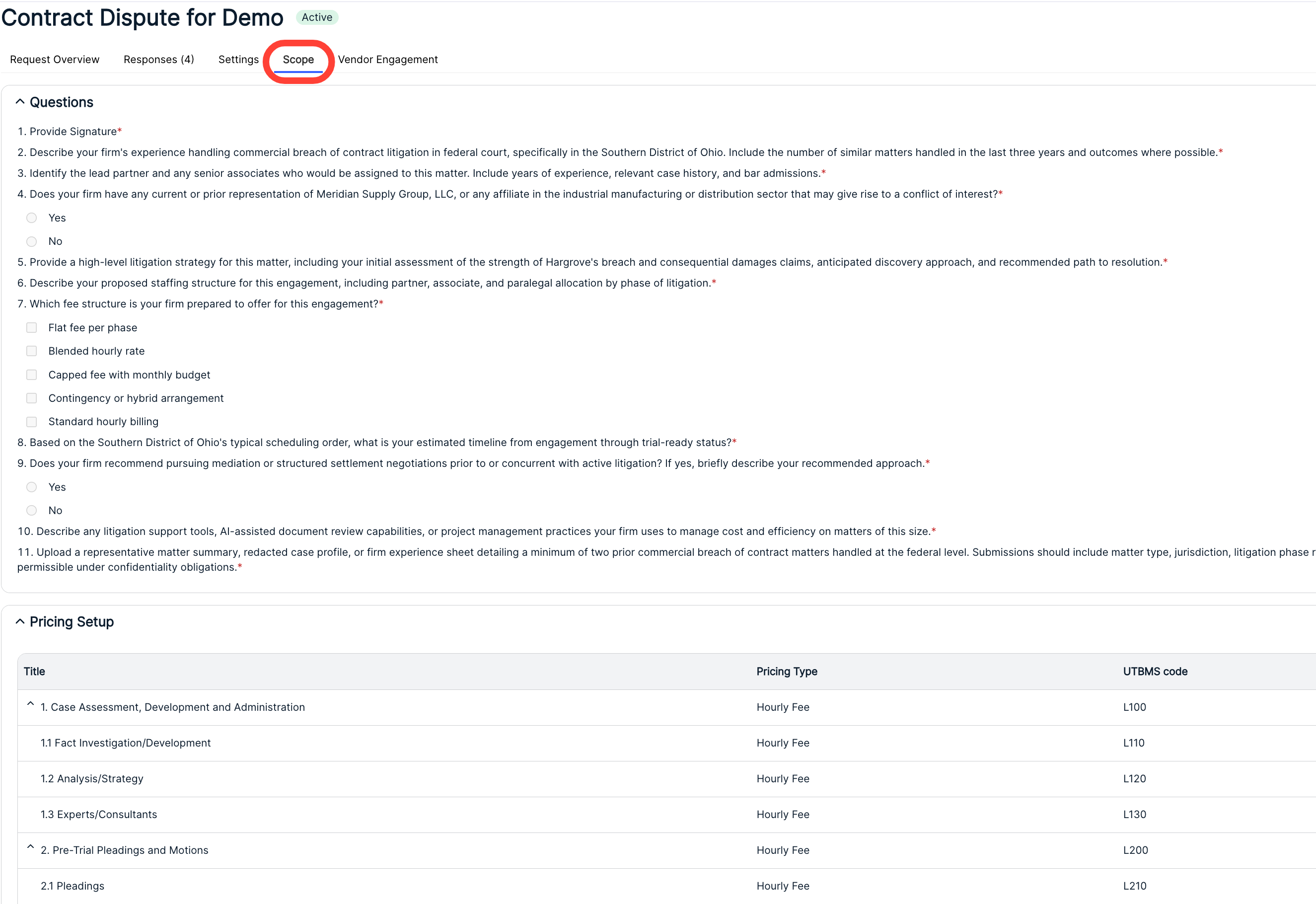
- Click Scope to see the existing Questions and Pricing Setup.
Vendor Engagement
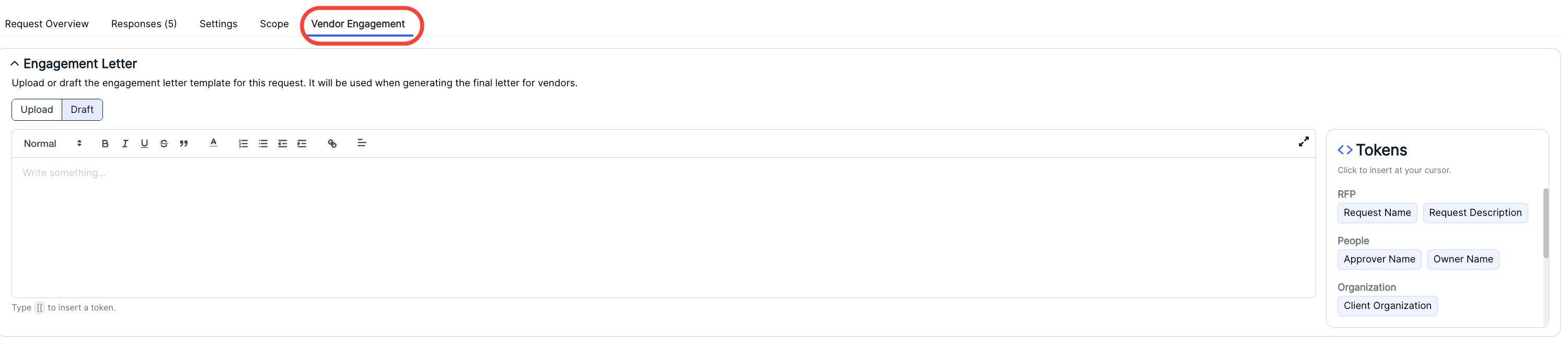
- Click on Vendor Engagement to draft an Engagement Letter, view Invited Vendors, and resend invitations to vendors.
You can type your text in the main field or hit Upload to upload an existing document. Use the [[ command or the Tokens option on the side of the screen to insert tokens that will populate with information brought in from Onit.
Click Save to save the changes or Cancel to back out.
The bottom half of the screen will show you a list of Invited Vendors. Click the up/down arrow to expand or contrast the pane.
You can also click Resend Invitation to resend the invitation to any vendor that has not responded.

Approving/Rejecting a Proposal
You can approve or reject a proposal through:
- The top Actions menu within a proposal.
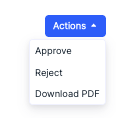
- The three-button Actions menu within the Responses tab of the RFP.
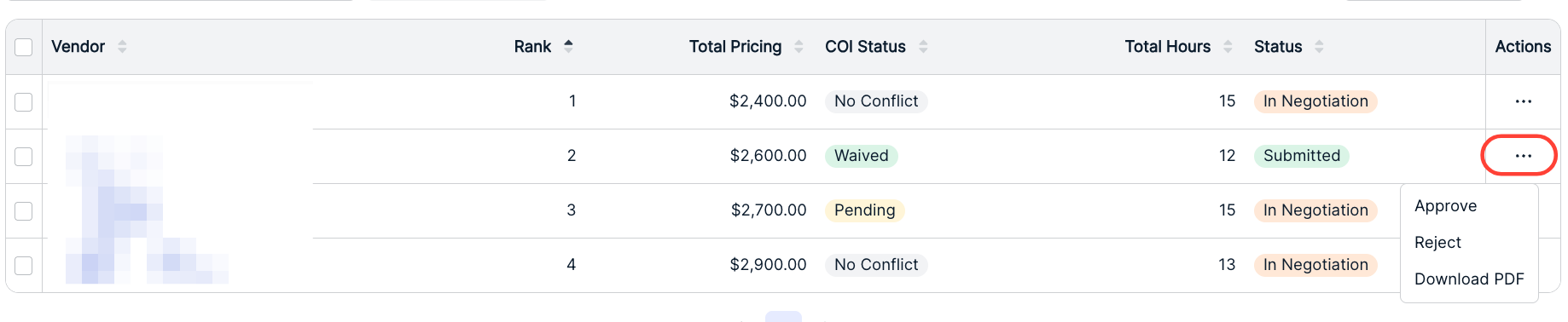
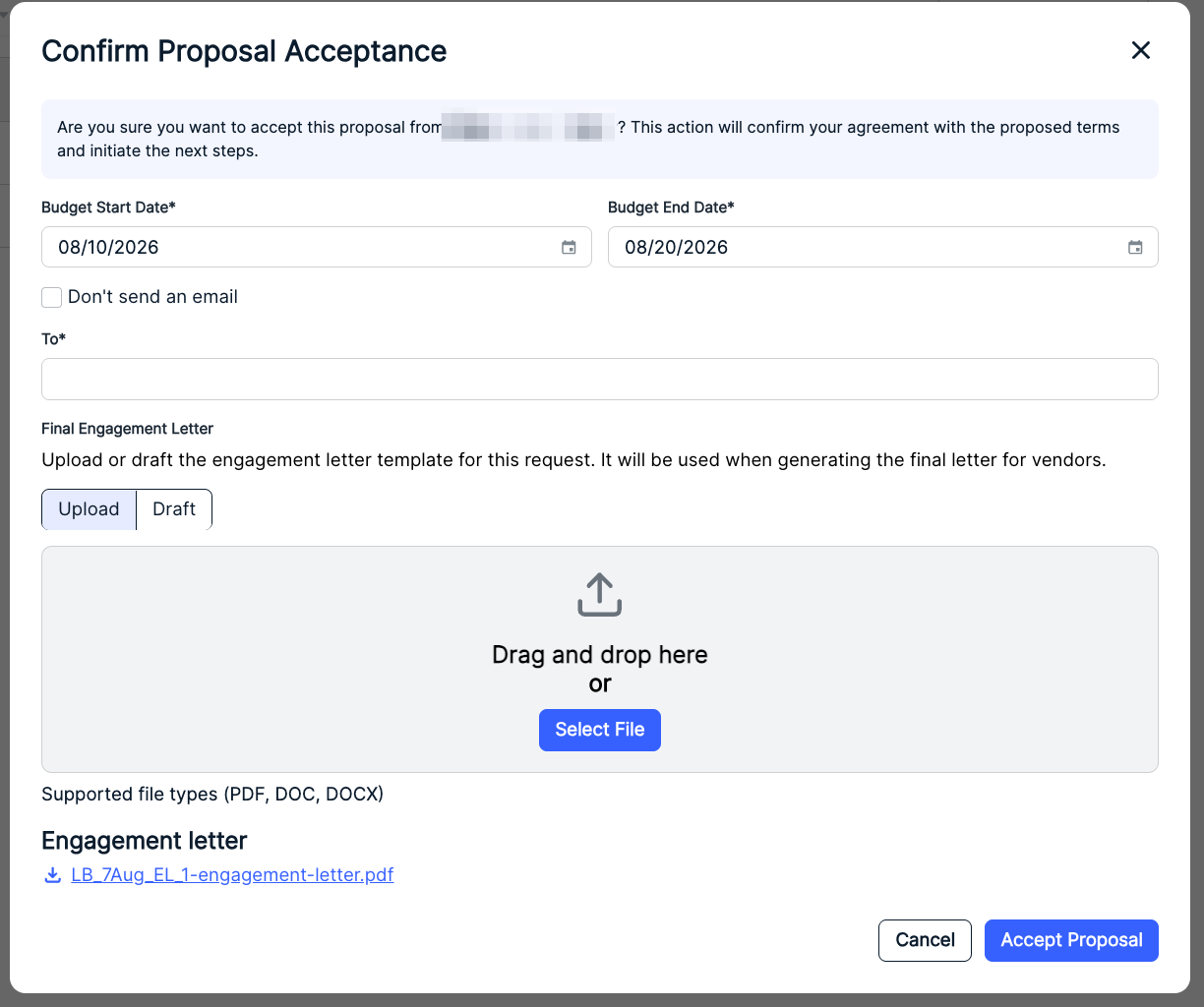
- If you Approve a proposal, the "Confirm Proposal Acceptance" screen will appear.
Here, you can:
- Set the Budget Start and Budget End Date
- Select or unselect the Don't send an email check box. This will prevent the engagement letter from being sent.
- Fill in the To email of the acceptance recipient (note that this field will disappear if you choose the Don't send an email option)
- Write or upload a Final Engagement Letter
Click Accept Proposal to accept the proposal or Cancel to back out.
The status will move to Accepted in the responses.
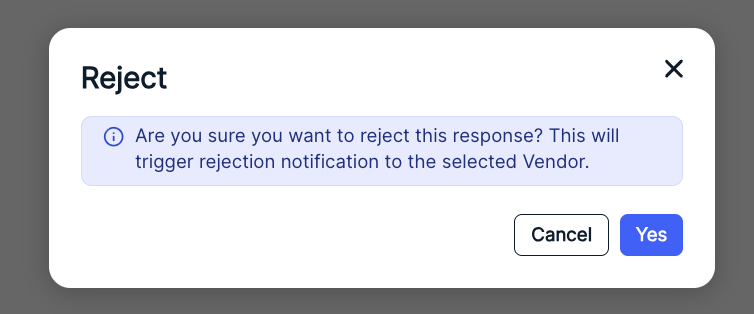
- Click "Reject" to reject the response.
This will trigger a rejection notification to the selected vendor.
The status will move to Rejected in the responses.
Granting a Unity User Access to Unity RFP
Here's how to give a Unity user access to RFP:
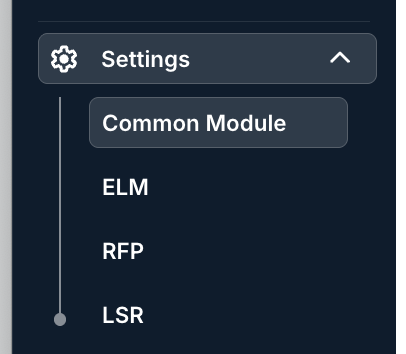
- Navigate to the "Settings" menu on the left-hand side menu within Unity and click on "Common Module."
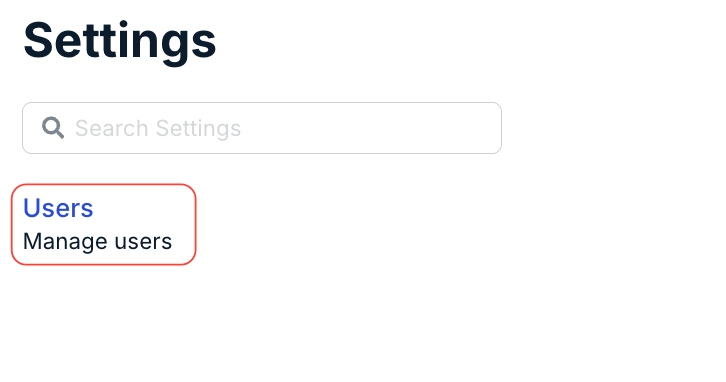
- Click on the "Users" link.
- Click on the user you want to grant access to.
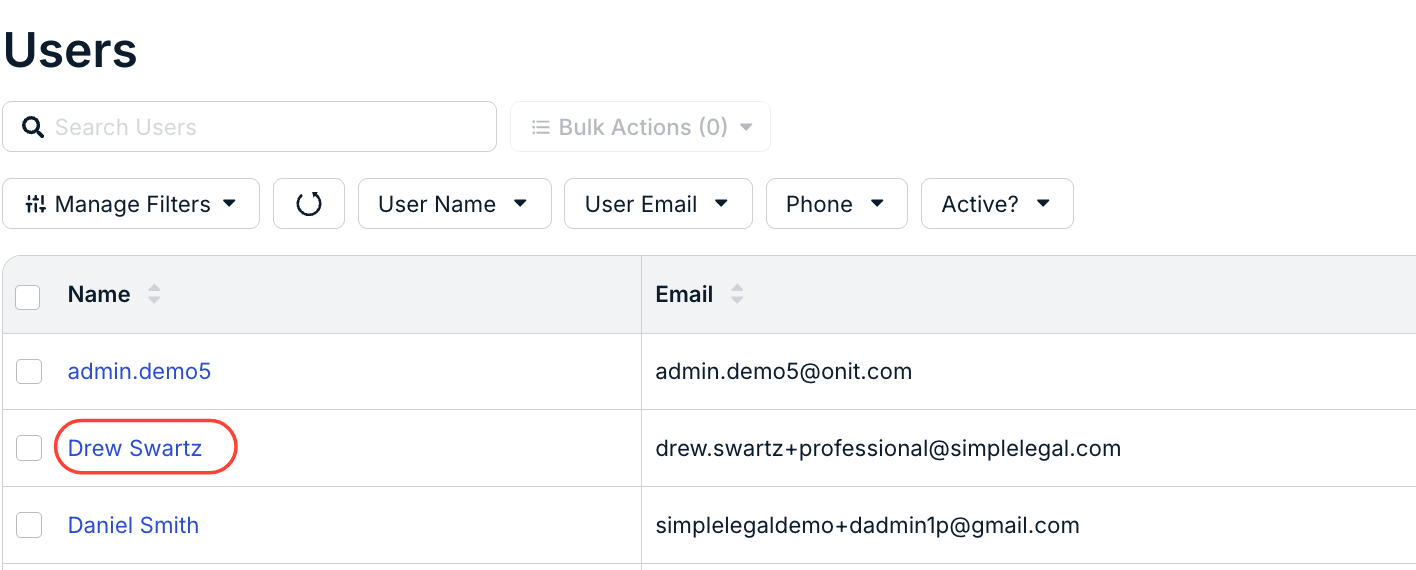
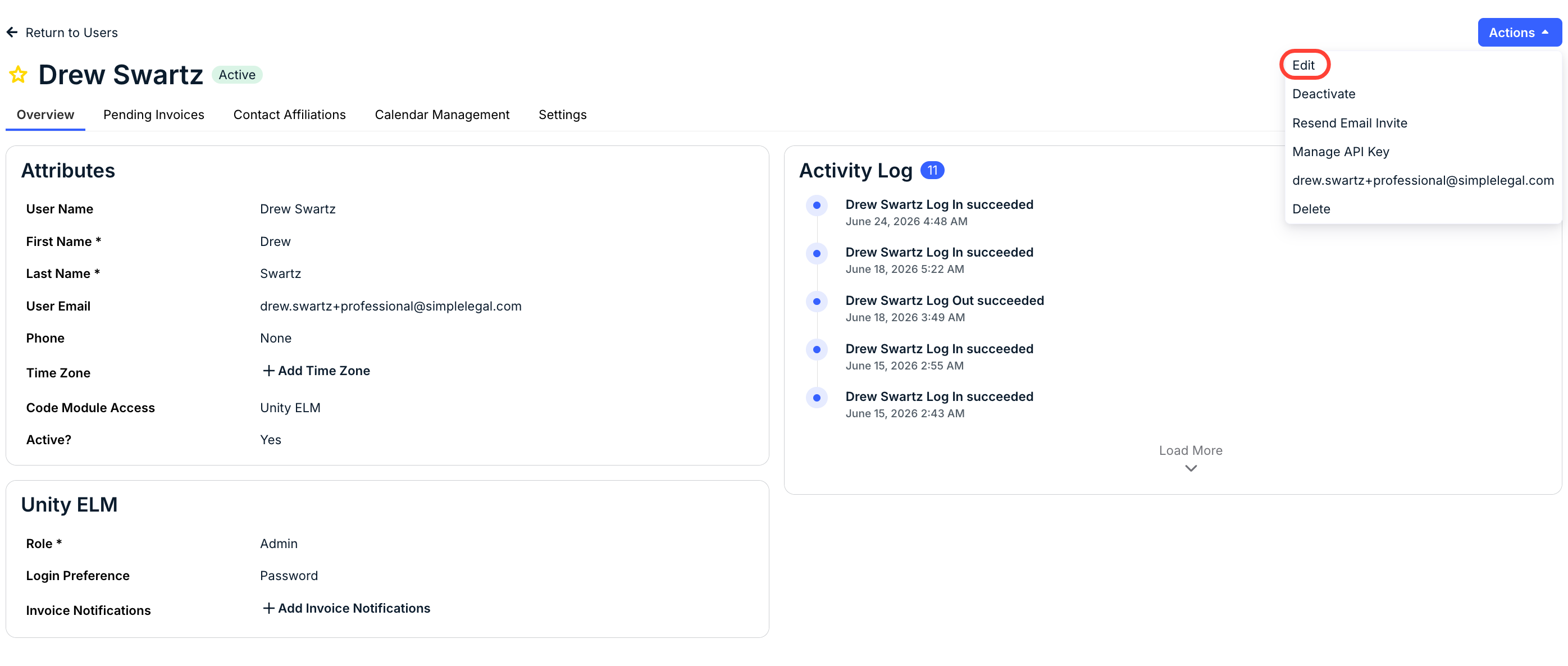
- Click the "Actions" menu in the upper right of the screen and then click "Edit."
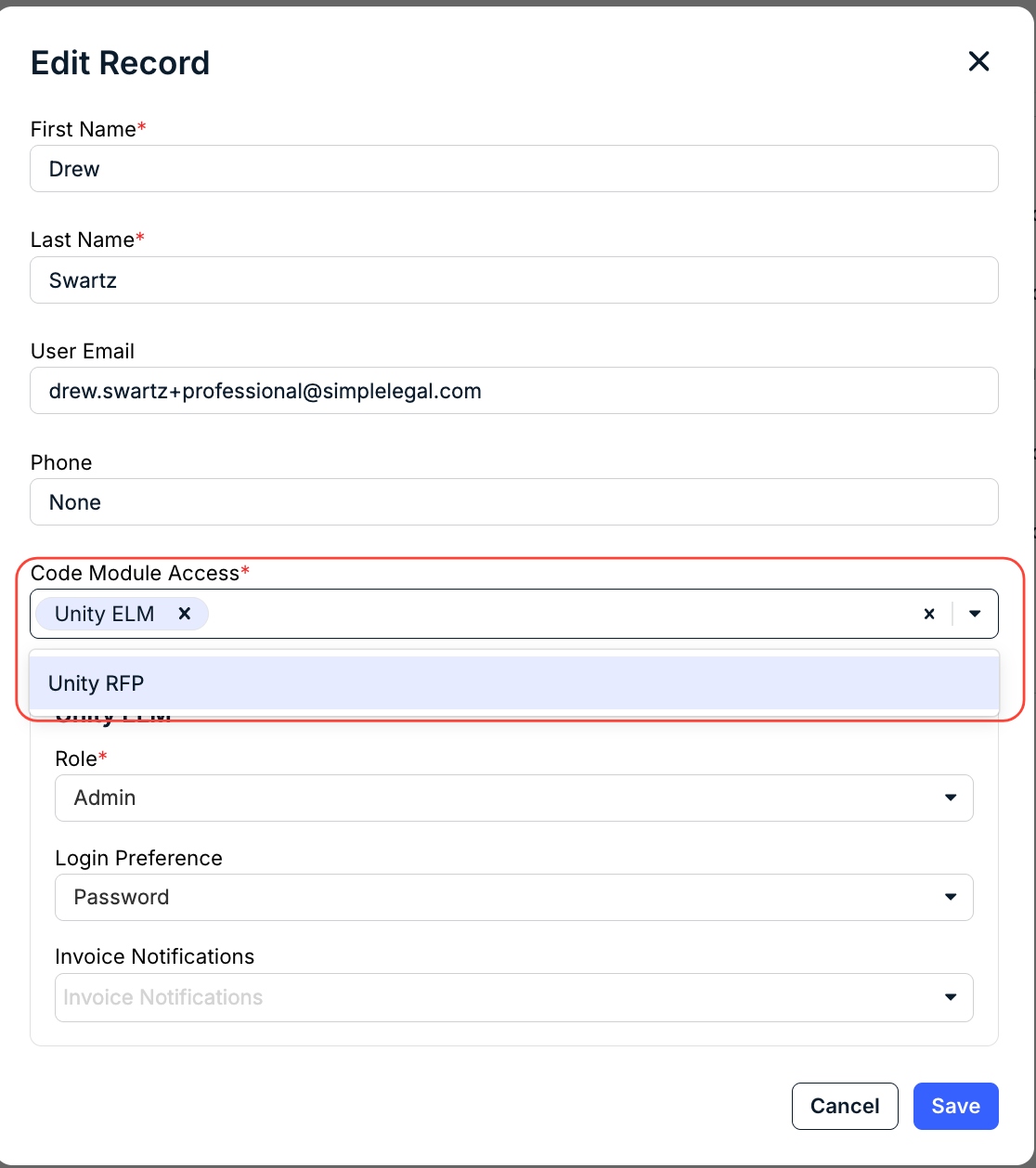
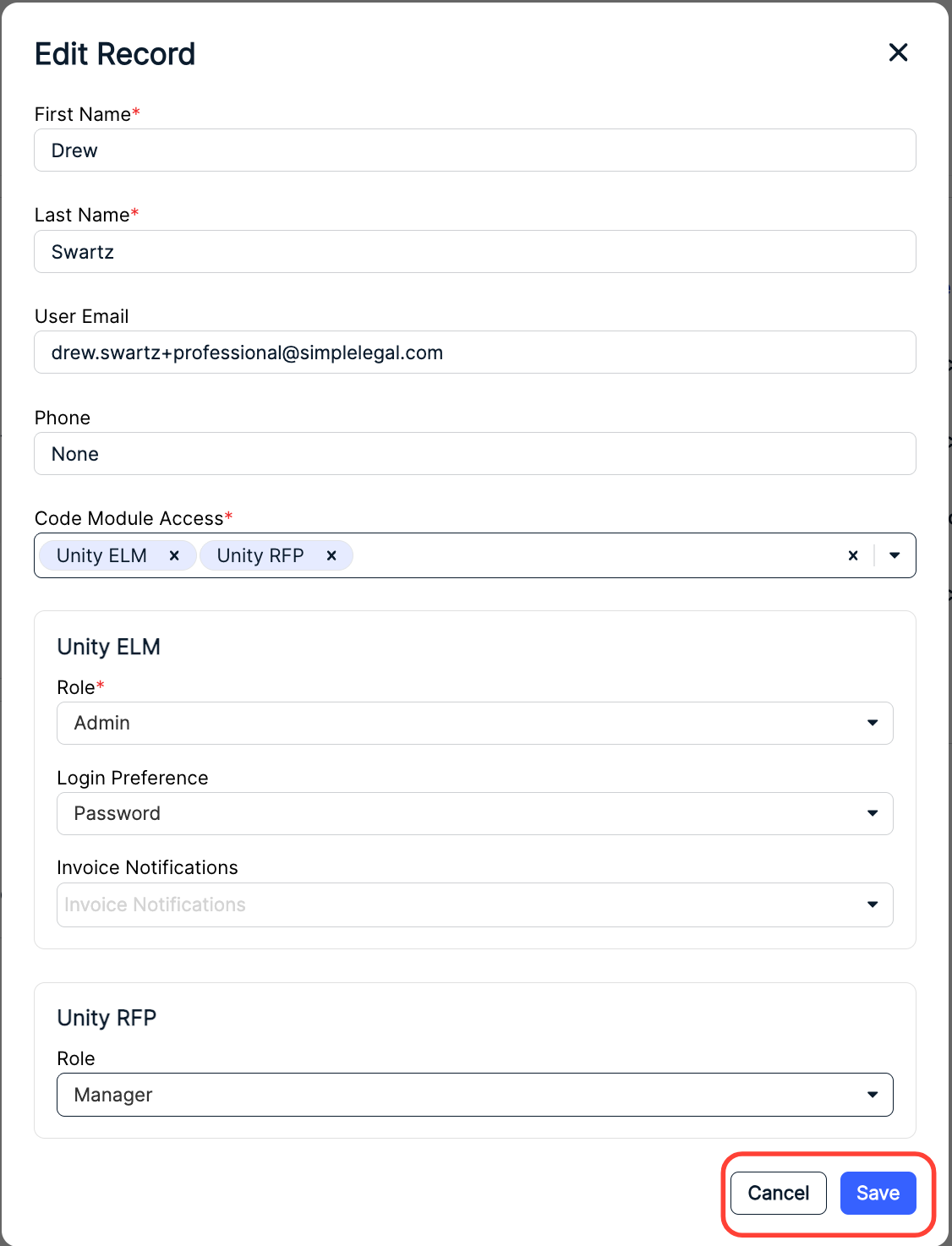
- Click the drop-down menu under "Code Module Access" and add "Unity RFP" to the Access field.
- Once you add Unity RFP to the record, the "Unity RFP" role tab will appear.
Assign the appropriate RFP Role:
- Admin: Full access to manage all RFPs, vendors, approvals, and user access
- Manager: Full access to create and manage all RFPs and vendors
- Owner: Access to create and manage their own RFPs based on permissions granted
Reviewer: Access to review RFPs and evaluate vendor submissions
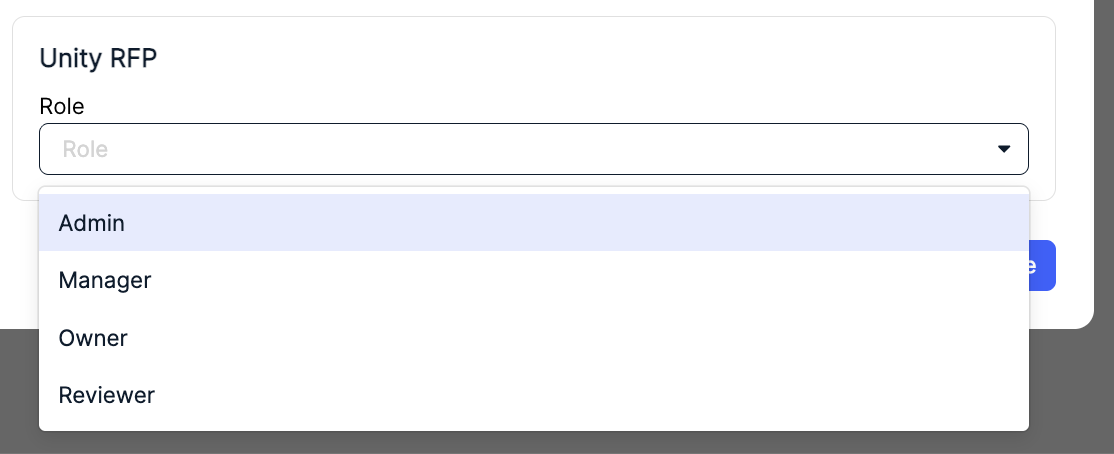
After you've selected the role, click Save to save the updated record or Cancel to back out.
The updated user profile will now have their Unity RFP role.
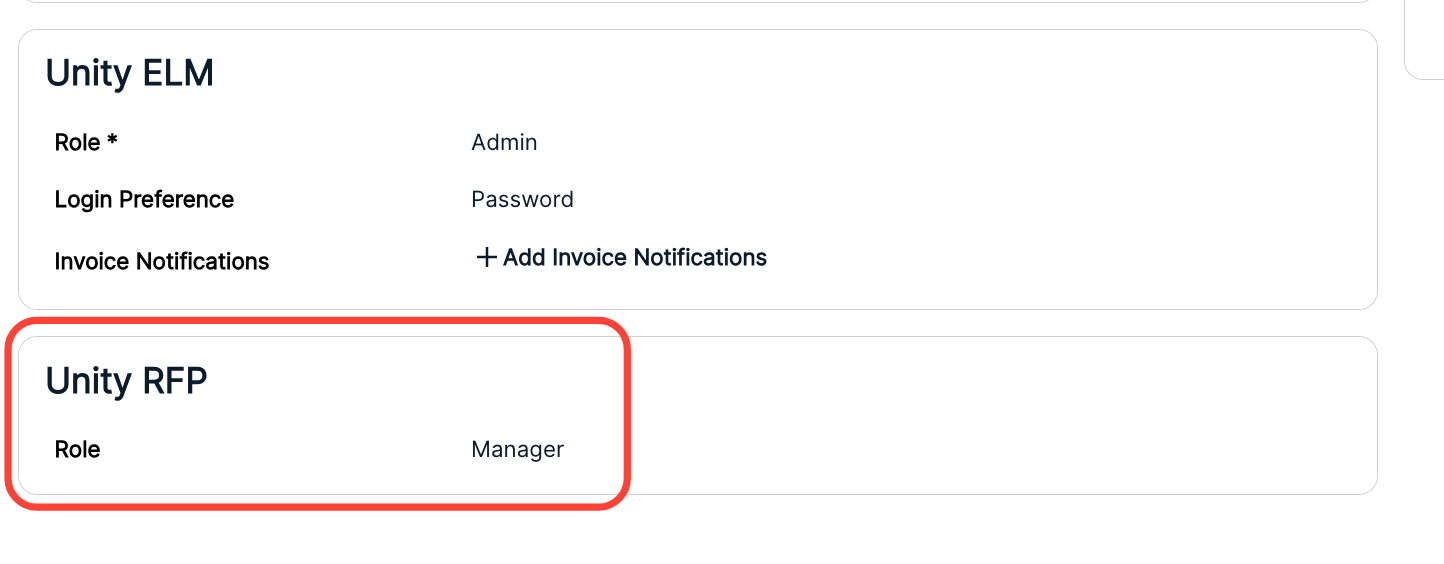
- Once you add Unity RFP to the record, the "Unity RFP" role tab will appear.