Here's how to work with Admin Settings in Onit RFP:
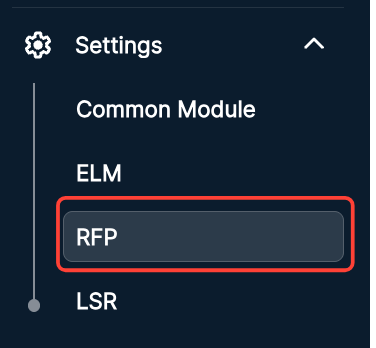
Click on Settings and then on RFP.
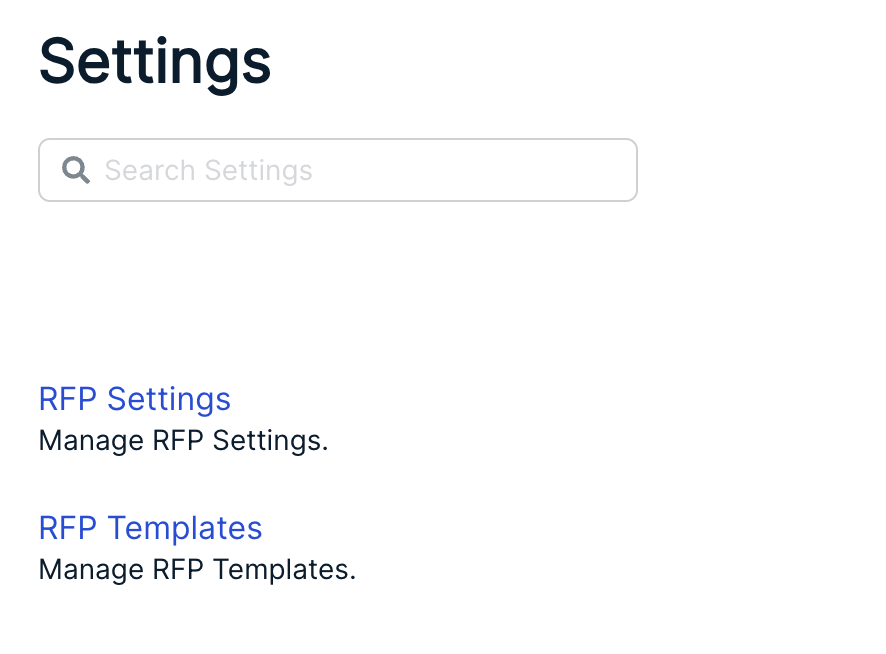
After selecting RFP, you'll see two different options:
Use the Search Settings option to search through the settings.
RFP Settings
Under RFP Settings, you can see and adjust the:
Use the search bar to search through the RFP settings.
Usage Summary
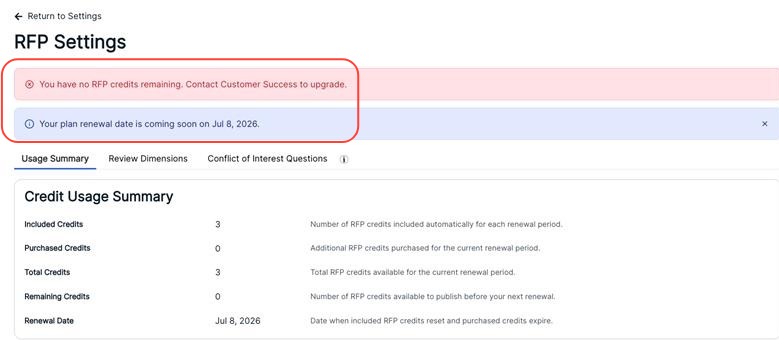
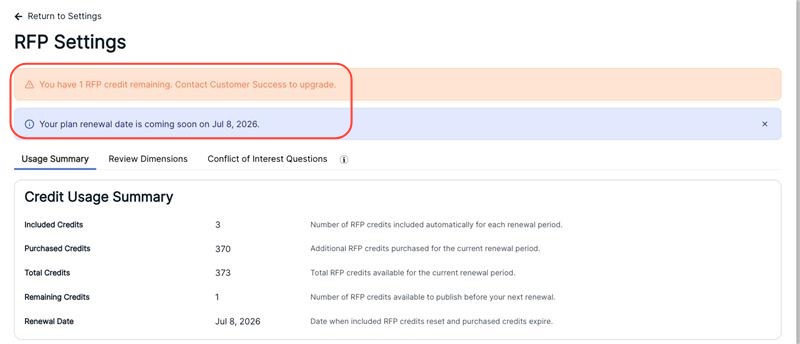
The Usage Summary section will allow you to view the credits towards RFP usage. Here, you can:
- View the number of Included Credits (the number of RFP credits included automatically for each renewal period).
- View the number of Purchased Credits (Additional RFP credits purchased for the current renewal period).
- View the number of Total Credits (Total RFP credits available for the current renewal period).
- View the number of Remaining Credits (Number of RFP credits available to publish before your next renewal).
- View the Renewal Date (Date when included RFP credits reset and purchased credits expire).
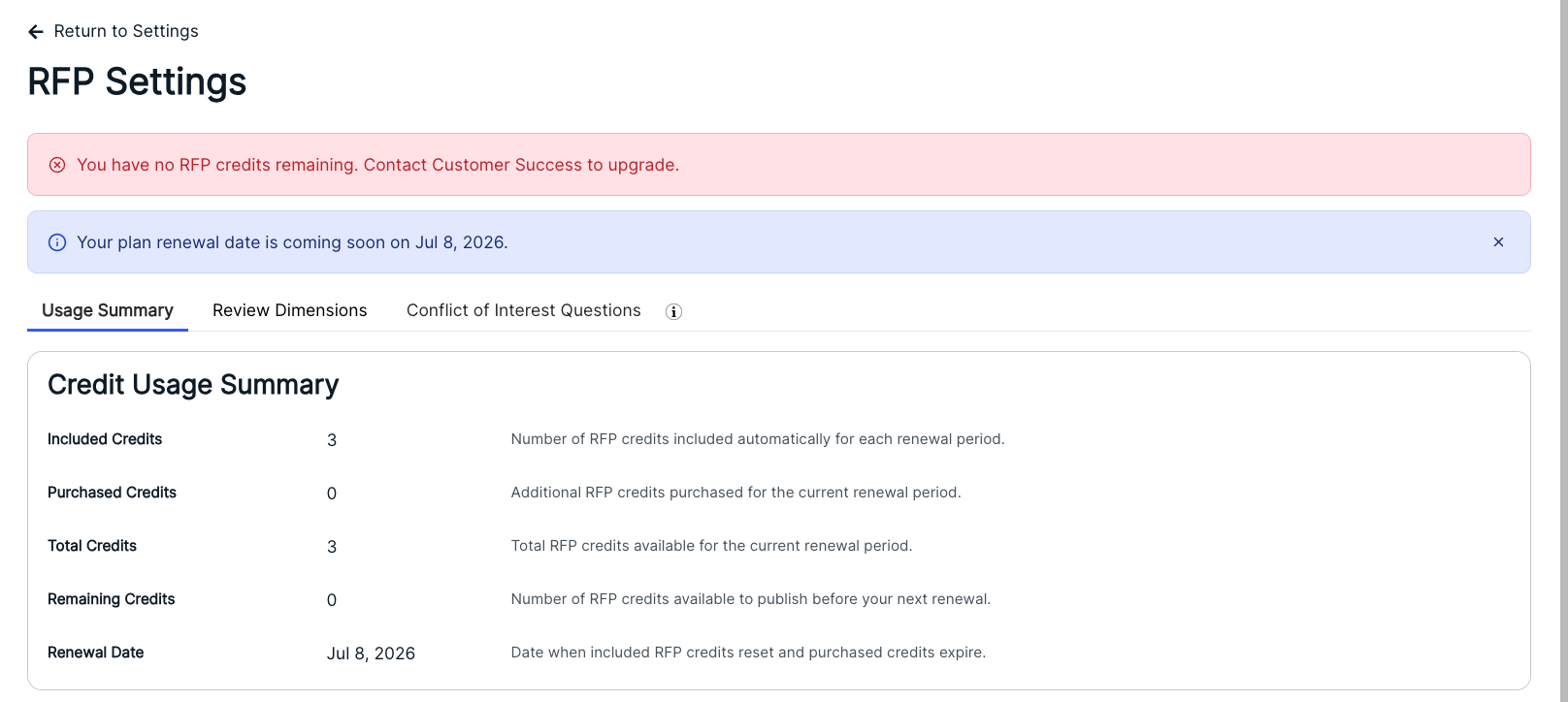
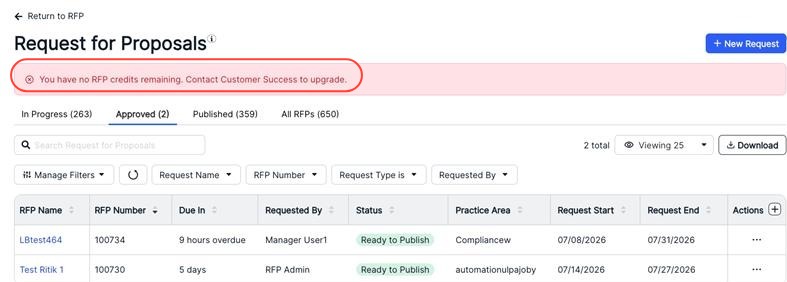
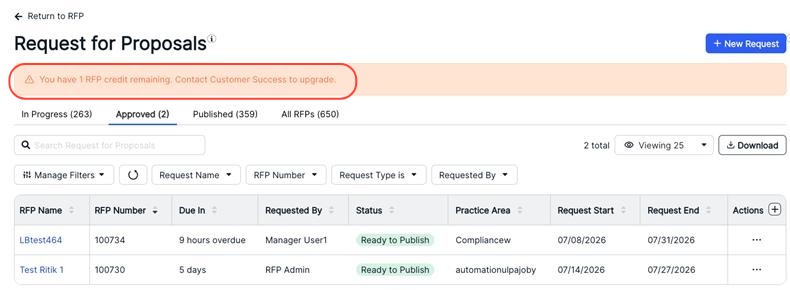
Users will see warning banners on the RFP site about usage limits and plan renewal dates.
Review Dimensions
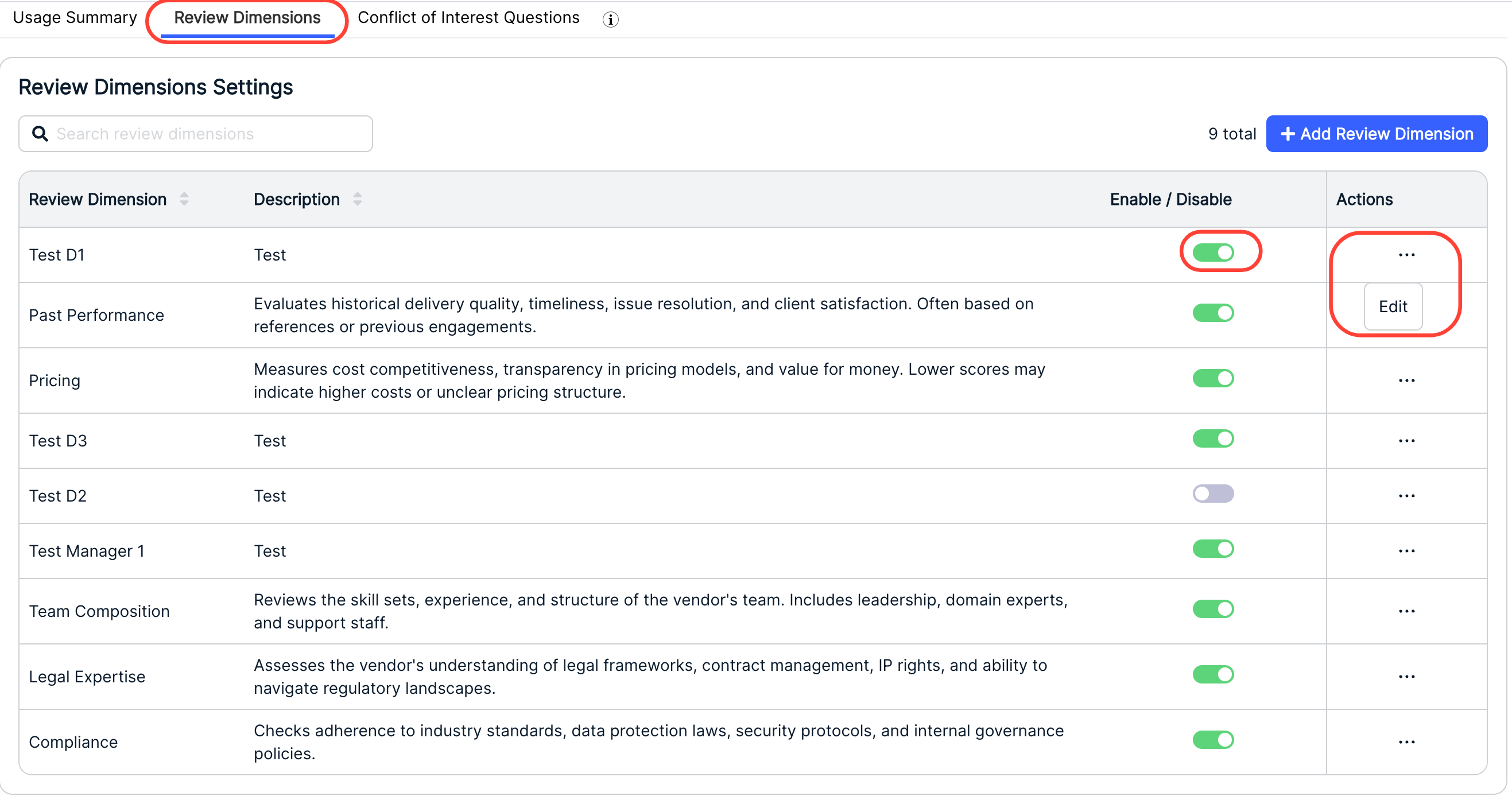
Under Review Dimensions Settings, you can view your current Review Dimensions for the Review Ratings. The screen shows the Review Dimension, Description, a button to Enable/Disable the question (green means enabled), and an Actions menu to edit the question. Click the up/down arrow next to each column to sort by that column. Use the search bar to search through existing questions.
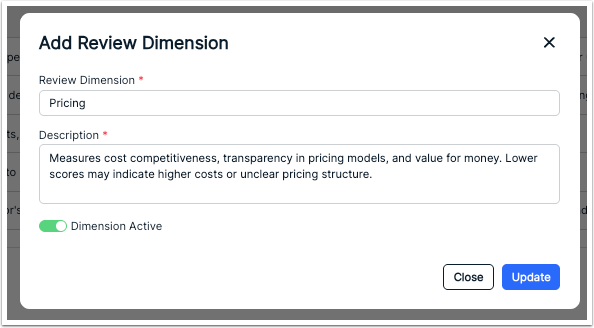
Clicking the Edit button will allow you to edit the Review Dimension name, a Description, and a toggle switch to make the Dimension Active. Click Update to update or Close to close the dimension.
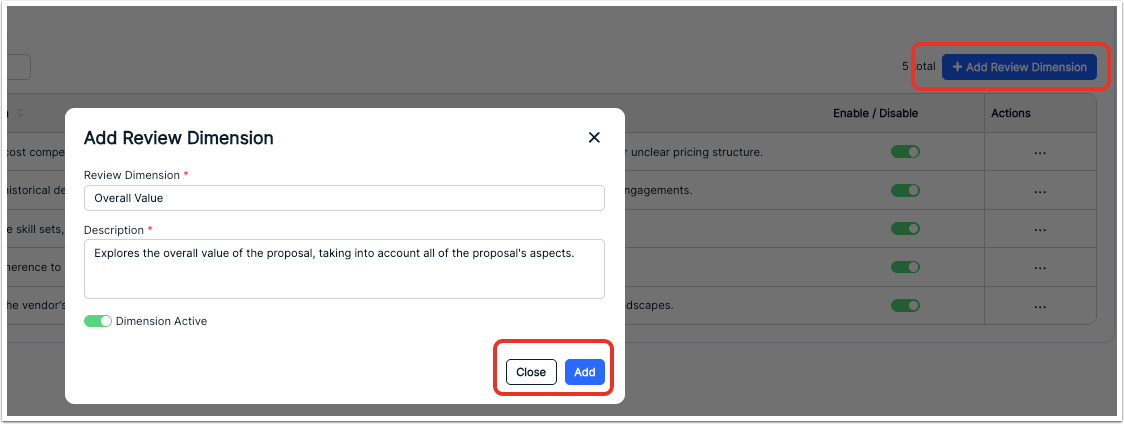
You can also click on Add Review Dimension to add a new dimension. You'll have to fill in the Review Dimension name, a Description, and a toggle switch to make the Dimension Active. Click Add to add the dimension or Close to close the dimension.
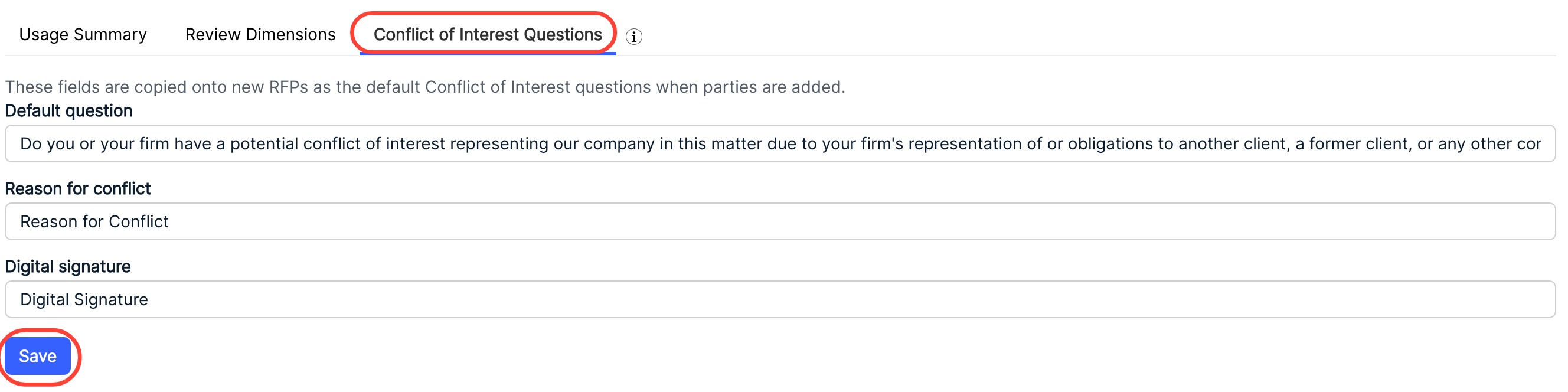
Conflict of Interest Questions
Under Conflict of Interest Questions, you can add in and edit the default Conflict of Interestquestions when parties are added. You can adjust the:
- Default Question
- Reason for Conflict
- Digital Signature
Click Save to finalize.
RFP Templates
Use the RFP Templates setting to view and edit existing RFP templates. The main directory will show you the Name, Practice Area, Proposal Type, and Country of the templates. Click the up/down arrow next to each column to sort by that column. Use the search bar to search through existing templates.
You can use the Manage Filters or top drop-down menus to customize what templates you want to see on the screen, or use the search bar to search for a specific template. Click the View drop-down menu to customize how many templates you want to see on the screen.
The top tab will allow you to switch between All Templates or Starred (favorited) templates.
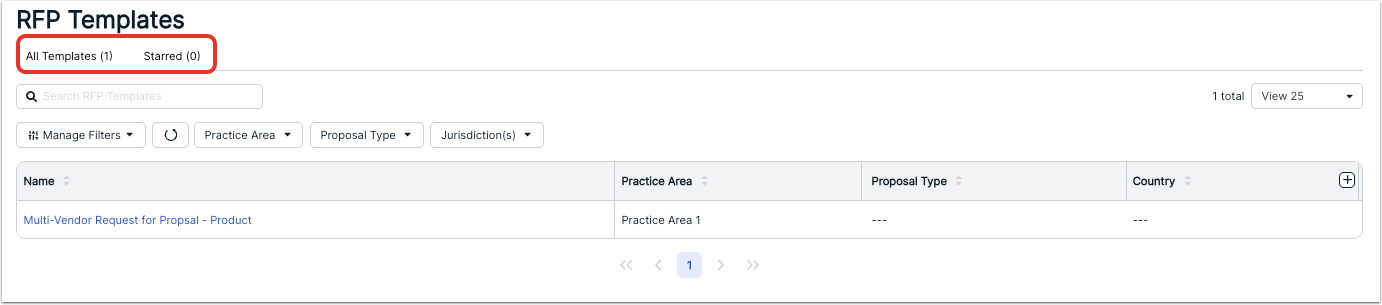
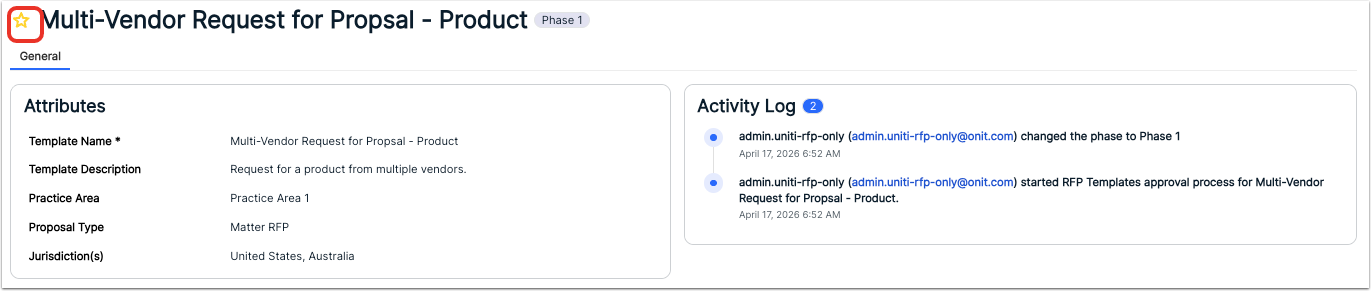
Click on the link under the proposal Name to view and edit the proposal. Click the Star next to the proposal name to add them to your favorite (Starred) proposals.