Here's an overview of the new features and elements in Review AI for 2026:
Using Review AI Document Chat
Use the ReviewAI Document Chat function to immediately get information about a document you have open.
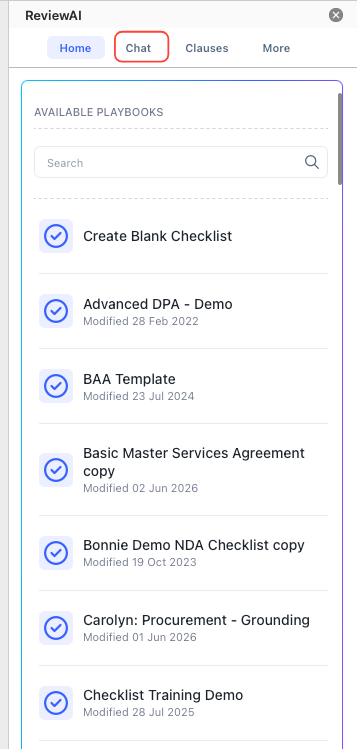
To do this, open ReviewAI in your document and select the Chat function at the top of the screen.
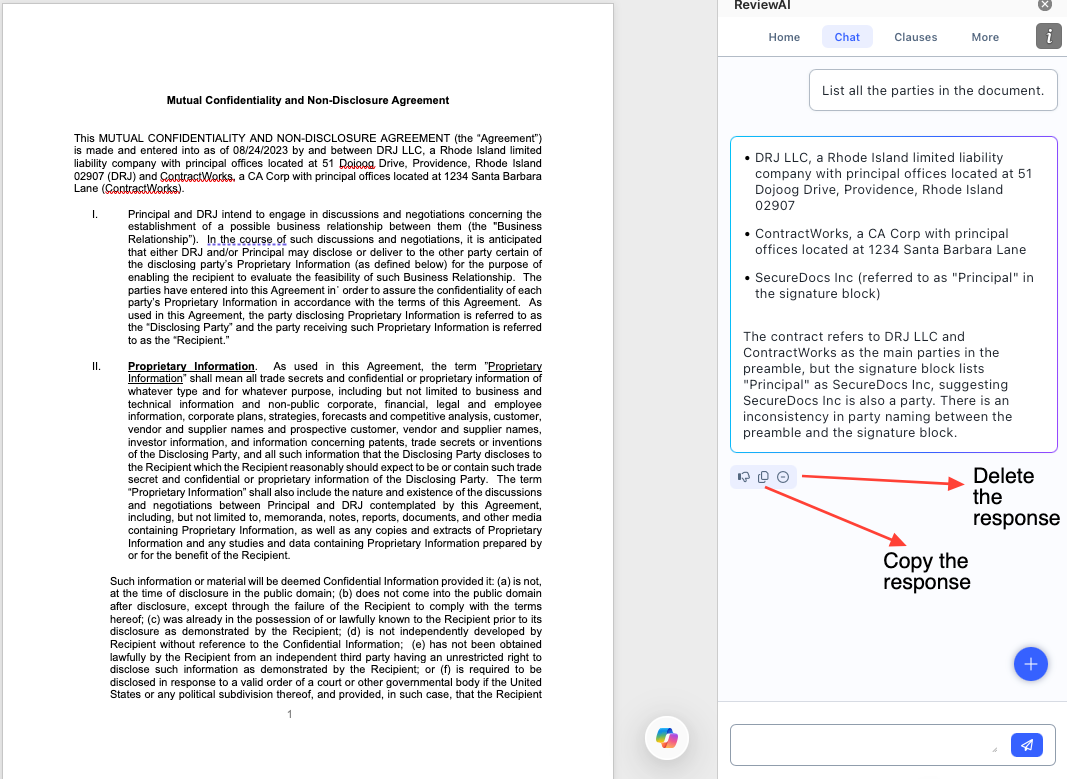
The Chat screen will open. Use the chat to find information within the document; for example, here, we will ask Document Chat to "List all the parties in the document."
You'll see the list of parties identified appear in the chat box. Use the icons below the response to Delete or Copy the response.
Using Playbooks with Review AI
Review AI also works with your playbooks to review (and modify) uploaded documents.
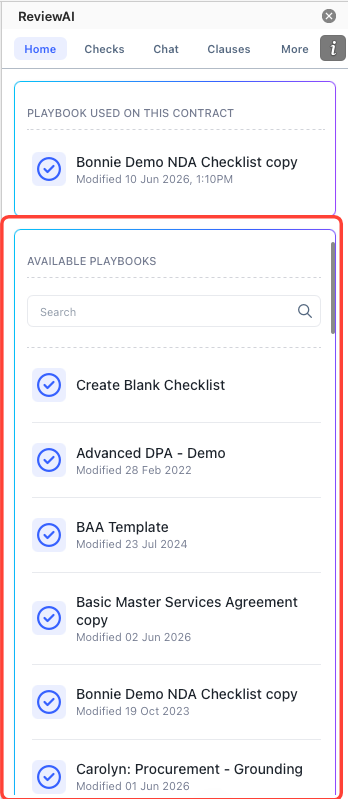
To use a playbook on your document, open the document and select the playbook you want to use from the Home screen.
Review AI will run against the playbook. Click on the Checks tab in Review AI to explore the results.
Here, you'll see the Risk score in red at the top of the page next to the name of the playbook.
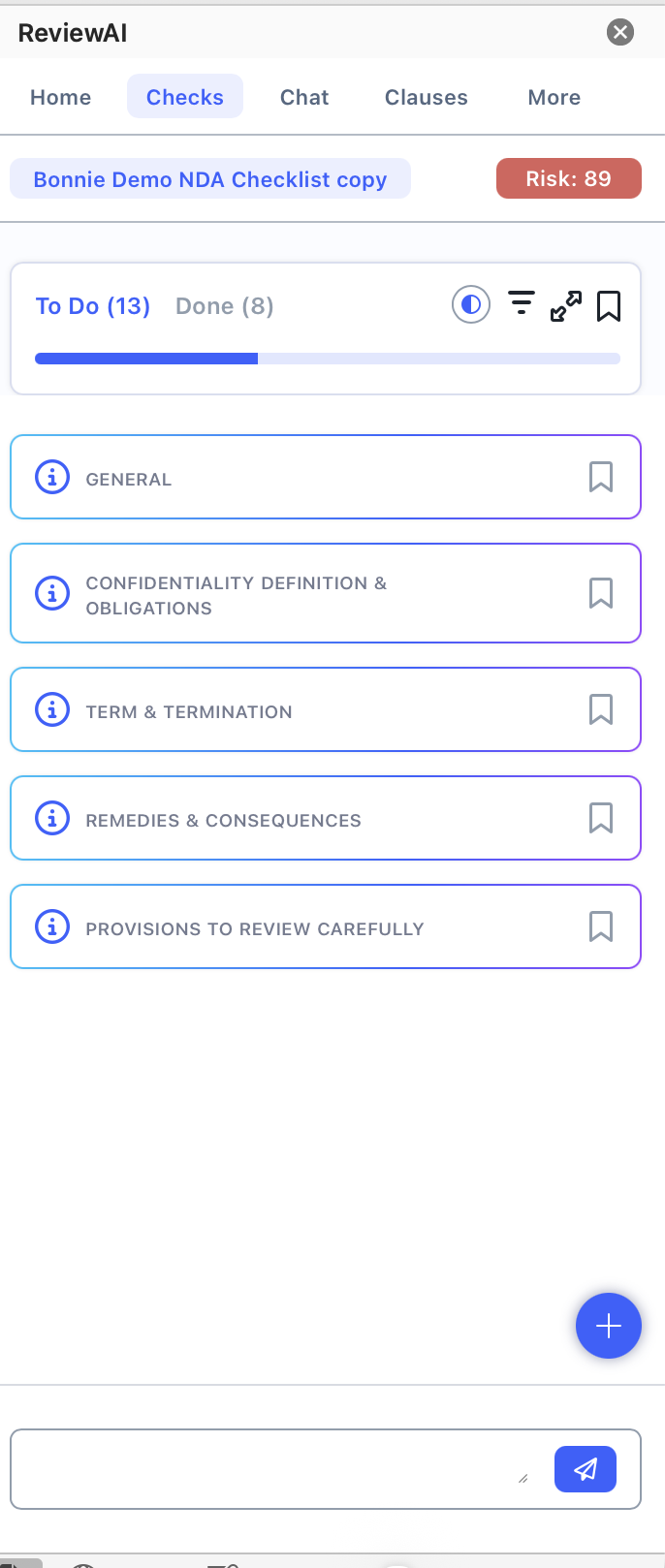
The top bar will allow you to toggle between the tasks left To Do and the ones that are Done.
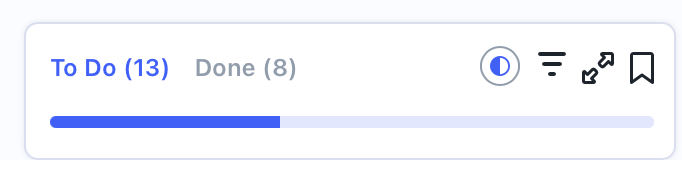
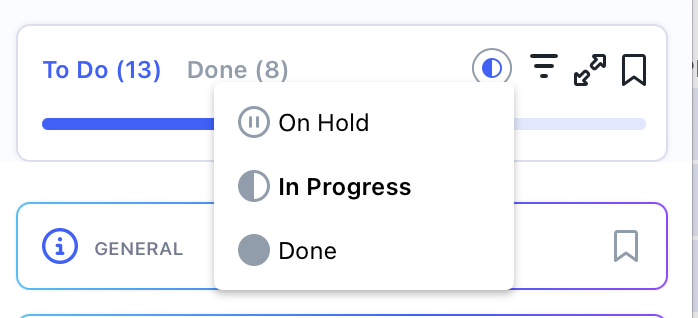
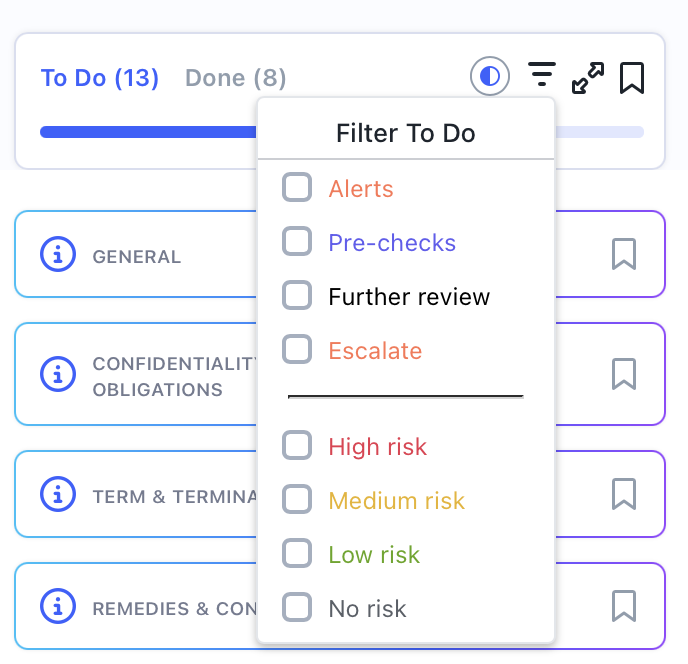
You can use the icons to:
- Show On Hold, In Progress, or Done tasks
- Filter the different types of tasks
- Collapse/Expand all
- View the Important tasks
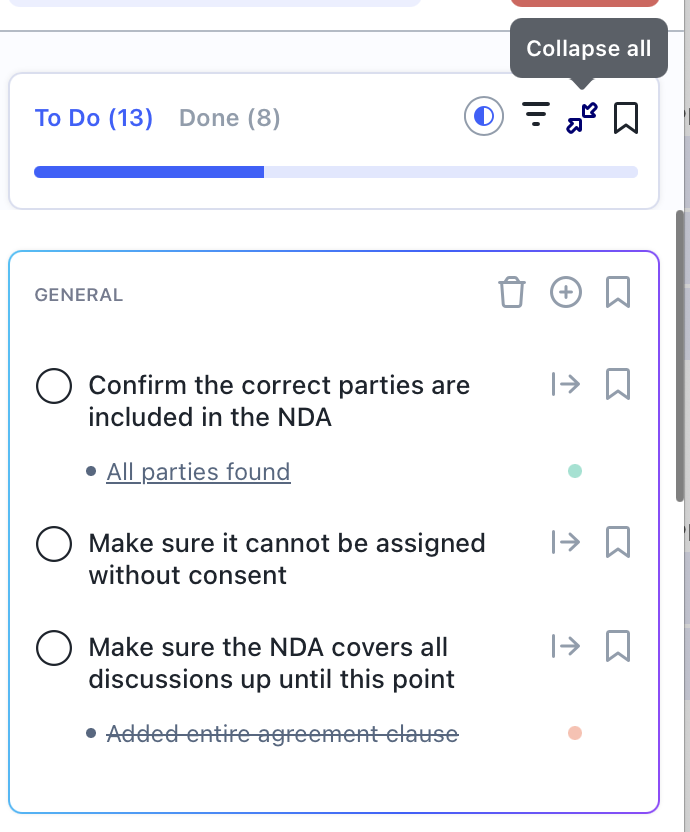
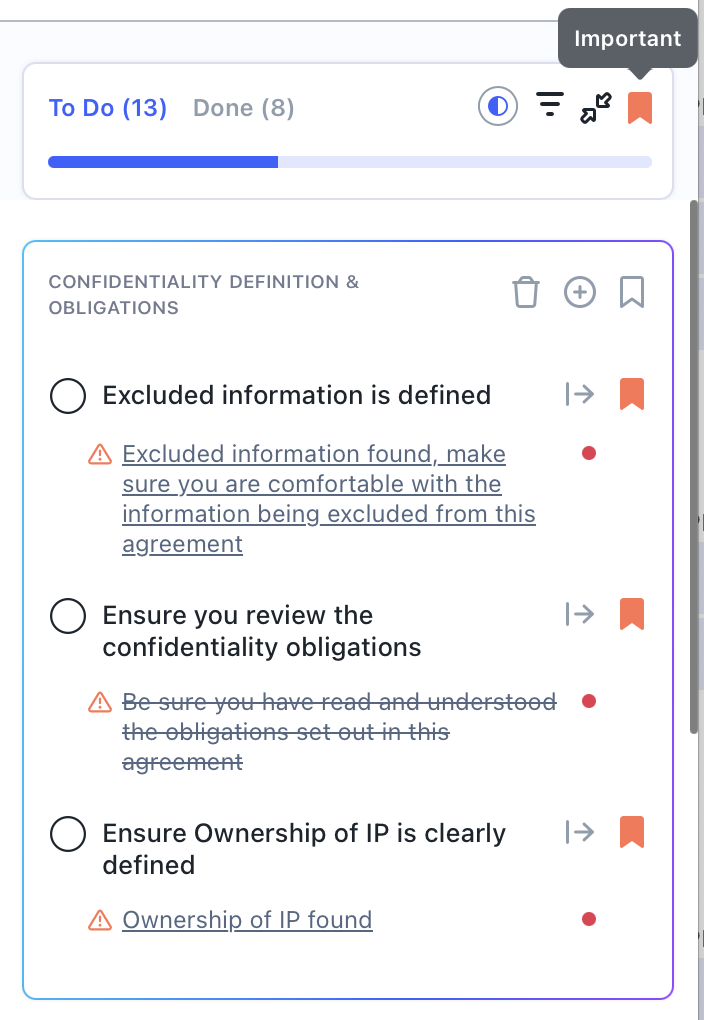
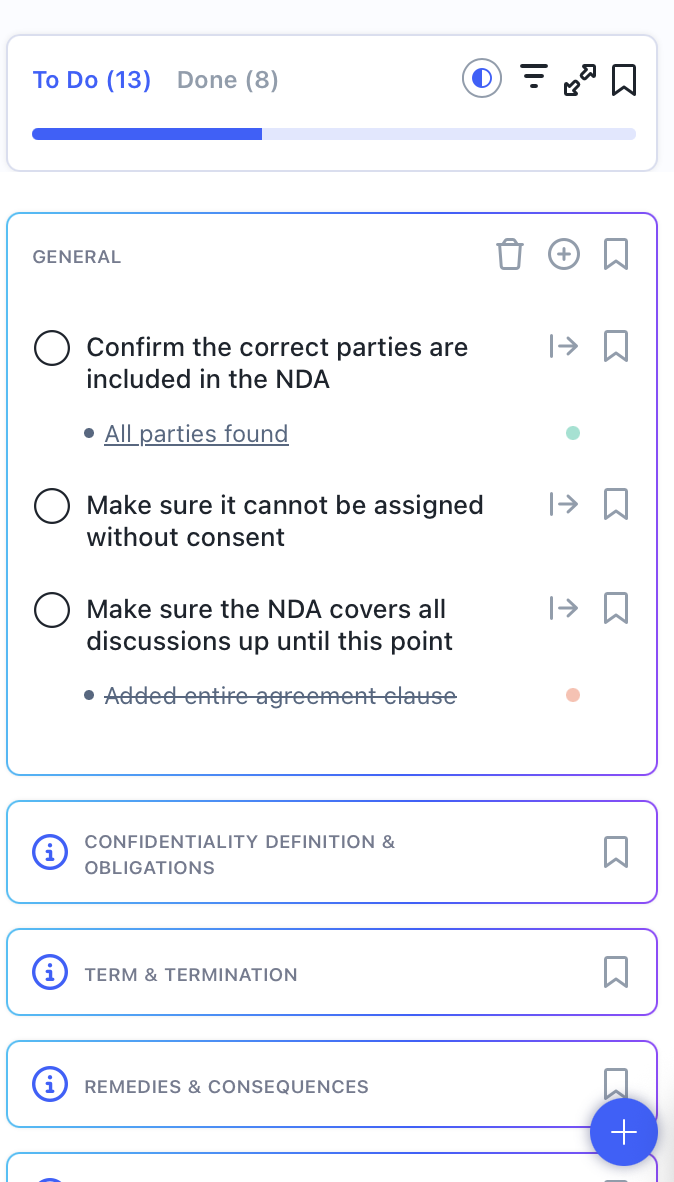
The main Checks screen will show issues grouped by different categories (General, Confidentiality Definition & Obligations, etc.). Click on each category to see details.
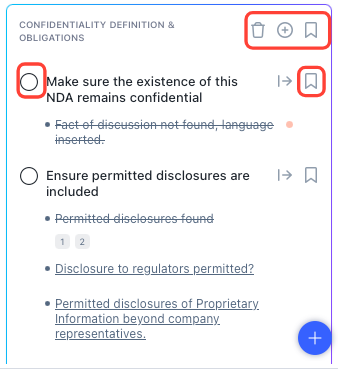
You can use the Delete (Trash Can) button to delete the category. Click on the Plus button to manually add an issue. Click the Important tag to mark all issues in the category as important.
For individual issues, click on the circle button next to the issue to mark them as complete. You can also click on an individual Important tag for each issue.
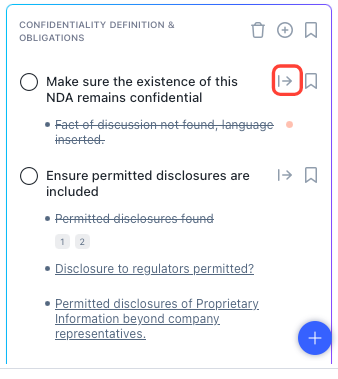
Click on the arrow next to each issue to open up more details.
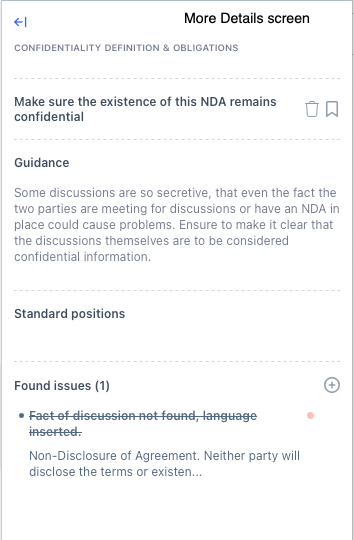
Underneath each issue, you'll see some guidance on Review AI about what a) Review AI did to the document or b) what you still need to do. Click on each link to go directly to that part of the document.
For example, by using this playbook, Review AI identified that a "Fact of Discussion" statement was missing and inserted language into the document per the playbook.

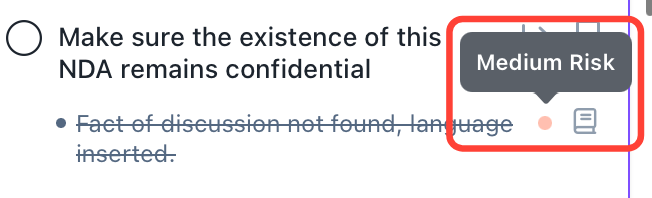
Note that you'll see an icon identifying the issue risk and a link to the clause playbook next to each piece of Review AI feedback.
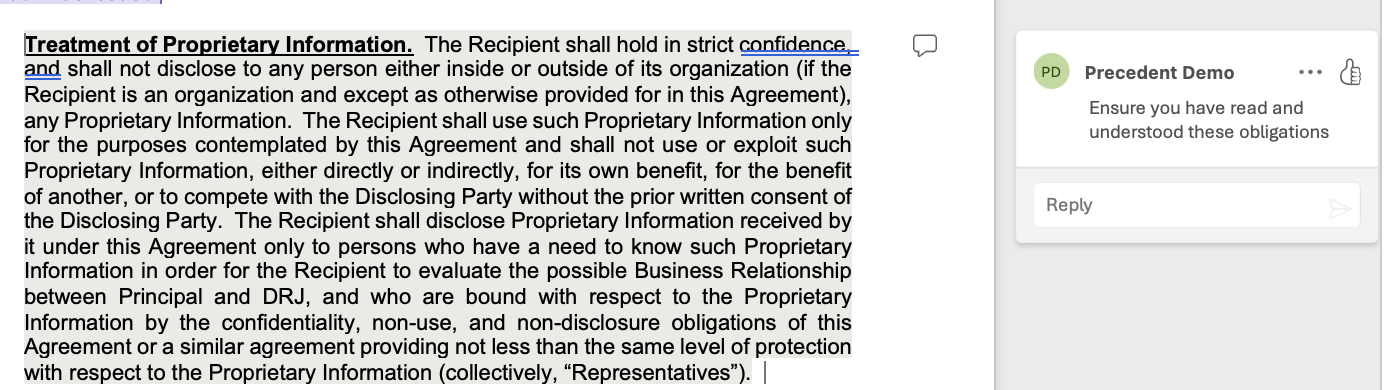
Additionally, Review AI will display feedback as comments within the document.
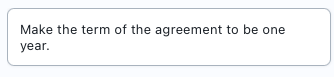
You can also ask Review AI to insert necessary language in the document; for example, here, we've asked Review AI to make the term of agreement to be one year instead of what is listed.
Review AI will suggest a change. Once reviewed, check the circle next to the change and click Action Selected Changes.
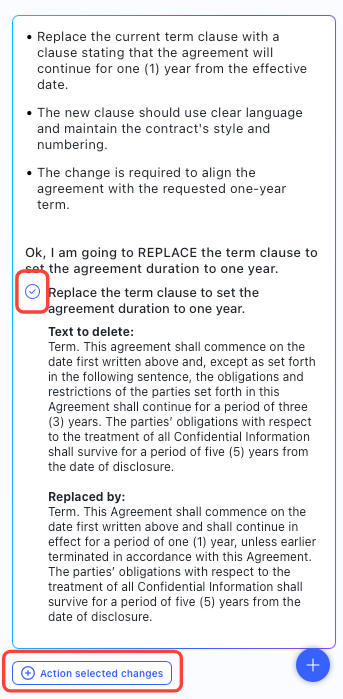
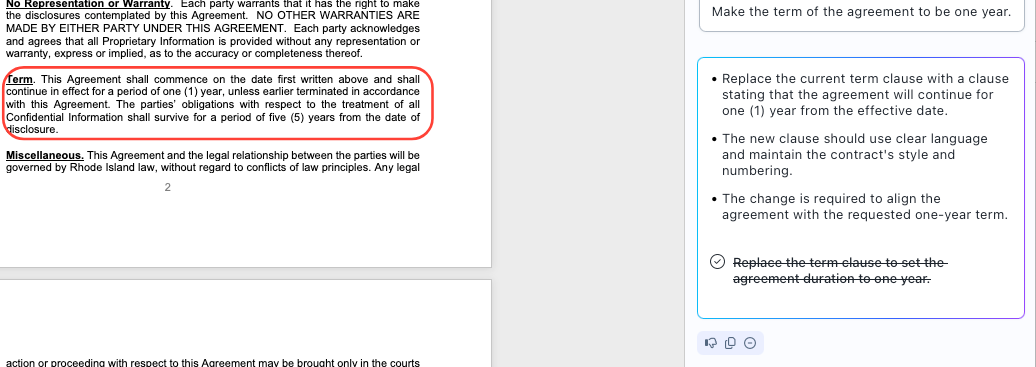
Review AI will replace the text within the document.
Data Extraction into OnitX CLM
Users who use OnitX CLM can now prompt ReviewAI to extract specific data - contract end dates, etc. - to corresponding fields within OnitX CLM.
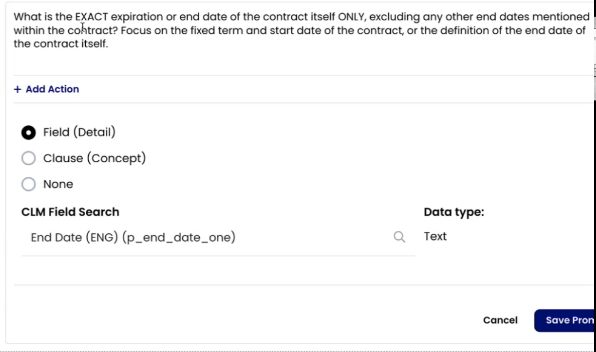
Users can load a document and run review AI; the extracted document will pull out the details from the document and populate the contract record in OnitX.