What is Ask Unity?
Ask Unity is an AI-powered data exploration tool designed to revolutionize how legal operations teams interact with their legal data. Unlike traditional dashboards or static reports, Ask Unity allows users to ask questions in plain English and receive intelligent, data-driven responses in real time. The tool supports a variety of use cases, from quick ad hoc queries to more complex financial analysis.
What sets Ask Unity apart is its ability to not only answer questions but also generate AI-powered visualizations—including pie charts, bar charts, line graphs, and more—that can be downloaded and embedded into executive presentations.
Introduction to Ask Unity
Ask Unity leverages AI to transform how Unity users interact with their legal spend data, making it easier, faster, and more efficient to get valuable insights. Ask Unity pulls from key data points related to invoices, individual line items, fees and expenses, adjustments, matters, vendors, and/or timekeepers, depending on your query/question.
To ensure that calculations are accurate, Ask Unity reviews the fields in the dataset to determine which ones are relevant and how to correctly aggregate them. If the query is too ambiguous for Ask Unity to make this determination, it will ask for clarification before moving forward.
Accessing Ask Unity
To access Ask Unity, click the Ask Unity link in the left-hand-side menu or at the top of the screen.
=

Using Ask Unity
Select one of the pre-built prompts or type your query in the text field. If entering your own query, make sure it is clear and specific.
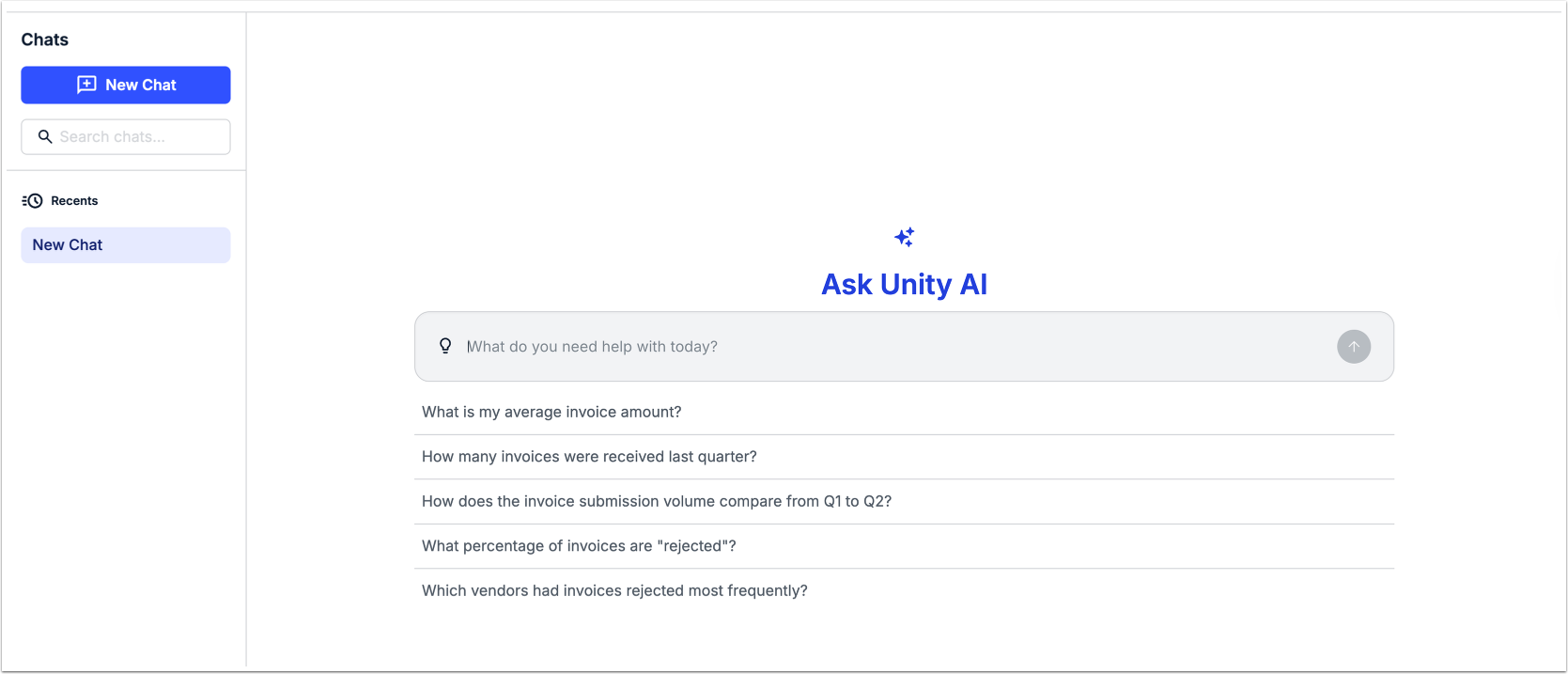
The prompt you entered will start a thread and display the response within a few moments, depending on the type of query and the volume of data. If the prompt is ambiguous, Ask Unity will ask for clarification before providing a response.
AI-Generated Charts
You can use Ask Unity to visualize your spend data with charts. For best results, we recommend specifying the type of chart you want to see in the text of your query. The following chart types are supported:
- Pie Chart
- Bar Chart
- Line Chart
- Area Chart
Once the chart is generated, you can hover over areas in the chart to see additional information. You can also click on the menu in the top-right corner to choose a download option (i.e., CSV, Excel, JPEG, or PDF).
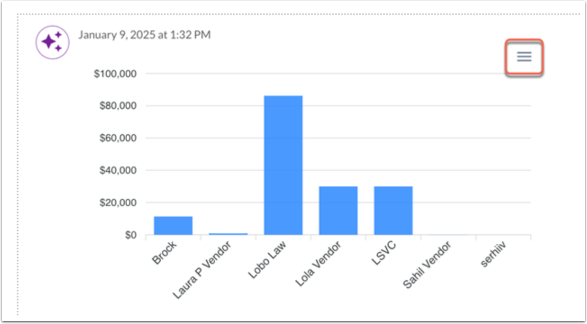
Additional options are available depending on the chart type (e.g., zoom in/out.).
Ask Unity Chat History
The left side of the page displays your active and recent Ask Unity sessions. All sessions are stored in case further review is needed. You can use the search bar to search through all of your chats.
Each chat thread shown in the sidebar has an auto-generated name based on the first query in that session. The chat threads are sorted from most recent to oldest.
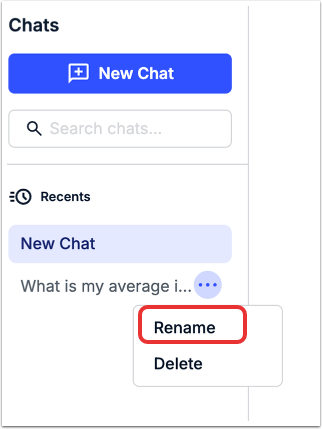
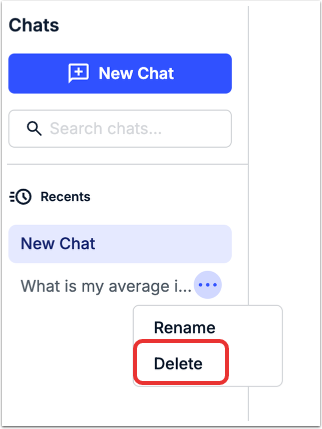
Click on any chat thread from the sidebar to view your prompts and the AI responses. To rename a chat so it's easier to find later (or to add more context), click on the ...(more) option to the right of the chat name and select Rename.
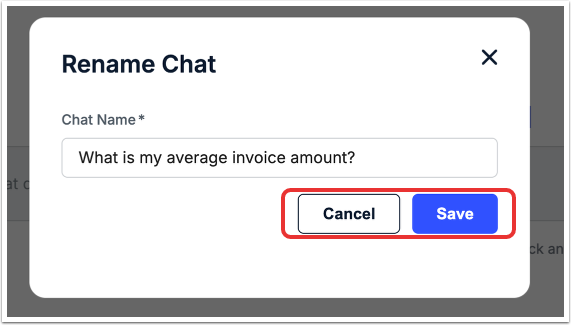
Rename the chat and click Save to save the name or Cancel to back out.
You can also click Delete to remove the chat.
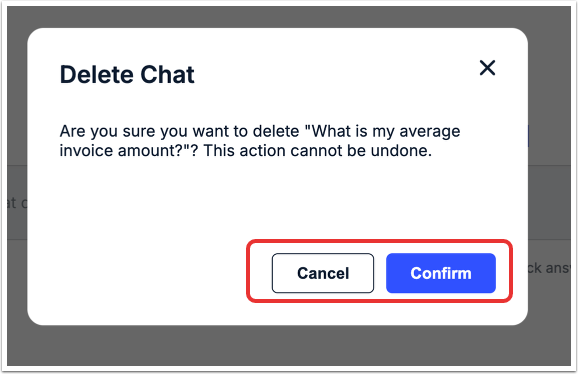
You'll get this message. Click Confirm to delete or Cancel to back out.
Starting a New Ask Unity Thread
To initiate a new Ask Unity session, click the + icon on the left side.
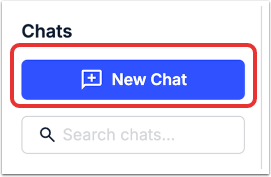
This will store the previous session in your chat history and refresh the prompts.
Example Prompts
In addition to the pre-built Ask Unity prompts, you can create your own or further customize the examples provided below based on your organization's specific needs and spend questions. The prompts below are basic/common examples intended as a quick guide on how to word queries.
If the query you enter is too ambiguous, Ask Unity will ask for clarification. Make sure that your prompt is as specific as possible. For example, we recommend specifying whether you are looking for spend amounts that were billed or final spend amounts (i.e., after adjustments and taxes).
| Prompts |
| Show me a pie chart with spend for the top 10 vendors after all adjustments and taxes for 2024. |
| Can you list the matters that had rejected invoices in 2023 and the number of rejected invoices for each? |
| Show me a line chart with final spend by month for 2024. |
| Which vendor had the most rejected invoices in 2024? |
| Which month had the highest total spend for 2024 after adjustments and taxes? |
| How many vendors submitted invoices in 2024? |
| Show me a list of vendors that currently have invoices in “received” and “on hold” statuses. |
| How many invoices were received in 2024? |
| How many open matters had no invoicing activity in 2024? |
Tips for Getting Better Prompt Results
- Be clear about what you're trying to accomplish or learn.
- Add context when it matters (who this is for, why you need it, or any relevant background).
- Break complex requests into smaller, more focused questions.
- Call out any preferences up front, such as format, level of detail, or style.
- Treat it as a conversation; refine or follow up if the first response isn't quite right.
- Use follow-up questions to clarify, adjust, or go deeper rather than starting over.
FAQs
Can other people see what I search or what prompts I use in Ask Unity?
No. These searches and prompts are exclusive to your environment.
What is Ask Unity powered by? Can it bring in content from the rest of the internet?
Ask Unity is powered by OpenAI ChatGPT; at this time, Ask Unity can only utilize content from the Unity platform.
How often is Ask Unity data refreshed?
Data used by Ask Unity is refreshed once every 24 hours. This means that if you ask the same question the next day, there may be a slight variation in the response if, for example, invoices were approved, rejected, adjusted, or marked as paid within that 24-hour period.
How can I verify Ask Unity's answers?
Go to existing reports to validate responses or ask follow-up questions.
Other Things to Know
- Ask Unity provides responses based on the spend data you can access per your user role. This means that the responses you receive may not match those received by a co-worker.
- Financial calculations with negative values may be provided if you are asking for information on the amount of adjustments, discounts, or other deductions made to invoices.
- If your query does not specify a year or timeframe, Ask Unity will provide a response based on all historical data available.