LawBase Logging
Document No. 00149686-1 | LawBase version 12.6.1 or greater
Logging is a new function in LawBase, version 12.6.1 or greater, to log various messages produced by LawBase to help fix and/or optimize how LawBase runs. Logging will create files for the output of the messages and, in addition, place the messages in a SQL table named LB_LOGS. These files or SQL table can be analyzed to find problem points in the execution of LawBase.
Logging is a user option so that each user can select which messages to log. In addition to sending messages to files, users can also select to display the messages on screen while LawBase is running.
Note: Logging replaces (and enhances) the previous versions of the LawBase concept of debug levels.
Levels of Logging
There are six levels (or types) of messages that can be logged. Each level segregates types of messages to make it easier to analyze different sections of the program. The six levels of logging are:
- Timing. Messages that use a stopwatch to see how long something takes to do in the program. These messages are helpful to find possible bottlenecks in the program that can be addressed. For instance, a timing showing how long it takes to load each table on a file can show that one SQL table is much slower to load than others. That table can then be investigated to learn why.
- Debug. Messages that help find out something about the running of the program. These can often be inserted by Synaptec to aid in discovery of why something isn't working as expected. For instance, if a GlueWare item isn't functioning as expected, a debug message will show which program is being run and its parameters.
- WorkFlow. Messages that give information about WorkFlows being run. They help find the status of variables and other issues going on behind the scenes when running WorkFlows.
- Warning. Issues that pop up behind the scenes that don't stop the program from running but might need to be addressed. For instance, trying to save a file to a directory that has restricted permissions.
- Error. Serious issues that should probably be addressed. Any errors that are reported to LawBase will be logged here in addition to other exceptions found while executing the program. For instance, if LawBase is set up incorrectly and has unknown or missing fields defined in a CaseLinkLookup.
- SQL. Various SQL statements that are executed so that you can see what actual SQL is run. For instance, SmartFolders that are selected will show the SQL that was run behind the scenes which includes additional security SQL and different parameters used.
Log Files
Log files are written to the folder designated in the LBAdmin Cosmetic named Logging.Directory. Under this directory are subdirectories for each level of logs. Under each level subdirectory are files in the format [LawBase UserName][yyyymmdd].csv. So, if you have logging selected and your login name is DREW and the date is January 19, 2023, the log file for you would be DREW20230119.csv. This file will contain all the messages used for that day for the selected level of logging. Log files are in CSV format so they can be opened using Excel or any other program that allows CSV format files.
Log files can become quite large depending upon what is selected to be logged. These files will be saved for the number of days designated in the LBAdmin Cosmetic named Logging.RetentionDays. Anything older than this will be deleted. This keeps the Logging directory from growing too large for the file system to handle.
SQL Log Table
Messages are also posted to a SQL table in the LawBase database named LB_LOGS. This table contains all messages that are logged regardless of the level. There is a column named LevelName that contains what type of message it was. There is also a column named UserName to track which user encountered the message. SQL statements can be used to search this table to quickly find patterns of issues.
Much like log files, messages older than the number of days designated in the LBAdmin Cosmetic named Logging.RetentionDays will be removed from the LB_LOGS table.
Logging Options
Logging can be turned off by unchecking the LBAdmin Cosmetic named Logging.UseLogging. If logging is turned on, each user can define what levels they would like to log. They can also select whether to show each message on the screen as they are sent. To access the options for logging, there is a System Logging button on the Main Ribbon under the User Options group. When selected, the following Setup form is displayed:
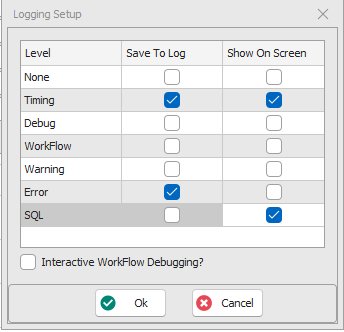
For each level, there are two columns of checkboxes to select which messages should be logged. If a user does not want any logging, then None can be selected. The Save to Log checkbox indicates whether to monitor and log messages of that level. The Show on Screen checkbox indicates whether the user wants to display messages of the level on the screen as they run.
In the above example, the user has selected to log Timing and Error messages. They also want to see Timing and SQL messages on the screen.
There is another option named Interactive WorkFlow Debugging? When checked, every WorkFlow that runs will use the interactive debugger to help pinpoint issues in a WorkFlow that may not be executing as expected.
On Screen Messages
If any Show on Screen levels are checked, messages encountered will be displayed on the screen in the same manner that debug mode worked in previous versions of LawBase. The messages are displayed in the Program Tracer window. This can be reviewed immediately without having to examine the resultant log files.
Logging Considerations
- By default, for each user, the Error level of logging is selected for Save to Log and None is selected for Show on Screen. As in many other parts of LawBase, you can use the DefaultScreens user to define default logging settings for users other than yourself.
- The selected levels of logging are stored for each user so that if they log out and back in, they will continue with the same selection.
- New versions of LawBase will likely add new messages as any pain points are identified.
- Logging messages takes up storage space and processing time, so it is suggested that you only log the levels you are interested in at the time. We suggest leaving Error selected for Save to Log so that any serious issues are saved to be reviewed later.