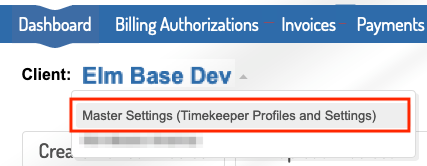
1. From the Client View within BillingPoint, you'll have to go to the Master Settings view (learn more about the different views here).
To do this, select Master Settings from the Client dropdown menu.
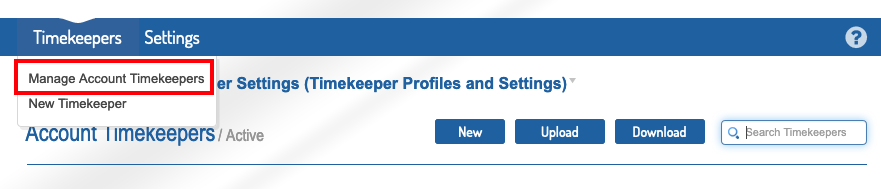
2. Select Manage Account Timekeepers under the Timekeepers tab to navigate to the account timekeepers list. This page lists all of your account timekeepers and their standard rates.
3. Click Edit in the Actions column on the timekeeper that needs to be updated.

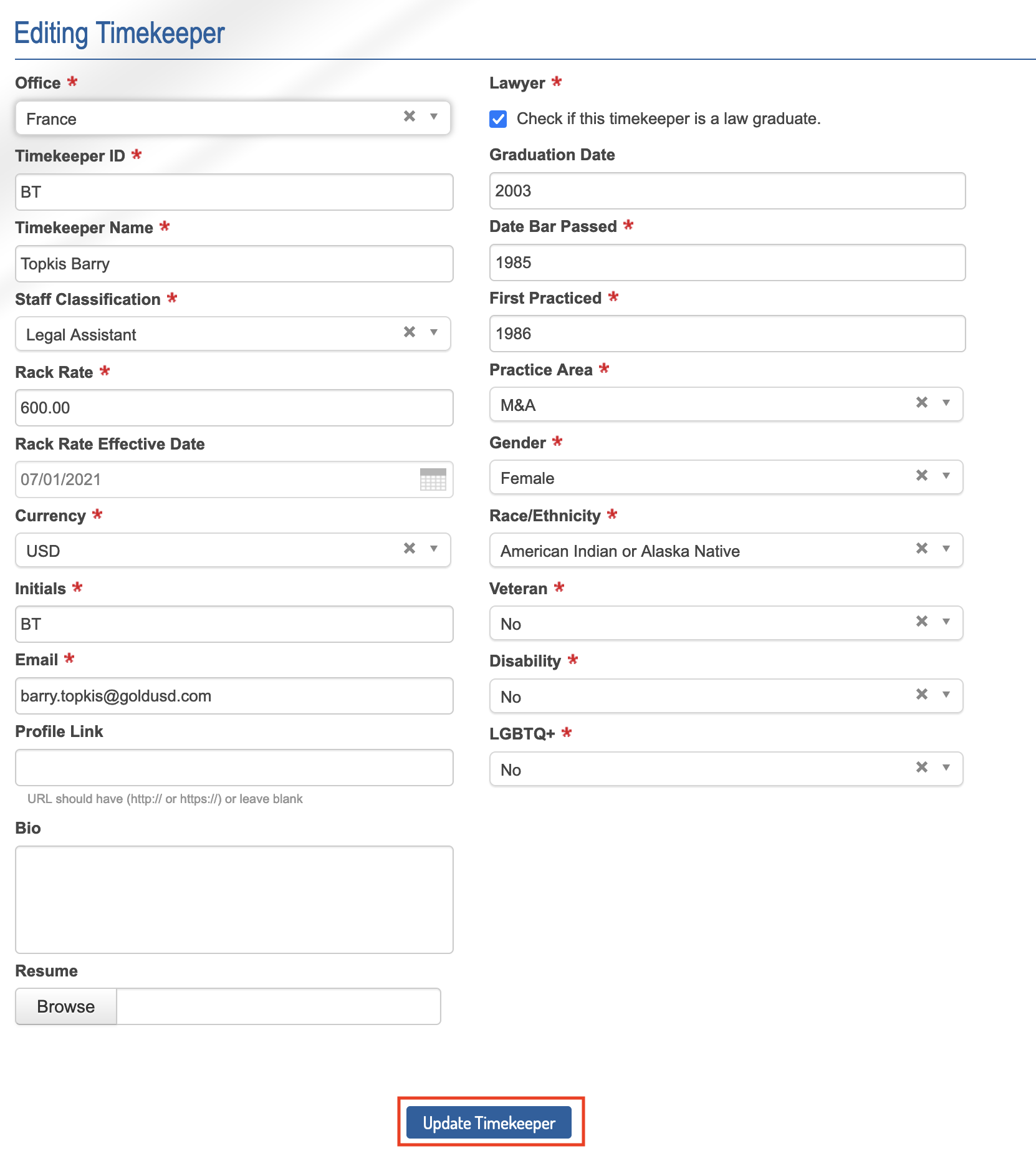
4. Update the timekeeper’s profile as needed. Anything with a red asterisk is required (note: Date Bar Passed and First Practiced Year are only required if the timekeeper is a law graduate). Click the X in selected fields to remove a selection. Click Update Timekeeper once your edits are complete.
Users can edit:
- The Office (drop-down menu)
- Whether the Lawyer is a law graduate; check or uncheck the Check if this timekeeper is a law graduate box.
- The Timekeeper ID
- The timekeeper's Graduation Date
- The Timekeeper Name
- The Date Bar Passed
- The Staff Classification (drop-down menu)
- The First Practiced date
- The Rack Rate
- The Practice Area (drop-down menu)
- The Rack Rate Effective Date (calendar); note that you cannot go backward for the rack rate date; you can enter a rack rate dated for the future, but you cannot past-date it.
- The Gender (drop-down menu)
- The Currency (drop-down menu)
- The Race/Ethnicity (drop-down menu)
- The Initials of the timekeeper
- Whether the timekeeper is a Veteran or not (drop-down menu)
- The timekeeper Email
- Whether the timekeeper has a Disability or not (drop-down menu)
- The Profile Link
- Whether the timekeeper is LGBTQ or not (drop-down menu)
- The Bio of the timekeeper
Note that you can also upload a Resume for the timekeeper.
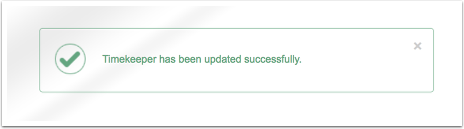
5. Confirm profile has been updated with success message at the top of your screen.